

In the modern digital era, where web scrapers, data brokers, and advertising giants track your every click, scroll, and keystroke, your choice of web browser is your first, most critical line of defense.
While tech giants like Google Chrome and Microsoft Edge continue to dominate the global browser market share, it is critical to remember that they are built, funded, and maintained by advertising corporations. Their foundational architecture prioritizes data harvesting and targeted monetization over your personal privacy.
That is why Mozilla Firefox remains one of the best open-source alternatives for power users seeking uncompromising online privacy in 2026. Because Firefox is maintained by the non-profit Mozilla Foundation, its core business model does not rely on monetizing your personal data or tracking your search history.
However, Firefox’s out-of-the-box settings are configured to strike a balance between website compatibility, user convenience, and basic security. They are not configured for maximum privacy.
To transform Firefox from a standard web browser into a hardened, tracking-resistant digital vault, you must take control and configure a specific set of advanced settings manually.
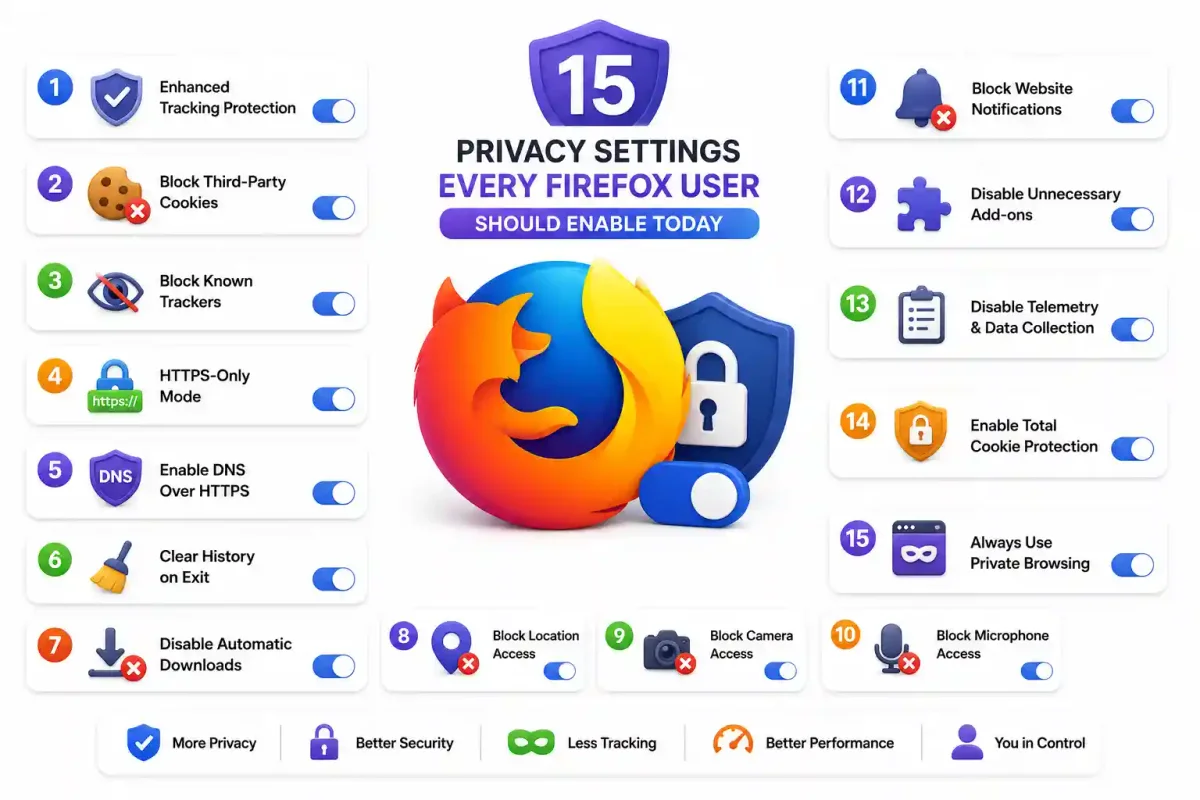
Here is our step-by-step guide to the 15 critical Firefox privacy settings you must enable today.
1. Enable Enhanced Tracking Protection (Strict Mode)
Firefox includes a powerful, built-in feature called Enhanced Tracking Protection (ETP) that automatically blocks known trackers from loading on the webpages you visit. By default, upon a fresh installation, this is set to “Standard”. Standard mode allows certain types of tracking to occur in order to prevent older, poorly coded websites from visually breaking.
To maximize your privacy and block surveillance capitalism, you must change this setting to “Strict”. Strict mode blocks social media trackers (like Facebook “Like” buttons spying on you across the web), cross-site tracking cookies, device fingerprinters, cryptominers, and all known tracking content in every window you open.
How to Enable:
- Click the Menu button (the three horizontal lines, often called the “hamburger menu”) located in the top-right corner of the browser and select Settings.
- Navigate to the Privacy & Security panel in the left-hand sidebar.
- Under the Enhanced Tracking Protection section, select the radio button for Strict.
- Click the blue Reload all tabs button that appears to apply the new rules.
[!NOTE] If a specific, older website’s visual layout breaks under Strict mode (e.g., a video fails to load, or a login button disappears), do not panic and revert the global setting. You can temporarily disable Strict mode for that specific site by clicking the Shield icon located to the left of the URL bar and toggling the switch off.
2. Block Third-Party Cookies
Third-party cookies are tracking files placed on your hard drive by advertising domains other than the specific website you are currently visiting. They are the primary weapon used by advertisers to track your browsing habits across dozens of different, unrelated websites in order to build a profile of your interests and shopping habits.
While Firefox’s Strict ETP mode (enabled in Step 1) handles the majority of this automatically based on a known blocklist, you can customize this behavior at a deeper level to ensure broader block coverage against unknown or newly created trackers.
How to Enable:
- Navigate back to Settings > Privacy & Security, and scroll down to the Enhanced Tracking Protection section.
- Select the Custom radio button.
- Ensure the Cookies checkbox is checked.
- From the associated dropdown menu, select All third-party cookies (may cause websites to break).
3. Block Known Trackers in All Windows
Trackers are invisible JavaScript files embedded within the HTML of websites that collect telemetry data about your device’s hardware configuration, your IP location, your screen resolution, and your browsing habits.
By default, Firefox’s custom mode only blocks this tracking content when you are using “Private Windows.” You want this protection running regardless of what type of window you are using.
How to Enable:
- In the Enhanced Tracking Protection section of Privacy & Security, ensure the Custom radio button is still selected.
- Ensure the Tracking content checkbox is checked.
- Change the dropdown option from its default In all private windows to In all windows.
4. Enforce HTTPS-Only Mode Globally
When you browse the internet using standard HTTP connections, your web browser transmits all of its data in plaintext. This exposes you to local network snooping, ISP data harvesting, or “man-in-the-middle” attacks at public coffee shops.
HTTPS securely encrypts the connection between your browser and the server. Enabling HTTPS-Only Mode forces Firefox to attempt to automatically upgrade all web connections to secure HTTPS. If an older, insecure website does not support HTTPS encryption, Firefox will display a warning page demanding your consent before letting you connect to the plaintext site.
This matches the same encryption principles we discuss in our guide to Encryption Tools and Full-Disk Security.
How to Enable:
- In Settings > Privacy & Security, scroll down to the bottom of the settings page.
- Locate the HTTPS-Only Mode section.
- Select the radio button labeled Enable HTTPS-Only Mode in all windows.
5. Enable DNS over HTTPS (DoH) to Hide Your Traffic
Whenever you type a human-readable web address (like freetechlearner.com), your browser must ask a Domain Name System (DNS) server to translate that name into a machine-readable IP address. By default, on almost every operating system, this DNS request is sent unencrypted in plaintext. This means your local Internet Service Provider (ISP), and anyone snooping on your local Wi-Fi network, can see a clear-text log of every website you visit.
DNS over HTTPS (DoH) encrypts these requests. To understand how DNS routing works under the hood, read our guide on What is DNS and How the Internet Phonebook Works.
How to Enable:
- In Settings > Privacy & Security, scroll down to the DNS over HTTPS section.
- Under the Configure protection level header, select Max Protection. This setting routes all DNS queries through the encrypted DoH tunnel and refuses to fall back to the insecure system DNS unless you allow it.
- Choose your preferred secure resolver from the dropdown menu. Cloudflare is the default and is fast and secure.
6. Automatically Clear History on Exit
To prevent local snooping (for example, someone opening your laptop and viewing your search history), you can configure Firefox to automatically wipe your browsing history, image cache, active session logins, and tracking cookies every time the browser is closed.
How to Enable:
- In Settings > Privacy & Security, scroll down to the History section.
- Next to the text Firefox will, select Use custom settings for history from the dropdown menu.
- Check the box that says Clear history when Firefox closes.
- Click the Settings… button next to it to select what you want cleared (Ensure Cookies, Cache, Active Logins, Browsing & Download History are checked). Click OK.
7. Disable Automatic Downloads
Compromised websites may attempt “drive-by downloads.” This is an attack where malicious executable files or ransomware payloads are silently downloaded to your computer’s hard drive without your interaction or consent. Configuring Firefox to ask for your confirmation before downloading any file stops this attack vector.
How to Enable:
- Click on Settings > General in the left-hand sidebar.
- Scroll down to the Files and Applications section.
- Under the Downloads sub-header, select the radio button labeled Always ask you where to save files.
8. Block Location Access Requests
Modern websites frequently ask for your geographical location under the guise of providing “better local services” or “local weather.” However, this data is sometimes harvested and sold to advertisers to track your movements. You can globally block websites from asking for this permission.
How to Enable:
- In Settings > Privacy & Security, scroll down to the Permissions section.
- Click the Settings… button next to Location.
- Check the box located at the bottom that says Block new requests asking to access your location.
- Click the blue Save Changes button.
9. Block Camera Access Requests
Malware, browser exploits, and rogue websites can attempt to silently hijack your webcam to spy on you. Globally blocking camera requests keeps your camera disabled at the browser level for all websites, unless you manually grant them temporary permission on a case-by-case basis (like for a Zoom web call).
How to Enable:
- Under Settings > Privacy & Security > Permissions, click the Settings… button next to Camera.
- Check the box located at the bottom: Block new requests asking to access your camera.
- Click the blue Save Changes button.
10. Block Microphone Access Requests
Like camera access, microphone access can be exploited by rogue JavaScript to silently listen in on your environment, recording your conversations and sending the audio to external servers.
How to Enable:
- Under Settings > Privacy & Security > Permissions, click the Settings… button next to Microphone.
- Check the box located at the bottom: Block new requests asking to access your microphone.
- Click the blue Save Changes button.
11. Block Website Notifications
Many modern websites prompt you with a popup requesting to “Show Notifications” the second you load the page. These notifications are rarely useful and are sometimes abused by scammers to deliver spam links or target you with desktop-level advertisements. You can turn off these prompts permanently.
How to Enable:
- Under Settings > Privacy & Security > Permissions, click the Settings… button next to Notifications.
- Check the box located at the bottom: Block new requests asking to allow notifications.
- Click the blue Save Changes button.
12. Disable Unnecessary Add-ons & Use a Password Manager
Browser extensions (Add-ons) can pose a risk. They require access to sensitive data to function, including reading the content of the pages you visit and logging the keys you press. The more extensions you have installed, the wider your digital attack surface becomes. You should periodically audit and disable any unnecessary add-ons.
Furthermore, it is generally recommended to avoid relying on Firefox’s built-in password manager to save your sensitive credentials. Browser-based password managers are less secure than dedicated, encrypted offline tools. Instead, consider disabling the Firefox password manager and using a secure external vault.
How to Disable Add-ons:
- Click the Menu button and select Add-ons and themes (or press the hotkey
Ctrl+Shift+A/Cmd+Shift+A). - Click Extensions in the left-hand sidebar.
- Toggle the switch off for any extensions you do not use on a daily basis, or click the three dots and select Remove to delete them permanently.
13. Disable Mozilla Telemetry & Data Collection
Mozilla collects telemetry data from your browser to monitor software performance, track usability metrics, and analyze crash statistics. While Mozilla is a trusted non-profit organization that respects user privacy, a stricter security posture involves sending no telemetry data back to external servers.
How to Enable:
- In Settings > Privacy & Security, scroll down to the Firefox Data Collection and Use section.
- Uncheck all of the following tracking options:
- Allow Firefox to send technical and interaction data to Mozilla
- Allow Firefox to run and install studies
- Allow Firefox to send backlogged crash reports on your behalf
14. Verify Total Cookie Protection (dFPI)
Firefox includes an architectural feature called Total Cookie Protection (technically known as Dynamic First-Party Isolation). This technology confines all cookies strictly to the specific website where they were originally created. This creates a virtual “cookie jar” for every site, preventing trackers from reading cookies from other sites to reconstruct your browsing profile.
Total Cookie Protection is enabled automatically when you use Firefox’s Standard or Strict tracking protection. By switching your browser to Strict Mode (as detailed in Step 1), you have successfully enabled Total Cookie Protection.
To visually confirm it is working, look for a solid green shield icon located directly next to the URL when browsing, representing active isolation.
15. Enforce Permanent Private Browsing Mode
For power users who demand maximum security with no traces left behind on their local operating system, you can configure Firefox to run in permanent Private Browsing mode. In this strict mode, Firefox will never remember your browsing history, cached cookies, search inputs, or saved form data. Every time you close the browser, it is as if you just installed it fresh.
How to Enable:
- In Settings > Privacy & Security, scroll back to the History section.
- In the dropdown menu located next to Firefox will, select Use custom settings for history.
- Check the box next to Always use private browsing mode.
- Firefox will prompt you to restart the browser. Once restarted, Firefox will run in private mode permanently.
Frequently Asked Questions (FAQ)
Does Firefox track my browsing data?
By default, Firefox collects some telemetry and usage data for Mozilla. However, you can disable all data collection in Privacy & Security settings by unchecking all boxes under the Firefox Data Collection section.
Is Firefox more private than Chrome?
Yes. Firefox is open-source and developed by a non-profit organization (Mozilla), not an advertising company. It offers built-in Enhanced Tracking Protection, DNS over HTTPS, and Total Cookie Protection — features that Chrome either lacks or implements less aggressively.
What is DNS over HTTPS and why should I enable it?
DNS over HTTPS (DoH) encrypts your DNS queries so that your internet service provider, network administrators, and attackers cannot see which websites you are visiting. Without DoH, DNS queries are sent in plain text and can be easily intercepted.
Should I use Firefox’s built-in password manager?
For basic use, Firefox’s built-in password manager is acceptable. However, for stronger security, a dedicated password manager like Bitwarden or 1Password offers features like cross-browser sync, breach monitoring, and more advanced encryption.
Will enabling strict privacy settings break websites?
Some websites may not function correctly with strict tracking protection enabled, especially those that rely heavily on third-party cookies and trackers. You can add specific exceptions for trusted sites without disabling your overall protection.
Summary Checklist: Secure Your Firefox Today
| The Firefox Setting | The Professional Recommendation | The Action in Settings Menu |
|---|---|---|
| Tracking Protection | Strict Mode | Privacy & Security > Strict |
| Cookies | Block All Third-Party Cookies | Privacy & Security > Custom > Cookies |
| HTTPS Mode | Enable HTTPS-Only Mode | Privacy & Security > HTTPS-Only > Enable in all windows |
| DNS Encryption | DNS over HTTPS (Max) | Privacy & Security > DNS over HTTPS > Max Protection |
| Browser History | Clear Automatically on Exit | Privacy & Security > History > Clear history on close |
| Mozilla Telemetry | Disabled | Privacy & Security > Data Collection > Uncheck all boxes |
| Hardware Permissions | Block Location, Camera, Mic | Privacy & Security > Permissions > Settings > Block new requests |
By applying these 15 settings, you can transform Firefox from a standard web browser into a hardened privacy tool capable of repelling surveillance networks.
For network-wide security protecting every device in your home, consider exploring our guide on How to Implement Advanced Firewall Security to protect your household.

Discussion
Loading comments...