

A few years ago, I spent three straight weeks painstakingly configuring my ultimate home server. I had beautifully organized media libraries, custom document parsers, and a perfectly tuned automation stack. Then, on a random Tuesday, a six-year-old hard drive clicked three times and died.
I lost everything.
When you abandon SaaS platforms in favor of the best open-source software alternatives, you inherit a terrifying responsibility: you are now your own IT department. There is no customer support hotline to call when your data vanishes. If you are serious about self-hosting, understanding disaster recovery is just as crucial as writing code. In enterprise environments, this falls under the software development lifecycle (SDLC) pipeline, but at home, it falls entirely on you.
In this guide, I’m going to walk you through exactly how I back up my production self-hosted servers today. We will cover the mandatory 3-2-1 rule, how to identify what actually needs backing up, and how to automate the entire process using tools like Rsync, Borg, and Restic.
1. The 3-2-1 Backup Rule (And Why It Matters)
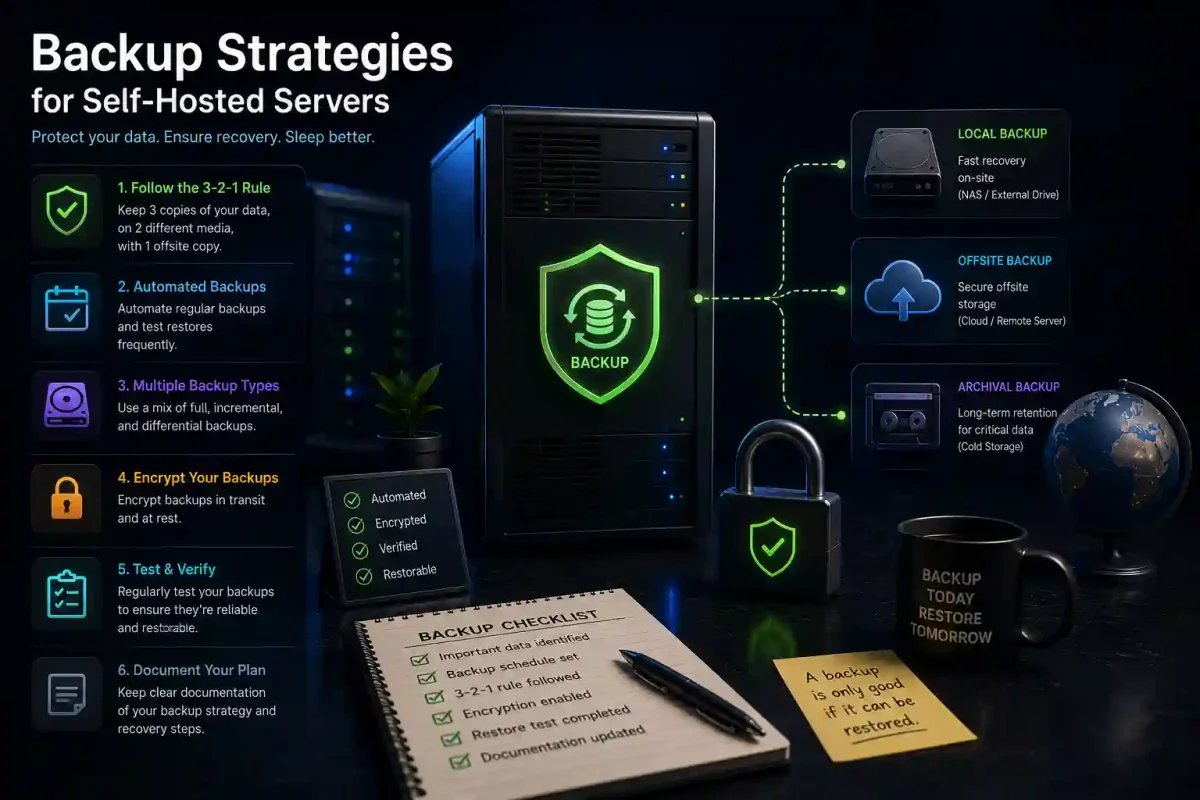
The cornerstone of all data protection is the 3-2-1 rule. If you do not follow this rule, you do not have a backup; you have a ticking time bomb.
- 3 Copies of your data: Your primary production data, plus two backup copies.
- 2 Different storage mediums: Don’t put both backups on the same type of drive. Use a local NAS for one, and an external USB drive (or a cloud bucket) for the other.
- 1 Copy strictly off-site: If your house burns down or floods, local backups burn with it. You must push one copy off-site.
For that off-site copy, you have a few choices. You could rent a cheap VPS and push files to it via SFTP transfers. If you prefer managed infrastructure, you should understand what cloud computing is and look at my AWS vs Azure vs Google Cloud cost comparison to find the cheapest object storage bucket (like AWS S3 Glacier or Backblaze B2).
If you run a dedicated hypervisor, you can also leverage your operating system. For example, if you followed my Proxmox home lab setup guide, you can automate entire virtual machine snapshots. At the disk level, understanding the BTRFS vs Ext4 filesystem comparison is crucial, as BTRFS allows for instant, delta-based filesystem snapshots.
2. Identifying What Actually Needs Backing Up
Not everything on your server is worth backing up. Storing terabytes of temporary cache files or operating system binaries is a massive waste of bandwidth. You need to identify your critical state data.
First, you need your database volumes. Whether you are running SQL dumps or copying flat files, read my PostgreSQL vs MySQL benchmark to understand how different database engines lock tables during a backup.
Second, you need your Docker volumes. If you followed my tutorial on installing Docker on Ubuntu and read my Docker vs Podman analysis, you know that container logic is stateless, but the mapped volumes are where your actual configurations live.
You also need your .env files, which hold your passwords and API keys. What you generally do not need to back up are Linux system logs.
When you start copying these system files, you will inevitably run into permissions errors. Before you start wildly applying chmod 777 to everything, please read my guide on Linux file permissions and use my Linux Permission Calculator to properly allow your backup user access to the Docker group.
3. Rsync: The Trusty Workhorse
For local, straight-to-disk backups, rsync is undefeated. It is fast, delta-based (meaning it only copies what has changed), and built into almost every Linux distribution.
To write an automated bash script, you’ll want to use a text editor. I prefer Micro over Nano, but any of the top 13 Linux CLI text editors will work beautifully.
Here is a foundational rsync command for pushing your Docker volumes to an external hard drive:
rsync -avh --delete --exclude='.cache/' /var/lib/docker/volumes /mnt/external-drive/backup/To run this automatically every night, you need to set up a cron job. You can easily generate the timing syntax using my Cron Expression Generator. Alternatively, if you want better logging and dependency management, you can trigger your backup scripts using modern systemd service timers.
If an rsync command fails, use the top 20 Linux security commands and the Linux Command Explorer to debug your network paths and verify your external drives are properly mounted.
4. Restic and Borg: Deduplication and Encryption
While rsync is great for making 1:1 copies on a local disk, it is terrible for cloud backups. If you push raw files to an Amazon S3 bucket, Amazon employees (and hackers) can theoretically read them. This is a severe privacy violation, much like the vulnerabilities I discuss in my article on common OSINT mistakes.
For offsite backups, you absolutely must use End-to-End Encryption. This is where tools like Restic and BorgBackup shine.
Restic takes your files, encrypts them heavily on your CPU, chunks them into deduplicated blocks (so if you have five copies of the same Ubuntu ISO, it only uploads it once), and pushes the encrypted blobs to the cloud.
To set up Restic, you generate a massive encryption password. You cannot lose this password. Generate a 64-character string using a Password Generator. Because human brains cannot remember cryptographic strings, store it in one of the best password managers. I highly recommend running your own self-hosted Vaultwarden server and keeping an offline backup of that vault using KeePassDX on your Android phone.
A basic Restic backup to an AWS S3 bucket looks like this:
export RESTIC_PASSWORD="YourMassivePasswordStoredInVaultwarden"
export AWS_ACCESS_KEY_ID="your-key"
export AWS_SECRET_ACCESS_KEY="your-secret"

restic backup /var/lib/docker/volumes --repo s3:s3.amazonaws.com/your-bucket/restic
5. Application-Specific Backup Strategies
Backing up raw files is easy, but modern self-hosted apps often use complex databases that can corrupt if you copy them while they are actively writing data.
For example, if you run Nextcloud for file syncing, you need to put the application into maintenance mode and run pg_dump to export a clean SQL file of the Postgres database before running Restic. The exact same rule applies to the vector databases used for facial recognition in Immich photo management, and the document OCR databases in Paperless-ngx.
For lighter applications that use SQLite databases, like the ones covered in my Jellyfin media server guide or the n8n Docker automation guide, you can usually get away with stopping the Docker container for 30 seconds, copying the .db file, and starting the container back up.
6. Securing the Backup Host
If a ransomware payload executes on your primary server, it will immediately try to crawl across your network and delete your backups. Your backup server must be fortified.
Always run through my secure home server checklist. The machine receiving the backups should strictly enforce SSH key authentication, as detailed in my guide to securing SSH on Ubuntu. It should sit behind a strictly configured UFW firewall that only allows traffic from your primary server’s IP address.
For maximum security, do not expose the backup server to the internet at all. Tunnel the backup traffic through a private VPN network like WireGuard or Tailscale. Lastly, install Fail2ban on the backup host to automatically ban any IP address that attempts to brute-force its way into your archives.
7. Monitoring and Alerting
A backup strategy is useless if it fails silently for six months. You must configure alerts.
The easiest way to monitor backups is by using ping webhooks. You can set up Uptime Kuma and configure a “Push” monitor. At the end of your bash script, simply use curl to hit the Uptime Kuma URL. If Uptime Kuma doesn’t receive that ping within 24 hours, it knows the backup failed and will send you a Telegram message.
If you prefer email alerts, be careful with SMTP scripts. Threat actors often spoof alert emails, so apply the same scrutiny to your server alerts as you would when trying to spot phishing emails or when you check a website before clicking a link.
If you want a visual dashboard of your backup sizes, you can write a script that generates a simple static HTML page with your latest backup logs and host it internally using the Caddy web server.
8. Conclusion
Backing up a home server isn’t glamorous work, but it is the defining characteristic of a mature self-hosting setup. By implementing the 3-2-1 rule, securing your database dumps, encrypting your cloud payloads with Restic, and monitoring the outputs with Uptime Kuma, you can finally sleep soundly.
Remember, a backup does not officially exist until you have successfully restored from it. Every six months, pull a random Restic snapshot down to a virtual machine and ensure your Nextcloud instance actually boots. If you rely entirely on faith, you are participating in how open-source intelligence works by blindly trusting systems without verification. Test your backups, guard your encryption keys, and keep your data yours.
Frequently Asked Questions (FAQ)
What is the 3-2-1 backup rule?
The 3-2-1 rule is the industry standard for data protection. It dictates that you should keep 3 total copies of your data (1 primary and 2 backups), store them on 2 different types of storage media (like a local NAS and an external hard drive), and keep at least 1 copy off-site (like in a cloud storage bucket) to protect against local physical disasters.
Should I backup my entire Linux operating system?
Generally, no. Backing up the entire OS wastes massive amounts of space. It is much faster and cleaner to back up your specific application configuration files (/etc/), Docker volumes, and databases. If your server dies, you simply install a fresh copy of Linux (which takes 10 minutes) and drop your configurations back into place.
Why shouldn’t I just use Rsync for my cloud backups?
Rsync copies files in plaintext. If you use Rsync to push your personal photos or tax documents to an Amazon S3 bucket, anyone with access to that bucket can read them. For cloud backups, you must use tools like Restic or BorgBackup that encrypt your data locally before it ever leaves your network.
What is the difference between Borg and Restic?
Both are fantastic, deduplicating, encrypting backup tools. Borg is generally faster and highly optimized for Linux-to-Linux backups over SSH. Restic is slightly more modern, written in Go, and features native support for a massive variety of cloud object storage providers (like AWS S3, Backblaze B2, and Azure Blob).
Do I need to stop my Docker containers to back them up?
It depends on the application. For apps that use complex databases (like PostgreSQL or MariaDB), copying the database files while they are running can result in catastrophic corruption. You should either pause the container during the backup, or better yet, run a pg_dump or mysqldump command to export a clean SQL file while the container is running.
How do I remember the encryption key for my Restic backups?
You shouldn’t try to remember it. You should generate a 64-character random cryptographic string and store it immediately in a secure password manager like Vaultwarden or KeePass. If you lose this key, your encrypted cloud backups become permanently unrecoverable.
Are RAID arrays a backup?
Absolutely not. RAID (Redundant Array of Independent Disks) protects against hardware downtime if a single drive fails. However, if you accidentally delete a file, or a ransomware virus encrypts your files, RAID will simply mirror that deletion or encryption instantly across all drives. You still need isolated, historical backups.
How often should I run my backups?
For most home servers, a nightly automated backup is perfect. It ensures you never lose more than 24 hours of data. If you have critical data that changes constantly (like an active business database), you might want to run incremental snapshots every few hours.
What happens if my backup server gets hacked?
If a hacker gains access to your backup server, they can delete your archives. This is why you must heavily secure your backup host using strict firewall rules, SSH keys, and VPN access. Furthermore, many cloud storage providers offer “immutable storage” or object locking, which prevents files from being deleted or modified for a set period, even if a hacker has the credentials.
How do I know if my backups are actually working?
The only way to know your backups are working is to test them. You should use a monitoring tool like Uptime Kuma to ping you if your backup script fails to run. Additionally, you should manually perform a “fire drill” every few months by downloading a backup and ensuring you can successfully restore your services in a temporary virtual machine.


Discussion
Loading comments...