

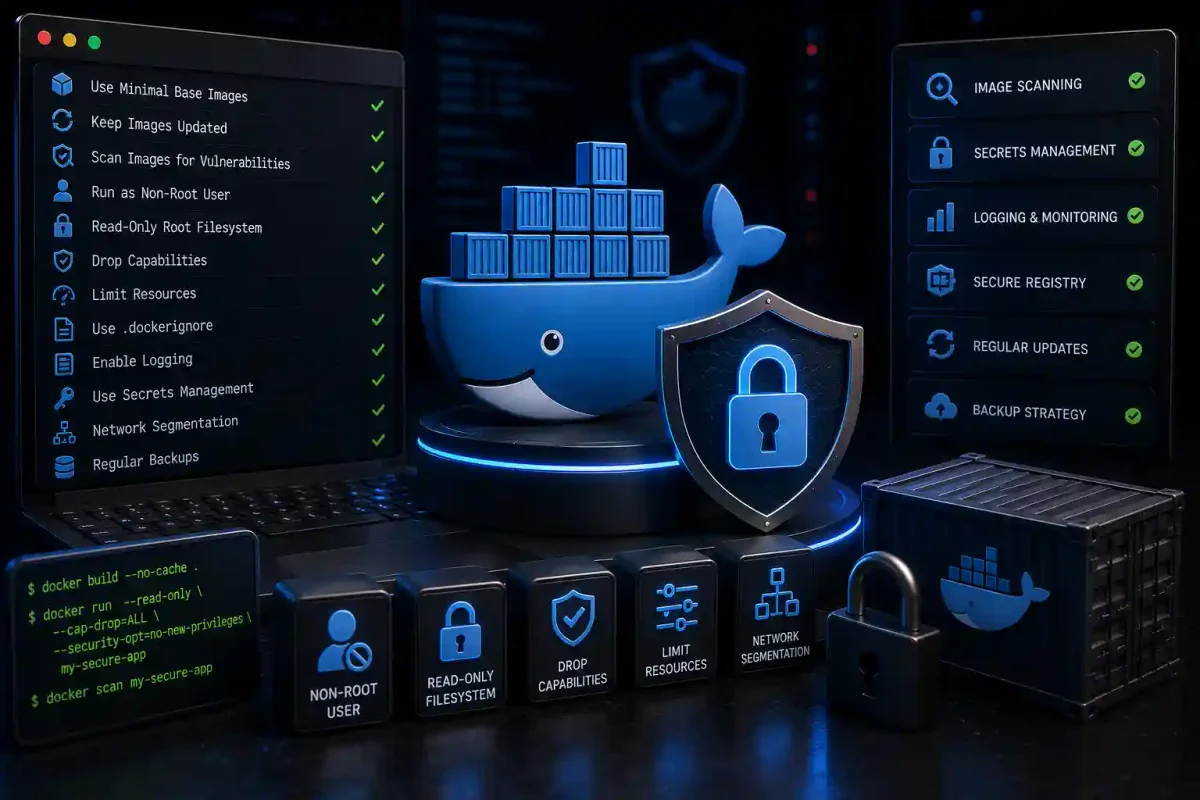
Imagine living in an apartment building where every door is unlocked, windows are open, and anyone can walk in. That’s how most Docker containers run by default—convenient but not secure.
Docker containers have revolutionized how we deploy applications, but they also introduced new security challenges. In 2026, with container adoption at an all-time high, securing Docker containers is essential for protecting your applications and data.
This beginner-friendly guide will walk you through everything you need to know about Docker container security, from basic concepts to practical protection measures.
Why Docker Security Matters
The Reality of Container Security
# Quick facts
- 70% of organizations use containers in production
- 60% of container images have high-severity vulnerabilities
- 50% of containers use root privileges unnecessarily
- 80% of security issues could be prevented with basic practices
Common Container Threats
| Threat | Description | Impact |
|---|---|---|
| Container Escape | Process breaks out of container | Full host compromise |
| Privilege Escalation | Gains more permissions | System-wide access |
| Image Vulnerabilities | Insecure software in image | Exploitable services |
| Secrets Exposure | Passwords in containers | Credential theft |
| Denial of Service | Resource exhaustion | Service disruption |
Understanding Container Security Layers
Think of Docker security like multiple doors protecting your application:
                    Container Security Layers
    ┌────────────────────────────────────────────────┐
    │  Application Code Security                     │
    ├────────────────────────────────────────────────┤
    │  Container Image Security                      │
    ├────────────────────────────────────────────────┤
    │  Container Runtime Security                    │
    ├────────────────────────────────────────────────┤
    │  Host (Server) Security                        │
    ├────────────────────────────────────────────────┤
    │  Network Security                              │
    └────────────────────────────────────────────────┘
Layer 1: Image Security
1. Use Official Images
The Problem: Unofficial images may contain malware, backdoors, or outdated software.
The Solution: Always use official or verified images.
# Good - Official image
docker pull nginx:latest

# Bad - Unofficial/random image
docker pull random-user/nginx:latest

# Check if image is official
docker pull nginx:latest
docker inspect nginx:latest | grep -i "official"
2. Scan for Vulnerabilities
The Problem: Images often contain outdated, vulnerable software.
The Solution: Scan images regularly for known vulnerabilities.
Using Docker Scan (Built-in):
# Basic vulnerability scan
docker scan nginx:latest

# Scan with detailed output
docker scan --severity high nginx:latest

# Scan specific image
docker scan myapp:latest
Using Trivy (Free, Comprehensive):
# Install Trivy
brew install aquasecurity/trivy/trivy
# or on Ubuntu
sudo apt install trivy

# Scan image
trivy image nginx:latest

# Scan with detailed output
trivy image --severity HIGH,CRITICAL nginx:latest

# Scan all layers
trivy image --detail nginx:latest
Using Clair (Open-source Scanner):
# Run Clair scanner
docker run -d --name clair -p 6060:6060 arminc/clair-db:latest

# Scan with Clair
docker run --rm -v /var/run/docker.sock:/var/run/docker.sock \
    -v /tmp:/tmp \
    arminc/clair-local-scan:latest \
    --clair ip:6060 \
    --image myapp:latest
3. Keep Images Small and Minimal
The Problem: Large images with unnecessary packages increase attack surface.
The Solution: Use small, minimal base images.
# Good - Minimal base (Alpine)
FROM alpine:3.18
RUN apk add --no-cache nginx

# Better - Distroless (Google's minimal)
FROM gcr.io/distroless/base
COPY --from=builder /app /app

# Bad - Large image with bloat
FROM ubuntu:latest
RUN apt-get update && apt-get install -y \
    vim curl wget netcat python3 \
    # Many unnecessary packages
Size Comparison:
# Alpine (5MB)
FROM alpine:latest
# Image size: ~5MB

# Ubuntu (70MB)
FROM ubuntu:latest
# Image size: ~70MB

# Distroless (20MB)
FROM gcr.io/distroless/base
# Image size: ~20MB
4. Use Multi-stage Builds
The Problem: Build tools and dependencies remain in final image, increasing size.
The Solution: Use multi-stage builds to keep only runtime essentials.
# Dockerfile with multi-stage build
# Stage 1: Build
FROM golang:1.21 AS builder
WORKDIR /app
COPY . .
RUN go build -o myapp

# Stage 2: Runtime
FROM alpine:latest
RUN apk add --no-cache ca-certificates
WORKDIR /root/
COPY --from=builder /app/myapp .
EXPOSE 8080
CMD ["./myapp"]
Benefits:
- Smaller final image
- No build tools in production
- Reduced attack surface
Layer 2: Runtime Security
1. Run Containers as Non-Root User
The Problem: Containers run as root by default.
The Solution: Create and use a non-root user inside containers.
# Dockerfile - Create non-root user
FROM alpine:latest

# Create user and group
RUN addgroup -S appgroup && \
    adduser -S appuser -G appgroup

# Switch to non-root user
USER appuser

# Rest of your commands
COPY app /app/
CMD ["/app/myapp"]
Test if running as non-root:
# Check user inside container
docker exec container-name whoami
# Should show 'appuser' not 'root'

# Check process ownership
docker exec container-name ps aux
2. Drop All Capabilities
The Problem: Containers get unnecessary Linux capabilities.
The Solution: Drop all capabilities, then add only what’s needed.
# Run with minimal capabilities
docker run --cap-drop=ALL --cap-add=NET_BIND_SERVICE nginx

# Example: Run a web server
docker run -d \
    --name web \
    --cap-drop=ALL \
    --cap-add=NET_BIND_SERVICE \
    --cap-add=CHOWN \
    nginx

# Check running with minimal capabilities
docker inspect web | grep -A 5 CapAdd
Common Capabilities:
# Dangerous (drop them)
NET_ADMIN    # Network configuration
SYS_ADMIN    # System administration
SYS_TIME     # Change system time
SYS_PTRACE   # Trace processes

# Safe to add (if needed)
NET_BIND_SERVICE  # Bind to ports <1024
CHOWN             # Change file ownership
DAC_OVERRIDE      # Override file permissions
3. Set Resource Limits
The Problem: One container can consume all system resources.
The Solution: Set CPU, memory, and I/O limits.
# Set memory limits
docker run -d \
    --memory=512m \
    --memory-swap=1g \
    --cpus=0.5 \
    nginx

# Check resource usage
docker stats

# Advanced limits
docker run -d \
    --memory=512m \
    --memory-reservation=256m \
    --cpus=0.5 \
    --blkio-weight=100 \
    nginx
Setting Limits in Docker Compose:
version: '3.8'
services:
  web:
    image: nginx
    deploy:
      resources:
        limits:
          cpus: '0.5'
          memory: 512M
        reservations:
          cpus: '0.25'
          memory: 256M
4. Use Read-Only Filesystem
The Problem: Attackers can write malicious files if they compromise a container.
The Solution: Make the filesystem read-only when possible.
# Run with read-only filesystem
docker run -d \
    --read-only \
    --tmpfs /tmp \
    --tmpfs /var/run \
    nginx

# For writing temporary files
docker run -d \
    --read-only \
    --tmpfs /tmp:rw,size=100M \
    --tmpfs /var/run:rw,size=100M \
    nginx
Layer 3: Network Security
1. Use Custom Networks
The Problem: Default bridge network allows containers to see each other.
The Solution: Create isolated networks for different services.
# Create custom networks
docker network create frontend
docker network create backend

# Run containers on specific networks
docker run -d --name web --network frontend nginx
docker run -d --name api --network backend --network frontend node-app

# This API container is on both networks
Network Isolation Example:
# Frontend-only container
docker run -d --name nginx --network frontend nginx

# Backend-only container (can't reach frontend)
docker run -d --name database --network backend postgres

# Container on both networks (can talk to both)
docker run -d --name api --network frontend --network backend node-app
2. Expose Only Necessary Ports
The Problem: Exposing unnecessary ports increases attack surface.
The Solution: Only expose ports that applications need.
# Good - Only expose port 80
docker run -d -p 80:80 nginx

# Bad - Exposing all ports (don't do this)
docker run -d -P nginx

# Good - Bind to specific IP
docker run -d -p 127.0.0.1:8080:80 nginx

# Internal only (no host exposure)
docker run -d --expose 80 nginx
Port Best Practices:
# Only expose what's needed
docker run -d \
    -p 127.0.0.1:80:80 \  # Only localhost
    -p 443:443 \           # Public HTTPS
    nginx
3. Disable Inter-Container Communication (When Not Needed)
The Problem: Containers can communicate freely by default.
The Solution: Use network isolation and --icc=false when appropriate.
# Create isolated network
docker network create isolated

# Disable ICC on bridge (completely isolates containers)
docker daemon --icc=false

# Use network policies (with user-defined networks)
docker network create --subnet=172.20.0.0/16 mynetwork
docker run -d --network mynetwork nginx
Layer 4: Secrets Management
1. Never Hardcode Secrets
The Problem: Secrets in Dockerfiles or code can be exposed.
The Solution: Use environment variables, Docker secrets, or external stores.
# BAD - Hardcoded in Dockerfile
FROM python:3.9
ENV DB_PASSWORD=secret123
# ❌ Do NOT do this

# BAD - Hardcoded in code
import os
password = "secret123"
# ❌ Do NOT do this

# GOOD - Use environment variables
docker run -e DB_PASSWORD=secret123 python-app

# BEST - Use Docker secrets (Swarm) or external vault
# Use HashiCorp Vault, AWS Secrets Manager, or Azure Key Vault
2. Use Docker Secrets (Swarm Mode)
The Problem: Environment variables can be exposed in logs.
The Solution: Use Docker secrets for sensitive data.
# Initialize Swarm
docker swarm init

# Create a secret
echo "secretpassword" | docker secret create db_password -

# Use secret in service
docker service create \
    --secret db_password \
    --publish 80:80 \
    nginx

# In container, secret appears as file
# /run/secrets/db_password
3. External Secret Management
# Using HashiCorp Vault
# Run vault container
docker run -d --cap-add=IPC_LOCK -p 8200:8200 vault

# Using AWS Secrets Manager
aws secretsmanager create-secret \
    --name mysecret \
    --secret-string '{"password":"secret123"}'

# Using Docker Compose with secrets
version: '3.8'
services:
  web:
    image: nginx
    secrets:
      - db_password
secrets:
  db_password:
    external: true
Layer 5: Host Security
1. Keep Docker Updated
# Check current version
docker --version

# Update Docker (Ubuntu/Debian)
sudo apt update
sudo apt upgrade docker-ce docker-ce-cli containerd.io

# Update Docker (RHEL/CentOS)
sudo yum update docker-ce docker-ce-cli containerd.io

# Check for security patches
docker --version
2. Use Security Profiles
The Problem: Docker containers can access many system resources.
The Solution: Use AppArmor vs SELinux and Seccomp profiles.
# Use AppArmor profile
docker run -d \
    --security-opt apparmor=docker-default \
    nginx

# Use Seccomp profile
docker run -d \
    --security-opt seccomp=profile.json \
    nginx

# Example: Custom Seccomp profile
docker run -d \
    --security-opt seccomp=/etc/docker/seccomp.json \
    nginx
3. Restrict Access to Docker Socket
The Problem: Anyone with access to Docker socket can control the host.
The Solution: Restrict socket access to only trusted users.
# Check socket permissions
ls -la /var/run/docker.sock
# Should be: srw-rw---- 1 root docker

# Add users to docker group carefully
sudo usermod -aG docker username

# Monitor who accesses the socket
sudo auditctl -w /var/run/docker.sock -p rwxa -k docker_socket
Layer 6: Runtime Monitoring
1. Monitor Container Activity
The Problem: You can’t respond to threats you don’t see.
The Solution: Implement monitoring and logging.
# Monitor running containers
docker stats

# Check logs
docker logs container-name

# Follow logs in real-time
docker logs -f container-name

# Check resource usage
docker stats --no-stream
2. Use Security Tools
Falco (Runtime Security):
# Install Falco
curl -s https://falco.org/repo/falcosecurity-packages.repo \
    | sudo tee /etc/yum.repos.d/falcosecurity.repo
sudo yum install -y falco

# Run Falco
sudo systemctl start falco
sudo journalctl -u falco -f

# Run Falco in Docker
docker run -d \
    --name falco \
    --restart=always \
    --privileged \
    -v /var/run/docker.sock:/var/run/docker.sock \
    falcosecurity/falco
Docker Bench Security:
# Run CIS benchmark
docker run -it --net host --pid host \
    --cap-add audit_control \
    -e DOCKER_CONTENT_TRUST=$DOCKER_CONTENT_TRUST \
    -v /var/lib:/var/lib \
    -v /var/run/docker.sock:/var/run/docker.sock \
    --label docker_bench_security \
    docker/docker-bench-security

# Check results
# Will show warnings and passes for CIS Docker benchmarks
3. Set Up Alerts
#!/bin/bash
# container-alerts.sh
# Alerts for suspicious container activity

# Check for containers with root privileges
echo "=== Containers running as root ==="
docker ps --format "table {{.Names}}\t{{.Image}}" \
    | while read name image; do
    if [ "$name" != "NAMES" ]; then
        if docker exec $name whoami 2>/dev/null | grep -q root; then
            echo "WARNING: $name runs as root"
        fi
    fi
done

# Check for privileged containers
echo -e "\n=== Privileged containers ==="
docker ps --filter "status=running" --format "{{.Names}}" \
    | while read name; do
    if docker inspect $name | grep -q '"Privileged": true'; then
        echo "WARNING: $name is privileged"
    fi
done

# Check for containers with open ports
echo -e "\n=== Containers with exposed ports ==="
docker ps --format "table {{.Names}}\t{{.Ports}}"
Dockerfile Security Best Practices
1. Security-Focused Dockerfile Template
# Choose minimal base image
FROM alpine:3.18

# Set labels
LABEL maintainer="[email protected]"
LABEL security.updated="2024-01-01"

# Create non-root user
RUN addgroup -S appgroup && \
    adduser -S appuser -G appgroup

# Update and install only needed packages
RUN apk add --no-cache \
    ca-certificates \
    tzdata

# Set working directory
WORKDIR /app

# Copy files with proper permissions
COPY --chown=appuser:appgroup . .

# Remove unnecessary files
RUN rm -rf /tmp/* /var/cache/apk/*

# Switch to non-root user
USER appuser

# Security options in build
# HEALTHCHECK --interval=30s --timeout=3s CMD curl -f http://localhost || exit 1

# Expose only needed ports
EXPOSE 8080

# Run as non-root
CMD ["./app"]
2. Common Dockerfile Security Issues
# ❌ DON'T - Root user
USER root
RUN pip install -r requirements.txt

# ✅ DO - Non-root user
USER appuser
RUN pip install --user -r requirements.txt

# ❌ DON'T - Copy secrets
COPY .env /app/

# ✅ DO - Use build args
ARG DB_PASSWORD
ENV DB_PASSWORD=$DB_PASSWORD

# ❌ DON'T - Keep build tools
RUN apk add gcc make

# ✅ DO - Remove after build
RUN apk add --no-cache --virtual .build-deps gcc make && \
    make install && \
    apk del .build-deps

# ❌ DON'T - Expose all ports
EXPOSE 1-65535

# ✅ DO - Expose specific ports
EXPOSE 80 443
Docker Compose Security
Secure Docker Compose Template
version: '3.8'

services:
  web:
    image: nginx:latest
    # Use non-root user
    user: appuser
    # Drop all capabilities
    cap_drop:
      - ALL
    # Only add needed capabilities
    cap_add:
      - NET_BIND_SERVICE
    # Read-only filesystem
    read_only: true
    # Resources limits
    deploy:
      resources:
        limits:
          cpus: '0.5'
          memory: 512M
    # Network isolation
    networks:
      - frontend
    # Only expose needed ports
    ports:
      - "127.0.0.1:80:80"
    # Security options
    security_opt:
      - no-new-privileges:true
      - apparmor=docker-default
    # Environment variables (use secrets)
    environment:
      - NODE_ENV=production
    # Health check
    healthcheck:
      test: ["CMD", "curl", "-f", "http://localhost"]
      interval: 30s
      timeout: 10s

networks:
  frontend:
    driver: bridge
    internal: false
  backend:
    driver: bridge
    internal: true
Security Scanning Tools
Docker Security Tools Comparison
| Tool | Purpose | Type | Best For |
|---|---|---|---|
| Docker Scan | Vulnerability scanning | Built-in | Quick scans |
| Trivy | Comprehensive scanning | Open-source | Detailed scanning |
| Clair | Layer scanning | Open-source | CI/CD pipelines |
| Falco | Runtime security | Open-source | Active monitoring |
| Docker Bench | CIS compliance | Open-source | Hardening validation |
| Aqua Trivy | All-in-one | Open-source | Complete scanning |
Using Trivy for Complete Scanning
# Install Trivy (Ubuntu)
sudo apt install trivy

# Scan image
trivy image myapp:latest

# Scan with severity
trivy image --severity HIGH,CRITICAL myapp:latest

# Scan and ignore unfixable
trivy image --ignore-unfixed myapp:latest

# Generate report
trivy image --format json --output report.json myapp:latest

# Scan filesystem
trivy fs /path/to/project

# Scan repository
trivy repo https://github.com/user/repo
Docker Security Checklist
🟢 Pre-deployment (Image Security)
- Used official images from trusted repositories
- Scanned image for vulnerabilities
- Used minimal base image (Alpine or Distroless)
- Removed unnecessary packages
- Implemented multi-stage builds
- Created non-root user
- Not included secrets in Dockerfile
- Used specific version tags (not
latest)
🟡 Runtime Security
- Run containers as non-root user
- Dropped all capabilities
- Added only necessary capabilities
- Set memory and CPU limits
- Used read-only filesystem
- Implemented health checks
- Used security profiles (AppArmor/Seccomp)
🔵 Network Security
- Used custom networks
- Only exposed necessary ports
- Bound ports to localhost when possible
- Disabled inter-container communication when not needed
- Used network policies
- Encrypted network traffic (TLS)
🟣 Secrets Management
- Not hardcoded secrets
- Used environment variables for secrets
- Used Docker secrets (Swarm)
- Used external secret management (Vault, AWS Secrets)
- Rotated secrets regularly
🟠 Monitoring and Updates
- Updated Docker to latest version
- Implemented container monitoring
- Set up logging and alerts
- Regularly scan for vulnerabilities
- backup important data
- Have incident response plan
Common Docker Security Mistakes
❌ Mistake 1: Running as Root
# BAD
docker run -it ubuntu /bin/bash  # Runs as root

# GOOD
docker run -it --user 1000 ubuntu /bin/bash

# BETTER - Create non-root user in Dockerfile
FROM ubuntu
RUN useradd -m appuser
USER appuser
❌ Mistake 2: Exposing SSH in Containers
# BAD - Running SSH inside container
docker run -d -p 22:22 ubuntu /usr/sbin/sshd -D

# GOOD - Use docker exec for access
docker exec -it container-name bash
❌ Mistake 3: Using Latest Tag
# BAD - Unpredictable version
FROM nginx:latest

# GOOD - Specific version
FROM nginx:1.25.3
❌ Mistake 4: Storing Secrets in Images
# BAD - Secrets in image
ENV DB_PASSWORD=secret123

# GOOD - Pass at runtime
docker run -e DB_PASSWORD=secret123 myapp
❌ Mistake 5: Not Setting Resource Limits
# BAD - Unlimited resources
docker run -d nginx

# GOOD - Limited resources
docker run -d --memory=512m --cpus=0.5 nginx
Recovery from Container Breach
Step 1: Identify and Contain
# Identify affected container
docker ps

# Stop suspicious container
docker stop suspicious-container

# Remove container (if confirmed compromised)
docker rm suspicious-container

# Quarantine the container
docker stop suspicious-container
docker start -a suspicious-container  # Check logs
Step 2: Investigate
# Check logs
docker logs suspicious-container

# Create container image for analysis
docker commit suspicious-container suspicious-image
docker run -it suspicious-image /bin/bash

# Inspect for persistence
# Look for:
# - Suspicious processes
# - Cron jobs
# - SSH keys
# - Unusual network connections
Step 3: Recovery Steps
# 1. Remove infected container
docker rm -f suspicious-container

# 2. Remove infected image
docker rmi suspicious-image

# 3. Scan other containers
docker scan --severity critical $(docker images -q)

# 4. Update all images
docker pull image:latest

# 5. Rotate credentials
# Change all passwords, API keys, etc.

# 6. Review logs for indicators of compromise
docker logs container-name | grep -i "unauthorized\|failed"

# 7. Implement additional security measures
# - Enable more logging
# - Update security policies
# - Consider network segmentation
Docker Security in CI/CD
Security Scanning in Pipeline (GitHub Actions)
name: Docker Security Scan

on:
  push:
    branches: [ main ]
  pull_request:
    branches: [ main ]

jobs:
  security-scan:
    runs-on: ubuntu-latest
    steps:
      - uses: actions/checkout@v3

      - name: Build Docker image
        run: docker build -t myapp:latest .

      - name: Run Trivy vulnerability scanner
        uses: aquasecurity/trivy-action@master
        with:
          image-ref: 'myapp:latest'
          format: 'table'
          exit-code: '1'
          severity: 'CRITICAL,HIGH'

      - name: Run Docker Bench Security
        run: |
          docker run -it --net host --pid host \
            -v /var/run/docker.sock:/var/run/docker.sock \
            docker/docker-bench-security

      - name: Scan for secrets
        uses: zricethezav/[email protected]
Jenkins Pipeline Security Stage
pipeline {
    agent any

    stages {
        stage('Build') {
            steps {
                sh 'docker build -t myapp:${BUILD_NUMBER} .'
            }
        }

        stage('Security Scan') {
            steps {
                sh '''
                    # Trivy scan
                    trivy image --exit-code 1 --severity HIGH,CRITICAL myapp:${BUILD_NUMBER}

                    # Docker bench
                    docker run --rm --net host --pid host \
                        -v /var/run/docker.sock:/var/run/docker.sock \
                        docker/docker-bench-security
                '''
            }
        }

        stage('Push') {
            steps {
                sh 'docker push myapp:${BUILD_NUMBER}'
            }
        }
    }
}
Advanced Security Topics
1. Container Runtime Security (gVisor)
gVisor provides sandboxed container runtime with strong isolation.
# Install gVisor
curl -fsSL https://gvisor.dev/archive.key | sudo apt-key add -
echo "deb https://storage.googleapis.com/gvisor/releases/release/latest /" \
    | sudo tee /etc/apt/sources.list.d/gvisor.list
sudo apt update
sudo apt install runsc

# Run container with gVisor
docker run --runtime=runsc -it ubuntu bash
2. Rootless Docker
Run Docker without root privileges.
# Install rootless Docker
curl -fsSL https://get.docker.com/rootless | sh

# Start Docker without root
systemctl --user start docker

# Test
docker run hello-world
3. Kubernetes Security (Kubernetes)
For orchestrating containers, apply security at cluster level.
# Pod Security Standards
apiVersion: v1
kind: Pod
metadata:
  name: secure-pod
spec:
  securityContext:
    runAsNonRoot: true
    runAsUser: 1000
    seccompProfile:
      type: RuntimeDefault
    capabilities:
      drop:
        - ALL
      add:
        - NET_BIND_SERVICE
Quick Reference Card
Docker security commands
| Purpose | Command |
|---|---|
| Scan image | docker scan image:tag |
| Check image layers | docker history image:tag |
| Inspect container | docker inspect container |
| Check container logs | docker logs container |
| Monitor resources | docker stats |
| Run privileged scan | docker run --privileged ... |
| Check Docker version | docker --version |
Essential Dockerfile Security Options
# Non-root user
USER appuser

# Specific version
FROM nginx:1.25.3

# Multi-stage build
FROM builder AS build
FROM alpine AS runtime

# Minimal base
FROM alpine:latest

# No secrets in build
ARG DB_PASSWORD
ENV DB_PASSWORD=$DB_PASSWORD
Runtime Security Flags
# Drop all capabilities
--cap-drop=ALL

# Add only needed
--cap-add=NET_BIND_SERVICE

# Non-root user
--user 1000:1000

# Read-only filesystem
--read-only

# Memory limit
--memory=512m

# CPU limit
--cpus=0.5

# Security profiles
--security-opt seccomp=profile.json
--security-opt apparmor=docker-default
Conclusion
Docker container security requires a layered approach. By following best practices at each layer—from image building to runtime monitoring—you can significantly reduce security risks.
Key Takeaways:
- Always use official images and scan for vulnerabilities
- Never run containers as root
- Always limit resources and capabilities
- Never hardcode secrets
- Always monitor container activity
- Never stop learning—security evolves constantly
Quick Start Checklist:
- Scan your images (
docker scan) - Run containers as non-root user
- Drop unnecessary capabilities
- Set memory and CPU limits
- Implement logging and monitoring
Ready to secure your containers? Explore our Complete DevOps Security Guide for more advanced topics.
Frequently Asked Questions (FAQs)
Q: Are Docker containers secure by default? A: No. Docker provides basic isolation, but proper security requires additional configuration and best practices.
Q: Can attackers escape from containers? A: Yes, container escapes are possible, especially when containers run with root privileges or without proper restrictions.
Q: Do I need antivirus in Docker containers? A: Not typically, but you should scan images for vulnerabilities and use runtime security tools.
Q: Should I use Alpine images? A: Yes, Alpine provides a minimal base with small attack surface, but ensure you need the packages it provides.
Q: How often should I update container images? A: At least weekly for security patches. More frequently for critical applications.
Q: Can I run Docker rootless? A: Yes, Docker supports rootless mode for additional security, though with some limitations.

Discussion
Loading comments...