

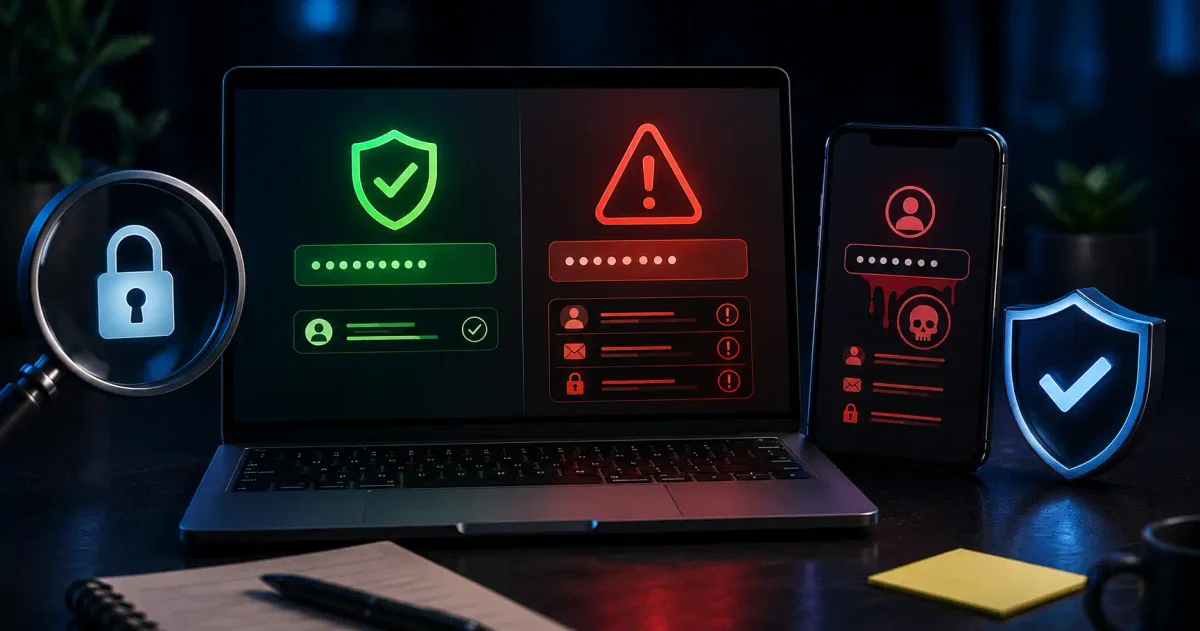
Imagine someone possessing a duplicate key to your front door without your knowledge.
That is what happens when your login credentials are leaked in a corporate data breach. Cybercriminals add your username, email, and password to dark web databases, testing those exact credentials against thousands of online portals using automated botnets.
In 2026, over 24 billion stolen usernames and passwords circulate across dark web forums. The most dangerous part? Most internet users remain completely unaware that their personal email or primary password has been compromised in a third-party supply chain leak.
Understanding how data breaches occur and auditing your accounts using zero-knowledge privacy standards is essential for maintaining digital identity security.
In this guide, we will show you how to audit whether your accounts have been leaked, explain the privacy math behind k-Anonymity API queries (how to check passwords without sending your actual password to a server), examine breach monitoring tools, and detail a step-by-step incident response playbook if your data is exposed.
⚡ The Breach Remediation Workflow
If you discover your email or password has been exposed in a data breach, follow this emergency incident response flow:
- Identify Breach Source → Check Have I Been Pwned or password manager breach monitoring →
- Isolate Compromised Account → Log into breached service and immediately change password →
- Identify Reused Passwords → Locate all other accounts sharing that exact password →
- Generate Unique High-Entropy Keys → Generate 16+ character random passphrases for each account →
- Enable Multi-Factor Authentication → Attach TOTP authenticator app or hardware YubiKey →
- Audit Vault Security → Store new credentials inside a zero-knowledge password manager
📊 Breach Audit Methods & Security Tools Comparison
Here is how the primary password leak auditing services compare across privacy and verification methods:
| Audit Tool / Service | Privacy Architecture | Verification Method | Cost Model | Primary Ideal Use Case |
|---|---|---|---|---|
| Have I Been Pwned (HIBP) | k-Anonymity Hashing (SHA-1 5-character prefix matching) | Email & Password Hash Lookup | 100% Free Public Tool | Individual email & password breach auditing |
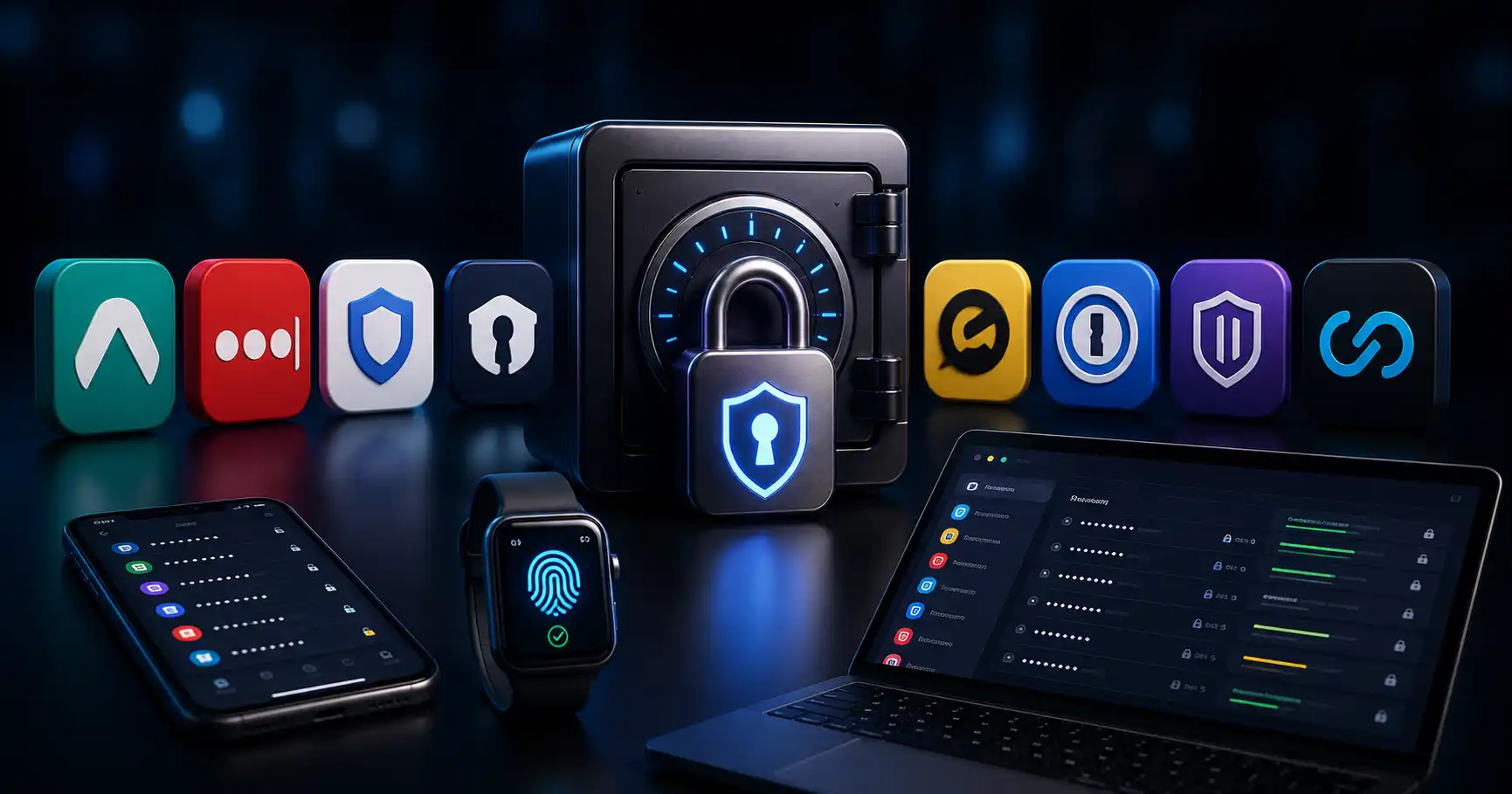
| Bitwarden Breach Watcher | Built-in k-Anonymity Hashing API | Continuous Vault Monitoring | Free & Premium Plans | Automated background auditing of stored passwords |
| 1Password Watchtower | Integrated HIBP API + Dark Web Alerts | Real-time Vault Auditing | Included in Subscription | Enterprise team & family breach tracking |
| Firefox Monitor | Powered by HIBP API | Domain & Email Breach Alerts | Free Browser Service | Automatic notifications for breach leaks |
| DeHashed | Deep Search Indexing | Reverse Email / IP / Hash Search | Paid Search API | Professional OSINT & Incident Response investigations |
1. How Passwords Get Leaked (The Breach Pipeline)
Understanding how credentials leak helps you prevent future exposure.
Common Breach Vectors
- Corporate Database Hacks: Cybercriminals exploit SQL injection (SQLi) or unpatched server vulnerabilities to dump database user tables containing email and password records.
- Insecure Storage (Plaintext Passwords): Companies storing passwords in plain text or using outdated, broken hashing algorithms (like MD5 or unsalted SHA-1).
- Phishing & Credential Harvesters: Scammers trick users into entering credentials on fake login pages.
- Malware & Infostealers: RedLine, Raccoon, or Vidar infostealer malware infects a device, extracting saved browser cookies, session tokens, and stored credentials.
- Credential Stuffing Botnets: Hackers take a password leaked from one small website and automatically test it across high-value sites (Amazon, PayPal, Banking) using automated proxy networks and botnet tools.
- Dark Web Paste Sites: Automated scripts constantly monitor Pastebin, Telegram channels, and dark web forums for leaked text dumps containing user accounts and access keys.
- Unsecured Cloud Storage Buckets: Companies leaving AWS S3 buckets or database backups exposed publicly on the web without authentication.
- Third-Party Supply Chain Leaks: Hackers breach a third-party vendor or SaaS plugin, stealing customer database records connected to main corporate platforms.
2. How to Safely Audit Passwords (k-Anonymity Math Explained)
A common concern when checking if a password is leaked is: “If I type my password into a leak checker website, aren’t I risking giving my password to a stranger?”
A legitimate breach auditor like Have I Been Pwned (HIBP) never receives your actual password. It uses a brilliant cryptographic protocol called k-Anonymity.
How k-Anonymity Protects Your Privacy
Here is how k-Anonymity verifies your password without ever transmitting it over the internet:
- 1. Local Hashing: Your browser hashes your password using the SHA-1 cryptographic hashing algorithm locally inside client memory (e.g.
P@ssword123➔CBFD282082CD0374C10D5C63CE3C...). - 2. Prefix Splitting: The browser splits the 40-character SHA-1 hash into two distinct parts:
- First 5 Characters (Prefix):
CBFD2 - Remaining 35 Characters (Suffix):
82082CD0374C10D5C63CE3C...
- First 5 Characters (Prefix):
- 3. Anonymized Request: Your browser sends only the 5-character prefix (
CBFD2) to the HIBP server API over an encrypted HTTPS connection. - 4. Server Hash Return: The HIBP server searches its database for all leaked password hashes starting with
CBFD2and returns a list of hundreds of hash suffixes along with their breach occurrence counts. - 5. Client-Side Match: Your browser locally compares its remaining 35-character suffix against the returned list. If a match is found, your browser alerts you—without the HIBP server ever knowing what password you searched!
- 6. Complete Anonymity Guarantee: Because thousands of different passwords share the exact same 5-character SHA-1 prefix (
CBFD2), the HIBP server has zero mathematical way to reconstruct or guess which specific password you checked.
3. Step-by-Step Guide: How to Check if Your Accounts Are Exposed
Follow these steps to conduct a comprehensive security audit of your online identity.
Step 1: Audit Your Email Addresses
- Visit the official Have I Been Pwned website (
haveibeenpwned.com). - Enter your primary email address (and any secondary legacy email addresses).
- Click Pwned?.
- HIBP will display a list of every historical data breach involving your email address (e.g. Adobe, LinkedIn, Canva), detailing what specific data types were exposed (emails, passwords, IP addresses, credit cards).
- Check the Pastes tab to verify if your email address appeared in unformatted raw text dumps on public code-sharing sites like Pastebin or GitHub.
Step 2: Audit Stored Vault Credentials
Instead of checking individual passwords manually, use built-in vault auditing tools inside modern password managers:
- Bitwarden: Navigate to Vault Health Reports → Exposed Passwords Report or Reused Passwords Report.
- 1Password: Check Watchtower to see a list of compromised, weak, or reused passwords across all your vaults.
Step 3: Domain & Enterprise Email Monitoring
If you manage an enterprise domain, small business, or dev team:
- HIBP Domain Search: Verify ownership of your domain (via TXT record verification) to monitor all email addresses under
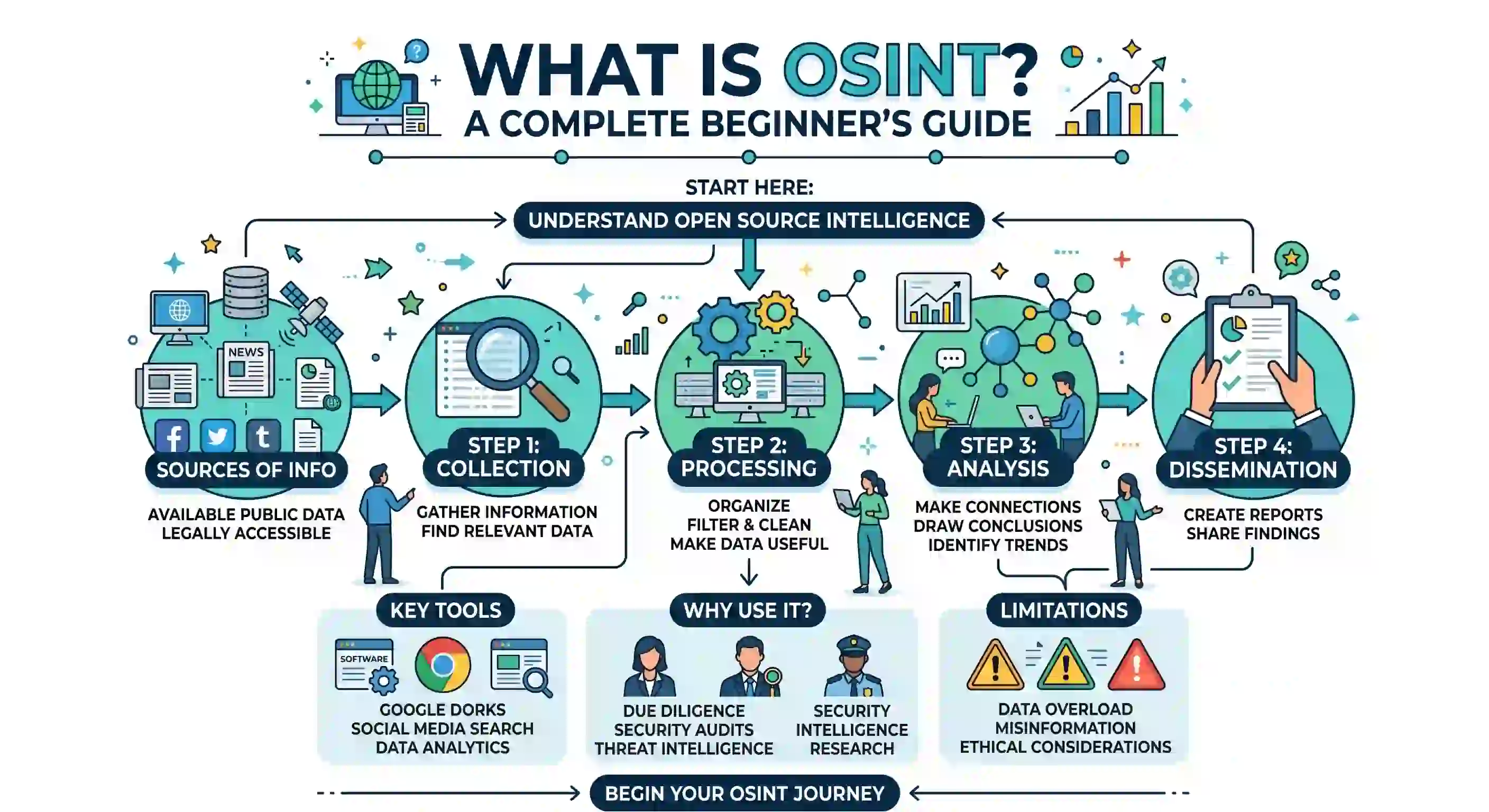
yourdomain.comautomatically when new breach dumps arrive. - Dark Web Intelligence Tools: Use threat intelligence engines (such as DeHashed or SpiderFoot) to scan paste sites and dark web forums for leaked corporate credentials. Read our guide on building your first OSINT toolkit.
4. What to Do If Your Password Was Leaked (Emergency Checklist)
If an audit reveals your password has been exposed in a data breach, execute this incident response plan immediately:
Emergency Response Checklist
- Change the Compromised Password Instantly: Log into the breached website and update your password immediately.
- Eliminate Password Reuse: Locate every other account where you reused that same password (or a variation of it) and update those credentials to new, unique passphrases.
- Generate High-Entropy Credentials: Use a Password Generator to create 16+ character random passwords (e.g.
k9#mP2$vX8!Lq5wR). - Deploy a Zero-Knowledge Password Manager: Store all passwords inside Bitwarden or a self-hosted Vaultwarden server. Follow our Vaultwarden self-hosted guide and best password managers guide.
- Enable Multi-Factor Authentication (MFA): Attach TOTP authenticator apps (Authy, Ente Auth) or hardware YubiKeys to all sensitive accounts. Read our passkeys vs passwords guide and SSO guide for 2026.
- Revoke Active Sessions & App Permissions: Log out of all active web sessions, invalidate current session tokens, and revoke third-party OAuth app authorizations attached to your primary accounts.
- Audit API Keys & SSH Tokens: If developer or cloud accounts were breached, rotate all API keys, access tokens, and SSH key pairs immediately. Generate new environment variables using our ENV Generator.
- Place Credit Freezes & Monitor Financial Accounts: If financial information, driver’s license details, or Social Security numbers were included in the breach leak, place a fraud alert or credit freeze with major credit bureaus (Equifax, Experian, TransUnion) and monitor bank statements for unauthorized transactions.
🔒 Hardening Server Infrastructure & Identity Security
If you manage web servers or developer infrastructure, protect user accounts and server endpoints against credential stuffing and breach leaks:
- Hardened Ingress Proxying: Secure web portals behind Nginx Proxy Manager, Traefik, or Caddy with SSL. Follow our Nginx Proxy Manager security guide and Let’s Encrypt guide. Generate web server configs using our Nginx config generator.
- Intrusion Prevention & Rate Limiting: Block automated botnets attempting credential stuffing using UFW firewalls, Fail2ban, and CrowdSec. Read our step-by-step tutorials on UFW firewall guide, Fail2ban guide, and CrowdSec beginner guide.
- Zero-Trust Network Mesh: Access server administrative consoles over private mesh networks managed by Tailscale or WireGuard. Compare mesh setups in our Tailscale vs WireGuard comparison and review how a VPN works.
- Kernel Security Enforcement: Enforce system access controls on Linux servers using AppArmor vs SELinux and review standard permissions in Linux file permissions explained.
- Container Isolation: Package backend applications into Docker or Podman containers (see our benchmark on Docker vs Podman and installing Docker on Ubuntu). Scan container images for CVEs using Trivy via our securing Docker containers guide. Generate container manifests with our Docker Compose generator.
- System Auditing & Host Security: Secure SSH access following our Ubuntu SSH hardening guide, inspect host system logs using Linux logs explained, run security checks using the top 20 Linux security commands, and audit host compliance with Lynis via our Lynis security audit guide.
🛠️ Self-Hosted Cloud & Microservices Ecosystem
Integrate credential security with modern cloud platforms and self-hosted environments:
- Cloud Infrastructure Alternatives: Compare cloud providers in our AWS vs Azure vs Google Cloud comparison, deploy static web portals via Azure Static Web Apps, or explore free static platforms in how to host a website for free.
- Container Orchestration: Manage container clusters with Kubernetes; see our guide to Kubernetes explained simply.
- Self-Hosted PaaS Panels: Deploy web apps on private VPS instances using Coolify or DokPloy. Read our Coolify self-hosting guide and DokPloy setup guide.
- Visual Management Panels: Monitor Docker containers using Portainer; read our Portainer self-hosted guide.
- Home Lab Infrastructure: Run private hypervisors using Proxmox VE; see our Proxmox home lab setup guide. Back up server configurations using our backup strategies for self-hosted servers, store files in Nextcloud, block tracking ads with Pi-hole, and automate workflows using n8n via Docker Compose.
- Private Local AI Models: Analyze security threat feeds using local LLMs via Ollama and Open WebUI. Read our guide on local AI vs cloud AI, our Ollama Linux installation guide, and Open WebUI setup guide. Connect AI models using the Model Context Protocol (MCP).
- Development Workflows: Build security tools across the software development life cycle (see our SDLC guide for beginners), compare programming languages in Python vs Rust, handle async JavaScript requests, and query relational databases like PostgreSQL vs MySQL.
💻 Developer & Sysadmin Web Utilities
Bookmark these interactive web tools to generate secure credentials, format data, and build deployment files:
- Container Setup: Docker Compose Generator
- Reverse Proxy Configs: Nginx Config Generator
- Init Scripts: Systemd Service File Generator
- Data Formatting: JSON Formatter & JSON Validator
- Secret Generation: Password Generator & ENV Generator
- SEO Metadata: Schema Markup Generator
- Expression Testing: Regex Tester
- Linux Learning: Linux Command Explorer & Linux Permission Calculator
- Automation: Cron Expression Generator & Gitignore Generator
📖 Official Documentation & Standards References
- Have I Been Pwned Official Site: https://haveibeenpwned.com
- HIBP k-Anonymity API Documentation: https://haveibeenpwned.com/API/v3#SearchingPwnedPasswordsByRange
- NIST Digital Identity Guidelines (SP 800-63B): https://pages.nist.gov/800-63-3/sp800-63b.html
- CISA Data Breach Response Guide: https://www.cisa.gov/resources-tools/services/incident-response
- Bitwarden Vault Health Reports: https://bitwarden.com/help/vault-health-reports
❓ Frequently Asked Questions
What is a data breach?
A data breach occurs when cybercriminals gain unauthorized access to a company’s private database, stealing customer records including usernames, email addresses, hashed or plain-text passwords, and personal identifiers.
Is it safe to check my email on Have I Been Pwned?
Yes. Have I Been Pwned (HIBP) is a highly respected security resource created by Microsoft Regional Director Troy Hunt. Searching an email address only queries a public index of historical breach dumps and does not expose your account.
How does HIBP check passwords without knowing my actual password?
HIBP uses k-Anonymity hashing. Your browser locally calculates the SHA-1 hash of your password, sends only the first 5 characters (the prefix) to the HIBP server, and locally verifies the returned hash list. The server never receives your full password.
What should I do immediately if my password is leaked?
- Change the password on the breached website instantly.
- Locate and change every other account where you reused that same password.
- Generate a unique 16+ character random password using a password manager.
- Enable Multi-Factor Authentication (MFA) on all sensitive accounts.
What is Credential Stuffing?
Credential stuffing is an automated cyberattack where hackers take database dumps of leaked usernames and passwords and use automated botnets to test those exact combinations across thousands of major banking, shopping, and cloud services.
Can hackers log into my account if I use Multi-Factor Authentication (MFA)?
Even if a hacker obtains a leaked password, enabling MFA (via TOTP authenticator apps or hardware YubiKeys) stops them from logging in because they lack the physical authentication token generated on your device.
How often should I check if my passwords are leaked?
Use automated breach monitoring services built into password managers (like Bitwarden Breach Watcher or 1Password Watchtower) or sign up for free email alerts on Have I Been Pwned to receive notifications as soon as new breaches are added.
Why is reusing passwords across websites so dangerous?
If you use the same password for a small online forum and your primary banking app, a breach at the small forum gives hackers instant access to your bank account via automated credential stuffing.
What is the difference between a password hash and a plaintext password?
A plaintext password is readable text (e.g. Password123). A password hash is a one-way cryptographic fingerprint (e.g. 5e884898da28047151d0e56f8dc6292773603d0d6aabbdd62a11ef721d1542d8). Secure websites store only password hashes.
What is DeHashed?
DeHashed is an advanced search engine used by cybersecurity analysts and OSINT researchers to search breached database records by email, username, IP address, or hash to conduct threat intelligence investigations.
Discussion
Loading comments...