
Developer Tools
JSON Validator
Validate your JSON syntax and get clear error messages on invalid JSON.
Format, beautify, minify, and validate JSON data with real-time syntax highlighting. Features side-by-side input/output panels, configurable indentation (2 spaces, 4 spaces, or tabs), file upload, one-click copy and download, keyboard shortcuts, and detailed JSON statistics.
The FreeTechLearner JSON Formatter is a powerful browser-based tool that formats, beautifies, minifies, and validates JSON data. It features real-time syntax highlighting with distinct colors for keys, strings, numbers, booleans, and null values, making complex JSON structures easy to read and debug.
JSON formatting (or pretty-printing) adds proper indentation and line breaks to JSON data, making it human-readable. Minified JSON is compact but hard to read; formatted JSON is structured and easy to debug.
Yes. When you format or minify your JSON, the tool automatically validates it. If there are syntax errors (missing commas, unmatched brackets, etc.), a clear error message is displayed with the specific issue.
Minification removes all unnecessary whitespace, indentation, and line breaks from JSON data, producing the smallest possible output. This is useful for reducing payload size in API responses and configuration files.
No. All formatting, validation, and syntax highlighting happens entirely in your browser using JavaScript. Your JSON data is never transmitted, logged, or stored on any server.
Yes. Click the "Upload" button in the input panel to load a .json or .txt file from your computer. The file contents will be loaded into the input area and can be formatted immediately.
Press Ctrl+Shift+F (or Cmd+Shift+F on Mac) while focused on the input textarea to instantly format your JSON. The Tab key inserts spaces instead of moving focus.
JSON requires a very strict syntax. Common reasons for invalid JSON include missing double quotes around keys, trailing commas at the end of arrays or objects, or using single quotes instead of double quotes.
Our tool will automatically point out the exact line where the parsing failed. Review that line to ensure all brackets {} [] are properly closed, strings are enclosed in double quotes " ", and there are no trailing commas.
This specific tool focuses entirely on formatting and validating JSON. However, we offer dedicated JSON to CSV and JSON to XML converter tools on our platform to handle data conversions.
Because our formatter runs locally in your browser, the only limit is the memory available on your device. Most modern devices can easily handle JSON files up to 10-20MB instantly.
A comprehensive, infrastructure-focused guide to JSON. Learn the syntax, how to parse logs, JSONB databases, API communication, and why it defeated XML.
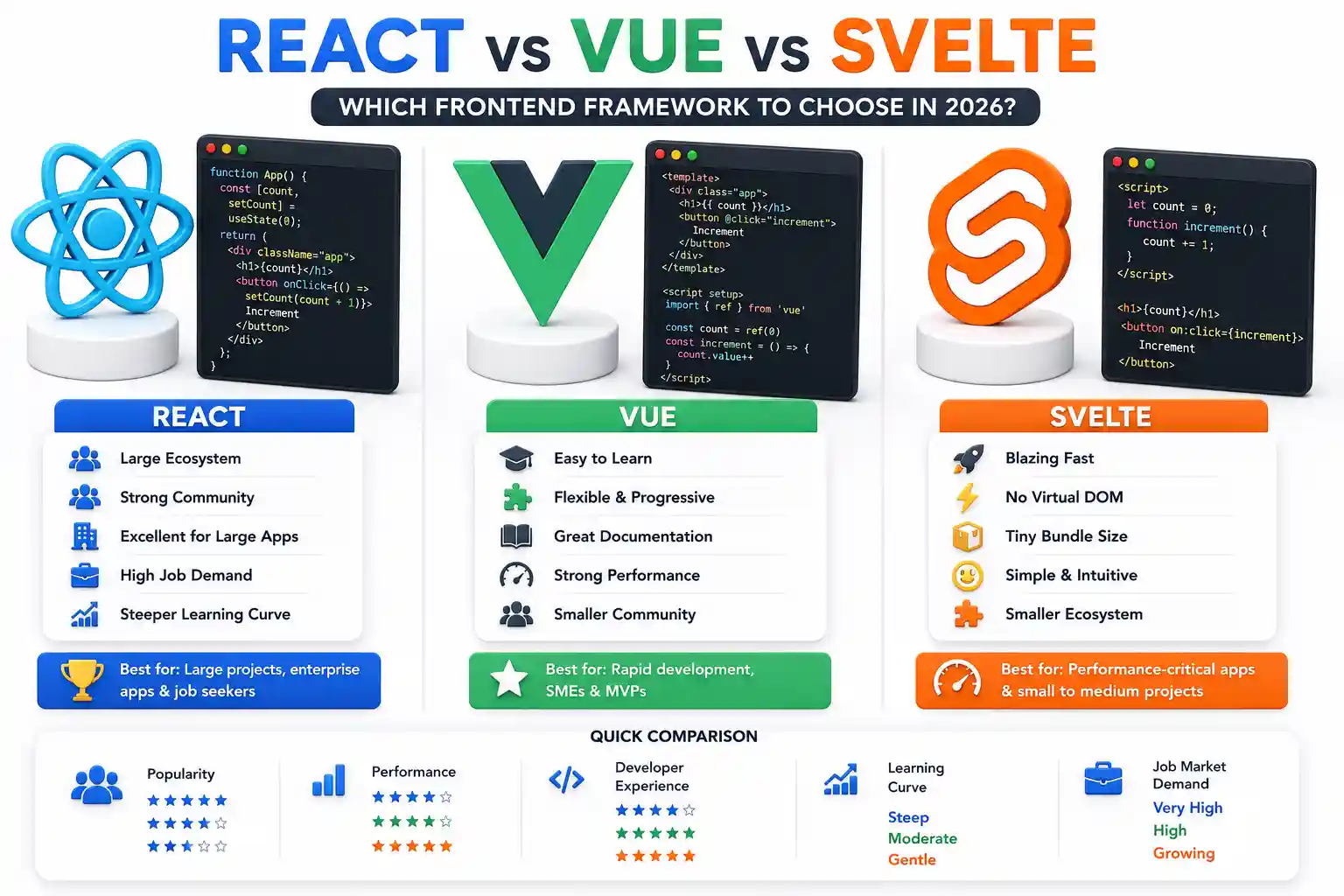
A comprehensive technical comparison of React, Vue, and Svelte in 2026. Explore bundle sizes, deployment strategies, reactivity models, and production considerations.

Discover MCP (Model Context Protocol)—the open standard transforming how AI models interact with databases, tools, local filesystems, and enterprise infrastructure.
Explore our full collection of free, privacy-first developer and SEO tools.
Browse All 134+ ToolsStart typing to search across articles, tools & courses