

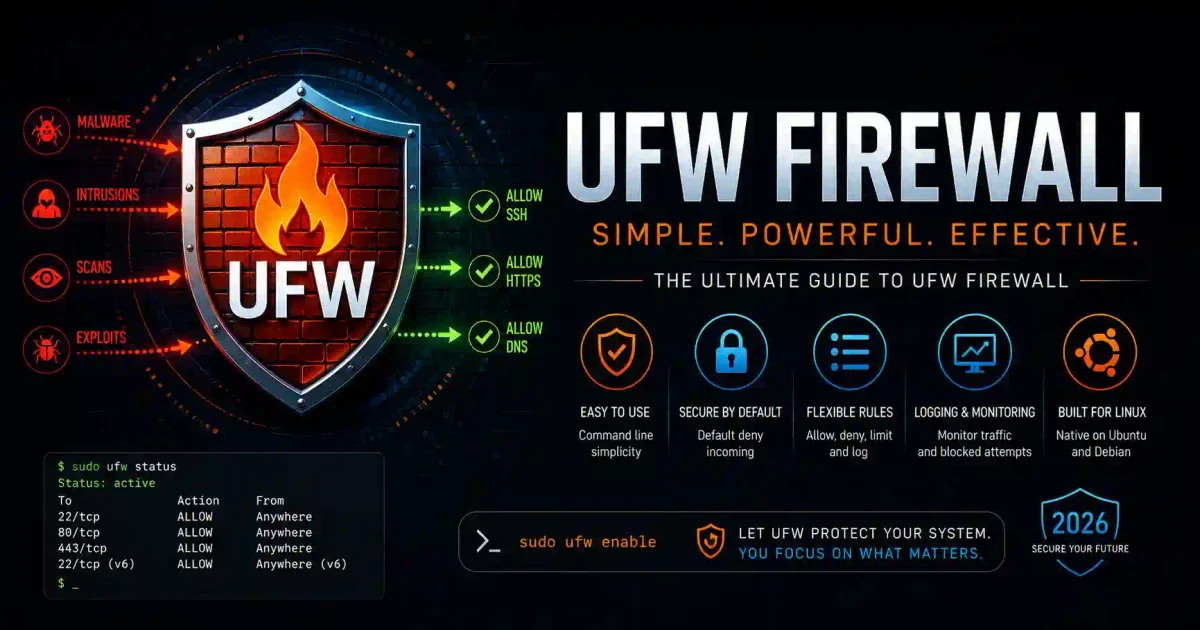
Imagine leaving your front door wide open in a busy neighborhood. That is exactly what running a Linux server without a properly configured firewall feels like. Every port is a potential entry point for hackers, automated botnets, and malicious scanners running 24/7 across the global internet.
UFW (Uncomplicated Firewall) is your digital bouncer—a simple yet powerful tool that manages iptables (Linux’s built-in firewall) with an easy-to-understand command-line interface. In 2026, with cyberattacks becoming increasingly automated and sophisticated, mastering UFW is essential for every developer, system administrator, and home lab enthusiast.
In this comprehensive, definitive guide, we will cover everything from basic installation to advanced UFW configurations, configuration files, application profiles, NAT/routing, Docker integration, and real-world hardening examples.
1. What is UFW? (Underlying Architecture)
UFW stands for Uncomplicated Firewall. It is not a standalone firewall program itself; rather, it is a user-friendly command-line front-end for iptables and nftables, which interact directly with the Linux kernel’s Netfilter framework.
  +---------------------------------------+
  |              User Space               |
  |  [ UFW Command Line / Configuration ] |
  +------------------+--------------------+
                     |
                     v
  +------------------+--------------------+
  |      [ iptables / nftables Rules ]    |
  +------------------+--------------------+
                     |
                     v
  +------------------+--------------------+
  |             Kernel Space              |
  |        [ Netfilter Framework ]        |
  +---------------------------------------+
While raw iptables rules require complex, nested flags and a deep understanding of packet routing tables (INPUT, OUTPUT, FORWARD chains), UFW abstracts these configurations into natural-language commands like allow and deny.
Why UFW in 2026?
- Astro-Fast Setup: UFW is pre-installed on Debian and Ubuntu systems.
- Logical Simplicity: Rules are quick to write, audit, and clean up.
- Dynamic Customization: It permits raw packet manipulation using underlying files when advanced configurations (like NAT or masquerading) are necessary.
2. Complete Installation & Initial Setup
Although UFW comes pre-installed on most modern Debian and Ubuntu distributions, it might be disabled or missing in minimal cloud images.
Installation on Various Distributions
On Ubuntu / Debian:
sudo apt update
sudo apt install ufw -y
On CentOS / RHEL / Fedora:
UFW is available in the EPEL repository for enterprise systems:
sudo dnf install epel-release -y
sudo dnf install ufw -y
On Arch Linux:
sudo pacman -S ufwVerifying Installation and Systemd Status
Ensure the system service is active and set to run on boot:
# Check version
ufw --version

# Check system service status
sudo systemctl status ufw

# Start and enable the service
sudo systemctl enable ufw --now
3. Core Policy Rules (Enabling and Disabling)
Before enabling the firewall, you must define default policies. These policies dictate how UFW handles traffic that does not match any specific user rules.
Step 1: Enforce “Default Deny” (The Gold Standard)
A secure firewall must block all incoming traffic by default, while allowing outbound connections so your server can download packages, fetch updates, and make APIs requests.
sudo ufw default deny incoming
sudo ufw default allow outgoing
sudo ufw default deny forwarded
Step 2: Allow Management Access (Prevent Lockout!)
CRITICAL: Enabling UFW without allowing your management ports will instantly sever your current connection and lock you out. Ensure your SSH port is allowed:
# Allow default SSH (Port 22)
sudo ufw allow 22/tcp

# Or allow custom SSH port (recommended)
sudo ufw allow 2222/tcp
Step 3: Enable the Firewall
Once your access rules are in place, turn on the firewall:
sudo ufw enableYou will see a warning: “Command may disrupt existing ssh connections. Proceed with y/n?” Confirm with y.
Step 4: Verify Firewall Status
sudo ufw status verboseOutput:
Status: active
Logging: on (low)
Default: deny (incoming), allow (outgoing), deny (routed)
New profiles: skip

To                         Action      From
--                         ------      ----
2222/tcp                   ALLOW IN    Anywhere
2222/tcp (v6)              ALLOW IN    Anywhere (v6)
Disabling and Resetting UFW
To turn off the firewall:
sudo ufw disableIf your rules become complex or corrupted, reset UFW to its default state:
sudo ufw resetNote: Resetting deletes all custom rules and turns UFW off.
4. Comprehensive Command Syntax and Rule Management
UFW allows you to define rules based on port numbers, IP addresses, subnets, network interfaces, and specific protocols.
Common Rule Types & Structure
| Scope / Action | Command Syntax | Description |
|---|---|---|
| Port Specific | sudo ufw allow 80/tcp | Allows incoming TCP traffic on port 80 (HTTP). |
| Protocol Specific | sudo ufw allow 53/udp | Allows incoming DNS UDP queries. |
| IP Address | sudo ufw allow from 192.168.1.50 | Trusts all ports for a specific IP. |
| IP and Port | sudo ufw allow from 192.168.1.50 to any port 3306 proto tcp | Restricts MySQL access to a specific database client. |
| Subnet Block | sudo ufw deny from 203.0.113.0/24 | Blocks a range of malicious IPs. |
| Interface Specific | sudo ufw allow in on wg0 to any port 80 | Restricts traffic to Web servers on VPN interface. |
Allowing and Denying Port Ranges
If you run applications that utilize dynamic port ranges (such as FTP or voice-over-IP media sessions), define rules for ranges:
# Allow UDP port range for media streaming
sudo ufw allow 10000:10100/udp

# Allow TCP port range
sudo ufw allow 8000:8080/tcp
Deleting Rules
UFW rules can be deleted in two ways:
Method 1: Delete by Original Rule Syntax
Specify the exact rule you previously added:
sudo ufw delete allow 80/tcpMethod 2: Delete by Rule Numbers (Recommended for Complex Configurations)
Display all rules numbered sequentially:
sudo ufw status numberedOutput:
Status: active

     To                         Action      From
     --                         ------      ----
[ 1] 2222/tcp                   ALLOW IN    Anywhere
[ 2] 80/tcp                     ALLOW IN    Anywhere
[ 3] 443/tcp                    ALLOW IN    Anywhere
Delete rule number 2:
sudo ufw delete 25. Advanced Configuration and Custom Rules
UFW’s true power lies in its advanced configurations.
1. Active Rate Limiting (DDoS & Brute-Force Shield)
The limit command restricts connections to prevent denial-of-service attempts. By default, UFW limits connections to a maximum of 6 connections within a 30-second window per source IP address.
# Enable rate limiting on your custom SSH port
sudo ufw limit 2222/tcp

# Limit access on a web development port
sudo ufw limit 8080/tcp
2. Application Profiles
Applications can register security profiles in /etc/ufw/applications.d/. These profiles map human-readable names (like Nginx Full or OpenSSH) to their corresponding network ports.
# View available application profiles
sudo ufw app list

# View details of a specific profile
sudo ufw app info 'Nginx Full'

# Allow an application profile
sudo ufw allow 'Nginx Full'
Creating Custom Application Profiles
You can write custom profiles for your own software. Create a profile file:
sudo nano /etc/ufw/applications.d/custom-appAdd the configuration block:
[CustomWebService]
title=Custom Web API Service
description=Custom API running on unique port ranges
ports=8000,8080/tcp|9000/udp
Refresh application profiles and apply:
sudo ufw app update CustomWebService
sudo ufw allow CustomWebService
3. Log Customization and Log Analysis
UFW supports four distinct logging levels: off, low (default), medium, high, and full.
# Set logging to medium
sudo ufw logging medium
Logs are written to /var/log/ufw.log and /var/log/kern.log.
Interpreting a UFW Log Entry:
Jun 24 00:01:10 ubuntu-server kernel: [UFW BLOCK] IN=eth0 OUT= MAC=00:16:3e:7e:2c:12:00:16:3e:7e:2c:10:08:00 SRC=203.0.113.15 DST=192.168.1.10 LEN=40 TOS=0x00 PREC=0x00 TTL=245 ID=14234 PROTO=TCP SPT=49210 DPT=23 WINDOW=1024 RES=0x00 SYN URGP=0[UFW BLOCK]: The prefix indicating the packet was dropped.IN=eth0: The network interface where the packet arrived.SRC=203.0.113.15: The remote IP trying to connect.DST=192.168.1.10: Your server’s local IP address.PROTO=TCP: The protocol used.DPT=23: Destination Port (Port 23 is Telnet, confirming a scan attempt).SYN: The packet was attempting to establish a new connection handshake.
6. Deep Dive: Under-the-Hood UFW Configuration Files
While command-line commands cover 90% of use cases, understanding the underlying configuration files allows for advanced packet routing control.
/etc/default/ufw: Controls high-level variables (IPv6 support, default policies)./etc/ufw/before.rules: Executed before command-line rules (ideal for NAT, custom ICMP rules)./etc/ufw/after.rules: Executed after command-line rules./etc/ufw/sysctl.conf: Adjusts kernel parameters (IP forwarding, syn cookies).
1. Enabling IPv6 Support
Ensure IPv6 rules are active:
sudo nano /etc/default/ufwConfirm the parameter is set to yes:
IPV6=yesIf modified, reload the configurations:
sudo ufw reload2. Disabling Ping Response (ICMP Blocking)
By default, UFW allows ping requests (ICMP packets). To hide your server from basic network ping sweeps:
sudo nano /etc/ufw/before.rulesLocate the block of ICMP rules:
-A ufw-before-input -p icmp --icmp-type echo-request -j ACCEPTChange ACCEPT to DROP:
-A ufw-before-input -p icmp --icmp-type echo-request -j DROPReload UFW:
sudo ufw reload3. Setting Up Network Address Translation (NAT) / IP Masquerading
If your Ubuntu server acts as a gateway or router for private VM networks, use UFW to route traffic.
- Enable packet forwarding in
/etc/default/ufw:DEFAULT_FORWARD_POLICY="ACCEPT" - Enable forwarding in
/etc/ufw/sysctl.conf:net/ipv4/ip_forward=1 - Add NAT routing to
/etc/ufw/before.rules(add this to the top of the file, before the*filterline):*nat :POSTROUTING ACCEPT [0:0] # Forward traffic from internal subnet through public eth0 interface -A POSTROUTING -s 192.168.10.0/24 -o eth0 -j MASQUERADE COMMIT - Reload UFW:
sudo ufw reload
7. Crucial Real-World Issue: UFW and Docker Conflicts
A common pitfall is using UFW on servers running Docker. Docker manipulates system iptables directly to expose container ports (e.g., -p 80:80). Because Docker’s iptables rules bypass UFW’s rules completely, ports exposed via Docker are accessible to the public internet, even if UFW has a default deny incoming policy.
Public Internet Traffic
       │
       ├───────► Bypasses UFW rules ───► [ Docker daemon iptables ] ───► Container Port Exposed
       │
       └───────► Subject to UFW ───────► [ Standard UFW Chain ] ───► OS Ports Allowed/Denied
How to Fix the Docker Bypass Vulnerability
To force Docker traffic through UFW rules:
- Edit the Docker daemon configuration file (create it if it does not exist):
sudo nano /etc/docker/daemon.json - Disable iptables integration:
{ "iptables": false } - Restart the Docker service:
sudo systemctl restart docker
(Warning: This change means you must manually set up NAT/forwarding masquerades within UFW for containers to access external networks, or manage container subnet routing directly).
8. Real-World Production Configurations
Use these configurations for common server deployments.
1. Web Application Server (LAMP/MERN Stack)
Designed for servers hosting public HTTP/HTTPS traffic.
# Reset rules
sudo ufw reset

# Policies
sudo ufw default deny incoming
sudo ufw default allow outgoing

# Allow secure remote access (Rate Limited)
sudo ufw limit 2222/tcp

# Allow Web Traffic
sudo ufw allow 80/tcp
sudo ufw allow 443/tcp

# Enable and monitor
sudo ufw enable
sudo ufw status verbose
2. Isolated Database Server (PostgreSQL/Redis)
Designed to run databases that should never be directly accessible from the public internet.
# Reset rules
sudo ufw reset

# Policies
sudo ufw default deny incoming
sudo ufw default allow outgoing

# Allow SSH only from admin network
sudo ufw allow from 10.10.1.50 to any port 2222 proto tcp

# Allow database queries only from application servers
sudo ufw allow from 10.10.1.100 to any port 5432 proto tcp  # PostgreSQL
sudo ufw allow from 10.10.1.101 to any port 6379 proto tcp  # Redis

# Enable
sudo ufw enable
3. WireGuard VPN Gateway Server
Designed for servers routing secure tunnel traffic.
# Reset rules
sudo ufw reset

# Allow SSH
sudo ufw limit 2222/tcp

# Allow Wireguard tunnel port
sudo ufw allow 51820/udp

# Allow VPN interface traffic
sudo ufw allow in on wg0

# Enable
sudo ufw enable
9. Automated Rules Management Script
Save this script as /usr/local/bin/ufw-backup.sh to backup, restore, and audit your configurations automatically:
#!/bin/bash
# UFW Rules Management Script

BACKUP_DIR="/var/backups/ufw"
mkdir -p "$BACKUP_DIR"
TIMESTAMP=$(date +%Y%m%d_%H%M%S)

case "$1" in
    backup)
        cp /etc/ufw/user.rules "$BACKUP_DIR/user.rules.$TIMESTAMP"
        cp /etc/ufw/before.rules "$BACKUP_DIR/before.rules.$TIMESTAMP"
        echo "UFW rules successfully backed up to $BACKUP_DIR"
        ;;
    restore)
        if [ -z "$2" ]; then
            echo "Error: Please specify the backup timestamp file path."
            exit 1
        fi
        cp "$2" /etc/ufw/user.rules
        ufw reload
        echo "UFW rules restored from $2"
        ;;
    audit)
        echo "=== ACTIVE RULES ==="
        ufw status numbered
        echo "=== RECENT BLOCKED CONNECTIONS ==="
        tail -n 20 /var/log/ufw.log | grep -o "SRC=[0-9.]* DST=[0-9.]* DPT=[0-9]*" | uniq -c
        ;;
    *)
        echo "Usage: $0 {backup|restore <file_path>|audit}"
        exit 1
        ;;
esac
Make the script executable:
sudo chmod +x /usr/local/bin/ufw-backup.sh10. Comparison of Linux Firewalls
| Feature / Tool | UFW | Firewalld | iptables / nftables | CSF (ConfigServer) |
|---|---|---|---|---|
| Complexity | Extremely Low | Medium | High | Medium |
| Primary Platform | Ubuntu/Debian | RHEL/CentOS | All Linux | cPanel/Webmin |
| Learning Curve | Gentle | Moderate | Very Steep | Moderate |
| Configuration | Simple CLI Commands | Zone-based XML | Raw Shell Scripts | Plaintext Config File |
| Dynamic Updates | Yes | Yes | No | Yes |
Frequently Asked Questions (FAQ)
What is UFW and how does it work?
UFW (Uncomplicated Firewall) is a user-friendly command-line front-end for iptables and nftables. It translates easy-to-understand commands into the underlying firewall rules executed by the Linux kernel’s Netfilter framework.
How do I prevent locking myself out when enabling UFW?
Before turning the firewall on with sudo ufw enable, make sure you allow SSH access by running sudo ufw allow 22/tcp or allowing your custom SSH port. Otherwise, you will lose connection to your server.
Does UFW consume significant CPU or system memory?
No. Because UFW compiles rules directly down to kernel-level netfilter chains, packet processing occurs efficiently within kernel space. Running UFW has a negligible impact on system resources.
What is the difference between ufw reject and ufw deny?
deny drops the packet silently, forcing a connection timeout, which helps hide your server from scanners. reject blocks the connection but sends a response packet (like a TCP RST) notifying the client that the port is closed.
How do I fix the conflict between Docker and UFW?
By default, Docker bypasses UFW by manipulating iptables directly. To fix this, you must edit /etc/docker/daemon.json and set "iptables": false, then restart the Docker service.
Continue Hardening Your Infrastructure:
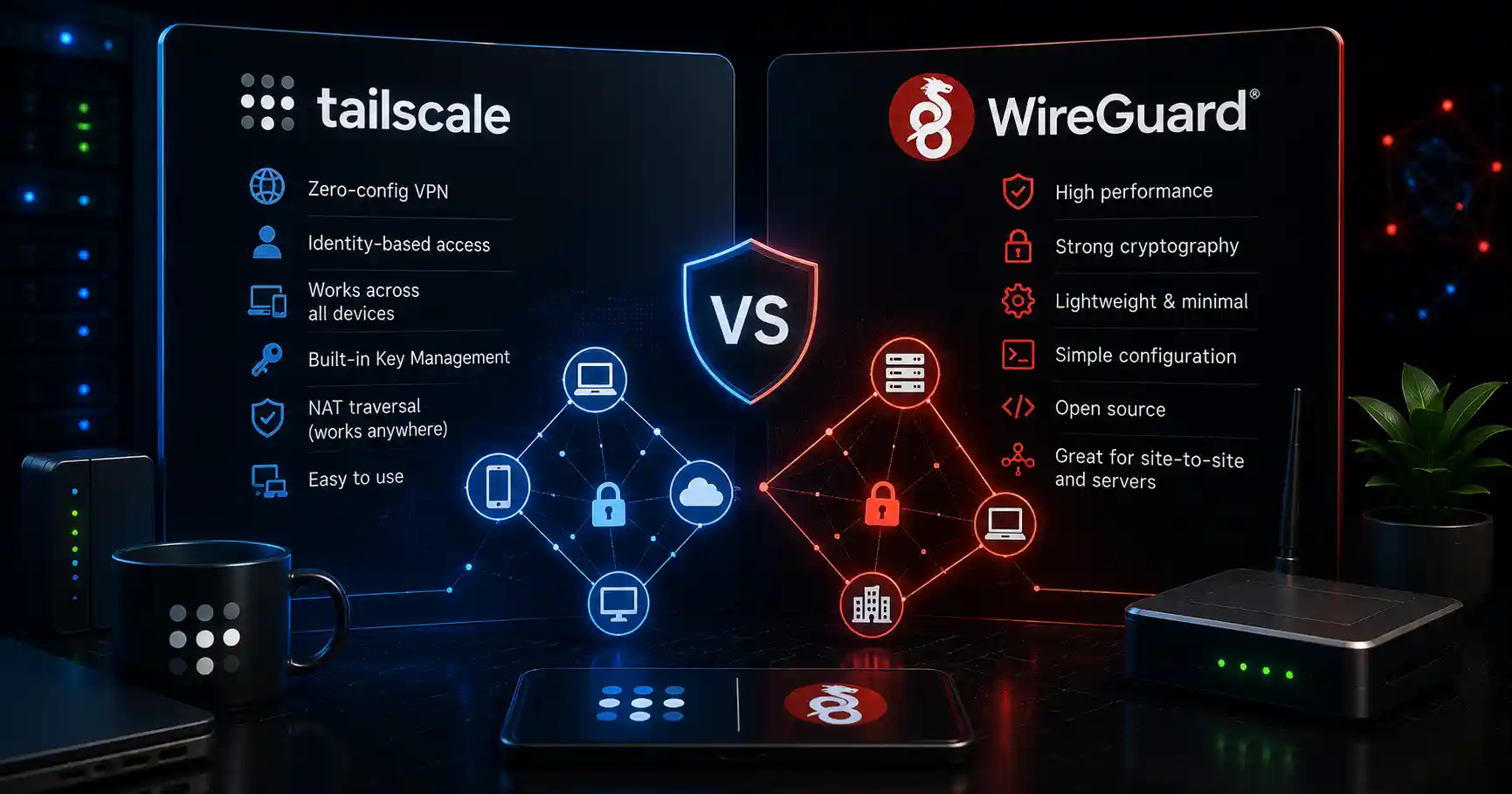
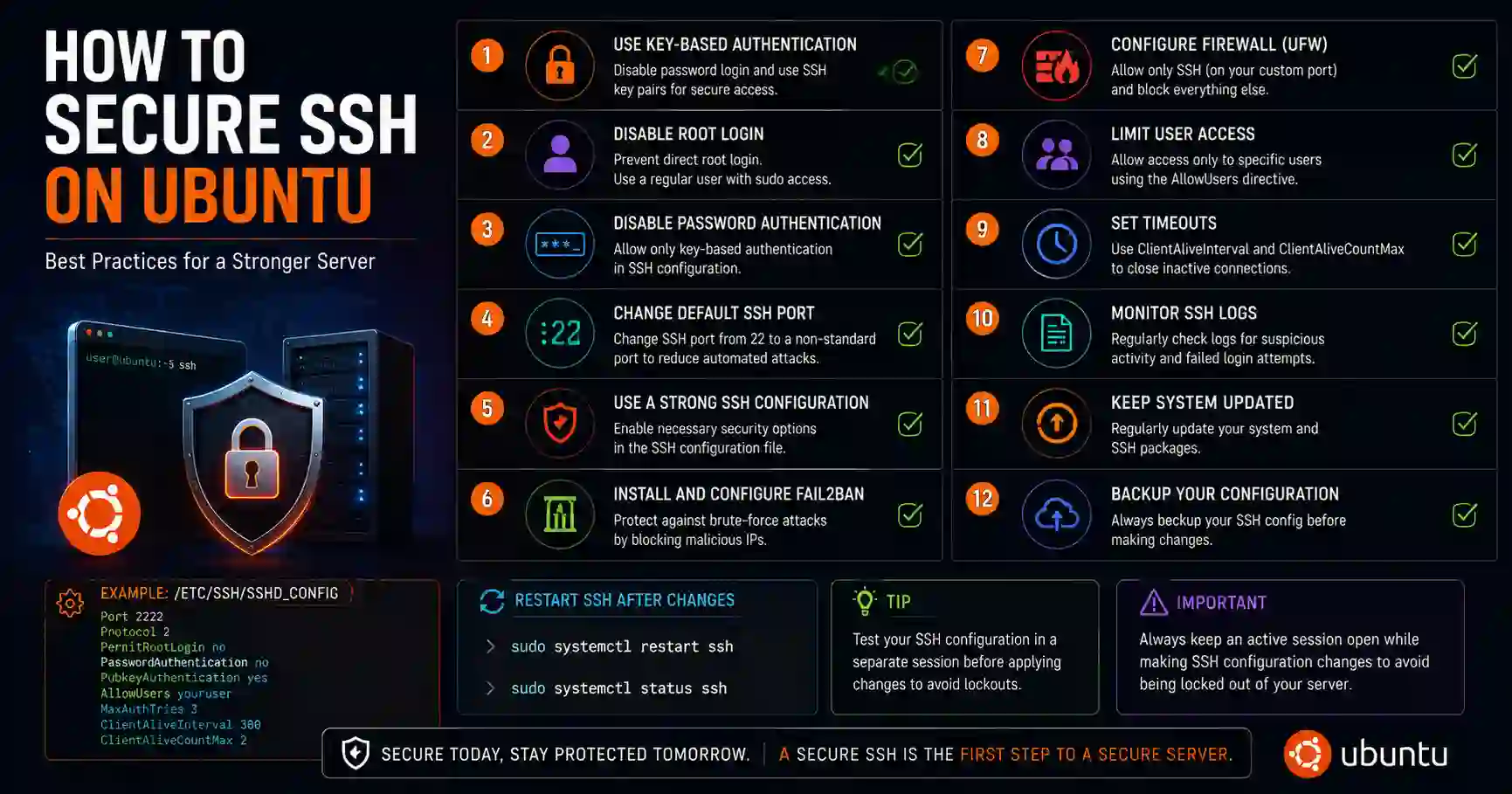
Learn how to Harden SSH Logins on Ubuntu or explore the fundamentals of Modern Virtual Private Networks (VPNs).

Discussion
Loading comments...