

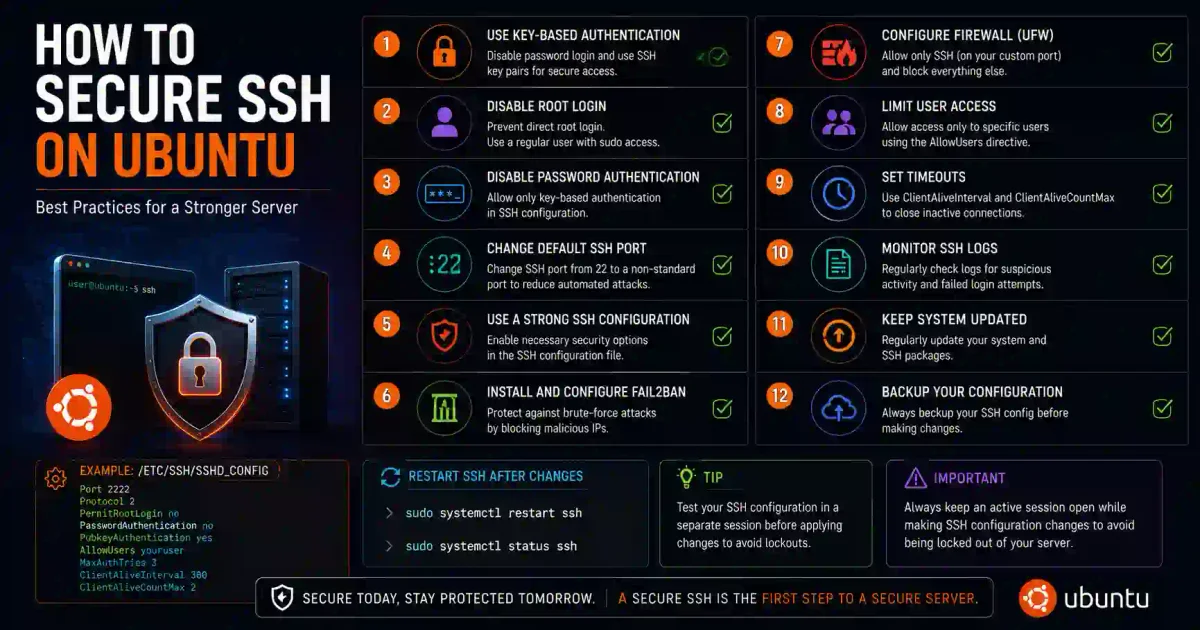
Imagine handing out thousands of copies of your house key to random strangers on the street and hoping none of them try to open your front door. That is exactly what running SSH with default configurations on a public IP address feels like. Every single minute, hundreds of automated botnets, script kiddies, and highly sophisticated threat actors scan the global IPv4 and IPv6 address space, searching specifically for open SSH ports, ready to launch brute-force attacks, credential stuffing, and vulnerability exploits to compromise your server.
SSH (Secure Shell) is the main gateway to your Ubuntu server—and in 2026, it remains one of the primary targets for cyberattacks. With automated credential stuffing attacks increasing exponentially year-over-year, securing SSH is no longer just a recommended practice; it is a critical, non-negotiable step to protect your digital assets, application data, and overall system integrity.
In this comprehensive, step-by-step guide, we will cover proven SSH hardening techniques, from basic configuration adjustments to enterprise-grade defenses like multi-factor authentication (MFA), hardware security keys, socket activation, and system-level session recording. Implementing these strategies will drastically minimize your attack surface and secure your Ubuntu servers against unauthorized access.
1. Why SSH Hardening is Non-Negotiable
SSH is designed to be highly compatible out of the box, which unfortunately means its default settings prioritize ease of use over strict security. In an enterprise or even a home lab environment, leaving SSH in its default state invites several severe risks:
- Complete Root Compromise: If an attacker gains access to the root account via SSH, they obtain absolute control over the system, enabling them to steal data, install persistent rootkits, or deploy ransomware.
- Persistent Botnet Scans: The moment a server goes live on a public IP, it is targeted by bots. These automated scanners cycle through common usernames (
root,admin,ubuntu,user) and millions of weak passwords. - Cryptographic Vulnerability: Older SSH configurations support weak ciphers and key exchange algorithms (like SHA-1 or MD5-based MACs) that are vulnerable to decryption or interception under modern cryptographic standards.
- Compliance Penalties: Regulatory frameworks such as PCI-DSS, HIPAA, SOC 2, and GDPR explicitly mandate secure access controls, audit logging, and the disablement of insecure protocols.
2. Prerequisites & Pre-flight Checklist
Before modifying any configuration files, ensure you have the following in place to prevent locking yourself out of your server:
- Ubuntu Server: Running Ubuntu 20.04 LTS, 22.04 LTS, 24.04 LTS, or newer.
- Sudo Privileges: A non-root user account with
sudopermissions. Never perform configuration steps directly as root. - Out-of-Band (OOB) Access: Access to a recovery console, VNC connection, or IPMI terminal provided by your cloud provider (e.g., DigitalOcean, AWS, Linode, Hetzner). This is your safety net if SSH fails to restart or blocks your IP.
- Active Session Maintenance: Keep your current SSH terminal window open while testing your changes in a completely separate terminal window. Do not close your active session until you have verified you can log in using the new configuration.
3. Step 1: Initial Hardening - Core Configuration
The primary SSH daemon configuration is controlled by the /etc/ssh/sshd_config file. We will modify this file to disable legacy protocols, restrict authentication methods, and enforce strict session limits.
Backup Your Configuration
Always create a timestamped backup copy of your configuration file before editing:
sudo cp /etc/ssh/sshd_config /etc/ssh/sshd_config.backup
sudo cp /etc/ssh/sshd_config /etc/ssh/sshd_config.$(date +%Y%m%d_%H%M%S)
Edit the SSH Configuration
Open the file in a terminal text editor:
sudo nano /etc/ssh/sshd_configEssential Hardening Directives
Locate or add the following directives in your sshd_config file. If a line is commented out with a #, remove the # symbol:
# Disable root login (absolutely essential!)
PermitRootLogin no

# Disable password authentication (force SSH keys)
PasswordAuthentication no
ChallengeResponseAuthentication no
UsePAM yes

# Enable public key authentication
PubkeyAuthentication yes

# Change default SSH port to mitigate basic scanners
Port 2222  # Replace with a custom port between 1024 and 65535

# Limit consecutive login attempts
MaxAuthTries 3

# Limit maximum active sessions per network connection
MaxSessions 2

# Enforce idle timeout (disconnect inactive users after 5 minutes)
ClientAliveInterval 300
ClientAliveCountMax 0

# Protocol version enforcement (use SSHv2 only)
Protocol 2

# Disallow empty passwords
PermitEmptyPasswords no

# Restrict SSH access to specific users
AllowUsers yourusername adminuser

# Log SSH activity with verbose details
LogLevel VERBOSE

# Disable graphical interface forwarding
X11Forwarding no

# Disable agent and TCP forwarding to prevent privilege escalation
AllowAgentForwarding no
AllowTcpForwarding no

# Enforce strict file and directory permissions checks
StrictModes yes

# Ignore legacy user configuration files
IgnoreRhosts yes
HostbasedAuthentication no
Deep Dive: Hardening Cryptographic Ciphers, KexAlgorithms, and MACs
To protect against decryption and interception, disable legacy cipher suites and restrict SSH to modern, mathematically secure algorithms. Add the following block to the bottom of /etc/ssh/sshd_config:
# Restrict to secure Key Exchange (KEX) algorithms
KexAlgorithms curve25519-sha256,[email protected],diffie-hellman-group16-sha512,diffie-hellman-group18-sha512

# Restrict to strong symmetric encryption ciphers
Ciphers [email protected],[email protected]

# Restrict to strong Message Authentication Codes (MACs)
MACs [email protected],[email protected]
Verify and Apply Changes
Before restarting the SSH service, test the configuration syntax for errors:
sudo sshd -tIf the command returns no output, the configuration is syntactically valid. Restart the SSH daemon to apply the changes:
sudo systemctl restart sshdRemember: Keep your current connection active. Open a new terminal window and attempt to log in using: ssh -p 2222 yourusername@your-server-ip.
4. Step 2: High-Security Cryptographic Keys (Ed25519)
SSH keys use public-key cryptography to provide an incredibly secure authentication mechanism. Instead of typing a password, your device signs a cryptographic challenge sent by the server using your local private key.
Ed25519 vs. RSA-4096
While RSA keys (using 4096 bits) are widely compatible, Ed25519 is the recommended standard for 2026. Ed25519 keys are based on elliptic curve cryptography, making them faster, shorter, and cryptographically stronger than RSA.
Generate a High-Security Key Pair (On your local machine)
Run the following command in your local machine’s terminal:
ssh-keygen -t ed25519 -a 100 -C "[email protected]"Note: The -a 100 parameter specifies the number of KDF (Key Derivation Function) rounds, increasing resistance to offline brute-force attacks if your private key file is ever stolen.
When prompted, enter a secure, memorable passphrase to encrypt the private key on your disk. Never leave the passphrase blank!
Transfer the Public Key to the Server
Method 1: Using ssh-copy-id (Recommended)
ssh-copy-id -i ~/.ssh/id_ed25519.pub -p 2222 yourusername@your-server-ipMethod 2: Manual Installation
If ssh-copy-id is not available on your system (e.g., Windows Command Prompt), manually append the key:
- View your public key locally:
cat ~/.ssh/id_ed25519.pub - Log into your server and run:
mkdir -p ~/.ssh echo "ssh-ed25519 AAAAC3NzaC1lZDI1NTE5AAAA... [email protected]" >> ~/.ssh/authorized_keys - Set strict file permissions on the server:
chmod 700 ~/.ssh
chmod 600 ~/.ssh/authorized_keys
Verify Key-Based Authentication
Verify that you can log in without entering your system password:
ssh -i ~/.ssh/id_ed25519 -p 2222 yourusername@your-server-ip(You will only be prompted for the key’s passphrase, which stays entirely on your local machine).
5. Step 3: Implement Fail2ban for Active Defense
Fail2ban is an intrusion prevention software framework that monitors system logs for brute-force attempts and dynamically updates system firewall rules (using UFW or iptables) to ban malicious IP addresses.
Install Fail2ban
sudo apt update
sudo apt install fail2ban -y
Configure the SSH Jail
Fail2ban reads configurations from .local files to avoid overwriting default profiles during system updates. Create a custom SSH jail file:
sudo nano /etc/fail2ban/jail.localAdd the following configuration block:
[DEFAULT]
# Whitelist local and trusted admin IPs
ignoreip = 127.0.0.1/8 ::1 192.168.1.100

# Set default ban duration (1 hour)
bantime = 3600

# Monitor window for tracking failed attempts (10 minutes)
findtime = 600

# Number of allowed failures before banning
maxretry = 3

[sshd]
enabled = true
port = 2222  # Make sure this matches your custom SSH port
filter = sshd
logpath = /var/log/auth.log
backend = systemd
Create a Custom SSH Filter
To catch sophisticated, slow-scanning brute-force attempts, define a custom regex filter:
sudo nano /etc/fail2ban/filter.d/sshd-custom.confAdd the definition:
[Definition]
failregex = ^.*Failed password for .* from <HOST> port .* ssh2$
            ^.*Connection closed by authenticating user .* from <HOST>$
            ^.*Received disconnect from <HOST>: .*: Bye Bye$
            ^.*Connection reset by peer from <HOST>$
ignoreregex =
Start and Enable Fail2ban
Enable the service to run at system startup:
sudo systemctl enable fail2ban
sudo systemctl start fail2ban
Monitoring Fail2ban Status
Check the status of your SSH jail to view banned IPs:
sudo fail2ban-client status sshdTo unban an IP address (e.g., if you accidentally ban yourself):
sudo fail2ban-client set sshd unbanip <IP_ADDRESS>To monitor the live Fail2ban logs:
sudo tail -f /var/log/fail2ban.log6. Step 4: Advanced Hardening Techniques
For critical production systems, implement additional layers of authentication, certificate authority models, and security integrations.
1. Hardware Security Keys (FIDO2/U2F)
OpenSSH supports FIDO2 physical keys (such as YubiKeys) directly. When using a hardware key, the private key is physically stored on the token, preventing key-extraction attacks.
Generate an ecdsa-sk resident key:
ssh-keygen -t ecdsa-sk -O resident -O verify-required -C "yubikey-auth"During generation, you will be prompted to tap your physical key and set a PIN. The resulting public key (id_ecdsa_sk.pub) is placed in the server’s authorized_keys file like any standard key.
2. Multi-Factor Authentication (MFA) via TOTP
You can configure SSH to require both an SSH key and a Time-based One-Time Password (TOTP) from an authenticator app (like Google Authenticator or Aegis).
- Install the PAM development library:
sudo apt install libpam-google-authenticator -y - Run the configuration tool as the login user:
Follow the prompts to generate the QR code, scan it with your authenticator app, and save the emergency scratch codes securely.google-authenticator - Configure PAM configuration:
Add the following line to the top of the file:sudo nano /etc/pam.d/sshd
(Theauth required pam_google_authenticator.so nulloknullokflag allows users who have not configured MFA to still log in. Remove it once everyone has set up their TOTP). - Update your
/etc/ssh/sshd_configfile to enforce both methods:UsePAM yes KbdInteractiveAuthentication yes AuthenticationMethods publickey,keyboard-interactive - Restart the daemon:
sudo systemctl restart sshd
3. Socket Activation (Ubuntu 24.04+)
On newer systemd-based Ubuntu systems, you can use systemd socket activation to run SSH. Instead of the SSH daemon running persistently, systemd listens on the designated port and starts the SSH service dynamically only when an incoming connection request is received. This reduces memory footprint and hides the daemon’s active process list from standard system scans.
To edit the systemd socket configuration:
sudo systemctl edit sshd.socketConfigure your custom port:
[Socket]
ListenStream=
ListenStream=2222
Disable the standalone service and enable the socket activation service:
sudo systemctl stop sshd
sudo systemctl disable sshd
sudo systemctl enable --now sshd.socket
7. Step 5: Network-Level Protections
Securing the service configuration is only half the battle. Restricting access at the network boundary ensures unauthorized traffic never reaches the SSH daemon.
Restrict Access via UFW (Uncomplicated Firewall)
By default, block all incoming SSH connections except from known IP addresses, or apply strict rate limits:
# Delete default SSH rule
sudo ufw delete allow 22/tcp

# Limit incoming connections on custom port (blocks IPs with too many connections)
sudo ufw limit 2222/tcp

# Or allow SSH access exclusively from a trusted IP address/subnet
sudo ufw allow from 192.168.1.50 to any port 2222 proto tcp
sudo ufw allow from 10.0.0.0/24 to any port 2222 proto tcp

# Enable firewall
sudo ufw enable
sudo ufw reload
TCP Wrappers
Use /etc/hosts.allow and /etc/hosts.deny to enforce access controls at the system library level.
Open the deny configuration:
sudo nano /etc/hosts.denyBlock all SSH traffic by default:
sshd: ALLOpen the allow configuration:
sudo nano /etc/hosts.allowAdd trusted sources:
sshd: 192.168.1.50, 10.0.0.0/24, .adminnetwork.com8. Step 6: Session Recording, Auditing, and Key Rotation
Logging and auditing are essential for identifying post-incident activities and maintaining operational visibility.
Session Recording using tlog
The tlog package allows administrators to record terminal session inputs and outputs to a centralized system log (syslog or systemd-journald) for playback and compliance review.
- Install the package:
sudo apt install tlog sssd -y - Configure shell recording inside
/etc/tlog/tlog-rec-session.confor map terminal recording via local shell parameters to forcetlog-rec-sessionas the login shell for specific accounts.
Checking Active Connections and History
Regularly audit active logins and historical sessions on your server:
# View currently logged-in users and their source IPs
w

# View historical user login records
last -n 20

# Search logs for successful SSH connections
sudo grep "sshd" /var/log/auth.log | grep -i "Accepted"

# Scan the system for listening ports and process IDs
sudo ss -tulpn | grep sshd
Host Key Rotation Script
To mitigate risks associated with long-term key compromises, schedule regular host key rotations using a cron job. Save this script as /usr/local/bin/rotate-ssh-host-keys.sh:
#!/bin/bash
# Backup directory setup
BACKUP_DIR="/root/ssh_host_key_backups/$(date +%Y%m%d)"
mkdir -p "$BACKUP_DIR"

# Backup existing host keys
cp /etc/ssh/ssh_host_* "$BACKUP_DIR"

# Generate new host keys
rm -f /etc/ssh/ssh_host_*
ssh-keygen -A

# Restart daemon
systemctl restart sshd
echo "SSH host keys successfully rotated on $(date)"
Make the script executable:
sudo chmod +x /usr/local/bin/rotate-ssh-host-keys.sh9. Troubleshooting and Emergency Recovery
Modifying SSH settings and changing ports can sometimes result in lockouts. Follow these procedures to recover access.
Issue: “Connection Refused”
- Cause: The SSH daemon failed to start, the socket was not configured correctly, or a firewall is blocking the port.
- Resolution:
- Log in via your cloud provider’s web console.
- Check the SSH status:
sudo systemctl status sshdorsudo journalctl -u sshd -n 50. - Check if UFW is blocking traffic:
sudo ufw status. If needed, disable it temporarily:sudo ufw disable.
Issue: “Permission Denied (publickey)”
- Cause: Incorrect permissions on your local private key, or the public key was not added correctly to
authorized_keys. - Resolution:
- Verify local permissions:
chmod 600 ~/.ssh/id_ed25519. - Verify server permissions: Directory must be
700and file must be600. - Run the connection command with verbose output to identify the exact step where authentication fails:
ssh -vvv -p 2222 yourusername@your-server-ip
- Verify local permissions:
Emergency Factory Reset
If you cannot restore connectivity:
- Log in via the OOB console.
- Restore your configuration backup file:
sudo cp /etc/ssh/sshd_config.backup /etc/ssh/sshd_config
sudo systemctl restart sshd
Frequently Asked Questions (FAQ)
Q: Can I use both password and key authentication simultaneously? A: Yes, but this setup is highly discouraged. Requiring both acts as a form of MFA, but allowing either defeats the security benefits of disabling passwords entirely.
Q: How often should I rotate user SSH keys? A: Best security practices suggest rotating user SSH keys every 3 to 6 months. For automated deployments, consider using short-lived SSH certificates instead of static keys.
Q: Is Ed25519 supported on older legacy OS environments? A: Ed25519 has been supported in OpenSSH since version 6.5 (released in 2014). It is supported on all modern operating systems. If compatibility with older legacy servers is required, use RSA keys with at least 4096 bits.
Q: What happens if my server IP changes or dynamic DNS breaks? A: If you rely on firewall whitelists (hosts.allow or UFW rules), make sure to configure a backup VPN, jump box, or out-of-band management console through your infrastructure hosting panel to avoid lockout.
Q: How do I remove old keys from memory?
A: If you use an SSH agent, run ssh-add -D to clear all identities currently loaded in the memory daemon cache.
Next Steps for Hardening Your Infrastructure:
Explore our Comprehensive Guide to UFW Firewall Configuration on Ubuntu or learn how to Master Fail2ban for Linux Threat Prevention.



Discussion
Loading comments...