


Imagine a tiny, credit-card-sized computer sitting in your home, running your media server, controlling your lights, or monitoring your garden. It’s powerful, versatile, and—unfortunately—a tempting target for hackers.
Raspberry Pi devices are everywhere in 2026, powering everything from home automation to small business servers. But their popularity also makes them prime targets for cyber attacks. Many people set up their Pi and forget about security, leaving their entire home network exposed.
This beginner-friendly guide will walk you through every aspect of securing your Raspberry Pi, from the moment you power it on to advanced protection measures.
Why Raspberry Pi Security Matters
The Reality of Pi Security
# Raspberry Pi Vulnerabilities
├── Default credentials (pi/raspberry)
├── Open SSH ports (default port 22)
├── Outdated software
├── Weak passwords
├── No firewall configured
└── Running as root (by default)
What Hackers Want
| Target | Why | Risk |
|---|---|---|
| Your Pi | Computing power | Cryptomining |
| Your Network | Access point | Data theft |
| Your Data | Personal info | Identity theft |
| Your Devices | IoT network | Botnet participation |
| Your Camera | Surveillance | Privacy invasion |
The Cost of Insecurity
If your Pi gets hacked:
├── Personal data stolen (photos, documents)
├── Home network compromised
├── Pi becomes part of botnet
├── Slower internet (cryptomining)
├── Device controlled by attackers
└── Hard to detect until it's too late
Before You Begin
What You’ll Need
# Hardware
├── Raspberry Pi (any model)
├── Power supply
├── microSD card (8GB minimum)
├── Ethernet cable (recommended) or Wi-Fi
├── Keyboard and monitor (for initial setup)
└── Another computer for SSH access

# Software
├── Raspberry Pi OS (or your preferred OS)
├── Raspberry Pi Imager (for installation)
└── SSH client (OpenSSH, PuTTY, etc.)
Initial Setup Security
Step 1: Choose Your OS Wisely
Recommended Options:
# Raspberry Pi OS Lite (Best for security)
# - Minimal installation
# - No unnecessary packages
# - Small attack surface

# Raspberry Pi OS Desktop
# - Full desktop environment
# - More packages = more vulnerabilities
# - Only use if you need GUI

# Other Secure Options
# - DietPi (minimal, optimized)
# - Alpine Linux (very secure, small)
# - Ubuntu Server (well-supported)
Step 2: Flash with Security in Mind
# Using Raspberry Pi Imager

# 1. Download Raspberry Pi Imager
# 2. Select OS (choose Raspberry Pi OS Lite)
# 3. Click Settings (gear icon) BEFORE writing

# Essential Settings:
# - Set hostname: pi-secure (not default!)
# - Enable SSH: Yes
# - Set username: NOT "pi" (create custom)
# - Set strong password
# - Configure Wi-Fi (if needed)
# - Set locale settings

# 4. Write to SD card
Step 3: First Boot Security
# For fresh install (without advanced settings)
# 1. Insert SD card and power on
# 2. Complete initial setup

# Remove default user (if you used pi)
sudo userdel -r pi

# Create your own admin user
sudo adduser yourusername
sudo usermod -aG sudo yourusername

# Change to new user
su - yourusername

# Test sudo access
sudo whoami
Essential Security Steps
1. Change Default Credentials (Immediately)
# If you haven't already, change the default password
passwd

# Create a new user (better than using pi)
sudo adduser yourusername
sudo usermod -aG sudo,adm,dialout,cdrom,plugdev,users yourusername

# Test the new user
su - yourusername
sudo whoami

# Lock the pi user (if not removed)
sudo passwd -l pi

# Or remove it completely
sudo userdel -r pi
2. Update Your System
# First update (critical!)
sudo apt update
sudo apt full-upgrade -y

# Remove unnecessary packages
sudo apt autoremove -y
sudo apt autoclean

# Check for security updates regularly
# Add to your cron:
sudo crontab -e
# Add:
0 2 * * * apt update && apt upgrade -y && apt autoremove -y
3. Configure firewall (UFW)
# Install UFW
sudo apt install ufw -y

# Set default policies
sudo ufw default deny incoming
sudo ufw default allow outgoing

# Allow SSH (critical - don't lock yourself out!)
sudo ufw allow ssh

# If you change SSH port:
sudo ufw allow 2222/tcp

# Allow necessary services
sudo ufw allow 80/tcp    # HTTP
sudo ufw allow 443/tcp   # HTTPS

# Enable firewall
sudo ufw enable

# Check status
sudo ufw status verbose

# See what's active
sudo ufw status numbered
4. Secure SSH Access
# Backup SSH config
sudo cp /etc/ssh/sshd_config /etc/ssh/sshd_config.backup

# Edit SSH config
sudo nano /etc/ssh/sshd_config

# Apply these settings:
Port 2222                     # Change from default 22
PermitRootLogin no            # Never allow root
PasswordAuthentication no     # Use keys only
PubkeyAuthentication yes      # Enable keys
MaxAuthTries 3                # Limit attempts
ClientAliveInterval 300       # Idle timeout
ClientAliveCountMax 0         # Disconnect on idle
AllowUsers yourusername       # Only your user

# Test configuration
sudo sshd -t

# Restart SSH
sudo systemctl restart sshd

# Create SSH key pair (on your main computer)
ssh-keygen -t ed25519 -C "[email protected]"

# Copy key to Pi
ssh-copy-id -i ~/.ssh/id_ed25519.pub [email protected] -p 2222

# Test key login
ssh -p 2222 [email protected]

# Disable password authentication now
sudo sed -i 's/PasswordAuthentication yes/PasswordAuthentication no/' /etc/ssh/sshd_config
sudo systemctl restart sshd
5. Install [Fail2ban](/blog/cybersecurity/fail2ban-guide-2026)
# Install
sudo apt install fail2ban -y

# Configure
sudo nano /etc/fail2ban/jail.local

# Add:
[DEFAULT]
bantime = 3600
findtime = 600
maxretry = 5
ignoreip = 127.0.0.1/8 ::1 192.168.1.0/24

[sshd]
enabled = true
port = 2222               # Your custom port
logpath = /var/log/auth.log
maxretry = 3

# Restart
sudo systemctl restart fail2ban
sudo systemctl enable fail2ban

# Check status
sudo fail2ban-client status
sudo fail2ban-client status sshd
6. Set Up Automatic Updates
# Install unattended-upgrades
sudo apt install unattended-upgrades -y

# Configure
sudo dpkg-reconfigure --priority=low unattended-upgrades

# Edit configuration
sudo nano /etc/apt/apt.conf.d/50unattended-upgrades

# Ensure these are set:
Unattended-Upgrade::Allowed-Origins {
    "${distro_id}:${distro_codename}";
    "${distro_id}:${distro_codename}-security";
    "${distro_id}ESM:${distro_codename}";
};
Unattended-Upgrade::AutoFixInterruptedDpkg true;
Unattended-Upgrade::MinimalSteps true;
Unattended-Upgrade::Remove-Unused-Dependencies true;

# Check status
sudo systemctl status unattended-upgrades
Network Security
1. Secure Wi-Fi Setup
# If using Wi-Fi, use WPA2/WPA3
# Configuration file:
sudo nano /etc/wpa_supplicant/wpa_supplicant.conf

# Example:
network={
    ssid="YourNetworkName"
    psk="YourStrongPassword"
    proto=RSN
    key_mgmt=WPA-PSK
    pairwise=CCMP
    auth_alg=OPEN
}

# Change Wi-Fi password regularly
# Disable WPS on router
# Hide SSID (optional)
2. Disable Unnecessary Services
# Check running services
sudo systemctl list-units --type=service --state=running

# Disable Bluetooth (if not needed)
sudo systemctl disable bluetooth
sudo systemctl stop bluetooth

# Disable Avahi (mDNS) if not needed
sudo systemctl disable avahi-daemon
sudo systemctl stop avahi-daemon

# Disable CUPS (printing) if not needed
sudo systemctl disable cups
sudo systemctl stop cups

# Check open ports
sudo netstat -tulpn
sudo ss -tulpn
3. Use VPN for Remote Access
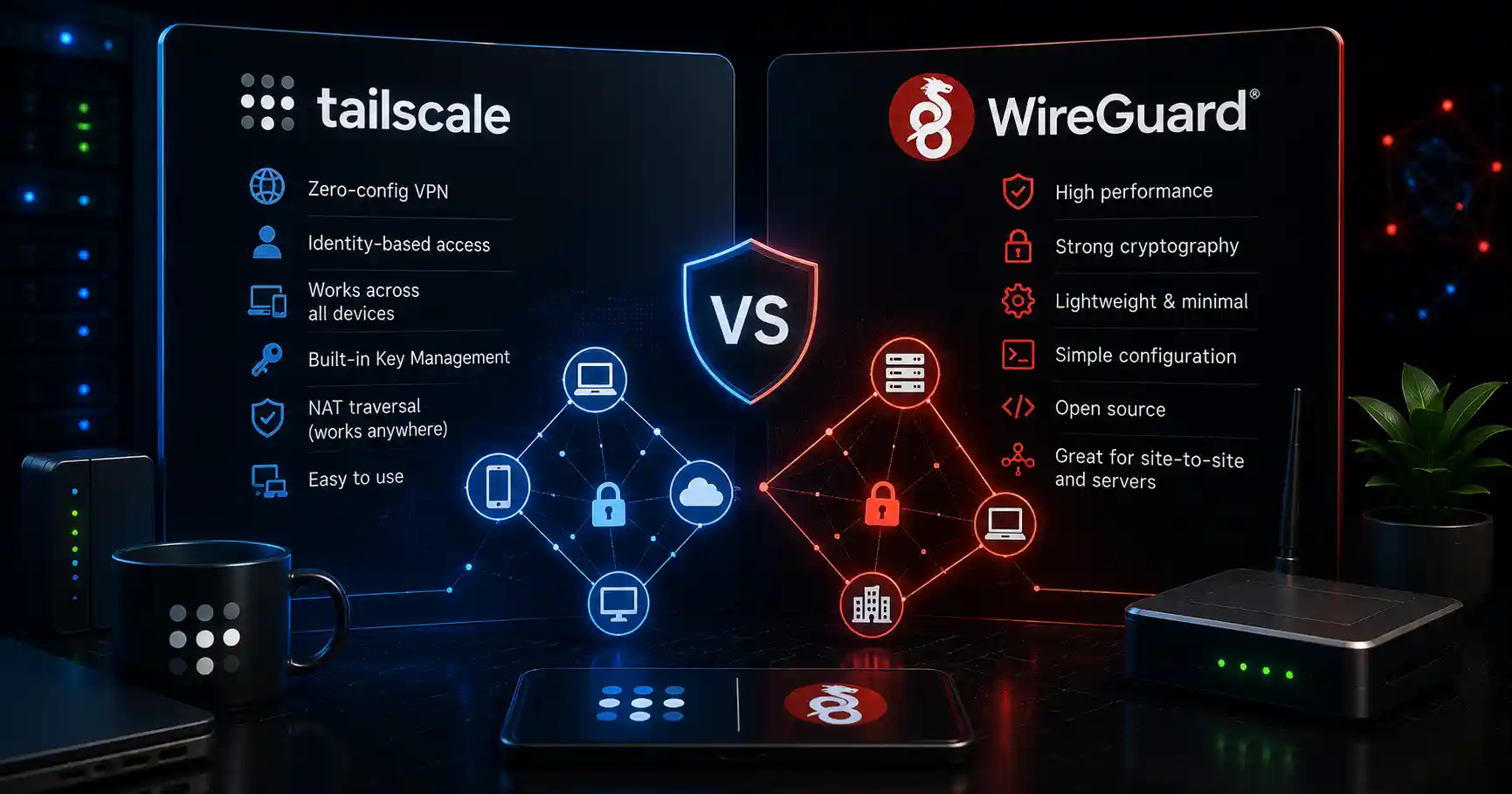
# Option 1: WireGuard
sudo apt install wireguard -y

# Generate keys
cd /etc/wireguard
umask 077
wg genkey | tee privatekey | wg pubkey > publickey

# Create configuration
sudo nano /etc/wireguard/wg0.conf

# Start
sudo wg-quick up wg0
sudo systemctl enable wg-quick@wg0

# Option 2: Tailscale (easier)
curl -fsSL https://tailscale.com/install.sh | sh
sudo tailscale up
sudo tailscale ip -4

# Option 3: Cloudflare Tunnel
curl -L https://github.com/cloudflare/cloudflared/releases/latest/download/cloudflared-linux-armhf -o /usr/local/bin/cloudflared
sudo chmod +x /usr/local/bin/cloudflared
cloudflared tunnel login
Software Security
1. Regular Software Updates
# Create update script
sudo nano /usr/local/bin/update-pi.sh

#!/bin/bash
echo "=== Pi Update: $(date) ==="
sudo apt update
sudo apt full-upgrade -y
sudo apt autoremove -y
sudo apt autoclean
sudo systemctl restart crowdsec 2>/dev/null
echo "=== Update Complete ==="

# Make executable
sudo chmod +x /usr/local/bin/update-pi.sh

# Schedule weekly update
sudo crontab -e
# Add:
0 3 * * 0 /usr/local/bin/update-pi.sh >> /var/log/pi-updates.log 2>&1
2. Remove Unnecessary Software
# Check installed packages
dpkg -l | grep ^ii

# Remove unnecessary packages
sudo apt remove --purge \
    wolfram-engine \
    scratch \
    scratch2 \
    nodered \
    pigpio \
    wiringpi \
    minecraft-pi \
    sonic-pi

# Remove games and educational software
sudo apt remove --purge \
    chromium-browser \
    libreoffice* \
    vlc \
    gimp

# Clean up
sudo apt autoremove -y
3. Install Security Tools
# CrowdSec (Intrusion Prevention)
curl -s https://crowdsec.net/install.sh | sudo bash
sudo cscli collections install crowdsecurity/linux
sudo cscli collections install crowdsecurity/ssh
sudo systemctl enable crowdsec

# RKHunter (Rootkit Detection)
sudo apt install rkhunter -y
sudo rkhunter --update
sudo rkhunter --check

# Logwatch (Log Monitoring)
sudo apt install logwatch -y
sudo logwatch --detail High

# ClamAV (Antivirus - Optional)
sudo apt install clamav clamav-daemon -y
sudo freshclam
Physical Security
1. Secure the Pi
# Physical Access Control
├── Keep Pi in a locked room/closet
├── Use a case with security screws
├── Hide the Pi if possible
├── Use a Kensington lock (if available)
├── Disable GPIO pins (if not needed)
└── Label as something boring (e.g., "Modem")
2. Power Protection
# Use a quality power supply
# - Official Pi power supply (recommended)
# - At least 2.5A for Pi 3/4

# Use UPS for power backup
# - Uninterruptible Power Supply
# - Prevents corruption from power loss

# Connect to a surge protector
# - Protects from power spikes
# - Saves from lightning damage

# Enable watchdog
sudo nano /boot/config.txt
# Add:
dtparam=watchdog=on

# Install watchdog service
sudo apt install watchdog -y
sudo systemctl enable watchdog
sudo systemctl start watchdog
3. SD Card Protection
# Use quality SD cards
# - Class 10 or UHS-I
# - Branded cards (SanDisk, Samsung)

# Enable read-only mode (for kiosk/display Pi)
sudo raspi-config
# → Performance Options → Overlay File System → Yes

# Regular SD card backup
sudo dd if=/dev/mmcblk0 of=pi-backup.img bs=4M status=progress

# Create recovery card
# Keep a spare SD card with fresh OS
Advanced Security Features
1. Two-Factor Authentication (2FA)
# Install Google Authenticator
sudo apt install libpam-google-authenticator -y

# Setup for your user
google-authenticator

# Configure SSH for 2FA
sudo nano /etc/pam.d/sshd
# Add at top:
auth required pam_google_authenticator.so

# Edit SSH config
sudo nano /etc/ssh/sshd_config
# Add:
ChallengeResponseAuthentication yes
AuthenticationMethods publickey,keyboard-interactive

# Restart SSH
sudo systemctl restart sshd
2. File Integrity Monitoring
# Install Tripwire
sudo apt install tripwire -y

# Initialize
sudo tripwire --init

# Check integrity
sudo tripwire --check

# Update after changes
sudo tripwire --update-policy

# Schedule checks
sudo crontab -e
# Add:
0 4 * * * tripwire --check --quiet
3. Audit System
# Install auditd
sudo apt install auditd -y

# Watch critical files
sudo auditctl -w /etc/passwd -p rwxa -k passwd_changes
sudo auditctl -w /etc/shadow -p rwxa -k shadow_changes
sudo auditctl -w /etc/sudoers -p rwxa -k sudoers_changes
sudo auditctl -w /home -p rwxa -k home_changes

# Check logs
sudo ausearch -k passwd_changes -ts today
sudo aureport --summary
4. Encrypt Partitions
# Install cryptsetup
sudo apt install cryptsetup -y

# Encrypt a partition (careful!)
# This will wipe data!
sudo cryptsetup luksFormat /dev/sda1

# Open encrypted partition
sudo cryptsetup luksOpen /dev/sda1 secure

# Create filesystem
sudo mkfs.ext4 /dev/mapper/secure

# Mount
sudo mount /dev/mapper/secure /mnt/secure

# Auto-mount on boot
sudo nano /etc/crypttab
# Add:
secure /dev/sda1 none luks
Monitoring and Alerts
1. System Monitoring
# Install monitoring tools
sudo apt install htop iotop iftop nethogs -y

# Create monitoring script
sudo nano /usr/local/bin/monitor-pi.sh

#!/bin/bash
# Pi Monitoring Script

echo "=== Pi Status: $(date) ==="
echo ""
echo "CPU Temperature:"
vcgencmd measure_temp
echo ""
echo "CPU Load:"
uptime
echo ""
echo "Memory:"
free -h
echo ""
echo "Disk Space:"
df -h
echo ""
echo "Running Services:"
systemctl list-units --type=service --state=running
echo ""
echo "Network Connections:"
ss -tulpn
echo ""

# Send alert if issues found
if [ $(awk '{print $1}' /proc/loadavg | cut -d. -f1) -gt 2 ]; then
    echo "WARNING: High CPU load" | mail -s "Pi Alert" [email protected]
fi

# Make executable
sudo chmod +x /usr/local/bin/monitor-pi.sh

# Schedule monitoring
sudo crontab -e
# Add:
0 * * * * /usr/local/bin/monitor-pi.sh >> /var/log/pi-monitor.log 2>&1
2. Email Alerts
# Install mail utilities
sudo apt install mailutils ssmtp -y

# Configure SSMTP
sudo nano /etc/ssmtp/ssmtp.conf

# Example Gmail config:
root=[email protected]
mailhub=smtp.gmail.com:587
AuthUser=[email protected]
AuthPass=your-app-password
UseSTARTTLS=YES

# Create alert script
sudo nano /usr/local/bin/alert-pi.sh

#!/bin/bash
# Send Pi alerts via email

# Check disk space
DISK_USAGE=$(df -h / | tail -1 | awk '{print $5}')
if [ ${DISK_USAGE%\%} -gt 80 ]; then
    echo "WARNING: Disk usage at $DISK_USAGE" | mail -s "Pi Alert: Disk Space" [email protected]
fi

# Check temperature
TEMP=$(vcgencmd measure_temp | cut -d= -f2 | cut -d\' -f1)
if [ ${TEMP%.*} -gt 75 ]; then
    echo "WARNING: CPU temperature at $TEMP°C" | mail -s "Pi Alert: Temperature" [email protected]
fi

# Make executable
sudo chmod +x /usr/local/bin/alert-pi.sh

# Add to crontab
sudo crontab -e
# Add:
*/30 * * * * /usr/local/bin/alert-pi.sh
3. Pi-Hole for Network Security
# Install Pi-Hole (DNS filtering)
curl -sSL https://install.pi-hole.net | bash

# Configure
sudo pihole -a password

# Access admin panel:
# http://raspberrypi.local/admin

# Benefits:
# - Blocks ads and tracking
# - Prevents malware domains
# - Provides network visibility

# Enable DHCP server (optional)
sudo pihole -a enabledhcp
Securing Services
1. Web Server Security
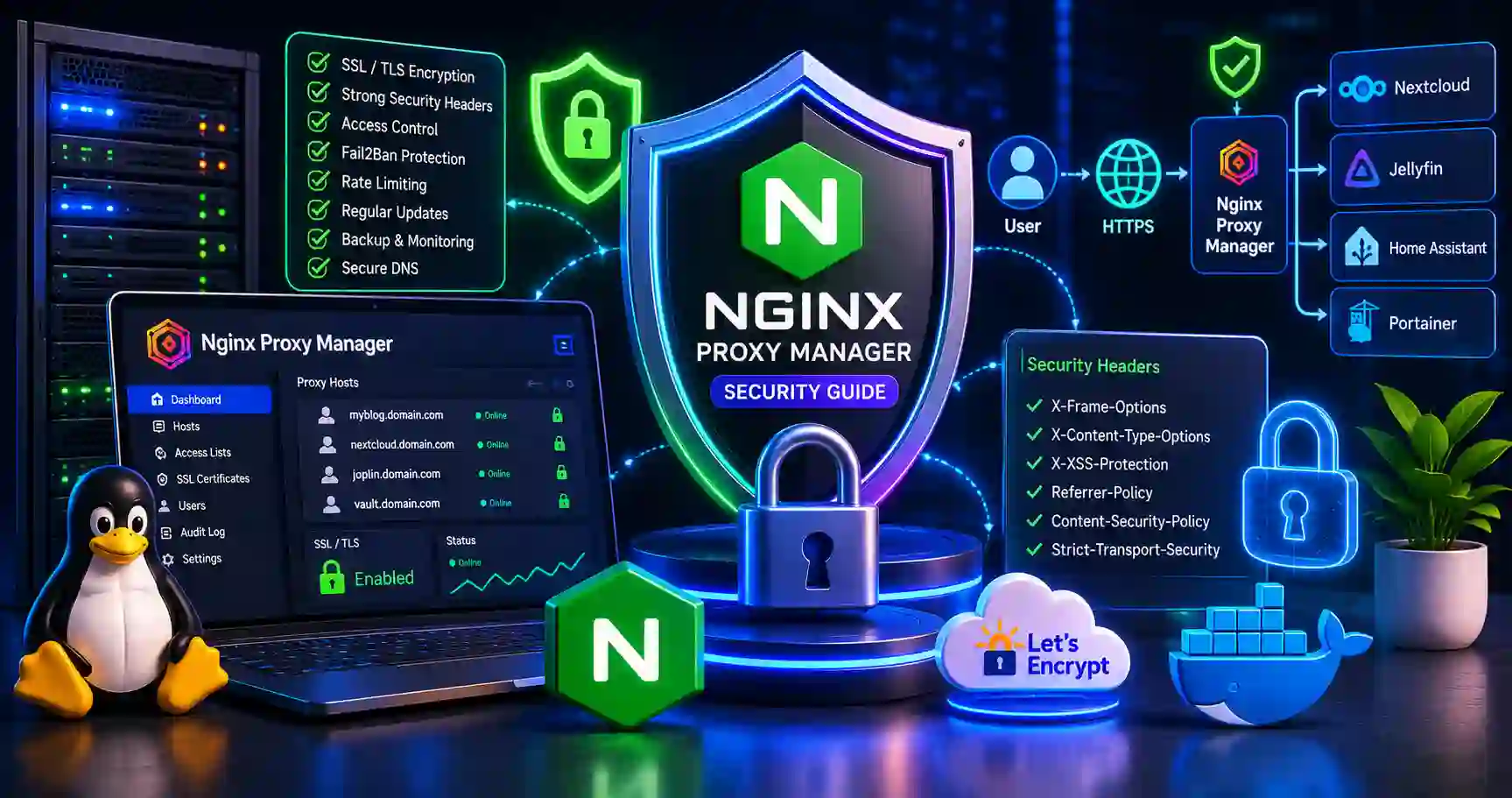
# If running Nginx
sudo nano /etc/nginx/nginx.conf

# Add security headers
add_header X-Frame-Options "SAMEORIGIN" always;
add_header X-Content-Type-Options "nosniff" always;
add_header X-XSS-Protection "1; mode=block" always;
add_header Referrer-Policy "strict-origin-when-cross-origin" always;

# Remove version info
server_tokens off;

# Test and reload
sudo nginx -t
sudo systemctl reload nginx
2. Docker Security
# If using Docker
# Run containers as non-root
docker run --user 1000:1000 image

# Use read-only filesystem
docker run --read-only image

# Drop capabilities
docker run --cap-drop=ALL --cap-add=NET_BIND_SERVICE image

# Use custom networks
docker network create isolated
docker run --network isolated image

# Scan images
docker scan image:latest
3. Database Security
# MySQL/MariaDB
sudo mysql_secure_installation

# Remove test database
DROP DATABASE test;

# Create application user with limited privileges
CREATE USER 'appuser'@'localhost' IDENTIFIED BY 'strong_password';
GRANT SELECT, INSERT, UPDATE, DELETE ON appdb.* TO 'appuser'@'localhost';

# Bind to localhost only
sudo nano /etc/mysql/mariadb.conf.d/50-server.cnf
# Set: bind-address = 127.0.0.1

# Enable logging
# Add to config:
log_warnings = 2
general_log_file = /var/log/mysql/query.log
backup Strategy
1. System Backup
# Backup script
sudo nano /usr/local/bin/backup-pi.sh

#!/bin/bash
BACKUP_DIR="/backup"
DATE=$(date +%Y%m%d)

# Backup configurations
tar -czf $BACKUP_DIR/config-$DATE.tar.gz /etc /home /var/lib/docker

# Backup databases
docker exec mysql-container mysqldump --all-databases > $BACKUP_DIR/mysql-$DATE.sql

# Backup SD card image (if external drive available)
sudo dd if=/dev/mmcblk0 of=$BACKUP_DIR/pi-image-$DATE.img bs=4M status=progress

# Keep last 7 days
find $BACKUP_DIR -name "*.tar.gz" -mtime +7 -delete
find $BACKUP_DIR -name "*.sql" -mtime +7 -delete

# Make executable
sudo chmod +x /usr/local/bin/backup-pi.sh

# Schedule daily
sudo crontab -e
# Add:
0 1 * * * /usr/local/bin/backup-pi.sh
2. Off-Site Backup
# Rsync to remote server
rsync -avzh -e "ssh -p 2222" /backup/ user@remote-server:/backup/

# Or use cloud storage (rclone)
sudo apt install rclone -y
rclone config
rclone sync /backup/ remote:pi-backups/
Quick Reference
Essential Commands
# Update system
sudo apt update && sudo apt upgrade -y

# UFW commands
sudo ufw status
sudo ufw allow 2222
sudo ufw enable

# SSH commands
sudo systemctl status ssh
ssh -p 2222 [email protected]

# Fail2ban
sudo fail2ban-client status
sudo fail2ban-client status sshd

# System info
vcgencmd measure_temp
df -h
free -h
uptime

# Check open ports
sudo netstat -tulpn
sudo ss -tulpn
Security Checklist
- Change default username/password
- Update system
- Enable firewall (UFW)
- Secure SSH (keys, custom port)
- Install Fail2ban
- Setup automatic updates
- Disable unnecessary services
- Enable physical security
- Monitor system
- Set up alerts
- Regular backups
- Use VPN for remote access
- Enable 2FA if possible
- Keep logs
- Regular security audits
Common Mistakes to Avoid
❌ Don’t Do These
# 1. Using default username/password
# Bad: pi/raspberry
# Good: Custom username, strong password

# 2. Disabling firewall
# Bad: sudo ufw disable
# Good: sudo ufw enable

# 3. Running as root
# Bad: sudo su -
# Good: Use sudo only when needed

# 4. Ignoring updates
# Bad: apt update never run
# Good: Regular updates (auto or manual)

# 5. No backups
# Bad: No backup strategy
# Good: Regular automated backups

# 6. Exposing services without security
# Bad: Open to internet
# Good: Use VPN or authentication

# 7. Using default SSH port
# Bad: Port 22
# Good: Custom port (2222)
Conclusion
Securing your Raspberry Pi is essential in 2026. These small devices are powerful and versatile, making them attractive targets for attackers. By following this guide, you’ll dramatically reduce your risk.
Key Takeaways:
- Start security from the first boot
- Change default credentials immediately
- Enable firewall and secure SSH
- Keep everything updated
- Monitor your system
- Regular backups are essential
- Use VPN for remote access
Your Next Steps:
- Go through the security checklist
- Set up monitoring and alerts
- Establish a backup routine
- Test your security measures
- Stay updated with new security practices
Ready to secure your other devices? Explore our Complete Home Server Security Guide for more protection strategies.
Frequently Asked Questions (FAQs)
Q: Is Raspberry Pi OS secure by default? A: No, it prioritizes ease of use over security. You must secure it yourself.
Q: Do I need antivirus on my Pi? A: Not typically, but you should use ClamAV or similar for scanning files.
Q: Can I use my Pi as a firewall? A: Yes, with tools like Pi-hole or pfSense. But ensure it’s properly secured first.
Q: How often should I update my Pi? A: Weekly for security updates, or enable automatic updates.
Q: What’s the biggest security risk for a Pi? A: Default credentials and outdated software. These are the easiest entry points.
Q: Can a Pi be used in a botnet? A: Yes, unsecured Pis are common targets for botnet operators.
Q: How do I know if my Pi is compromised? A: Look for unusual CPU usage, network activity, unknown processes, or log entries.
Q: Should I use my Pi for banking or sensitive data? A: Yes, if properly secured. But consider using a more secure dedicated device for highly sensitive activities.
Discussion
Loading comments...