

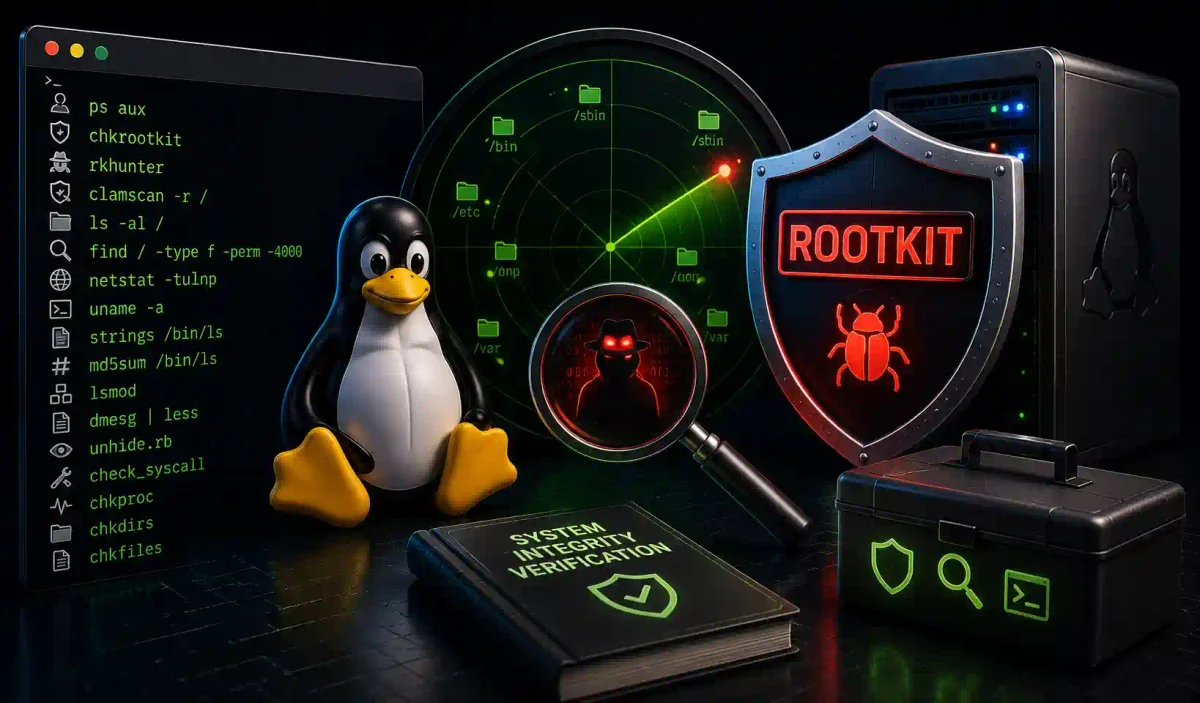
Imagine a burglar who breaks into your house, then disguises themselves as a piece of furniture—blending in so perfectly that you never notice them, even when you’re standing right next to them. That’s exactly what a rootkit does to your Linux system.
Rootkits are one of the most dangerous types of malware. They hide deep within your operating system, concealing their presence while providing attackers with persistent, privileged access. In 2026, rootkits have become increasingly sophisticated, targeting everything from cloud servers to IoT devices.
This comprehensive guide will teach you how to detect rootkits on Linux, from using automated tools to performing manual forensic analysis.
What is a Rootkit?
A rootkit is a collection of malicious software designed to gain and maintain unauthorized access to a computer while remaining hidden. The term “rootkit” combines:
- Root: The highest privilege level in Linux
- Kit: A collection of tools
How Rootkits Work
User Space                    Kernel Space
    |                              |
    v                              v
Application → Library → System Call → Kernel
    |                              ^
    |                              |
    +-------- Rootkit Hooks -------+
         (Intercept and modify)
Types of Rootkits
| Type | Description | Detection Difficulty |
|---|---|---|
| Application Level | Replace system binaries (ls, ps, netstat) | Moderate |
| Library Level | Hook into standard libraries (libc) | Difficult |
| Kernel Level | Modify kernel modules (LKM) | Very Difficult |
| Boot Level | Infect bootloader (MBR/EFI) | Extremely Difficult |
| Hardware Level | BIOS/UEFI firmware | Almost Impossible |
| Virtualization | Hypervisor-level | Extremely Difficult |
Common Rootkit Behaviors
# 1. File Hiding
# Hide malicious files from ls commands

# 2. Process Hiding
# Remove processes from ps and top output

# 3. Network Hiding
# Conceal network connections

# 4. Log Manipulation
# Remove entries from system logs

# 5. Trojan Binaries
# Replace legitimate commands with compromised versions
Signs of Rootkit Infection
Warning Signs to Watch
# 1. System Performance Issues
# - Unexplained high CPU usage
# - Memory consumption spikes
# - Slow response times

# 2. Network Anomalies
# - Unexpected outbound connections
# - Unusual traffic patterns
# - Open ports not associated with known services

# 3. System Behavior
# - Unexplained system crashes
# - Files appearing or disappearing
# - System time changes

# 4. Security Alerts
# - Failed login attempts from unknown IPs
# - Suspicious process names
# - Unexpected system modifications
Initial Investigation Commands
# Quick system check
echo "=== System Health Check ==="

# Check system load
uptime
echo

# Check memory usage
free -h
echo

# Check running processes
ps aux --sort=-%cpu | head -20
echo

# Check network connections
ss -tanp | grep ESTABLISHED
echo

# Check for unauthorized users
last | head -20
echo

# Check system logs
tail -50 /var/log/syslog
Automated Rootkit Detection Tools
1. rkhunter (Rootkit Hunter)
rkhunter is one of the most comprehensive rootkit detection tools.
Installation
# Ubuntu/Debian
sudo apt update
sudo apt install rkhunter -y

# CentOS/RHEL
sudo yum install rkhunter -y

# Manual installation
wget https://sourceforge.net/projects/rkhunter/files/rkhunter/1.4.6/rkhunter-1.4.6.tar.gz
tar -xzf rkhunter-1.4.6.tar.gz
cd rkhunter-1.4.6
sudo ./installer.sh --install
Configuration
# Edit configuration
sudo nano /etc/rkhunter.conf

# Key settings to review
# Set email alerts
MAIL-ON-WARNING=[email protected]
MAIL_CMD=mail

# Enable rootkit checks
ENABLE_ROOTKIT_CHECKS=1

# Allow scripts to run
ALLOW_HIDDEN_DIRS=1

# Set whitelist
# WHITELIST="/path/to/known/good/file"

# Web file permissions
WEB_CMD=""
Running rkhunter
# Quick check
sudo rkhunter --check

# Check with detailed output
sudo rkhunter --check --sk

# Check specific areas
sudo rkhunter --check --rwo

# Update database
sudo rkhunter --update

# Check with verbose output
sudo rkhunter --check --vl

# Run without color output
sudo rkhunter --check --nocolors

# Check only warnings
sudo rkhunter --report-warnings-only
Understanding rkhunter Output
# Success indicators
[ OK ]  # No issues found
[ WARNING ]  # Potential issue
[ CRITICAL ]  # Serious issue
[ SKIP ]  # Check skipped

# Common warnings and solutions

# 1. Warning: Suspicious file types
# 2. Warning: Rootkit X detected
# 3. Warning: SSH configuration changed
# 4. Warning: User account modifications
2. chkrootkit
Another popular rootkit detection tool.
Installation
# Ubuntu/Debian
sudo apt install chkrootkit -y

# CentOS/RHEL
# Requires EPEL repository
sudo yum install epel-release -y
sudo yum install chkrootkit -y

# Manual installation
wget ftp://ftp.pangeia.com.br/pub/seg/pac/chkrootkit.tar.gz
tar -xzf chkrootkit.tar.gz
cd chkrootkit-*
make sense
sudo make install
Running chkrootkit
# Basic scan
sudo chkrootkit

# Quick scan (specific tests)
sudo chkrootkit -q

# Scan with output to file
sudo chkrootkit > chkrootkit-$(date +%Y%m%d).log

# Run specific tests
sudo chkrootkit -t

# Run with less verbose output
sudo chkrootkit -n

# Run with expert mode
sudo chkrootkit -x
Understanding chkrootkit Output
# Positive signs
# "not infected" - Clean
# "nothing found" - Clean

# Suspicious signs
# "INFECTED" - Potential infection
# "Warning" - Suspicious findings
# "Possible" - Potential issue

# Example output interpretation
root@server:~# sudo chkrootkit | grep INFECTED
# chkrootkit: The following processes appear to be INFECTED:
# PID: 1234 (/usr/bin/sshd)
3. Lynis - System Auditing
Lynis performs comprehensive security audits including rootkit detection.
Installation
# Ubuntu/Debian
sudo apt install lynis -y

# CentOS/RHEL
sudo yum install lynis -y

# Manual installation
git clone https://github.com/CISOfy/lynis
cd lynis
sudo ./lynis
Running Lynis
# Basic audit
sudo lynis audit system

# Quick scan (rootkit specific)
sudo lynis --tests "rootkits"

# Generate report
sudo lynis audit system --report-file /var/log/lynis-report.dat

# Show only warnings
sudo lynis audit system | grep -E "Warning|Suggestion"

# Audit specific areas
sudo lynis --tests "kernel" "boot" "filesystem"
4. ClamAV - Malware Scanning
While primarily an antivirus, ClamAV can detect some rootkits.
# Install ClamAV
sudo apt install clamav clamav-daemon -y

# Update signatures
sudo freshclam

# Scan for rootkits (full system scan)
sudo clamscan -r --infected --detect-pua=yes --heuristic-scan /

# Scan system binaries
sudo clamscan /bin /sbin /usr/bin /usr/sbin

# Use clamd for faster scanning
sudo clamdscan --multiscan /
Manual Rootkit Detection Techniques
1. Process Analysis
Finding Hidden Processes
# Compare ps with /proc
ps aux | sort -k2 | head -20
ls -la /proc/*/cmdline 2>/dev/null | grep -v ""

# Check for processes hiding from ps
for pid in /proc/[0-9]*; do
    if ! ps -p $(basename $pid) > /dev/null 2>&1; then
        echo "Hidden process: $pid"
        cat $pid/cmdline 2>/dev/null
    fi
done

# Check for processes with no binary
ps aux | awk '{print $11}' | sort -u | while read cmd; do
    if [ ! -f "$cmd" ] && [ ! -x "$cmd" ]; then
        echo "Suspicious process: $cmd"
    fi
done

# Check for processes with strange names
ps aux | grep -E "\[[a-z]+\]" | grep -v "\[kworker"
Process Integrity Check
# Verify system binaries
for bin in /bin/* /sbin/* /usr/bin/* /usr/sbin/*; do
    if [ -f "$bin" ]; then
        if file "$bin" | grep -q "ELF"; then
            if [ ! -x "$bin" ]; then
                echo "Non-executable binary: $bin"
            fi
        fi
    fi
done

# Check for preloaded libraries
cat /etc/ld.so.preload 2>/dev/null
echo $LD_PRELOAD

# Check for suspicious kernel modules
lsmod | grep -v "^Module\|^$"
2. File System Analysis
Finding Hidden Files
# Find hidden directories in root
find / -name ".*" -type d 2>/dev/null | head -20

# Find recently modified files (last 24 hours)
find / -mtime -1 -type f 2>/dev/null | head -20

# Find files modified in the last 5 minutes
find / -mmin -5 -type f 2>/dev/null

# Find files with suspicious names
find / -name "*rootkit*" 2>/dev/null
find / -name "*backdoor*" 2>/dev/null
find / -name "*shell*" -type f 2>/dev/null

# Find world-writable files with SUID
find / -perm /6000 -type f 2>/dev/null

# Find files with no owner
find / -nouser -o -nogroup 2>/dev/null

# Find empty files (potential masking)
find / -type f -size 0 2>/dev/null
Integrity Checking
# Create baseline of system files
find /bin /sbin /usr/bin /usr/sbin -type f -exec sha256sum {} \; > system-baseline.txt

# Check integrity
while read hash file; do
    if [ -f "$file" ]; then
        current_hash=$(sha256sum "$file" | cut -d' ' -f1)
        if [ "$hash" != "$current_hash" ]; then
            echo "Modified: $file"
        fi
    else
        echo "Missing: $file"
    fi
done < system-baseline.txt

# Check critical files
for file in /bin/ls /bin/ps /bin/netstat /bin/ss /bin/lsof /usr/bin/top; do
    if [ -f "$file" ]; then
        echo "$file: $(stat -c %s $file) bytes"
        file "$file"
    fi
done
3. Network Analysis
Finding Network Backdoors
# Check listening ports
ss -tulpn | grep LISTEN

# Check for backdoor ports
nmap localhost

# Find processes with network connections
netstat -tanp | grep ESTABLISHED

# Check for unusual connections
netstat -tanp | grep -E "(10\.|192\.168\.|172\.16\.)" | grep -v ":22"

# Monitor DNS lookups
tcpdump -i any -n port 53

# Check for hidden network interfaces
ifconfig -a | grep -v "UP\|LOOPBACK" | grep "ether"
4. System Call Analysis
Using Strace
# Trace system calls of suspicious process
strace -p PID -f -e trace=file,network,process

# Trace all system calls
strace -p PID -f -o /tmp/strace.log

# Monitor new processes
strace -f -e trace=clone,execve /bin/bash

# Check for file access patterns
strace -e trace=open,read,write /bin/ls 2>&1 | grep "ENOENT"
5. Memory Forensics
# Check memory usage anomalies
free -h
cat /proc/meminfo

# Dump process memory for analysis
sudo gdb -p PID
(gdb) dump memory /tmp/memory.dump 0x00000000 0xffffffff

# Check for suspicious kernel modules
lsmod | grep -v "^Module\|^$" | sort

# Examine kernel ring buffer
dmesg | tail -100
dmesg | grep -i "rootkit\|virus\|malware"
Advanced Detection Techniques
1. Kernel Module Analysis
# List loaded modules with details
lsmod | while read mod size used; do
    if [ "$mod" != "Module" ] && [ "$mod" != "Size" ]; then
        echo "=== $mod ==="
        modinfo $mod | grep -E "filename|description|license"
    fi
done

# Check for hidden modules
sudo lsmod | grep -v "^Module\|^$" | wc -l
sudo find /lib/modules -name "*.ko" | wc -l

# Check module signatures
for mod in $(lsmod | awk '{print $1}' | grep -v Module); do
    if [ ! -f "/lib/modules/$(uname -r)/kernel/drivers/$mod.ko" ]; then
        echo "Possible hidden module: $mod"
    fi
done
2. Boot Process Analysis
# Check bootloader
cat /boot/grub/grub.cfg | grep linux
file /boot/vmlinuz-*

# Check initrd/initramfs
initrd=$(find /boot -name "initrd*" -type f)
if [ -n "$initrd" ]; then
    echo "Checking: $initrd"
    zcat $initrd | strings | grep -i "rootkit"
fi

# Check systemd services
systemctl list-units --type=service --state=running

# Check startup scripts
find /etc/rc*.d -type l -ls
3. Log Analysis
# Check authentication logs
grep "Failed password" /var/log/auth.log
grep "Accepted password" /var/log/auth.log
grep "sudo:" /var/log/auth.log

# Check system logs for anomalies
grep -i "rootkit" /var/log/*
grep -i "virus" /var/log/*
grep -i "malware" /var/log/*

# Check deleted log entries
cat /var/log/auth.log | strings

# Check log rotation
ls -la /var/log/*.1 /var/log/*.gz
Incident Response Workflow
1. Immediate Response
#!/bin/bash
# incident-response.sh
# Initial response script

echo "=== Incident Response - $(date) ==="

# 1. Create evidence directory
EVIDENCE_DIR="/tmp/evidence-$(date +%Y%m%d_%H%M%S)"
mkdir -p $EVIDENCE_DIR

# 2. Capture system state
echo "Capturing system state..."
uname -a > $EVIDENCE_DIR/system-info.txt
date >> $EVIDENCE_DIR/system-info.txt
uptime >> $EVIDENCE_DIR/system-info.txt

# 3. Capture running processes
echo "Capturing processes..."
ps auxf > $EVIDENCE_DIR/processes.txt
pstree > $EVIDENCE_DIR/process-tree.txt

# 4. Capture network state
echo "Capturing network state..."
netstat -tanp > $EVIDENCE_DIR/network-connections.txt
ss -tulpn > $EVIDENCE_DIR/listening-ports.txt

# 5. Capture file system
echo "Capturing file system state..."
ls -laR /bin /sbin /usr/bin /usr/sbin > $EVIDENCE_DIR/binaries-list.txt

# 6. Capture user accounts
echo "Capturing user accounts..."
cat /etc/passwd > $EVIDENCE_DIR/passwd.txt
cat /etc/shadow > $EVIDENCE_DIR/shadow.txt
cat /etc/group > $EVIDENCE_DIR/group.txt
last > $EVIDENCE_DIR/last-logins.txt
lastb > $EVIDENCE_DIR/failed-logins.txt

# 7. Run rootkit detectors
echo "Running rootkit detectors..."
rkhunter --check --sk > $EVIDENCE_DIR/rkhunter-result.txt 2>&1
chkrootkit > $EVIDENCE_DIR/chkrootkit-result.txt 2>&1

echo "Evidence collected in: $EVIDENCE_DIR"
2. Forensic Analysis
# 1. Check for file integrity violations
find /bin /sbin /usr/bin /usr/sbin -type f -mtime -1 -ls > $EVIDENCE_DIR/recent-changes.txt

# 2. Check for hidden processes
for pid in /proc/[0-9]*; do
    if ! ps -p $(basename $pid) > /dev/null 2>&1; then
        echo "Hidden process: $pid" >> $EVIDENCE_DIR/hidden-processes.txt
    fi
done

# 3. Check for hidden files
find / -name ".*" -type f -mtime -7 2>/dev/null > $EVIDENCE_DIR/hidden-files.txt

# 4. Check for suspicious kernel modules
lsmod | while read mod size used; do
    if [ "$mod" != "Module" ] && [ "$mod" != "Size" ]; then
        modinfo $mod 2>/dev/null | grep -E "filename|description" >> $EVIDENCE_DIR/kernel-modules.txt
    fi
done
Rootkit Removal
1. System Recovery
# IMPORTANT: Only attempt removal after proper investigation!

# 1. Boot from trusted media (Live CD/USB)
# 2. Mount the compromised filesystem
# 3. Identify and remove malicious files
# 4. Restore clean binaries from trusted source
# 5. Check and fix bootloader
# 6. Reset all passwords
# 7. Update and patch system
# 8. Monitor for re-infection

# Example recovery using live CD
sudo mount /dev/sda1 /mnt
# Remove suspicious files
sudo rm -f /mnt/lib/modules/*/kernel/rootkit.ko
# Reinstall critical packages
sudo chroot /mnt apt install --reinstall openssh-server
# Verify system integrity
sudo chroot /mnt rkhunter --check
2. Reinstall vs. Clean
# When to Reinstall
# - Kernel-level rootkits
# - Bootkits
# - Unidentified rootkits
# - Multiple infection points
# - Production systems

# When to Clean
# - Application-level rootkits
# - Well-documented infections
# - Test/development systems
# - Fully understood infection vector
Prevention and Best Practices
1. System Hardening
# Keep system updated
sudo apt update && sudo apt upgrade -y

# Minimize installed packages
sudo apt autoremove -y

# Disable unnecessary services
sudo systemctl disable service

# Use MAC systems (AppArmor/SELinux)
sudo apt install apparmor-utils
sudo aa-enforce /path/to/service

# Use secure kernel parameters
sudo nano /etc/sysctl.conf
# Add:
kernel.kptr_restrict=2
kernel.dmesg_restrict=1
kernel.printk=3 3 3 3
kernel.randomize_va_space=2
2. Monitoring and Auditing
# Setup file integrity monitoring
sudo apt install tripwire
sudo tripwire --init
sudo tripwire --check

# Setup system auditing
sudo apt install auditd
sudo auditctl -w /bin -p wa -k binary_changes
sudo auditctl -w /sbin -p wa -k binary_changes
sudo auditctl -w /usr/bin -p wa -k binary_changes

# Setup log monitoring
sudo apt install logwatch
sudo logwatch --detail High

# Schedule rootkit scans
sudo crontab -e
# Add:
0 2 * * * /usr/bin/rkhunter --check --cronjob --report-warnings-only
0 3 * * * /usr/bin/chkrootkit -q
Rootkit Detection Tools Comparison
| Tool | Detection Method | Ease of Use | Comprehensive | Resource Usage |
|---|---|---|---|---|
| rkhunter | Signature and Heuristics | Easy | Yes | Low |
| chkrootkit | String matching | Easy | Yes | Low |
| Lynis | System audit | Moderate | Yes | Moderate |
| ClamAV | Signature | Easy | Moderate | Low |
| Tripwire | Integrity checking | Difficult | Moderate | Low |
| OSSEC | File/Log monitoring | Moderate | Yes | Moderate |
| AIDE | Integrity checking | Difficult | Moderate | Low |
Signs of False Positives
When It’s Not a Rootkit
# Common false positives

# 1. System updates
# - Recently modified binaries after updates
# - Changed configuration files

# 2. Legitimate software
# - Anti-virus software
# - Security tools
# - Backup software

# 3. System administration
# - New user accounts for legitimate purposes
# - Log files cleaned for maintenance
# - Custom kernel modules

# 4. Application behavior
# - Web applications writing to /tmp
# - Database servers using unusual ports
# - Development tools creating temporary files

# How to verify
# 1. Check package signatures
dpkg -V openssh-server
rpm -V openssh-server

# 2. Cross-reference with known good systems
# 3. Verify software sources
# 4. Check logs for normal activities
Conclusion
Rootkit detection is a critical skill for Linux system administrators in 2026. While automated tools provide excellent first-line defense, understanding manual detection techniques is essential for thorough system security.
Key Takeaways:
- Use multiple detection tools (rkhunter, chkrootkit, etc.)
- Implement regular automated scans
- Learn manual detection techniques
- Maintain system baselines
- Document and investigate all warnings
- Have incident response procedures ready
- Focus on prevention through system hardening
Remember: Rootkits are designed to hide. A clean scan doesn’t guarantee a clean system. Regular monitoring, updates, and security best practices are your best defense against rootkit infections.
Strengthen your security posture: Explore our Complete Linux Security Guide for comprehensive protection strategies.
Frequently Asked Questions (FAQs)
Q: How often should I scan for rootkits? A: Daily automated scans with weekly thorough checks. More frequent scanning for high-security environments.
Q: Can rootkits survive a system reboot? A: Yes, kernel-level rootkits often persist across reboots. Bootkits are specifically designed to survive reboots.
Q: Do all rootkit detection tools catch all rootkits? A: No. Each tool has different detection methods. Use multiple tools for better coverage.
Q: Can I detect rootkits on a live production system? A: Yes, but be cautious. Run tools with minimal impact. Consider offline analysis for heavily infected systems.
Q: How do I know if a detection is a false positive? A: Verify package signatures, check with multiple tools, compare with known good systems, and investigate thoroughly.
Q: Should I reinstall or try to clean a rootkit-infected system? A: For production systems, reinstall from trusted media. For learning or testing, cleaning can be educational but is riskier.



Discussion
Loading comments...