

Imagine sending a postcard through the mail—anyone who handles it can read your message. That’s exactly how unencrypted HTTP works. Every password, credit card number, and personal detail you send is visible to anyone who intercepts it.
HTTPS (Hypertext Transfer Protocol Secure) encrypts your website traffic, protecting your visitors’ data from prying eyes. Let’s Encrypt makes this encryption free and easy, providing SSL certificates that automatically renew.
In 2026, HTTPS is no longer optional—it’s a necessity for security, SEO, and user trust. This guide will walk you through everything you need to know about enabling HTTPS with Let’s Encrypt.
Why HTTPS Matters
The Problem: HTTP is Insecure
Without HTTPS (HTTP):
Your Browser → [Your Password: "secret123"] → Website
              ↑ Anyone can read this!

With HTTPS:
Your Browser → [🔒 Encrypted Gibberish 🔒] → Website
              ↑ No one can read this!
Benefits of HTTPS
| Benefit | Description |
|---|---|
| Security | Encrypts all data between browser and server |
| Trust | Visitors see the padlock icon |
| SEO | Google ranks HTTPS sites higher |
| Performance | HTTP/2 and HTTP/3 require HTTPS |
| Compliance | GDPR, PCI-DSS require encryption |
| Referral Data | Preserves referral information |
The “Not Secure” Warning
In 2026, browsers show a “Not Secure” warning for HTTP sites:
🔓 Not Secure — your-site.com
⚠️ Your connection to this site is not secure
This warning scares visitors and reduces trust.
What is Let’s Encrypt?
The Simple Explanation
Let’s Encrypt is a free, automated, and open Certificate Authority (CA). It provides SSL/TLS certificates that enable HTTPS on your website.
Key Facts:
- ✅ Free — No cost, ever
- ✅ Automatic — Certificates renew automatically
- ✅ Trusted — Recognized by all browsers
- ✅ Open — Open-source and transparent
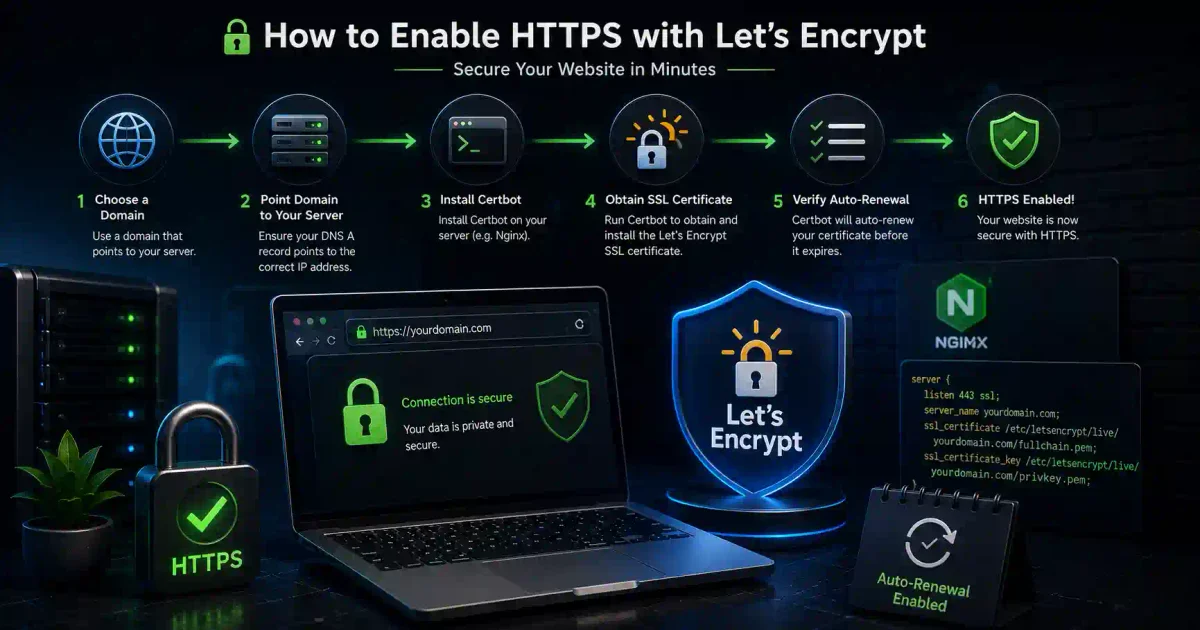
How It Works
1. You install Certbot (Let's Encrypt client)
2. Certbot verifies you own the domain
3. Let's Encrypt issues a certificate (valid for 90 days)
4. Certbot configures your web server
5. Certificate auto-renews before expiration
6. Your site runs HTTPS forever
Prerequisites
Before You Start
You’ll Need:
-
A Domain Name
- Example: your-domain.com
- DNS must point to your server
-
A Public Server
- Port 80 (HTTP) must be reachable
- Port 443 (HTTPS) must be reachable
-
Root/Admin Access
- To install software
- To modify server configuration
Check If You’re Ready:
# Check domain resolution
dig your-domain.com

# Check ports are open
nmap -p 80,443 your-domain.com

# Check your web server
curl -I http://your-domain.com
Method 1: Automatic Installation (Certbot)
Option A: Nginx
Step 1: Install Certbot
Ubuntu/Debian:
# Install Certbot and Nginx plugin
sudo apt update
sudo apt install certbot python3-certbot-nginx -y

# Verify installation
certbot --version
CentOS/RHEL/Rocky Linux:
# Install EPEL repository
sudo dnf install epel-release -y

# Install Certbot
sudo dnf install certbot python3-certbot-nginx -y

# Verify installation
certbot --version
Step 2: Obtain SSL Certificate
# Run Certbot with Nginx plugin
sudo certbot --nginx -d your-domain.com -d www.your-domain.com

# Follow the prompts:
# - Enter email address
# - Accept terms of service
# - Choose whether to redirect HTTP to HTTPS (recommended)
What Happens Next:
- ✅ Certificate is obtained
- ✅ Nginx is configured
- ✅ HTTPS is enabled
- ✅ HTTP redirects to HTTPS (if chosen)
Step 3: Verify Installation
# Check certificate
curl -I https://your-domain.com

# Check renewal process
sudo certbot renew --dry-run

# Check certificate details
sudo certbot certificates
Option B: Apache
Step 1: Install Certbot
Ubuntu/Debian:
sudo apt update
sudo apt install certbot python3-certbot-apache -y
CentOS/RHEL/Rocky Linux:
sudo dnf install certbot python3-certbot-apache -yStep 2: Obtain SSL Certificate
# Run Certbot with Apache plugin
sudo certbot --apache -d your-domain.com -d www.your-domain.com

# Follow the prompts
Step 3: Verify Installation
# Check certificate
curl -I https://your-domain.com

# Test renewal
sudo certbot renew --dry-run
Option C: Standalone Mode (No Web Server)
Use this if you’re not using Nginx or Apache.
# Stop your web server
sudo systemctl stop nginx
# or
sudo systemctl stop apache2

# Run Certbot standalone
sudo certbot certonly --standalone -d your-domain.com

# Certificate location:
# /etc/letsencrypt/live/your-domain.com/

# Configure your web server manually
Option D: DNS Challenge (Wildcard Certificates)
For wildcard certificates (*.your-domain.com):
# Install Certbot DNS plugin
sudo apt install python3-certbot-dns-cloudflare
# (Or your DNS provider's plugin)

# Create credentials file
sudo nano /etc/letsencrypt/cloudflare.ini

# Add:
dns_cloudflare_email = [email protected]
dns_cloudflare_api_key = your-api-key

# Set permissions
sudo chmod 600 /etc/letsencrypt/cloudflare.ini

# Obtain wildcard certificate
sudo certbot certonly \
    --dns-cloudflare \
    --dns-cloudflare-credentials /etc/letsencrypt/cloudflare.ini \
    -d your-domain.com \
    -d *.your-domain.com

# Wait up to 2 minutes for DNS propagation
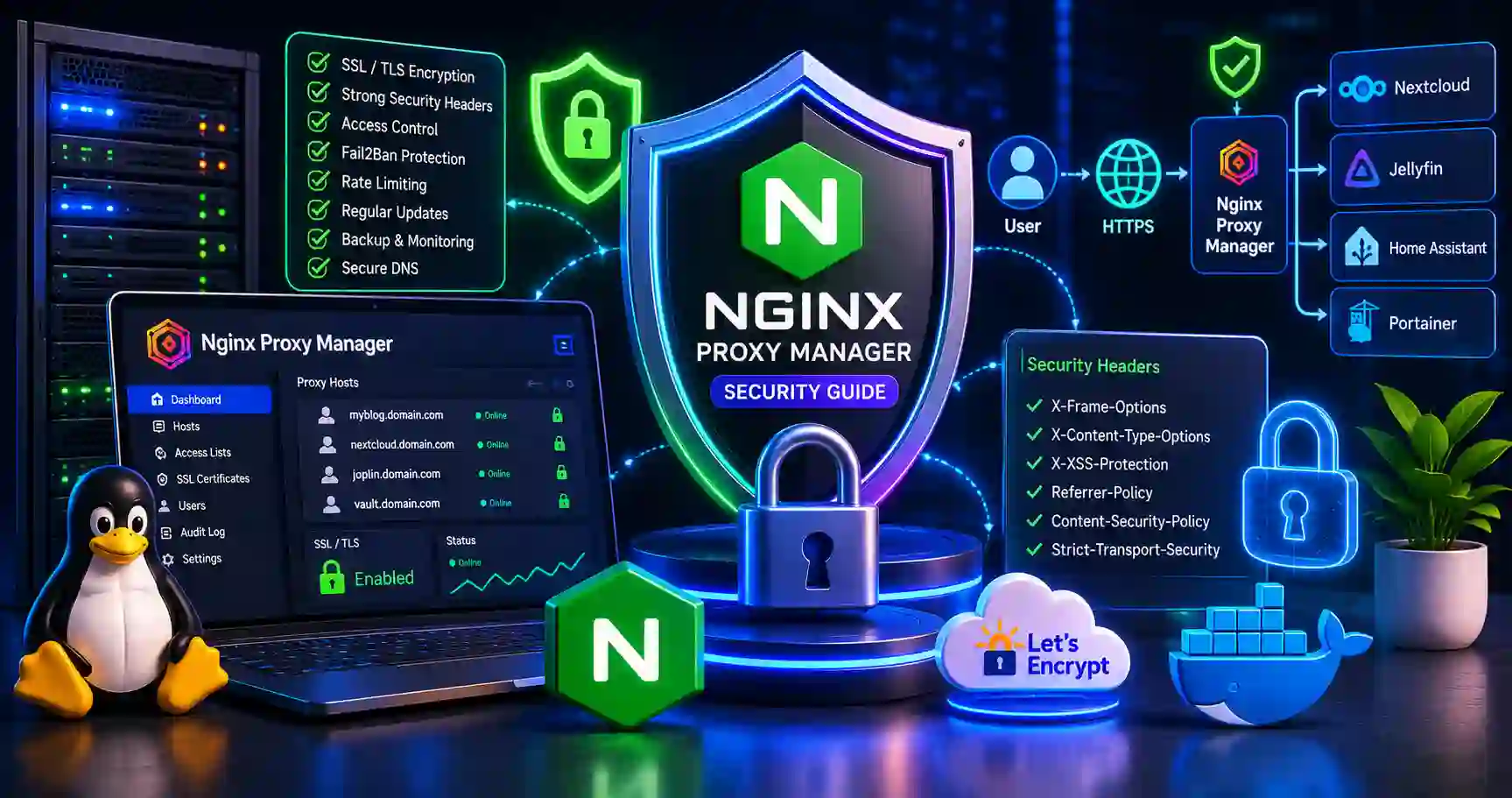
Method 2: Using Nginx Proxy Manager
Step 1: Access NPM Admin Panel
# Open browser and go to:
http://your-server-ip:81

# Login with admin credentials
Step 2: Add SSL Certificate
# 1. Go to "SSL Certificates" → "Add SSL Certificate"

# 2. Choose "Let's Encrypt"
#    - Domain: your-domain.com
#    - Email: [email protected]
#    - Check "Use a DNS Challenge" (for wildcard)
#    - Select DNS provider (if using DNS)

# 3. Click "Save"

# 4. Wait for certificate generation (10-30 seconds)

# 5. Verify certificate
#    - Status should be "Valid"
#    - Check expiration date
Step 3: Apply to Proxy Host
# 1. Go to "Proxy Hosts" → Edit an existing host

# 2. Go to "SSL" tab
#    - SSL Certificate: Select your new certificate
#    - Force SSL: Yes
#    - HTTP/2 Support: Yes
#    - HSTS: Yes (recommended)
#    - HSTS Subdomains: Yes

# 3. Click "Save"

# 4. Test the site: https://your-domain.com
Method 3: Manual Certificate Installation
Step 1: Obtain Certificate
# Install Certbot
sudo apt install certbot -y

# Stop web server
sudo systemctl stop nginx

# Obtain certificate
sudo certbot certonly --standalone -d your-domain.com

# Certificate location:
# /etc/letsencrypt/live/your-domain.com/
#   - fullchain.pem (certificate)
#   - privkey.pem (private key)
#   - chain.pem (intermediate certificate)
Step 2: Configure Web Server
Nginx Configuration:
sudo nano /etc/nginx/sites-available/your-domain.comSSL Configuration:
server {
    listen 443 ssl http2;
    server_name your-domain.com;

    # SSL Configuration
    ssl_certificate /etc/letsencrypt/live/your-domain.com/fullchain.pem;
    ssl_certificate_key /etc/letsencrypt/live/your-domain.com/privkey.pem;

    # SSL Security Settings
    ssl_protocols TLSv1.2 TLSv1.3;
    ssl_ciphers HIGH:!aNULL:!MD5;
    ssl_prefer_server_ciphers on;
    ssl_session_cache shared:SSL:10m;
    ssl_session_timeout 10m;

    # HSTS Header
    add_header Strict-Transport-Security "max-age=31536000; includeSubDomains" always;
    add_header X-Frame-Options "SAMEORIGIN" always;
    add_header X-Content-Type-Options "nosniff" always;

    # Root Directory
    root /var/www/html;
    index index.html index.htm;

    location / {
        try_files $uri $uri/ =404;
    }
}

# HTTP to HTTPS Redirect
server {
    listen 80;
    server_name your-domain.com;
    return 301 https://$server_name$request_uri;
}
Apache Configuration:
sudo nano /etc/apache2/sites-available/your-domain.com.conf<VirtualHost *:443>
ServerName your-domain.com
ServerAdmin [email protected]
# SSL Configuration
SSLEngine on
SSLCertificateFile /etc/letsencrypt/live/your-domain.com/fullchain.pem
SSLCertificateKeyFile /etc/letsencrypt/live/your-domain.com/privkey.pem
# SSL Security Settings
SSLProtocol all -SSLv3 -TLSv1 -TLSv1.1
SSLCipherSuite HIGH:!aNULL:!MD5
# Security Headers
Header always set Strict-Transport-Security "max-age=31536000; includeSubDomains"
Header always set X-Frame-Options "SAMEORIGIN"
Header always set X-Content-Type-Options "nosniff"
DocumentRoot /var/www/html
<Directory /var/www/html>
Options -Indexes +FollowSymLinks
AllowOverride All
Require all granted
</Directory>
</VirtualHost>
<VirtualHost *:80>
ServerName your-domain.com
Redirect permanent / https://your-domain.com/
</VirtualHost>Step 3: Apply Configuration
Nginx:
# Test configuration
sudo nginx -t

# Enable site
sudo ln -s /etc/nginx/sites-available/your-domain.com /etc/nginx/sites-enabled/

# Reload Nginx
sudo systemctl reload nginx
Apache:
# Enable SSL module
sudo a2enmod ssl
sudo a2enmod headers

# Enable site
sudo a2ensite your-domain.com.conf

# Test configuration
sudo apache2ctl configtest

# Reload Apache
sudo systemctl reload apache2
Setting Up Auto-Renewal
Why Auto-Renewal Matters
Let’s Encrypt certificates expire after 90 days. Without auto-renewal, your site will display security warnings.
Using Certbot Auto-Renewal
Certbot includes an auto-renewal service by default.
# Check renewal status
sudo certbot renew --dry-run

# View scheduled renewal
sudo systemctl status certbot.timer

# View renewal logs
sudo journalctl -u certbot.service
Setting Up Manual Cron Job
# Edit crontab
sudo crontab -e

# Add renewal job (runs twice daily)
0 */12 * * * /usr/bin/certbot renew --quiet --pre-hook "systemctl stop nginx" --post-hook "systemctl start nginx"

# Or with web server reload
0 */12 * * * /usr/bin/certbot renew --quiet --deploy-hook "systemctl reload nginx"
Renewal Webhook Script
sudo nano /etc/letsencrypt/renewal-hooks/deploy/restart-services.sh

#!/bin/bash
# Restart services after renewal

# Reload Nginx
systemctl reload nginx

# Reload Apache
systemctl reload apache2

# Restart Docker containers (if using NPM)
docker restart nginx-proxy-manager

# Log renewal
echo "$(date) - Certificate renewed" >> /var/log/ssl-renewal.log

# Make executable
sudo chmod +x /etc/letsencrypt/renewal-hooks/deploy/restart-services.sh
SSL Security Best Practices
1. Strong SSL Configuration
Nginx:
# Modern SSL Configuration (Nginx)
ssl_protocols TLSv1.2 TLSv1.3;
ssl_ciphers ECDHE-ECDSA-AES128-GCM-SHA256:ECDHE-RSA-AES128-GCM-SHA256:ECDHE-ECDSA-AES256-GCM-SHA384:ECDHE-RSA-AES256-GCM-SHA384:ECDHE-ECDSA-CHACHA20-POLY1305:ECDHE-RSA-CHACHA20-POLY1305:DHE-RSA-AES128-GCM-SHA256:DHE-RSA-AES256-GCM-SHA384;
ssl_prefer_server_ciphers off;
ssl_session_cache shared:SSL:10m;
ssl_session_timeout 1d;
ssl_session_tickets off;

# OCSP Stapling
ssl_stapling on;
ssl_stapling_verify on;
resolver 1.1.1.1 8.8.8.8 valid=300s;
resolver_timeout 5s;
Apache:
# Modern SSL Configuration (Apache)
SSLProtocol all -SSLv3 -TLSv1 -TLSv1.1
SSLCipherSuite ECDHE-ECDSA-AES128-GCM-SHA256:ECDHE-RSA-AES128-GCM-SHA256:ECDHE-ECDSA-AES256-GCM-SHA384:ECDHE-RSA-AES256-GCM-SHA384:ECDHE-ECDSA-CHACHA20-POLY1305:ECDHE-RSA-CHACHA20-POLY1305:DHE-RSA-AES128-GCM-SHA256:DHE-RSA-AES256-GCM-SHA256
SSLUseStapling on
SSLStaplingCache "shmcb:logs/ssl_stapling(32768)"
2. Security Headers
Always add these security headers:
# In Nginx server block
add_header Strict-Transport-Security "max-age=31536000; includeSubDomains; preload" always;
add_header X-Frame-Options "SAMEORIGIN" always;
add_header X-Content-Type-Options "nosniff" always;
add_header X-XSS-Protection "1; mode=block" always;
add_header Referrer-Policy "strict-origin-when-cross-origin" always;
add_header Content-Security-Policy "default-src 'self';" always;
add_header Permissions-Policy "geolocation=(), microphone=(), camera=()" always;
3. HSTS Preload
What is HSTS? HSTS (HTTP Strict Transport Security) tells browsers to always use HTTPS.
Enable HSTS:
# Add header (already shown above)
add_header Strict-Transport-Security "max-age=31536000; includeSubDomains; preload" always;
Submit to HSTS Preload List:
- Visit: https://hstspreload.org/
- Enter your domain
- Submit for inclusion
Requirements:
- ✅ Valid SSL certificate
- ✅ HSTS header with max-age at least 31536000 (1 year)
- ✅ includeSubDomains directive
- ✅ HTTPS redirect from HTTP
4. Test Your SSL Configuration
# Test with openssl
openssl s_client -connect your-domain.com:443 -tls1_2

# Show certificate details
openssl x509 -in /etc/letsencrypt/live/your-domain.com/fullchain.pem -text -noout

# Check certificate expiration
openssl x509 -in /etc/letsencrypt/live/your-domain.com/fullchain.pem -enddate -noout

# Test with online tools
# Visit: https://www.ssllabs.com/ssltest/
# Enter your domain to get a detailed report
Common Scenarios
Scenario 1: Multiple Domains (SAN Certificates)
# Single certificate for multiple domains
sudo certbot --nginx -d domain1.com -d domain2.com -d domain3.com

# Or with separate certificates
sudo certbot --nginx -d domain1.com
sudo certbot --nginx -d domain2.com
Scenario 2: Wildcard Certificate
# One certificate for all subdomains
sudo certbot certonly --manual \
    --preferred-challenges dns \
    -d your-domain.com \
    -d *.your-domain.com

# DNS challenge required
# Add TXT record: _acme-challenge.your-domain.com
Scenario 3: Subdomain Only
# Certificate for a single subdomain
sudo certbot --nginx -d app.your-domain.com
Scenario 4: Internal Server (No Public Domain)
# Use self-signed certificate
# Not recommended for production

openssl req -x509 -newkey rsa:4096 -keyout key.pem -out cert.pem -days 365 -nodes

# Install on web server
# Browsers will show warning
Scenario 5: Using Cloudflare
# Option 1: Origin Certificate (from Cloudflare)
# - Generate in Cloudflare SSL/TLS → Origin Server
# - Install on your server
# - Set Cloudflare SSL to "Full (strict)"

# Option 2: Let's Encrypt with Cloudflare
# - Use DNS challenge
# - Cloudflare API key required

sudo certbot certonly --dns-cloudflare \
    --dns-cloudflare-credentials /etc/letsencrypt/cloudflare.ini \
    -d your-domain.com

# In Cloudflare:
# - SSL/TLS encryption mode: Full (strict)
# - Enable "Always Use HTTPS"
# - Enable "Automatic HTTPS Rewrites"
Troubleshooting
Issue 1: “Connection Refused” on Port 80
# Check if web server is running
sudo systemctl status nginx

# Check firewall
sudo ufw status
sudo ufw allow 80/tcp
sudo ufw allow 443/tcp

# Check if port is listening
sudo netstat -tulpn | grep :80
Issue 2: “Failed to Connect” Error
# Check DNS resolution
dig your-domain.com

# Check domain ownership
whois your-domain.com

# Check IP address
ping your-domain.com

# Check if ports are open
nmap -p 80,443 your-domain.com
Issue 3: “Challenge Failed” Error
# Check if your web server serves the challenge
curl -I http://your-domain.com/.well-known/acme-challenge/

# Check directory permissions
ls -la /var/www/html/.well-known/

# Try standalone mode
sudo systemctl stop nginx
sudo certbot certonly --standalone -d your-domain.com
Issue 4: “Renewal Failed” Error
# Test renewal
sudo certbot renew --dry-run

# View renewal logs
sudo cat /var/log/letsencrypt/letsencrypt.log

# Manually renew
sudo certbot renew --force-renewal

# Check certificate expiration
sudo certbot certificates
Issue 5: Mixed Content Warnings
Problem: Some resources load over HTTP on HTTPS pages.
Fix:
# In web server configuration
# Add header to upgrade insecure requests
add_header Content-Security-Policy "upgrade-insecure-requests;" always;

# In HTML
# Change all resources to use HTTPS or relative URLs
# <img src="https://..." or <img src="//..."
SSL Certificate Management
View Certificate Information
# List all certificates
sudo certbot certificates

# View certificate details
sudo openssl x509 -in /etc/letsencrypt/live/your-domain.com/fullchain.pem -text -noout

# Check expiration
sudo openssl x509 -in /etc/letsencrypt/live/your-domain.com/fullchain.pem -enddate -noout
Revoke Certificate
# Revoke a certificate
sudo certbot revoke --cert-path /etc/letsencrypt/live/your-domain.com/cert.pem

# Delete certificate
sudo certbot delete --cert-name your-domain.com
backup Certificates
# Create backup script
sudo nano /usr/local/bin/backup-ssl.sh

#!/bin/bash
BACKUP_DIR="/backup/ssl"
DATE=$(date +%Y%m%d)

mkdir -p $BACKUP_DIR
tar -czf "$BACKUP_DIR/letsencrypt-$DATE.tar.gz" /etc/letsencrypt
echo "SSL backup completed: $DATE" >> /var/log/ssl-backup.log

# Schedule weekly backup
sudo crontab -e
# Add:
0 3 * * 0 /usr/local/bin/backup-ssl.sh
Quick Reference
Essential Commands
# Installation
sudo apt install certbot python3-certbot-nginx
sudo apt install certbot python3-certbot-apache

# Get certificate (Nginx)
sudo certbot --nginx -d domain.com

# Get certificate (Apache)
sudo certbot --apache -d domain.com

# Get certificate (standalone)
sudo certbot certonly --standalone -d domain.com

# Renew certificates
sudo certbot renew

# Test renewal
sudo certbot renew --dry-run

# List certificates
sudo certbot certificates

# Revoke certificate
sudo certbot revoke --cert-path /path/to/cert.pem

# Delete certificate
sudo certbot delete --cert-name domain.com

# Check certificate
openssl x509 -in /etc/letsencrypt/live/domain.com/fullchain.pem -text -noout
SSL Configuration Cheatsheet
# Nginx - Minimum SSL
listen 443 ssl http2;
ssl_certificate /etc/letsencrypt/live/domain.com/fullchain.pem;
ssl_certificate_key /etc/letsencrypt/live/domain.com/privkey.pem;

# Nginx - Security Headers
add_header Strict-Transport-Security "max-age=31536000; includeSubDomains" always;
add_header X-Frame-Options "SAMEORIGIN" always;
add_header X-Content-Type-Options "nosniff" always;

# Apache - Minimum SSL
SSLEngine on
SSLCertificateFile /etc/letsencrypt/live/domain.com/fullchain.pem
SSLCertificateKeyFile /etc/letsencrypt/live/domain.com/privkey.pem
Conclusion
Enabling HTTPS with Let’s Encrypt is one of the most important security measures you can take for your website in 2026. It’s free, automated, and protects your visitors’ data.
Key Takeaways:
- Let’s Encrypt provides free SSL certificates
- Install Certbot for automatic setup
- Certificates auto-renew (no manual work)
- Use strong SSL configuration
- Enable HSTS and security headers
- Test your SSL configuration
- Monitor certificate expiry
Your Next Steps:
- Install Certbot
- Obtain SSL certificate
- Enable auto-renewal
- Add security headers
- Submit to HSTS preload list
- Test and monitor
Ready to secure more of your infrastructure? Check out our Complete Web Security Guide for more protection strategies.
Frequently Asked Questions (FAQs)
Q: Is Let’s Encrypt really free? A: Yes! Let’s Encrypt is completely free, forever. They’re a non-profit organization.
Q: How long are Let’s Encrypt certificates valid? A: 90 days. They auto-renew automatically, so you don’t need to worry.
Q: Can I use Let’s Encrypt for commercial websites? A: Yes, Let’s Encrypt can be used for any website, commercial or personal.
Q: Does Let’s Encrypt support wildcard certificates? A: Yes, but they require DNS challenge verification.
Q: Will my website break during renewal? A: No, renewal happens automatically without downtime.
Q: Do I need to renew manually? A: No, Certbot handles automatic renewal. Just make sure it’s installed and running.
Q: What if I can’t open port 80? A: Use DNS challenge instead of HTTP challenge for certificate issuance.
Q: Does HTTPS slow down my website? A: With HTTP/2 and modern hardware, HTTPS is actually faster than HTTP for most sites.
Discussion
Loading comments...