

In the complex modern cybersecurity landscape of 2026, merely securing your physical network perimeter is no longer sufficient. You can deploy next-generation physical firewalls, isolate your database servers in secure virtual private clouds (VPCs), and enforce rigorous IP whitelisting rules. However, if your bespoke web application contains a single flawed line of PHP or Python code that allows a threat actor to inject malicious SQL commands directly into your backend database, your expensive network defenses are rendered irrelevant. An attacker simply walks through the open front door via standard web traffic on port 443.
To identify and remediate these devastating application-layer vulnerabilities before threat actors can exploit them, professional penetration testers and application security engineers rely on Dynamic Application Security Testing (DAST) tools.
While commercial enterprise DAST tools like Burp Suite Professional or Acunetix cost thousands of dollars a year for a single license, the Open Web Application Security Project (OWASP) maintains a free, open-source alternative: OWASP ZAP (Zed Attack Proxy).
In this comprehensive tutorial, we will take you from a beginner to confidently wielding OWASP ZAP. We will dissect the core architecture of Man-in-the-Middle proxy interception, configure the ZAP proxy environment, execute passive scans, launch active fuzzing campaigns, and learn to interpret the resulting security alerts.
1. The Core Architecture of OWASP ZAP: The Intercepting Proxy
To understand how ZAP uncovers hidden vulnerabilities, you must change how you mentally view standard web browsing.
Normally, when you click a button on a typical website, your local web browser silently generates an HTTP request and sends it directly to the remote web server. The remote server processes the request and sends an HTTP response (the raw HTML web page) back to your browser. You never see the raw text of the underlying HTTP request.
OWASP ZAP disrupts this standard flow by acting as a Man-in-the-Middle (MitM) Proxy.
When you configure your local browser to route its web traffic through ZAP, the tool sits between your local browser and the remote target server.
- Your local browser generates the HTTP request, but it sends it to ZAP instead of the actual remote web server.
- ZAP catches the request, freezing it in time, allowing you to view the raw text, manipulate cookies, or alter hidden URL parameters.
- ZAP then forwards the modified request to the remote target web server.
- The remote server responds, sending the raw HTML response back to ZAP.
- ZAP logs the response to its internal relational database, checking it for missing security headers, before finally forwarding it back to your local browser.
By routing all web traffic through this central proxy, ZAP builds a detailed internal map of every hidden directory, API endpoint, and parameter the target web application uses.
2. Installation and Environment Configuration
OWASP ZAP is a robust, cross-platform Java application. It will run on any operating system that has a modern Java Runtime Environment (JRE) installed.
🐧 Installing on Linux (The Hacker’s Path)
If you are operating from a dedicated penetration testing environment like Kali Linux, Parrot Security OS, or CSI Linux, OWASP ZAP is pre-installed by default. If you are building your own OSINT or security virtual machine on standard Debian or Ubuntu (as discussed in our guide on Building Your First OSINT Toolkit), simply install ZAP via the standard APT package manager:
sudo apt update
sudo apt install zapproxy -y
🪟/🍎 Installing on Windows 11 and macOS
Download the official .exe or .dmg installer directly from the OWASP ZAP website. The Windows installer bundles the required Java libraries within the executable, so you do not need to mess with installing Java independently and fixing broken environment paths.
🐳 The Docker Implementation (For DevOps)
For security engineers integrating ZAP into automated CI/CD pipelines (DevSecOps), OWASP maintains official Docker images. This allows you to spin up a headless version of ZAP, run a baseline security scan against a new code commit, and destroy the container automatically within minutes.
# Pull the official stable image
docker pull owasp/zap2docker-stable

# Run ZAP in Webswing mode (allowing GUI access via a web browser)
docker run -u zap -p 8080:8080 -i owasp/zap2docker-stable zap-webswing.sh
3. Configuring the Browser and Trusting the CA
For ZAP to successfully intercept encrypted HTTPS traffic (which all modern websites use), your local browser must trust ZAP to act as a certificate authority (CA). Otherwise, your browser will throw “Connection Not Private” warning errors and refuse to load the website.
ZAP provides two methods to handle this.
Method A: The Automated ZAP Browser (Strongly Recommended for Beginners)
This is the fastest and easiest method. ZAP ships with pre-configured browsers that automatically route all traffic to the proxy and trust the ZAP SSL root certificate without manual configuration.
- Open ZAP and navigate to the Quick Start tab.
- Click on the Manual Explore button.
- Type the URL of your authorized target (e.g.,
http://testphp.vulnweb.com). - Select your preferred browser from the drop-down menu (Firefox or Chrome).
- Click Launch Browser. ZAP will open a hardened, proxy-configured browser window ready for testing.
Method B: Manual Configuration (For Professionals)
If you prefer to use your primary browser profile laden with extensions, you must configure the routing manually.
- In ZAP, go to Tools > Options > Local Proxies. Ensure it is listening on
localhoston port8080. - Open your primary browser (e.g., Firefox). Go to Settings > Network Settings. Change the proxy configuration to route all HTTP and HTTPS traffic through
127.0.0.1on port8080. - Back in ZAP, go to Tools > Options > Dynamic SSL Certificates. Click the Save button to export ZAP’s Root CA Certificate to your hard drive.
- In your browser’s settings, go to the Certificate Manager and manually import the ZAP Root CA file into your “Trusted Root Certification Authorities” store. Your browser will now decrypt HTTPS traffic through ZAP.
4. Phase 1: Contextual Mapping and Passive Scanning
You should never start a professional vulnerability assessment by blindly clicking the “Attack” button. If you do, the scanner will get lost, test the wrong parameters, and likely crash the target’s production server. You must first map the application manually.
With your proxy browser open, interact with the target web application like a normal user. Click every link. Log in with authorized test credentials. Add an item to the shopping cart. Submit a contact form.
As you browse, look at the Sites Tree on the left-hand panel of the ZAP interface. You will see a map of the website building itself in real-time, organizing every hidden folder, API endpoint, and JavaScript file.
The Silent Passive Scan
As you click through the site, ZAP is silently executing a Passive Scan in the background. A passive scan NEVER modifies the raw data you send to the server. It simply analyzes the server’s responses. Because it is passive, it generates zero noise, sends zero extra packets, and will never trigger an Intrusion Detection System (IDS).
Passive scans are excellent for identifying critical misconfigurations:
- Missing Security Headers: Flags missing
Content-Security-PolicyorX-Frame-Optionsheaders (which prevent Clickjacking attacks). - Cookie Misconfigurations: Flags sensitive authentication cookies that are missing the
HttpOnlyorSecurecryptographic flags, leaving them vulnerable to theft via Cross-Site Scripting (XSS). - Information Leakage: Flags internal IP addresses or detailed database error messages leaked in the HTML source code.
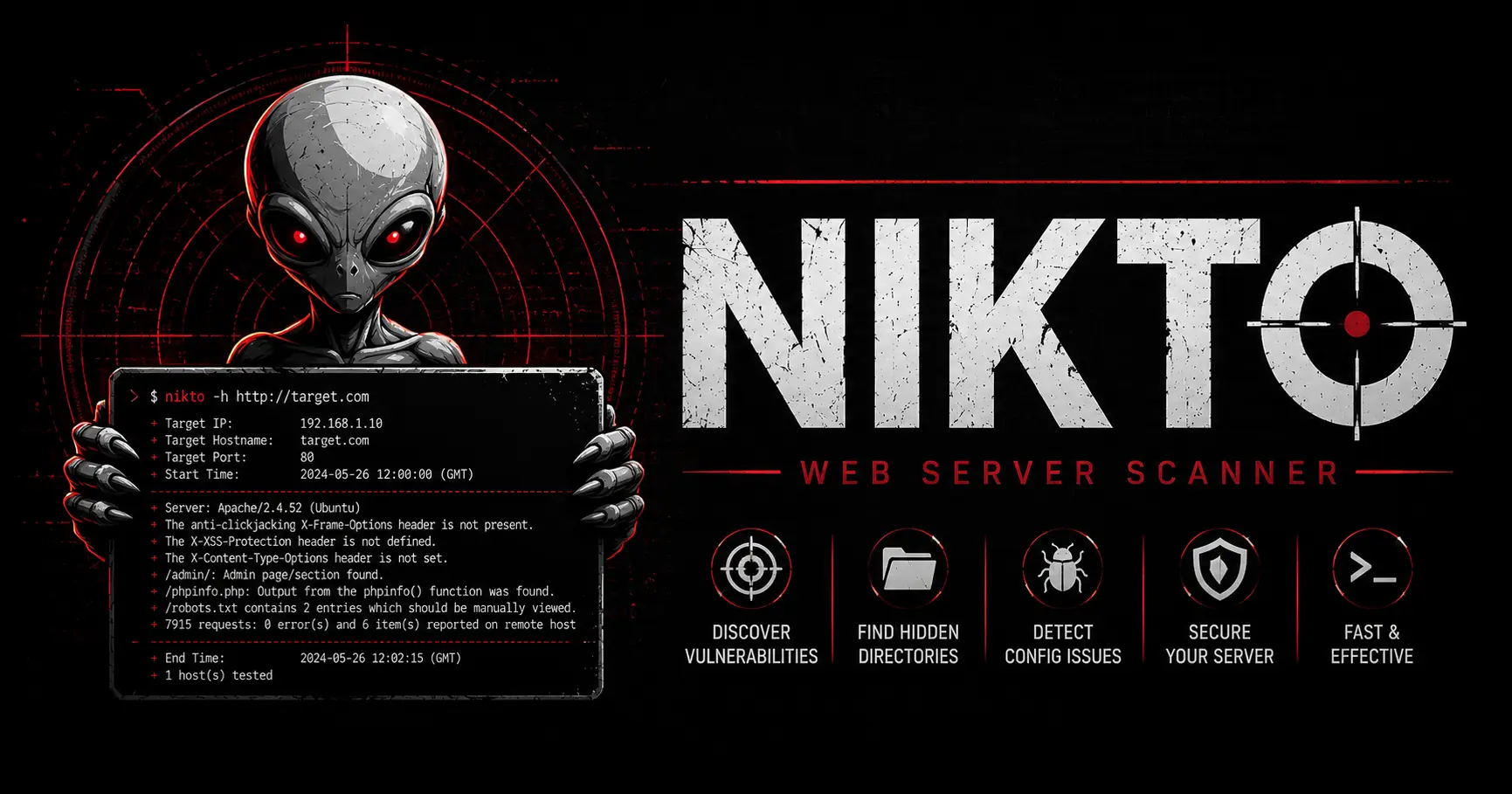
For checking server-level misconfigurations, it is recommended to pair ZAP’s passive scanning with an infrastructure scanner like the Nikto Web Vulnerability Scanner.
5. Defining the Scope (The Most Crucial Step)
Before you launch a destructive active attack, you MUST define the scope.
If the target website has a Twitter widget or a Google Analytics script embedded on the homepage, ZAP will record api.twitter.com in its Site Tree. If you click “Scan Everything,” ZAP will begin launching SQL injection attacks against Twitter’s corporate servers. This is dangerous and could result in criminal charges.
To prevent this:
- Right-click the target folder in your Sites Tree (e.g.,
http://testphp.vulnweb.com). - Select Include in Context > Default Context.
- Click the “Target/Bullseye” icon at the top of the Sites tree to “Show all URLs in Scope.” All external corporate websites (Google Analytics, Twitter, Facebook widgets) will disappear from your view, ensuring you only attack the specific infrastructure you are legally authorized to test.
6. Phase 2: Unleashing the Active Scan (Fuzzing)
Once the site is mapped and the scope is defined, you can unleash the Active Scanner.
⚠️ LEGAL WARNING: Active scanning sends thousands of malicious payloads to the target server in an attempt to trigger database errors. It will submit fake contact forms, attempt to delete database records, and try to execute remote code. You must NEVER run an active scan against a website you do not own or possess written permission to audit.
- Right-click the target folder in your Sites tree.
- Navigate to Attack > Active Scan.
- In the configuration menu, you can select which vulnerabilities ZAP should test for (e.g., disable SQL injection tests if you know the site doesn’t use a database).
- Click the Start Scan button.
How the Active Scanner Works (Fuzzing)
ZAP looks at every HTTP request you recorded during your manual exploration. If it sees a standard search request like http://target.com/search?query=shoes, ZAP targets the query parameter.
It swaps the innocent word “shoes” with thousands of malicious payloads:
query=' OR 1=1 --(Testing for SQL Injection)query=<script>alert(1)</script>(Testing for Cross-Site Scripting)query=../../../../etc/passwd(Testing for Local File Inclusion)
If the web server responds to the SQL payload with a database syntax error, ZAP flags the parameter as vulnerable to SQL Injection.
7. Interpreting Alerts and Generating Reports
When the active scan finishes, click the Alerts tab at the bottom of the screen. ZAP categorizes the list of discovered vulnerabilities using a color-coded flag system.
The Triage Methodology
- 🚩 Red Flag (High Severity): Immediate action required. These are critical flaws that allow an attacker to compromise the server or steal the database. Examples: SQL Injection, Remote Code Execution (RCE), Path Traversal.
- 🟡 Yellow Flag (Medium Severity): Significant risk. Examples: Stored or Reflected XSS, vulnerable outdated JavaScript libraries, missing authorization checks on administrative pages.
- 🔵 Blue Flag (Low Severity): Minor configuration issues. Examples: Missing Anti-CSRF tokens on non-critical feedback forms, utilizing weak SSL ciphers.
- ⚪ Grey Flag (Informational): Not a vulnerability, but interesting data (e.g., an internal IP address leaked in a code comment).
When you double-click a Red Flag alert, ZAP opens a detailed menu. It will show you the payload it injected, the HTTP response the server returned, and provide an explanation of the vulnerability along with links to the official OWASP remediation documentation.
To export these findings to a development team or a client, navigate to Report > Generate Report. ZAP will compile all alerts, evidence, and remediation steps into a professional HTML or PDF document.
Frequently Asked Questions (FAQ)
1. What is OWASP ZAP and what is it used for? OWASP ZAP (Zed Attack Proxy) is a free, open-source Dynamic Application Security Testing (DAST) tool used by penetration testers and security engineers to find vulnerabilities in web applications.
2. How does OWASP ZAP work as a proxy? OWASP ZAP acts as a Man-in-the-Middle (MitM) proxy by sitting between your web browser and the target web server. It intercepts, logs, and allows you to modify HTTP requests and responses before they reach their destination.
3. What is the difference between a Passive Scan and an Active Scan in ZAP? A Passive Scan silently analyzes the web server’s responses without sending any malicious payloads, generating zero noise. An Active Scan (or fuzzing) actively sends thousands of malicious payloads to the target to uncover critical flaws like SQL injection, modifying the raw data and creating significant noise.
4. Why is defining the scope critical before running an Active Scan? Defining the scope ensures that ZAP only attacks the specific infrastructure you are legally authorized to test. If you do not define the scope, the Active Scanner might launch attacks against unauthorized third-party services like Google Analytics or social media widgets embedded on your site.
5. How does ZAP categorize discovered vulnerabilities? ZAP categorizes vulnerabilities using a color-coded flag system in the Alerts tab. Red flags denote High Severity (e.g., SQL Injection), Yellow flags denote Medium Severity (e.g., XSS), Blue flags denote Low Severity (e.g., missing Anti-CSRF tokens), and Grey flags denote Informational findings.
Conclusion: The Pinnacle of Web Testing
OWASP ZAP is a triumph of the open-source security community. It democratizes advanced web application testing, providing students, developers, and security researchers with a powerful tool capable of executing enterprise-grade vulnerability assessments.
By mastering the Man-in-the-Middle proxy architecture, mapping the target application manually, defining testing scopes, and unleashing the Active Scanner, you transition from reading about vulnerabilities to hunting them in the wild. Always remember to respect legal boundaries, test safely, and verify your automated findings.

Discussion
Loading comments...