

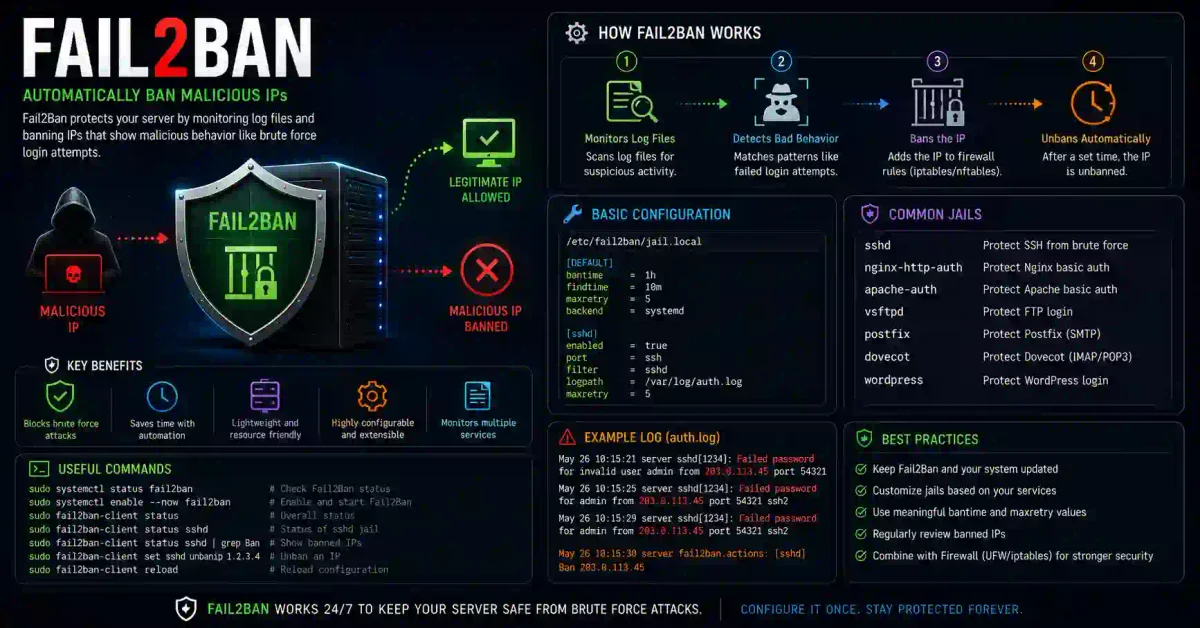
Imagine a thief repeatedly trying different keys on your front door, hundreds of times per minute. Eventually, they might get lucky. That’s exactly what a brute-force attack looks like in the digital world—automated bots relentlessly trying to guess passwords on your SSH, web servers, and other services.
Fail2ban is your digital bouncer that automatically identifies these repeated failed attempts and blocks the attackers at the firewall level. It’s like having a security guard who not only spots suspicious behavior but also bans the perpetrator for a set period.
In 2026, with automated attacks increasing by 400% year-over-year, Fail2ban has become an essential tool for every Linux server administrator. This comprehensive guide will walk you through everything from basic installation to advanced configuration.
What is Fail2ban?
Fail2ban is an intrusion prevention software framework that protects servers from brute-force attacks. It works by:
- Monitoring log files for failed login attempts
- Detecting patterns of malicious behavior
- Updating firewall rules to block offending IP addresses
- Sending notifications about blocked attacks
How It Works: The Technical Overview
Attacker IP → Attempts Login → Fails → Log Entry Created
                                           ↓
                                    Fail2ban Scans Logs
                                           ↓
                              Detects 3 Failed Attempts (Threshold)
                                           ↓
                              Adds IP to Firewall Ban List
                                           ↓
                              Blocks All Traffic from IP (Bantime)
                                           ↓
                              IP Removed from Ban List (After Timeout)
Installing Fail2ban
Ubuntu/Debian Installation
# Update package repository
sudo apt update

# Install Fail2ban
sudo apt install fail2ban -y

# Verify installation
fail2ban-client --version

# Enable and start service
sudo systemctl enable fail2ban
sudo systemctl start fail2ban

# Check status
sudo systemctl status fail2ban
CentOS/RHEL/Rocky Linux Installation
# For CentOS 8+ / Rocky Linux
sudo dnf install epel-release -y
sudo dnf install fail2ban fail2ban-firewalld -y

# For CentOS 7
sudo yum install epel-release -y
sudo yum install fail2ban -y

# Enable and start
sudo systemctl enable fail2ban
sudo systemctl start fail2ban
Amazon Linux Installation
# Enable EPEL
sudo amazon-linux-extras install epel -y

# Install Fail2ban
sudo yum install fail2ban -y

# Start and enable
sudo systemctl enable fail2ban
sudo systemctl start fail2ban
Verify Installation
# Check Fail2ban version
fail2ban-client --version

# Check service status
sudo systemctl status fail2ban

# List available jails
sudo fail2ban-client status
Fail2ban Configuration Structure
Understanding Fail2ban’s configuration hierarchy is crucial:
/etc/fail2ban/
├── fail2ban.conf          # Main configuration
├── fail2ban.d/            # Override directory
├── jail.conf              # Main jail configuration
├── jail.d/                # Custom jail overrides
├── filter.d/              # Filter definitions
│   ├── sshd.conf
│   ├── nginx-http-auth.conf
│   └── *.conf
├── action.d/              # Action definitions
│   ├── iptables.conf
│   ├── iptables-multiport.conf
│   └── *.conf
├── ignore.d/              # IP ignore lists
└── paths-*.conf           # Path definitions
Configuration Priority (Highest to Lowest)
- jail.d/*.conf (Custom configurations)
- jail.local (Local overrides)
- jail.conf (Default configuration)
Basic Configuration
Create Jail Configuration
Never edit jail.conf directly. Instead, create a local configuration:
# Create local configuration file
sudo cp /etc/fail2ban/jail.conf /etc/fail2ban/jail.local

# Or create a custom configuration
sudo nano /etc/fail2ban/jail.d/sshd.local
Global Configuration Settings
Edit /etc/fail2ban/jail.local:
[DEFAULT]

# Ban for 10 minutes (600 seconds)
bantime = 600

# Count failures over 10 minutes (600 seconds)
findtime = 600

# Allow 5 failures before banning
maxretry = 5

# Ignore specific IPs (never ban)
ignoreip = 127.0.0.1/8 ::1 192.168.1.0/24

# Backend for log monitoring
backend = auto

# Email notifications (optional)
destemail = [email protected]
sender = [email protected]
mta = sendmail
action = %(action_mwl)s
SSH Jail Configuration
[sshd]

# Enable the jail
enabled = true

# Port to monitor (change if using custom port)
port = ssh

# Log file to monitor
logpath = %(sshd_log)s

# Action to take (firewall ban + email)
action = %(action_mwl)s

# Maximum retries before ban
maxretry = 3

# Ban time (1 hour)
bantime = 3600

# Find time window (10 minutes)
findtime = 600

# Log level
loglevel = INFO
Enabling Jails
List Available Jails
# Show all available jails
sudo fail2ban-client status

# Show specific jail details
sudo fail2ban-client status sshd

# List all jails (including disabled)
sudo fail2ban-client status | grep "Jail list"
Enable a Specific Jail
# Edit jail.local
sudo nano /etc/fail2ban/jail.local

# Find the [sshd] section and change:
enabled = true

# Or enable via command line
sudo fail2ban-client set sshd enabled true

# Restart Fail2ban
sudo systemctl restart fail2ban
Enable Multiple Jails
# Example: Enable SSH, Apache, and Nginx
sudo nano /etc/fail2ban/jail.d/custom.local
Add:
[sshd]
enabled = true

[apache-auth]
enabled = true

[nginx-http-auth]
enabled = true
Creating Custom Filters
Understanding Filter Syntax
Filters are regex patterns that match log entries. Create custom filters for services without built-in support.
Example: Custom Filter for Custom Application
Create a new filter:
sudo nano /etc/fail2ban/filter.d/myapp-auth.conf[Definition]
# Regex pattern to match failed attempts
failregex = ^.*Failed login from <HOST> for user .*$
^.*Authentication failed for .* from <HOST>$
^.*Invalid login attempt from <HOST>$
# Ignore these patterns
ignoreregex = ^.*internal health check.*$
# Add this for custom date format if needed
dateregex = ^\S{3}\s{1,2}\d{1,2}\s\d{2}:\d{2}:\d{2}Testing Your Filter
# Test filter against log file
sudo fail2ban-regex /var/log/myapp.log /etc/fail2ban/filter.d/myapp-auth.conf

# Test specific regex pattern
sudo fail2ban-regex "Failed login from 192.168.1.100" "Failed login from <HOST>"
Advanced Configurations
1. Persistent Banning (Recidivism)
Track and permanently ban repeat offenders:
[recidive]
enabled = true
logpath = /var/log/fail2ban.log
filter = recidive
action = iptables-allports[name=recidive]
bantime = -1  # Permanent ban
findtime = 86400  # 24 hours
maxretry = 3
banaction = iptables-allports
2. Multiple Port Monitoring
Monitor multiple ports for a service:
[sshd]
enabled = true
port = ssh,2222,22222
logpath = %(sshd_log)s
3. All Ports Ban
Block all ports from an attacker:
[sshd]
enabled = true
port = ssh
banaction = iptables-allports
4. Log File Rotation Handling
Ensure Fail2ban handles log rotation properly:
# In jail.local
[DEFAULT]
# Use auto backend for log rotation
backend = auto

# Or explicitly set polling
backend = polling
5. Custom Actions
Create custom actions for specific needs:
sudo nano /etc/fail2ban/action.d/custom-notify.conf[Definition]
actionstart =
actionstop =
actioncheck =
actionban = /usr/local/bin/alert.sh <ip> <failures>
actionunban = /usr/local/bin/unban.sh <ip>6. Ignore Specific Hosts
[DEFAULT]
# Ignore internal networks
ignoreip = 127.0.0.1/8 ::1
            192.168.0.0/16
            10.0.0.0/8
            172.16.0.0/12

# Or in jail-specific
[sshd]
ignoreip = 192.168.1.10 192.168.1.20
Real-World Configuration Examples
Example 1: High-Security Web Server
sudo nano /etc/fail2ban/jail.d/web-server.local[DEFAULT]
bantime = 86400 # 24 hours
findtime = 3600 # 1 hour
maxretry = 3
backend = auto
# SSH Protection
[sshd]
enabled = true
port = ssh
filter = sshd
logpath = /var/log/auth.log
maxretry = 3
# Nginx HTTP Auth
[nginx-http-auth]
enabled = true
port = http,https
filter = nginx-http-auth
logpath = /var/log/nginx/error.log
# Nginx Limit Req (DDoS protection)
[nginx-req-limit]
enabled = true
port = http,https
filter = nginx-req-limit
logpath = /var/log/nginx/error.log
# Block scraper bots
[nginx-bot-search]
enabled = true
port = http,https
filter = nginx-bot-search
logpath = /var/log/nginx/access.logExample 2: Database Server Protection
sudo nano /etc/fail2ban/jail.d/database.local# MySQL/MariaDB Protection
[mysql-auth]
enabled = true
port = 3306
filter = mysql-auth
logpath = /var/log/mysql/error.log
maxretry = 3
bantime = 3600
# PostgreSQL Protection
[postgresql-auth]
enabled = true
port = 5432
filter = postgresql-auth
logpath = /var/log/postgresql/postgresql-*.log
maxretry = 3
bantime = 3600
# MongoDB Protection
[mongodb-auth]
enabled = true
port = 27017
filter = mongodb-auth
logpath = /var/log/mongodb/mongod.log
maxretry = 3
bantime = 3600Example 3: Mail Server Protection
sudo nano /etc/fail2ban/jail.d/mail-server.local# Postfix Protection
[postfix]
enabled = true
port = smtp,465,587
filter = postfix
logpath = /var/log/mail.log
maxretry = 3
bantime = 3600
# Dovecot Protection
[dovecot]
enabled = true
port = imap,imaps,pop3,pop3s
filter = dovecot
logpath = /var/log/mail.log
maxretry = 3
bantime = 3600
# Postfix SASL
[postfix-sasl]
enabled = true
port = smtp,465,587
filter = postfix-sasl
logpath = /var/log/mail.log
maxretry = 3
bantime = 3600Managing Fail2ban
Basic Commands
# Check all jails
sudo fail2ban-client status

# Check specific jail
sudo fail2ban-client status sshd

# Ban an IP manually
sudo fail2ban-client set sshd banip 192.168.1.100

# Unban an IP
sudo fail2ban-client set sshd unbanip 192.168.1.100

# Restart Fail2ban
sudo systemctl restart fail2ban

# Reload configuration
sudo fail2ban-client reload

# Stop Fail2ban
sudo systemctl stop fail2ban

# Check logs
sudo tail -f /var/log/fail2ban.log
Monitoring and Reporting
# Check banned IPs
sudo fail2ban-client status sshd | grep "Banned IP list"

# Check total bans
sudo fail2ban-client status sshd | grep "Total banned"

# View current bans count
sudo grep "Ban" /var/log/fail2ban.log | wc -l

# List active bans with times
sudo fail2ban-client get sshd banip

# Get fail2ban statistics
sudo fail2ban-client stats
Advanced Management Script
#!/bin/bash
# fail2ban-manager.sh

case $1 in
  status)
    sudo fail2ban-client status
    ;;
  bans)
    for jail in $(sudo fail2ban-client status | grep "Jail list" | cut -d: -f2); do
      echo "=== $jail ==="
      sudo fail2ban-client status $jail | grep "Banned"
    done
    ;;
  unban)
    if [ -z "$2" ]; then
      echo "Usage: $0 unban <IP>"
      exit 1
    fi
    for jail in $(sudo fail2ban-client status | grep "Jail list" | cut -d: -f2); do
      sudo fail2ban-client set $jail unbanip $2 2>/dev/null
    done
    ;;
  *)
    echo "Usage: $0 {status|bans|unban <IP>}"
    exit 1
esac
Troubleshooting Common Issues
Issue 1: Fail2ban Not Starting
# Check error logs
sudo journalctl -u fail2ban -n 50

# Check configuration syntax
sudo fail2ban-client -x

# Test specific jail
sudo fail2ban-client test

# Fix permissions
sudo chown root:root /etc/fail2ban/*
sudo chmod 644 /etc/fail2ban/*
Issue 2: Not Banning IPs
# Check if jail is enabled
sudo fail2ban-client status sshd | grep "Enabled"

# Check log path
sudo fail2ban-client get sshd logpath

# Verify log file is being written
sudo tail -f /var/log/auth.log

# Test regex patterns
sudo fail2ban-regex /var/log/auth.log /etc/fail2ban/filter.d/sshd.conf

# Check maxretry setting
sudo fail2ban-client get sshd maxretry
Issue 3: IPs Not Being Unbanned
# Check bantime value
sudo fail2ban-client get sshd bantime

# Manually unban
sudo fail2ban-client set sshd unbanip 192.168.1.100

# Remove from firewall
sudo iptables -L -n | grep 192.168.1.100
sudo iptables -D INPUT -s 192.168.1.100 -j DROP
Issue 4: False Positives
# Add IP to ignore list
sudo fail2ban-client set sshd addignoreip 192.168.1.10

# Add subnet to ignore
sudo fail2ban-client set sshd addignoreip 192.168.1.0/24

# Update jail.local
echo "ignoreip = 192.168.1.10" >> /etc/fail2ban/jail.local
sudo systemctl restart fail2ban
Issue 5: High Memory Usage
# Use memory-efficient backend
sudo nano /etc/fail2ban/jail.local
# Set: backend = polling

# Reduce log buffer size
sudo nano /etc/fail2ban/fail2ban.conf
# Set: dbpurgeage = 86400

# Restart after changes
sudo systemctl restart fail2ban
Integration with Firewalls
UFW Integration
# Fail2ban with UFW
sudo nano /etc/fail2ban/jail.local

# Set action to use UFW
[sshd]
action = ufw[name=SSH, port=ssh, protocol=tcp]
Firewalld Integration (CentOS/RHEL)
# Use firewalld actions
sudo nano /etc/fail2ban/jail.local

[sshd]
banaction = firewallcmd-ipset
action = firewallcmd-ipset[name=sshd, port=ssh, protocol=tcp]
IPTables with Multiport
[sshd]
banaction = iptables-multiport
banaction_allports = iptables-allports
Email Notifications
Configure Email Alerts
sudo nano /etc/fail2ban/jail.local

[DEFAULT]
# Email settings
destemail = [email protected]
sender = [email protected]
mta = sendmail
action = %(action_mwl)s  # Ban + Email with WhoIs info
Custom Email Template
Create custom email:
sudo nano /etc/fail2ban/action.d/mail-custom.conf[Definition]
actionban = echo "Fail2ban banned IP <ip> at <time>" | mail -s "[SECURITY] Ban Notification" root
actionunban = echo "Fail2ban unbanned IP <ip> at <time>" | mail -s "[SECURITY] Unban Notification" rootFail2ban on Docker/Containers
Running in Docker
# Dockerfile for Fail2ban
FROM debian:bullseye

RUN apt-get update && apt-get install -y \
    fail2ban \
    iptables \
    && rm -rf /var/lib/apt/lists/*

COPY jail.local /etc/fail2ban/jail.local
COPY sshd.conf /etc/fail2ban/filter.d/sshd.conf

CMD ["fail2ban-server", "-f", "-x"]
Monitoring Container Logs
# Mount host logs
docker run -v /var/log:/var/log:ro -v /etc/fail2ban:/etc/fail2ban fail2ban

# Monitor Docker logs via syslog
[sshd]
logpath = /var/log/syslog
filter = sshd
Best Practices
1. Start with Conservative Settings
[DEFAULT]
bantime = 600  # Start with 10 minutes
maxretry = 5   # Allow 5 attempts
findtime = 600 # Over 10 minutes
2. Gradually Increase Ban Times
[sshd]
bantime = 3600  # Increase to 1 hour
maxretry = 3    # Reduce to 3 attempts
findtime = 300  # Over 5 minutes
3. Whitelist Trusted Networks
ignoreip = 127.0.0.1/8 ::1
           10.0.0.0/8
           192.168.0.0/16
           172.16.0.0/12
4. Monitor Logs Regularly
# Create daily report
0 0 * * * /usr/bin/fail2ban-client status >> /var/log/fail2ban/daily-report.log

# Check for unusual patterns
sudo grep "Ban" /var/log/fail2ban.log | sort | uniq -c | sort -rn
5. Test Before Production
# Test in dry-run mode
sudo fail2ban-client set sshd action ban

# Test with sample logs
sudo fail2ban-regex /var/log/auth.log /etc/fail2ban/filter.d/sshd.conf

# Use test mode
sudo fail2ban-server -t
6. Regular Updates
# Update Fail2ban
sudo apt update && sudo apt upgrade fail2ban -y

# Update configuration from package updates
sudo systemctl restart fail2ban
Conclusion
Fail2ban is an essential tool for protecting Linux servers from automated attacks in 2026. By monitoring logs and automatically blocking malicious IPs, it provides a crucial layer of defense against brute-force attacks, DDoS attempts, and unauthorized access.
Key Takeaways:
- Install and enable Fail2ban on all public-facing servers
- Start with SSH protection and expand to other services
- Use custom filters for application-specific protection
- Implement graduated ban times for repeat offenders
- Regularly monitor logs and adjust configurations
- Integrate with your firewall and monitoring systems
Remember: Fail2ban is part of a comprehensive security strategy. Combine it with strong authentication, a VPN, and other security measures for maximum protection.
Enhance your server security further: Check out our Complete Linux Server Security Guide.
Frequently Asked Questions (FAQs)
Q: Does Fail2ban work with IPv6? A: Yes, Fail2ban supports IPv6. Ensure your firewall supports IPv6 blocking and configure the appropriate actions.
Q: Can Fail2ban block DDoS attacks? A: Fail2ban can help mitigate application-layer DDoS attacks by blocking IPs that exceed request thresholds, but it’s not designed for network-layer DDoS protection.
Q: How many jails can I run simultaneously? A: Fail2ban can handle dozens of jails on modern servers. Each jail consumes minimal resources, but more jails increase log file scanning overhead.
Q: Should I use Fail2ban or Cloudflare WAF? A: Use both. Fail2ban protects your server at the network level, while Cloudflare provides edge protection. They complement each other.
Q: Can Fail2ban ban IPs across multiple servers? A: Yes, using centralized logging (e.g., ELK stack) and custom actions that update a central firewall or use shared blocklists.



Discussion
Loading comments...