

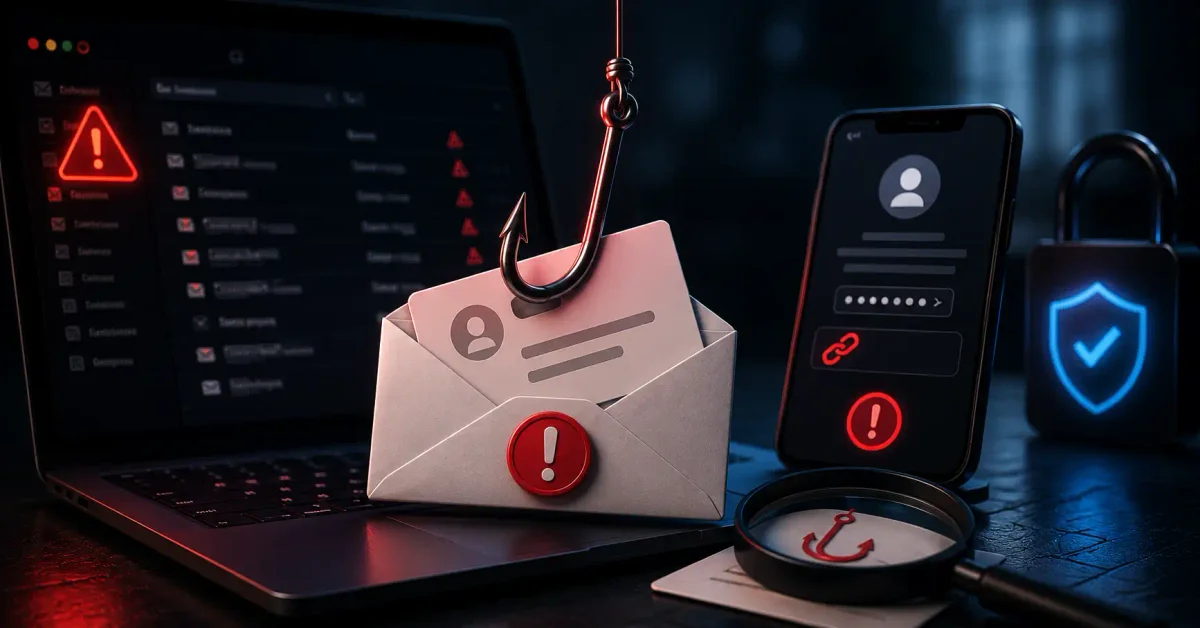
Imagine receiving an urgent email from your bank saying your account will be locked unless you click a link and confirm your password. It looks legitimate, with logos and official language. But if you click, you’re handing your credentials to criminals.
Phishing emails are one of the most common and dangerous cyber threats in 2026. They trick people into revealing sensitive information, downloading malware, or sending money to scammers. And they’re getting more sophisticated every day.
This guide will teach you how to spot phishing emails—even the convincing ones—so you can protect yourself and your data.
What is Phishing?
The Simple Explanation
Phishing is like a fisherman casting a line with bait, hoping someone will bite. Scammers send fake emails that appear to be from legitimate companies, tricking you into:
- Clicking malicious links
- Downloading infected attachments
- Revealing passwords or credit card numbers
- Sending money to fake accounts
- Giving remote access to your computer
Why It Works
Phishing exploits human psychology, not technical vulnerabilities:
| Tactic | Example |
|---|---|
| Urgency | ”Your account will be closed in 24 hours” |
| Fear | ”Unauthorized login detected!” |
| Greed | ”You won $1,000,000! Claim now” |
| Authority | ”Action required by IRS” |
| Curiosity | ”Your package could not be delivered” |
| Helpfulness | ”Security update required” |
The Scale of the Problem
Phishing in 2026:
├── 3.4 billion phishing emails sent daily
├── 90% of data breaches start with phishing
├── $8 billion lost to phishing annually
├── 1 in 4 people fall for phishing
└── AI makes phishing more convincing
Common Types of Phishing
1. Email Phishing (The Most Common)
Fake emails that look like they’re from legitimate companies.
Example:
- “Your Netflix subscription expired”
- “PayPal: Account suspended”
- “Amazon: Order confirmation”
- “Apple: Security alert”
2. Spear Phishing (Targeted Attacks)
Personalized emails targeting specific individuals.
Example:
- CEO asks CFO to transfer funds
- HR asking for employee W-2s
- “Your boss needs this document”
3. Whaling (CEO Fraud)
Targets high-level executives.
Example:
- “Board of Directors meeting: Urgent”
- “Acquisition documents ready to sign”
- “Legal: Confidential matter”
4. Vishing (Voice Phishing)
Phishing over the phone.
Example:
- “This is the IRS, pay immediately”
- “Your bank: suspicious activity”
- “Tech support: virus on your computer”
5. Smishing (SMS Phishing)
Phishing via text messages.
Example:
- “Your package is here: [link]”
- “Your account needs verification”
- “Congratulations! You won…“
6. Clone Phishing
Copying a legitimate email and resending it with malicious content.
Example:
- “Re: Previous email (please use this link)“
How to Spot Phishing Emails
The Simple Checklist
┌─────────────────────────────────────────────┐
│    Spot a Phishing Email in 30 Seconds      │
├─────────────────────────────────────────────┤
│  □ 1. SENDER ADDRESS                        │
│     Hover over: Is it really from them?     │
│                                             │
│  □ 2. GREETING                             │
│     Generic ("Dear Customer") = Suspicious │
│                                             │
│  □ 3. URGENCY                              │
│     Immediate action required?              │
│     Threat of consequences?                 │
│                                             │
│  □ 4. LINKS                                │
│     Hover before clicking: Where does it go?│
│                                             │
│  □ 5. ATTACHMENTS                          │
│     Unexpected or unfamiliar?               │
│                                             │
│  □ 6. GRAMMAR                              │
│     Typos? Odd wording?                     │
│                                             │
│  □ 7. PERSONAL INFO                        │
│     Asks for password or payment?           │
│                                             │
│  □ 8. OFFER                                │
│     Too good to be true?                    │
└─────────────────────────────────────────────┘
Detailed Red Flags
1. Check the Sender Address
What to look for:
# Legitimate Email:
from: @amazon.com
from: @paypal.com
from: @bankofamerica.com

# Fake Email (Common Tricks):
from: @arnazon.com           # Substitution
from: @pay-pal.com           # Added character
from: @bankofamerica.secure  # Extra words
from: @secure-amazon.com     # Added words
from: @gmail.com             # Free email service
from: @yahoo.com             # Free email service

# Always hover over the "From" name to see the actual address
Red Flags:
- Mismatch between display name and actual address
- Free email services (gmail, yahoo, outlook)
- Misspelled company names
- Long, random-looking email addresses
2. Check the Subject Line
Common Phishing Subjects:
⚠️ "URGENT: Your account will be locked"
⚠️ "Security Alert: Password reset required"
⚠️ "Your payment was declined"
⚠️ "Confirm your account now"
⚠️ "Your package is here: Click to track"
⚠️ "You won a prize! Claim now"
⚠️ "Tax refund notification"
⚠️ "Unusual login activity detected"
⚠️ "Your invoice is ready"
⚠️ "Update your billing information"
Safe vs. Suspicious:
✅ "Your Amazon order #12345 has shipped"
❌ "Amazon: Your account needs verification"

✅ "Invoice #INV-001 from Company"
❌ "Your payment was declined"

✅ "Project update: Q4 Review"
❌ "Urgent: Legal document ready"
3. Look at the Greeting
How legitimate companies address you:
# Good:
"Dear Mr. Smith"          # Uses your name
"Hi John"                 # Uses your name
"Your Account: John Doe"  # Personalized

# Suspicious:
"Dear Customer"           # Generic
"Dear User"               # Generic
"Dear Sir/Madam"          # Generic
"Hello"                   # No greeting
"Attention"               # No greeting
Why this matters: Legitimate companies have your name and will use it.
4. Check for Urgency and Fear
Common Phrases:
⚠️ "Your account will be closed in 24 hours"
⚠️ "Immediate action required"
⚠️ "Your password has been reset"
⚠️ "Unauthorized access detected"
⚠️ "Your information is at risk"
⚠️ "Click now to avoid suspension"
⚠️ "Limited time offer (expires today)"
⚠️ "Legal action will be taken"
The Reality:
- Legitimate companies give you time
- They don’t use threats
- They don’t demand immediate action
- They don’t ask for passwords
5. Hover Over Links (Don’t Click!)
How to check a link:
# On Desktop:
1. Hover mouse over the link
2. Look at bottom-left of browser
3. See where it really goes

# On Mobile:
1. Tap and hold the link
2. Preview will appear
3. Don't release until you check

# Look for:
https://amazon.com/verify ✅
https://amazon-secure.xyz ⚠️
http://secure-amazon.com ⚠️
http://amazon-verify.xyz ⚠️
Common Link Tricks:
# 1. URL Substitution
amazon.secure-login.com     # Not real
paypal-payment.xyz          # Not real
netflix.my-account.net      # Not real

# 2. Typos
arnazon.com                 # Missing 'm'
paypall.com                 # Extra 'l'
bankofamerica.secure        # Suspicious

# 3. Long URLs
https://secure.amazon.com.security-check.xyz/login
# Everything after .xyz is fake

# 4. Hex/Encoded URLs
https://amazon.com%2Fverify.com  # Actually goes to verify.com
6. Check the Email Format
Professional vs. Phishing:
# Professional Email:
✅ Proper formatting
✅ Consistent branding
✅ Correct logo placement
✅ Professional images
✅ Proper color scheme

# Phishing Email:
❌ No or poor formatting
❌ Typos everywhere
❌ Blurry/pixelated logos
❌ Inconsistent fonts
❌ Missing or broken images
❌ Grammatical errors
Common Grammar Mistakes:
⚠️ "Your account have been suspended"  (has/been)
⚠️ "Please click at the link"           (on the link)
⚠️ "To confirm your identity"          (identity)
⚠️ "We notice unusual activity"         (noticed)
⚠️ "You're account is at risk"          (your account)
⚠️ "Your secureity is important"        (security)
7. Watch for Attachments
How to handle attachments:
# Suspicious File Types:
⚠️ .exe  (Executable)
⚠️ .zip, .rar (Compressed)
⚠️ .docm, .xlsm (Macro-enabled)
⚠️ .pdf (Malicious PDFs exist)
⚠️ .js, .vbs (Scripts)
⚠️ .iso (Disk images)

# Safe Approach:
✅ Never open unexpected attachments
✅ Check with sender via phone if expected
✅ Scan before opening
✅ Preview in Google Docs for .docx
✅ View PDFs in browser (not downloaded)
8. Look for Requests for Personal Info
Legitimate companies DO NOT:
❌ Ask for passwords via email
❌ Ask for credit card numbers
❌ Ask for Social Security numbers
❌ Ask for bank account details
❌ Ask for verification codes
❌ Ask for security questions

# Examples of Phishing Requests:
⚠️ "Re-enter your password"
⚠️ "Update your credit card"
⚠️ "Verify your identity"
⚠️ "Confirm your SSN"
⚠️ "Reset your PIN"
⚠️ "Click here to pay" (when you didn't order)
9. Check the Tone
Professional vs. Phishing:
# Professional:
✅ Formal yet friendly
✅ Clear and concise
✅ No urgent demands
✅ Proper salutations
✅ Consistent with previous communications

# Phishing:
❌ Overly formal
❌ Oddly casual
❌ Unnecessarily urgent
❌ Threatening language
❌ Doesn't match previous emails
❌ Unusual requests
Real-World Phishing Examples
Example 1: Fake Bank Email
Subject: ⚠️ Security Alert: Suspicious Login Detected
From: Bank of America <[email protected]>
To: You

Dear Customer,

We detected unusual login activity on your account from an unrecognized device. For your security, please verify your identity immediately.

Click here to secure your account: http://security-bofa.xyz/verify

Failure to verify within 24 hours will result in account suspension.

Sincerely,
Bank of America Security Team
Red Flags:
- ❌ “Dear Customer” (generic)
- ❌ “secure-bank.com” (not bankofamerica.com)
- ❌ http:// (not HTTPS://)
- ❌ “security-bofa.xyz” (wrong domain)
- ❌ “24 hours” (unreasonable urgency)
- ❌ “suspend account” (threat)
What to do:
- Delete the email
- Call your bank directly
- Don’t click anything
Example 2: Fake Amazon Email
Subject: ⚠️ Your Amazon Order Confirmation
From: Amazon <[email protected]>
To: You

Dear Amazon Customer,

Thank you for your recent order. Your order #AMZ-12345 has been processed. Click the link below to view your order and shipping details.

View order: http://amazon-order-tracking.xyz/order/12345

If you didn't place this order, please click here to cancel.

Thank you,
Amazon Customer Service
Red Flags:
- ❌ “amazon-shipping.net” (not amazon.com)
- ❌ “amazon-order-tracking.xyz” (fake domain)
- ❌ “Dear Amazon Customer” (generic)
- ❌ You don’t remember ordering
- ❌ Unusual link format
What to do:
- Don’t click the link
- Go to amazon.com directly
- Check your orders
- Forward to [email protected]
Example 3: Fake Invoice Email
Subject: ⚠️ Invoice #INV-2024-001 from [Your Company]
From: Accounts Payable <[email protected]>
To: You

Dear John,

Please find attached invoice #INV-2024-001 for your reference. Payment is due in 7 days.

The total amount is $2,345.67.

Please click here to view and pay: http://invoice-payment.online/pay

Regards,
Accounts Department

[Attachment: Invoice_INV-2024-001.pdf]
Red Flags:
- ❌ Unexpected invoice
- ❌ Unknown sender
- ❌ Attachment (potential malware)
- ❌ Click here to pay (phishing link)
- ❌ “payments.xyz” (suspicious domain)
What to do:
- Don’t open attachment
- Don’t click link
- Verify with sender via phone
- Check if you expected this invoice
Advanced Protection Methods
1. Email Authentication
Important Technologies:
# SPF (Sender Policy Framework)
# Verifies sender's domain

# DKIM (DomainKeys Identified Mail)
# Ensures email wasn't modified

# DMARC (Domain-based Message Authentication)
# What to do if email fails SPF/DKIM

# How to check if email has these:
# In Gmail: Click "Show details" (down arrow)
# In Outlook: Click "View source"
# Look for: spf=pass, dkim=pass, dmarc=pass
2. Use Email Filters
Gmail:
# Create filters for suspicious keywords
# Click gear icon → Settings → Filters
# Keywords to filter:
"unusual login"
"account suspended"
"security alert"
"payment declined"
Outlook:
# Rules to manage phishing
# Settings → View all Outlook settings
# Mail → Rules
# Add rule for suspicious senders
# Move to Junk folder
3. Enable Two-Factor Authentication
# Two-factor authentication protects even if phished
# Set up 2FA for all important accounts

# Best 2FA Methods:
✅ Authenticator App (Google, Microsoft, Authy)
✅ Hardware Security Key (YubiKey)
✅ Security Key (FIDO2)
❌ SMS (Less secure)
4. Use password managers
# Password managers help detect phishing
# They won't auto-fill on fake websites

# Recommended:
✅ Bitwarden (Open-source, free)
✅ 1Password (Excellent features)
✅ Dashlane (User-friendly)
✅ KeepassXC (Offline, secure)
What to Do If You Get a Phishing Email
Step-by-Step Response
┌─────────────────────────────────────────────┐
│     What to Do When You Get a Phish          │
├─────────────────────────────────────────────┤
│  STEP 1: DON'T PANIC                        │
│  - Take a breath                            │
│  - Don't act immediately                    │
│                                              │
│  STEP 2: DO NOT INTERACT                     │
│  - Don't click links                         │
│  - Don't open attachments                    │
│  - Don't reply                               │
│                                              │
│  STEP 3: VERIFY                             │
│  - Contact company directly                  │
│  - Use official phone number                 │
│  - Don't use number in email                 │
│                                              │
│  STEP 4: REPORT                             │
│  - Forward to company ([email protected])     │
│  - Report to email provider                  │
│  - Report to FTC: reportfraud.ftc.gov       │
│                                              │
│  STEP 5: DELETE                             │
│  - Delete the email                          │
│  - Empty trash                               │
│  - Don't interact with it again              │
└─────────────────────────────────────────────┘
Reporting Templates
To Report to Company:
Subject: Phishing email reporting - [Company Name]

To: [email protected] or [email protected]

I received the following suspicious email that appears to be phishing. I am forwarding it to you for investigation.

Original email:
[Forward the email as an attachment, not inline]

Sincerely,
Your Name

# Don't forward inline (it destroys the headers)
# Best to forward as attachment (in Gmail: More → Forward as attachment)
Teaching Others to Spot Phishing
Simple Training Points
# 1. The "Don't Click" Rule
# When in doubt, don't click

# 2. The "Verify First" Rule
# Call or visit the website directly

# 3. The "Never Share" Rule
# Never give passwords, credit cards, SSNs

# 4. The "Trust Your Gut" Rule
# If it feels wrong, it probably is

# 5. The "Check the URL" Rule
# Hover and verify before clicking
Phishing Awareness Quiz
Test Your Knowledge:
-
You get an email from your bank saying your account is compromised and to click a link to secure it. What do you do?
- ✅ Call your bank directly
- ❌ Click the link
-
An email says you won $10,000,000 and need to provide your bank details to receive it. What do you do?
- ✅ Delete it
- ❌ Reply with your details
-
An email from your “CEO” asks you to buy $10,000 in gift cards. What do you do?
- ✅ Verify with the CEO directly
- ❌ Go buy the gift cards
-
A link says it goes to amazon.com but actually goes to amaz0n-secure.net. What do you do?
- ✅ Don’t click it
- ❌ Click it anyway
-
You received a PDF from an unknown sender. What should you do?
- ✅ Delete it
- ❌ Open it
Quick Reference Card
Red Flags Summary
🚨 URGENCY
"Your account will be closed"
"Immediate action required"

🚨 PERSONAL INFO
"Confirm your password"
"Verify your SSN"

🚨 GENERIC GREETING
"Dear Customer"
"Hello User"

🚨 SUSPICIOUS SENDER
@arnazon.com
@pay-pal.com

🚨 SUSPICIOUS LINKS
Hover to check: Where does it really go?

🚨 ATTACHMENTS
Unexpected .exe, .zip, .docm

🚨 GRAMMAR
Typos, odd wording
What to Remember
# 4 Golden Rules:
1. Never click links in suspicious emails
2. Never open unexpected attachments
3. Never share sensitive information
4. Always verify first

# If you're unsure:
✅ Call the company directly
✅ Visit the website manually
✅ Ask someone else to check
✅ Report and delete
Conclusion
Phishing attacks are becoming more sophisticated, but you can protect yourself by staying vigilant. Remember: legitimate companies will never ask for sensitive information via email.
Key Takeaways:
- Always check the sender address
- Look for urgency and threats
- Hover over links before clicking
- Never open unexpected attachments
- Use 2FA and password managers
- Report phishing emails
Your Protection Plan:
- Slow down and think before clicking
- Verify through official channels
- Use security tools (2FA, password manager)
- Stay informed about new scams
- Share knowledge with family and colleagues
Want to learn more about email security? Explore our Complete Email Security Guide for more protection strategies.
Frequently Asked Questions (FAQs)
Q: What if I already clicked a phishing link? A: Immediately change your password, enable 2FA, scan for malware, and monitor your accounts.
Q: Can phishing emails contain malware without clicking? A: Most modern email clients prevent automatic execution, but opening attachments or enabling scripts can trigger malware.
Q: How can I tell if an email is from a legitimate company? A: Check sender address, use official contact methods (not from email), and hover over links.
Q: Do password managers help with phishing? A: Yes! They won’t auto-fill on fake websites, giving you a warning.
Q: What’s the best way to report phishing? A: Forward to the impersonated company’s abuse address, report to your email provider, and report to the FTC.
Q: Can phishing emails bypass spam filters? A: Yes, sophisticated phishing emails can bypass filters. That’s why you need to be vigilant.
Q: Is it safe to unsubscribe from phishing emails? A: No! This confirms your email is active. Just mark as spam and delete.
Discussion
Loading comments...