

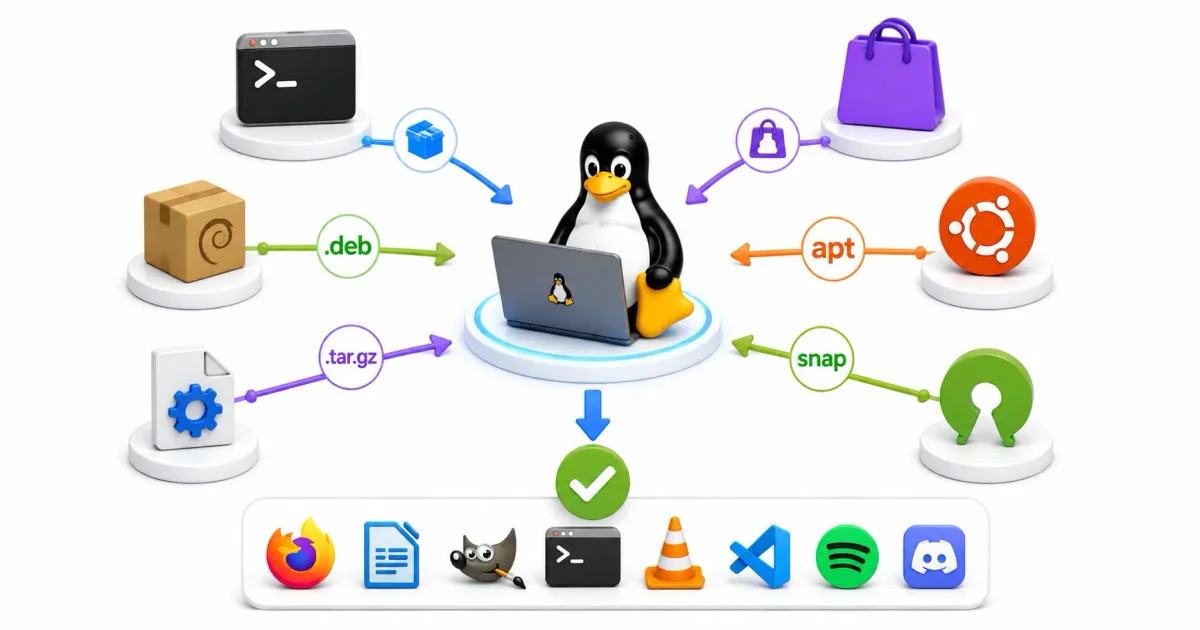
One of the most jarring experiences for a new user migrating from Windows to a Linux desktop distribution—or a junior engineer configuring their first Linux VPS—is figuring out how to install an application.
If you are coming from Windows, your muscle memory dictates downloading a .exe installer and clicking “Next” blindly. On macOS, you drag a .dmg file into an Applications folder.
While Linux can operate this way, it generally doesn’t. Decades before modern smartphones existed, Linux pioneered the concept of the centralized “App Store.” It relies on cryptographically signed software repositories and sophisticated Package Managers to handle installations, security updates, and dependency tracking autonomously.
In 2026, whether you are provisioning servers via Ansible, setting up Docker containers, or deploying Kubernetes clusters, mastering package management is foundational. In this deep-dive guide, I will walk you through the native package managers (APT, DNF, Pacman), explore sandbox environments (Snap, Flatpak, AppImage), and demonstrate how to compile from raw source code.
1. Native Package Managers (The Sysadmin Method)
To truly master Linux, you must learn to use command-line package managers. This is how secure home servers are provisioned and how infrastructure is automated.
A package manager downloads a compressed archive (a package), places the binaries into the correct Linux filesystem hierarchy (/usr/bin, /etc), and resolves “dependencies” (the shared libraries required by the software).
Different Linux distribution families utilize distinct managers.
A. Debian / Ubuntu / Mint (APT)
Advanced Package Tool (apt) is the world’s most ubiquitous package manager. It interacts natively with .deb files.
- Update the local software index:
sudo apt update - Install an application (e.g., Nginx):
sudo apt install nginx - Remove an application and its config files:
sudo apt purge nginx - Clean up orphaned dependencies:
sudo apt autoremove
Personal Package Archives (PPAs): If a specific tool like Fail2ban or CrowdSec requires a newer version than the official Ubuntu LTS repositories provide, developers create a PPA:
sudo add-apt-repository ppa:obsproject/obs-studio
sudo apt update
sudo apt install obs-studio
B. Fedora / RHEL / CentOS (DNF)
Systems based on Red Hat (RHEL) use the dnf package manager, which superseded yum. It interacts with .rpm files.
- Install an application:
sudo dnf install vim - Upgrade the entire system:
sudo dnf upgrade
C. Arch Linux / Manjaro (Pacman)
Arch Linux is a rolling-release distribution, meaning it continually updates to the bleeding-edge upstream releases. It uses pacman.
- Install an application:
sudo pacman -S neovim - Update the entire system:
sudo pacman -Syu
The Arch User Repository (AUR): The AUR is a massive community-driven repository containing build scripts (PKGBUILD) for virtually every software package in existence. Sysadmins use AUR helpers like yay or paru to automate downloading and compiling these scripts seamlessly.
2. Low-Level Package Tools: dpkg and rpm
Behind every high-level manager (apt, dnf) sits a low-level tool executing the physical file extraction and file permissions assignments. You need these when you manually download a .deb or .rpm file.
Installing a .deb file manually
If you download a package using wget or cURL, do not double-click it. Use the CLI:
# Download the package
wget https://example.com/software.deb

# Recommended: Use apt to resolve missing dependencies automatically
sudo apt install ./software.deb

# Alternative: Use dpkg directly (will NOT auto-resolve dependencies)
sudo dpkg -i software.deb
(If dpkg reports errors, force a dependency resolution by running sudo apt -f install).
3. The Sandbox Revolution: Universal Packages
Historically, developers faced a nightmare: packaging an application separately for Ubuntu, Fedora, and Arch. If their app required a specific version of a shared library, it could break the host OS.
Linux solved this via Universal Package Formats. These bundle the application and all its dependencies into a single containerized sandbox, completely isolated from the host OS, much like a Docker container.
A. Flatpak
Flatpak is the community standard for graphical desktop applications.
- Mechanics: Flatpak uses a decentralized model (primarily Flathub). Applications are strictly sandboxed using Bubblewrap namespaces.
- Install Command:
flatpak install flathub org.gimp.GIMP
B. Snap
Developed by Canonical, Snap is highly controversial on the desktop but exceptional for server daemons.
- Mechanics: Snaps are highly centralized via the Canonical Snap Store. When installed, a Snap creates a virtual loop device mounted as a read-only SquashFS file system. They are secured by strict AppArmor profiles.
- Server Deployment Example:
# Deploying a Nextcloud instance via Snap
sudo snap install nextcloud
C. AppImage
AppImage is the Linux equivalent of a macOS .dmg or a Windows “Portable App”.
- Mechanics: You download a single file, make it executable, and run it. It never integrates into your core system directories.
- Execution:
chmod +x application-name.AppImage
./application-name.AppImage
4. Compiling from Source Code (The “Hard” Way)
Before package managers, installing software required compiling raw C/C++ source code via gcc. While rare for standard deployments today, it is a vital skill when you need to enable experimental compiler flags for your specific CPU architecture, or when patching the Linux kernel memory manager.
The Holy Trinity: Configure, Make, Install
Step 1: Download and Extract
wget https://example.com/software-1.0.tar.gz
tar -xvf software-1.0.tar.gz
cd software-1.0
Step 2: Configure This script audits your system for missing development libraries.
./configureStep 3: Compile (Make)
Reads the generated Makefile and compiles the binaries.
makeStep 4: Install
Copies the binaries into protected paths like /usr/local/bin/.
sudo make install(Sysadmin Tip: Use checkinstall instead of make install. It compiles the software and automatically generates a .deb package, allowing clean removal via apt later).
5. Modern Language Managers and Shell Scripts
Modern programming languages ship with isolated package ecosystems.
- Python: Uses
pip(orpipxfor isolated CLI tools). - Node.js: Uses
npmfor deploying backend applications. - Rust: Uses
cargo.
Critical Security Warning: Never run language managers like
sudo pip install. This installs packages globally, potentially overwriting Python libraries required by your core OS and instantly breaking your server. Use Python virtual environments (venv) instead.
”Curl to Bash” Scripts
Many infrastructure tools offer one-line installers:
curl -fsSL https://get.docker.com | sudo shWhile convenient, piping raw internet scripts directly into a root shell is a severe security risk. Always download the script, audit the code in a terminal text editor like Vim or Helix, and then execute it.
6. Managing System Services
Once you install server software (like Nginx or Traefik), you must instruct the OS to keep it running in the background. Modern Linux uses systemd for this.
# Enable the service to start automatically on boot
sudo systemctl enable nginx

# Start the service immediately
sudo systemctl start nginx

# Check the real-time status and logs
sudo systemctl status nginx
Official Documentation
- Debian APT User Manual: https://www.debian.org/doc/manuals/debian-reference/ch02.en.html
- Fedora DNF Command Reference: https://dnf.readthedocs.io/en/latest/command_ref.html
- Arch Linux Pacman Wiki: https://wiki.archlinux.org/title/pacman
- Flatpak Official Documentation: https://docs.flatpak.org/
- Snapcraft Official Documentation: https://snapcraft.io/docs
Frequently Asked Questions (FAQ)
What is the difference between apt and dpkg on Ubuntu?
dpkg is the foundational, low-level tool that physically extracts and installs .deb files onto the filesystem. apt is a high-level wrapper that uses dpkg under the hood but adds critical functionality: it connects to remote software repositories and automatically calculates and downloads missing dependencies.
Why do some tutorials use apt-get instead of apt?
apt-get is the older, script-friendly command interface. apt was introduced later to combine the most common commands from apt-get and apt-cache into a single, more user-friendly interface with progress bars and colorized output. For daily terminal use, prefer apt.
How do I uninstall software and its configuration files completely?
On Debian/Ubuntu systems, sudo apt remove <package> uninstalls the binary but leaves configuration files intact in /etc. To completely obliterate the application and its configs, use sudo apt purge <package>. Afterward, run sudo apt autoremove to clear any orphaned dependency libraries.
Is it safe to use Flatpaks, Snaps, and APT simultaneously?
Yes, it is completely safe. Universal packages like Flatpaks and Snaps are heavily sandboxed and install into completely separate directory paths (e.g., /var/lib/snapd/ or /var/lib/flatpak/). They will not conflict with native APT packages. However, installing the exact same application twice via different methods is confusing and discouraged.
Can I install and run Windows .exe files natively on Linux?
Linux cannot run Windows executables natively because the system calls are entirely different. However, you can run them via compatibility layers. Wine translates Windows APIs into POSIX calls in real-time. For gaming, Valve’s Proton allows thousands of Windows titles to run seamlessly, while GUI tools like Lutris and Bottles automate the configuration.
How do I find the exact package name if I don’t know it?
You can search your distribution’s repository caches directly from the terminal. On Debian/Ubuntu, run apt search "keyword". On Fedora, run dnf search "keyword". On Arch, use pacman -Ss "keyword".
What is the Arch User Repository (AUR)?
The AUR is a massive, community-driven repository unique to Arch Linux. It does not contain pre-compiled software. Instead, it contains PKGBUILD scripts that tell the package manager exactly how to download source code, compile it, and package it into an Arch-compatible format dynamically on your machine.
Why is running sudo pip install dangerous?
Using sudo with Python’s pip installs packages globally across the entire operating system. Because many critical system utilities (like apt itself on some distros) rely on specific Python library versions, globally upgrading a library via pip can instantly break your operating system. Always use Python virtual environments.
What is a Personal Package Archive (PPA) and is it secure?
A PPA is a third-party software repository hosted on Launchpad, primarily used by Ubuntu users to get newer software versions than the official LTS repos provide. While useful, PPAs are NOT officially vetted for security by Canonical. You must trust the developer maintaining the PPA before adding it to your system.
How do I check which version of a package is currently installed?
To verify an installed package version, query your native package manager: On Debian/Ubuntu, use apt policy <package> or dpkg -l | grep <package>. On Fedora, use dnf info <package>. On Arch, use pacman -Qi <package>.
Discussion
Loading comments...