


In the pantheon of Unix text editors, there has always been a strict dichotomy between two distinct philosophies of text manipulation.
On one side, you have Modal Visual Editors like Vim. Vim provides unparalleled speed for human hands. By mapping complex movements to single keystrokes on the home row, a skilled Vim user can navigate and edit a document faster than someone using a mouse. However, Vim’s command language is heavily line-oriented and its macro system can be obtuse for complex, multi-line logic.
On the other side, you have Stream Editors and command-line utilities like sed and awk. These tools don’t have a visual interface, but they possess unparalleled algorithmic power. They use regular expressions to filter, mutate, and manipulate massive amounts of text instantly.
For decades, developers had to choose between visual speed (Vim) and algorithmic power (sed).
But what if you could have both? What if you could perfectly combine the modal interface of Vim with the algorithmic text-selection power of the legendary Plan 9 operating system?
Enter Vis.
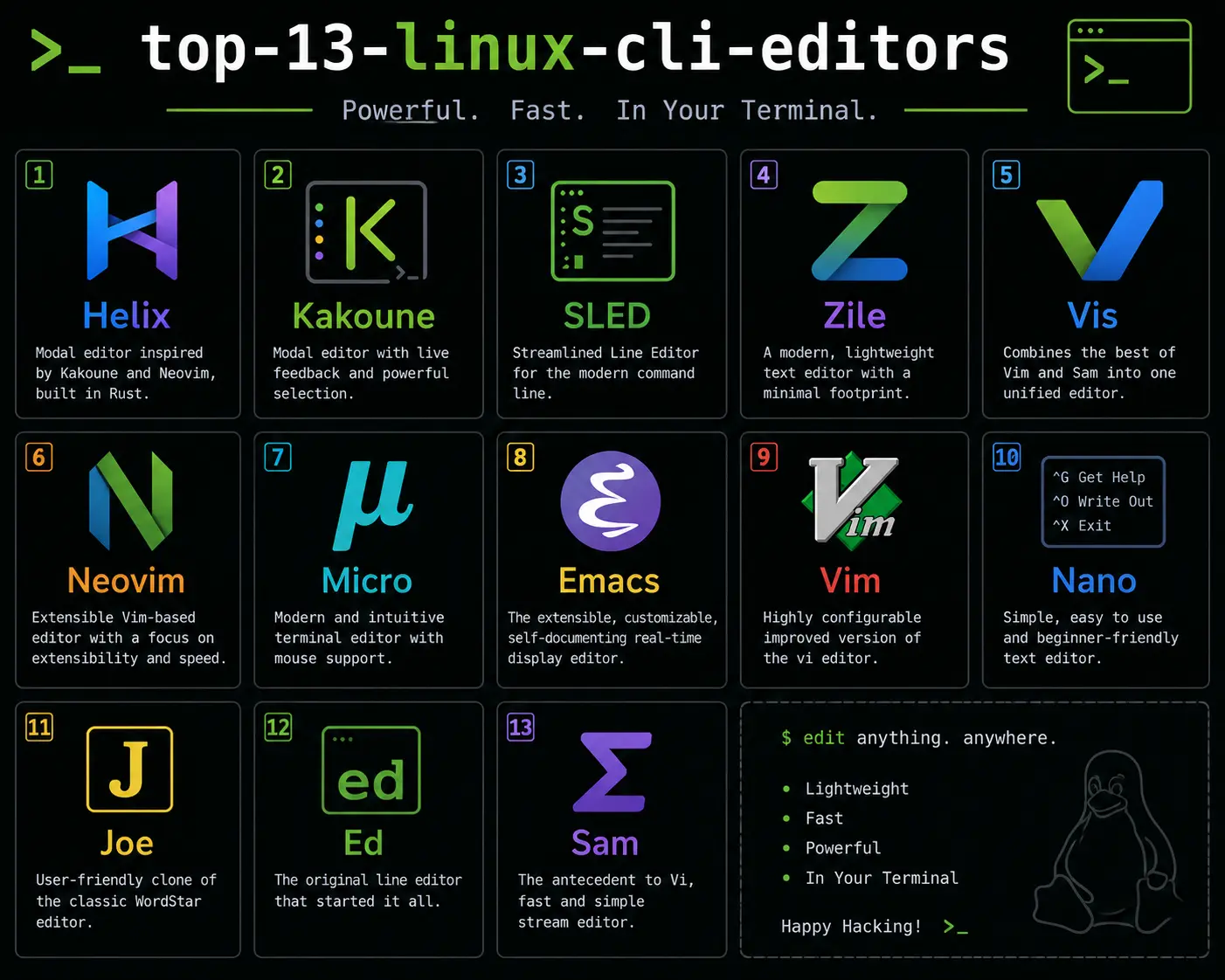
Created by Marc André Tanner, Vis is a modern, highly efficient terminal text editor that fuses Vim’s exact modal keybindings with the revolutionary “Structural Regular Expression” engine created by Rob Pike for the sam editor. This guide will explore the architecture of Vis and demonstrate why it is the ultimate tool for advanced text processing.
1. The Architecture of Vis: Built for Scale
Before diving into its features, it is important to understand why Vis was built from scratch rather than just being a plugin for Neovim.
The Piece Table Data Structure
Standard text editors (including Vim) traditionally load text into a data structure called a “gap buffer” or an array of lines. This works well for small files, but if you try to open a 2-Gigabyte database SQL dump in Vim, the editor will likely freeze or crash as it struggles to allocate memory and calculate line endings.
Vis uses a highly advanced data structure called a Piece Table (specifically, a piece chain with a persistent, immutable backend). When you open a 2GB file in Vis, it does not load the entire file into RAM. It merely maps the file. When you make an edit, Vis simply records the change in a small piece table rather than moving massive blocks of memory around. Because of this architecture, Vis can instantly open, edit, and save files that are larger than your computer’s total available RAM.
LPeg Syntax Highlighting
Vim relies on complex, nested regular expressions to colorize your code (syntax highlighting). This is notoriously slow and prone to breaking on complex languages like C++ or Rust. Vis abandons regular expressions for syntax highlighting entirely. Instead, it uses LPeg (Parsing Expression Grammars). This allows Vis to parse the actual grammatical structure of the programming language in real-time, resulting in perfectly accurate, lightning-fast syntax highlighting.
2. The Base Layer: Vim Muscle Memory
If you already know Vim, you are immediately 90% proficient in Vis. Vis intentionally replicates Vim’s core modal interface perfectly.
- You start in Normal Mode.
h,j,k,lmove the cursor left, down, up, and right.idrops you into Insert Mode.dddeletes a line;yyyanks a line;ppastes it.ciwchanges the inner word.:wsaves the file;:qquits.
Vis feels exactly like Vim. However, Vis actively rejects the “kitchen sink” philosophy of modern Neovim. You will not find a built-in terminal emulator, a web browser, or a massively complex Vimscript engine inside Vis. It is designed to do exactly one thing: edit text.
The true paradigm shift happens when you stop using standard Vim commands and invoke the sam command language.
3. The Revolution: Structural Regular Expressions
In Vim, if you want to find and replace text, you use a substitution command: :%s/find/replace/g. This works line-by-line.
Vis introduces Structural Regular Expressions. In Vis, regular expressions are not just used to find strings; they are used to define selections (or regions) of text, regardless of line breaks.
To execute a structural command in Vis, you type x in Normal mode. This opens the command prompt at the bottom of the screen.
The Extract Command (x)
The x command means “extract”. It scans your current selection (or the whole file) and places a cursor on every single instance that matches the regular expression.
Example 1: Selecting all IP Addresses Imagine you have a server log file containing thousands of lines, and you want to select every IP address.
- Type
xto open the command prompt. - Type your regex:
/[0-9]+\.[0-9]+\.[0-9]+\.[0-9]+/ - Hit Enter.
Instantly, Vis places a distinct, blinking cursor on every single IP address in the file. You now have Multiple Cursors.
If you press c (change), all of the IP addresses are deleted simultaneously, you drop into Insert Mode, and whatever you type is written to all 500 locations at the exact same time.
Example 2: Selecting text inside quotes
To place a cursor on every string inside double quotes:
x/"[^"]*"/
4. Chaining Commands: The Sam Language
The true magic of Vis is the ability to chain commands together to create complex, logical pipelines for text extraction. The output of one command becomes the input for the next command.
The Exclude Command (y)
While x extracts matches, y does the exact opposite: it extracts everything that does not match.
If you have a block of text, and you want to select everything EXCEPT the words wrapped in brackets:
y/\[[^\]]*\]/
This selects the empty spaces and normal text, allowing you to manipulate the surrounding context while leaving the bracketed text completely untouched.
The Guard/Filter Command (g)
The g command filters your current list of selections. It only keeps the selections that contain a specific match.
The Inverse Guard (v)
The v command is the opposite of g. It discards any selections that contain a specific match.
Building a Complex Pipeline
Let’s look at a real-world scenario. You have a massive JSON file containing user data. You want to find every “user” block, filter out the users who are marked as “admin”, and then select their “email” addresses so you can delete them.
In Vim, this requires a complex Python script or a convoluted macro. In Vis, you write a single pipeline:
x/\{[^}]*}/ v/admin/ x/"email":\s*"[^"]*"/
Let’s break this down:
x/\{[^}]*}/: First, extract every single JSON object (everything between curly braces{}). You now have a selection for every user block.v/admin/: Next, look at those selections. If a selection contains the word “admin”, discard it. Now you only have selections for standard users.x/"email":\s*"[^"]*"/: Finally, look inside the remaining selections, and extract the email address strings.
You press Enter. Vis places a cursor perfectly on the email address of every non-admin user in the document. You press d to delete them. You just processed massive structural data using a single line of text commands.
5. Deep Dive: The Lua Configuration API
While Vim relies on Vimscript (a notoriously esoteric language) and Emacs relies on Lisp, Vis has completely embraced Lua as its first-class extension language. Lua is incredibly fast, lightweight, and easy to learn.
The Structure of visrc.lua
Vis searches for its configuration file at ~/.config/vis/visrc.lua. If this file doesn’t exist, Vis falls back to its system-wide defaults. The Lua configuration API provides direct access to the editor’s core internals, allowing you to manipulate windows, buffers, selections, and keys programmatically.
Here is a typical initialization template for visrc.lua that sets up basic behaviors and loads core plugins:
-- Ensure the default system-wide configuration is loaded first
require('vis')

-- Configure editor options
vis.events.subscribe(vis.events.INIT, function()
    -- Set tab width to 4 spaces and enable expanding tabs
    vis:command('set tabwidth 4')
    vis:command('set expandtab on')

    -- Enable line numbers and relative lines
    vis:command('set number on')
    vis:command('set relativenumber on')

    -- Set theme (e.g., solarized, peak, default)
    vis:command('set theme solarized')
end)
Keybindings and Event Hooks
You can map keys programmatically in different modes. The main API objects are vis.mode_normal, vis.mode_insert, and vis.mode_visual.
Here is how you can map a key to insert a timestamp in the document or format the current buffer using an external command:
-- Bind Ctrl+D in normal mode to insert current date/time
vis:map(vis.mode_normal, "<C-d>", function()
    local win = vis.win
    local file = win.file
    local pos = win.selection.pos
    local date_str = os.date("%Y-%m-%d %H:%M:%S")
    file:insert(pos, date_str)
    win.selection.pos = pos + #date_str
    return true
end)
Writing a Custom Lua Plugin for Vis
Let’s build a simple plugin that counts the words in the current selection or buffer and displays it on the status bar. We’ll register this as a custom : command.
vis:command_register("wordcount", function(argv, force, win, selection, range)
    local file = win.file
    -- If there's a visual selection, count only within the range;
    -- otherwise count the entire file.
    local start_pos, end_pos
    if range then
        start_pos, end_pos = range.start, range.finish
    else
        start_pos, end_pos = 0, file.size
    end

    local text = file:content(start_pos, end_pos - start_pos)
    if not text then return end

    local count = 0
    for word in string.gmatch(text, "%S+") do
        count = count + 1
    end

    vis:info(string.format("Word count: %d words", count))
end, "Display word count of selection or active file")
Save this code inside ~/.config/vis/visrc.lua. In Vis, you can now run :wordcount to instantly see the word count in the status window.
6. Parsing Expression Grammars (LPeg) in Vis
A major performance bottleneck in traditional text editors like Vim is the regex-based syntax highlighter. When editing large source files, complex regex backtracks can cause noticeable input lag. Vis solves this entirely by utilizing LPeg (Parsing Expression Grammars for Lua).
LPeg vs. Regular Expressions
Regular expressions are equivalent to Finite State Automata (FSA) and cannot easily parse nested structures (such as matching nested parentheses or recursive block scopes) without complex, inefficient hacks.
LPeg is based on Parsing Expression Grammars (PEGs), which are formal grammars that describe languages using a set of rules. Unlike Context-Free Grammars, PEGs do not allow ambiguity—if multiple patterns match, the parser picks the first defined match. This deterministic nature ensures that syntax highlighting runs in strictly linear time ($O(n)$) without backtracking spikes, making typing latency near zero.
The Structure of a Vis Lexer
In Vis, lexers are defined in /usr/share/vis/lexers/ (or your local equivalent). They use the LPeg-based lpeg and lexer modules.
A simple lexer definition defines patterns for comments, strings, numbers, keywords, and operators, and associates them with styles. For example:
local lexer = require('lexer')
local token = lexer.token
local word_match = lexer.word_match
local P, S = lpeg.P, lpeg.S

local M = lexer.new('mylang')

-- Define character classes
local space = token(lexer.SPACE, S('\t\r\n '))
local number = token(lexer.NUMBER, lexer.digit^1)

-- Define keywords
local keyword = token(lexer.KEYWORD, word_match{
    'if', 'else', 'for', 'while', 'return', 'function', 'local'
})

-- Define string literal pattern
local string_literal = token(lexer.STRING,
    P('"') * (1 - S('"\r\n\\') + (P('\\') * 1))^0 * P('"')
)

-- Set grammar rules
M._rules = {
    {'space', space},
    {'keyword', keyword},
    {'string', string_literal},
    {'number', number},
}

return M
Because of LPeg’s efficiency, Vis can easily recolorise code in real time even while executing complex macro refactorings across hundreds of active selections.
7. Advanced Real-World Sam Pipeline Scenarios
To master Vis, you must become comfortable with the Sam pipeline syntax. The commands act like functional map and filter operations over sets of active selections. Let’s walk through four highly practical, real-world text editing scenarios.
Scenario 1: Reformatting and Cleaning Malformed CSV Data
Imagine you have a CSV file where the third column contains email addresses that should be lowercase, and the first column contains IDs that must have their leading whitespaces stripped. The file looks like this:
  102, John Doe, [email protected], Active
 5001, Jane Smith, [email protected], Pending
   92, Bob Jones, [email protected], Active
We want to:
- Parse each line.
- Select the ID (first column) and strip its whitespace.
- Select the email (third column) and convert it to lowercase.
We can run the following Sam command pipeline:
- First, we select every line:
x/.+/ - Then we isolate the first column. In each line, the first column matches the characters before the first comma:
x/^[^,]*/ - With the IDs selected, we run an external command to strip whitespace. In Vis, you can pipe selections to external shell commands using
>(output to shell) or<(replace selection with shell output), or|(filter through shell command):| xargs - Now, we go back to the line level and select the third column. We write a new command to match the entire line, select the third field, and run a pipeline:
x/.+/ x/([^,]+,){2}\s*([^,]+)/ x/([A-Z0-9._%+-]+@[A-Z0-9.-]+\.[A-Z]{2,})/ | tr 'A-Z' 'a-z'
Scenario 2: Sanitizing Database Dumps (Anonymizing Sensitive Data)
Suppose you have a raw SQL dump file containing user insert statements, and you need to replace all phone numbers in the structure with dummy text ([REDACTED]).
INSERT INTO users (id, name, phone) VALUES (1, 'Alice', '+1-555-0199');
INSERT INTO users (id, name, phone) VALUES (2, 'Charlie', '+1-555-0243');
Instead of using a crude find-and-replace that might hit matching strings elsewhere in comments or names, we use a structural command:
- Extract the values parenthesis:
x/\([^)]*\)/ - Within those values, look for the phone number pattern (matches digits separated by dashes):
x/\+1-555-[0-9]{4}/ - We select the matched phone numbers and change them:
c/[REDACTED]/
The unified command is:
x/\([^)]*\)/ x/\+1-555-[0-9]{4}/ c/[REDACTED]/
Scenario 3: Bulk-Refactoring Variable Declarations in Code
Imagine you are refactoring a JavaScript module and want to convert all var statements to const, but only if the variable is never reassigned (to simplify the example, we’ll target lines that declare a variable and assign a value immediately, without complex scoping rules):
var activeUser = getSession();
var maxRetries = 5;
let currentCount = 0;
We can match all lines starting with var, check if they have an assignment operator =, and convert the prefix:
- Select lines starting with
var:x/^var\s+.+/ - Verify that they contain an
=:g/=/ - Isolate the
varword itself at the start of those selected lines:x/^var/ - Change it to
const:c/const/
Unified command:
x/^var\s+.+/ g/=/ x/^var/ c/const/
8. Complete Vis Commands & Keybindings Cheatsheet
Core Modes & Windowing Keybindings
| Keybinding | Mode | Action / Command |
|---|---|---|
Esc | Any | Return to Normal Mode |
i | Normal | Enter Insert Mode |
a | Normal | Append after cursor |
v | Normal | Enter Visual (Selection) Mode |
Ctrl+w s | Normal | Split window horizontally |
Ctrl+w v | Normal | Split window vertically |
Ctrl+w c | Normal | Close current window split |
Ctrl+w hjkl | Normal | Navigate between window splits |
Structural Regular Expression (Sam) Command Language
Commands in the Sam language are entered via the : prompt.
| Command | Syntax | Action |
|---|---|---|
| Extract | x/regex/ [command] | Find all matches of regex in selection and apply sub-command. |
| Exclude | y/regex/ [command] | Find all parts not matching regex and apply sub-command. |
| Guard | g/regex/ [command] | Keep selection if it contains a match for regex. |
| Inverse Guard | v/regex/ [command] | Keep selection if it does not contain a match for regex. |
| Change | c/text/ | Replace the content of all active selections with text. |
| Delete | d | Delete the text of all active selections. |
| Insert | i/text/ | Insert text immediately before each selection. |
| Append | a/text/ | Append text immediately after each selection. |
| Filter | | command | Pass selection contents to system command shell, replacing selection. |
| Write | > command | Pipe selection contents to system command stdout. |
| Read | < command | Replace selection contents with stdout from system command. |
9. Conclusion: Is Vis For You?
Vis is not designed for beginners, and it is not trying to overthrow VS Code as the most popular IDE. Vis is a highly specialized, surgically precise tool designed for absolute power users.
It is built for system administrators who need to parse gigabytes of Nginx logs instantly. It is built for data scientists who need to munge and reformat massive, malformed CSV files without writing a Python script. It is built for programmers who dream in regular expressions.
By discarding the limitations of line-based editing and embracing the unparalleled power of Rob Pike’s structural regular expressions, all while maintaining the flawless muscle-memory interface of Vim, Vis has created a completely unique paradigm. If you are willing to learn the Sam command language and utilize its Lua-based LPeg architecture, Vis will make you feel like a text-manipulation wizard.
Frequently Asked Questions (FAQ)
Q: What is the Vis text editor?
A: Vis is a highly efficient terminal text editor that combines the modal interface and fast keyboard navigation of Vim with the structural regular expression power of the Plan 9 Sam editor.
Q: How does Vis handle extremely large files compared to Vim?
A: Unlike Vim, which loads text into a gap buffer, Vis uses a Piece Table data structure with a persistent backend. This allows Vis to instantly open, edit, and save gigabyte-sized files without loading the entire file into RAM.
Q: What are Structural Regular Expressions in Vis?
A: Instead of just finding strings line-by-line, structural regular expressions in Vis are used to define precise selections or regions of text, allowing you to chain commands together to extract, exclude, or modify structural blocks of text across multiple lines simultaneously.
Q: How does Vis perform syntax highlighting without performance drops?
A: Vis completely abandons slow, regex-based syntax highlighting. Instead, it utilizes LPeg (Parsing Expression Grammars for Lua) to parse the grammatical structure of code in real time, delivering highly accurate and perfectly linear performance without input lag.
Q: Does Vis support plugins and customization?
A: Yes. Vis provides a powerful Lua configuration API. You can write custom functions, keybindings, and plugins entirely in Lua, utilizing the visrc.lua file to directly manipulate windows, buffers, and selections programmatically.


Discussion
Loading comments...