

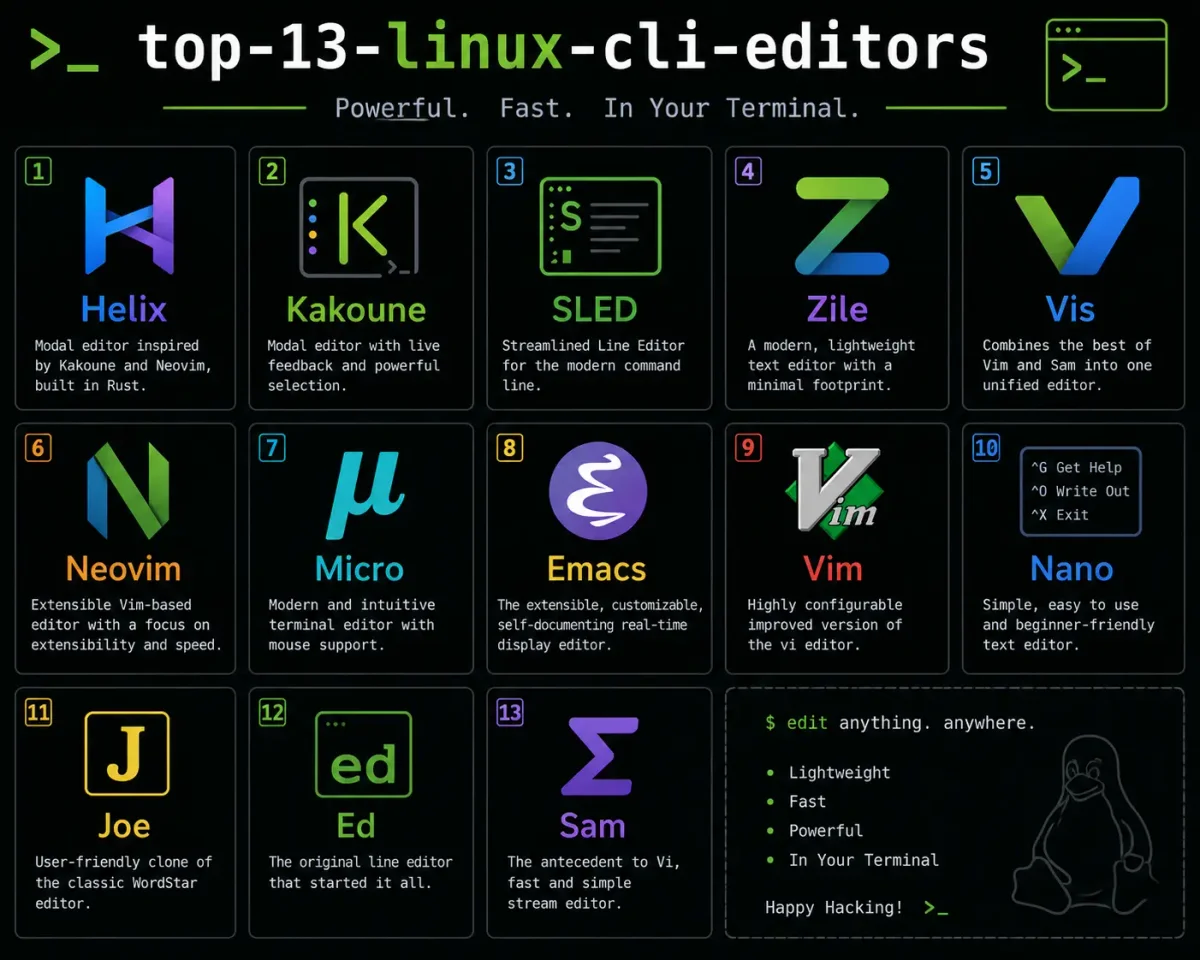
Every Linux user eventually hits this question: “Which terminal text editor should I actually learn?”
And the internet isn’t very helpful about it. You’ll find Vim evangelists insisting you need months of practice before it “clicks.” Emacs users will tell you their editor is an operating system with a text editor built in. And then there’s the Nano crowd, who just want to edit a config file and get out.
I’ve used most of these editors in real work — configuring servers over SSH, writing scripts, editing Docker Compose files, tweaking Nginx configs, and fixing things at 2 AM when something broke in production. So here’s my honest take on all 13 of them.
Modal vs. Modeless — The Core Divide
Before getting into individual editors, you need to understand the fundamental design split:
Modal editors (Vim, Neovim, Helix, Kakoune, Vis) have separate modes for navigation and typing. In Normal Mode, your keys are commands — d deletes, w jumps forward a word, j moves down a line. You press i to switch to Insert Mode, where keys actually type text. This sounds weird, but once you internalize it, editing becomes extremely fast because you never move your hands from the home row.
Modeless editors (Nano, Micro, Emacs, JOE, Zile, SLED, e3) work like every other text editor you’ve used. Keys type text. You navigate with arrow keys or Ctrl/Alt combos. No mode switching. Immediately familiar.
Neither approach is objectively “better.” Modal editing rewards investment with speed. Modeless editing rewards you immediately with zero learning curve.
The Classics — Editors That Shaped Computing
These editors have been around for decades. They’re documented extensively, available everywhere, and aren’t going away.
1. Vim
The benchmark. Released in 1991 as an improvement over the original vi (1976), Vim is a modal editor that treats text editing as a composable language. d + w = delete word. c + i + " = change inside quotes. Once you learn the grammar, you combine verbs and nouns in ways that make any edit a quick keystroke sequence.
Why people love it: Unmatched editing speed once you’ve built muscle memory. Available on virtually every Linux system ever installed. The .vimrc configuration system lets you customize everything.
Why people hate it: The learning curve is brutal. The first time you open Vim and can’t figure out how to type or exit, you’ll question your career choices. :wq is practically a meme at this point.
Key shortcuts:
i→ Insert ModeEsc→ Normal Mode:w→ Save:q!→ Quit without savingdd→ Delete lineyy→ Copy linep→ Paste/pattern→ Search
Best for: Developers who edit code daily and want maximum speed. Sysadmins who SSH into dozens of servers and need a consistent editor everywhere.
👉 Read our complete Vim tutorial
2. Emacs
Emacs isn’t really a text editor — it’s a Lisp computing environment that happens to edit text. Originally created by Richard Stallman in 1976, GNU Emacs is endlessly extensible through Emacs Lisp. People use it as a file manager, email client, web browser, IRC client, terminal emulator, and productivity system (Org-mode) — all without leaving the editor.
Why people love it: If you want one application that does everything, Emacs will do it. Org-mode alone is reason enough for many users — it’s the most powerful plaintext note-taking, task management, and literate programming system ever built. The extensibility is limitless.
Why people hate it: The keyboard shortcuts are ergonomically hostile. C-x C-s (Control-x, then Control-s) to save a file is just the beginning — heavy Emacs use is infamous for causing “Emacs Pinky.” It’s also massive compared to other terminal editors (~120MB installed vs. Vim’s ~3MB).
Key shortcuts:
C-x C-f→ Open fileC-x C-s→ SaveC-x C-c→ QuitC-s→ SearchC-k→ Cut lineC-y→ Paste
Best for: People who want a fully customizable computing environment. Researchers and writers who use Org-mode extensively.
👉 Read our ultimate Emacs guide
3. Nano
The editor everyone knows. GNU Nano exists because vi scared too many people away from editing files in the terminal. Nano is modeless, displays its shortcut keys at the bottom of the screen, and doesn’t require any documentation to use.
Why people love it: You open a file, make your edit, press Ctrl+O to save and Ctrl+X to exit. That’s the entire learning curve. It’s pre-installed on almost every Linux distribution.
Why people hate it: It’s genuinely limited. No multi-cursor editing, no split panes, no plugin system, minimal syntax highlighting, and the non-standard shortcuts (Ctrl+K to cut, Ctrl+U to paste) confuse people coming from desktop editors.
Key shortcuts:
Ctrl+O→ SaveCtrl+X→ ExitCtrl+W→ SearchCtrl+K→ Cut lineCtrl+U→ Paste
Best for: Quick config file edits on servers where nothing else is installed. Absolute beginners making their first edits in the terminal.
👉 Read our Nano beginner’s guide
4. Ed
The original Unix editor, written by Ken Thompson in 1969 — before screens existed. Ed is a line editor: you work with text by referencing line numbers and regex patterns. There’s no visual display of the file. You tell Ed what to do, and it does it silently (or prints ? if something went wrong).
Why it still matters: Ed is specified by POSIX, so it exists on every Unix-like system. It’s also a fascinating tool for learning how regular expressions work. And at ~50KB, it runs on literally anything.
Why you probably won’t use it: It’s designed for teletypes. Unless you’re scripting edits in shell scripts or stuck on a system with nothing else, there’s no reason to use Ed interactively in 2026.
Key commands:
a→ Append text.→ Stop appending,p→ Print entire filew→ Saveq→ Quit
Best for: Shell scripting. Emergency recovery on minimal systems. Understanding Unix history.
👉 Read our Ed standard Unix editor guide
The Modern Powerhouses — IDE-Level Editing in the Terminal
These editors bring features like LSP (Language Server Protocol) integration, Treesitter syntax parsing, and modern keybinding systems to the terminal. They’re what you use when you want VS Code-level intelligence but prefer working in a terminal.
5. Neovim
The community fork of Vim that modernized everything. Neovim replaced Vimscript with Lua as the primary configuration language, added native LSP support, built-in Treesitter parsing, and an asynchronous plugin architecture. It’s what you get when you take Vim’s modal editing philosophy and rebuild it with 2020s engineering.
Why people love it: With the right configuration (using plugin managers like Lazy.nvim), Neovim becomes a full IDE — autocomplete, go-to-definition, inline diagnostics, fuzzy file finding, Git integration, and more. And it launches in milliseconds, not seconds like VS Code.
Why people hate it: Getting to that IDE experience requires significant configuration. You’ll spend hours setting up init.lua, choosing plugins, debugging LSP servers, and reading documentation. The unconfigured experience is just Vim with better defaults.
Best for: Developers who want a terminal-based IDE and are willing to invest time configuring it. Anyone who already knows Vim and wants better extensibility.
👉 Read our Neovim modern editor guide
6. Helix
Helix is what happens when someone asks: “What if we built a modern editor from scratch in Rust, with LSP and Treesitter built in, and made everything work out of the box?”
Unlike Neovim, which requires plugin setup for language support, Helix comes batteries-included. Install it, open a Python file, and you immediately get syntax highlighting, autocomplete, error diagnostics, and inline documentation — with zero configuration files.
The editing model is also different from Vim. Helix uses a selection-first paradigm inspired by Kakoune: you select text first, then apply an action. In Vim, you’d type dw (delete word). In Helix, you’d type wd (select word, then delete). It’s a subtle shift that makes editing feel more visual and interactive.
Key shortcuts:
w→ Select word forwardd→ Delete selectionSpace + f→ Fuzzy file finderSpace + w→ Window controls:w→ Save:q→ Quit
Best for: People who want modern editor features without spending hours configuring plugins. Rust and Go developers who want instant LSP support.
👉 Read our Helix modal editor guide
7. Kakoune
Kakoune is the editor that inspired Helix’s selection-first model, but with its own distinct philosophy. Where Helix bundles everything in, Kakoune follows the Unix philosophy — it’s the editing core, and you pipe in external tools for everything else.
Multi-cursor support in Kakoune is exceptional. You select a block of text, apply a regex filter to split it into multiple selections, and then edit all matches simultaneously. It’s incredibly powerful for refactoring.
Key shortcuts:
%→ Select entire files→ Filter selection with regexd→ Delete selectionc→ Change selection
Best for: Power users who love regex-based editing workflows and the Unix pipe philosophy. Programmers doing complex multi-line refactoring.
8. Micro
Micro is the editor I recommend to anyone who says “I just want something that works like a normal text editor, but in the terminal.”
Written in Go, Micro brings standard GUI keybindings to the command line. Ctrl+S saves. Ctrl+C copies. Ctrl+V pastes. Ctrl+Z undoes. You can click with your mouse to place the cursor, drag to select text, and use the scroll wheel. It has multi-cursor editing, split panes, syntax highlighting, and a Lua plugin system.
If you’ve ever wished Nano had modern features, Micro is what you’re looking for.
Key shortcuts:
Ctrl+S→ SaveCtrl+Q→ QuitCtrl+F→ FindCtrl+E→ Command modeAlt+N→ Multi-cursor (next match)
Best for: Beginners. Sysadmins who edit configs occasionally and don’t want to learn Vim. Anyone transitioning from GUI editors to terminal work.
👉 Read our complete Micro tutorial
The Specialists — Niche but Powerful
9. Vis
Vis merges Vi-style modal editing with structural regular expressions from Rob Pike’s Sam editor (part of the Plan 9 operating system). If you work with large data files and need to perform complex pattern-based transformations, Vis can do things that would require multi-step macros in Vim.
Key feature: The :x/regex/ command extracts matching selections from the current text, letting you chain structural edits that operate on semantic patterns rather than line numbers.
Best for: Data processing. Regex-heavy text transformations on large files.
👉 Read our Vis structural editor guide
10. JOE (Joe’s Own Editor)
JOE is a modeless editor that carries the spirit of WordStar, the word processor that dominated the 1980s. Its unique trick: it can emulate multiple editors. Run it as jstar for WordStar keybindings, jmacs for Emacs, or jpico for Pico/Nano.
Best for: Users who want a flexible modeless editor with built-in help. People who have WordStar muscle memory (yes, they still exist).
👉 Read our JOE classic editor guide
The Ultra-Minimalists — When Every Byte Counts
These editors exist for environments where storage and memory are measured in kilobytes — embedded systems, rescue disks, IoT devices, Docker Alpine containers.
11. Zile (Zile Is Lossy Emacs)
A tiny Emacs clone written in C. Under 100KB on disk, but uses the same C-x C-s / C-x C-c keybindings as GNU Emacs. If you know Emacs but need something that runs on a router or a Raspberry Pi with 16MB of RAM, Zile is your editor.
👉 Read our Zile Emacs clone guide
12. SLED
A lightweight visual line editor at ~50KB. Provides a simple scrolling window with basic shortcuts (F2 to save, F10 to exit). It’s a step up from Ed — you can actually see your file — but stripped to the absolute minimum. Useful for boot recovery environments and embedded systems.
👉 Read our SLED minimalist guide
13. e3
A technical marvel: a fully functional text editor written in x86 Assembly with zero library dependencies. The entire binary is ~25KB. It can emulate the keybindings of Vim, Emacs, Nano, or WordStar depending on how you launch it (e3vi, e3em, e3pi, e3ws).
If you ever need to edit a file on a system so minimal that even Nano won’t install, e3 will be there.
👉 Read our e3 portable editor guide
Full Comparison Table
| Editor | Written In | Size | Paradigm | LSP Support | Mouse | Multi-Cursor | Best For |
|---|---|---|---|---|---|---|---|
| Vim | C | ~3 MB | Modal | Plugin | Basic | Plugin | Universal editing |
| Emacs | C/Lisp | ~120 MB | Modeless/Chords | Plugin | Basic | Plugin | Extensible environment |
| Nano | C | ~300 KB | Modeless | No | Limited | No | Quick server edits |
| Ed | C | ~50 KB | Line | No | No | No | Scripting, recovery |
| Neovim | C/Lua | ~10 MB | Modal | Native | Full | Plugin | Custom terminal IDE |
| Helix | Rust | ~15 MB | Modal (select-first) | Built-in | Full | Native | Zero-config IDE |
| Kakoune | C++ | ~2 MB | Modal (select-first) | Via bridge | Full | Native | Regex refactoring |
| Micro | Go | ~12 MB | Modeless | No | Full | Native | Beginners, GUI users |
| Vis | C/Lua | ~500 KB | Modal + Structural | No | No | Yes | Data file transforms |
| JOE | C | ~800 KB | Modeless | No | No | No | Multi-personality editor |
| Zile | C | ~100 KB | Modeless/Chords | No | No | No | Tiny Emacs replacement |
| SLED | C | ~50 KB | Modeless | No | No | No | Recovery disks |
| e3 | Assembly | ~25 KB | Multi-personality | No | No | No | Extreme constraints |
Setting Up Your Terminal Environment
Picking an editor is step one. Here’s how to integrate it into your daily workflow.
Set Your Default System Editor
Many Linux commands — crontab -e, git commit, sudoedit, visudo — use the $EDITOR environment variable to decide which editor to launch. Set it in ~/.bashrc or ~/.zshrc:
export EDITOR="micro"    # or nvim, hx, vim, nano
export VISUAL="micro"
Apply immediately:
source ~/.bashrcNow every system tool that needs a text editor will use your choice. For Git-specific configuration, run:
git config --global core.editor "micro"Our Git and GitHub guide covers branching, merging, and collaboration workflows in detail.
Use a Terminal Multiplexer
If you spend serious time in the terminal, pair your editor with tmux. A multiplexer lets you:
- Split your terminal into panes (editor on the left, logs on the right)
- Keep sessions alive when your SSH connection drops
- Switch between projects without closing anything
tmux new -s dev
# Ctrl+B, % → vertical split
# Ctrl+B, " → horizontal split
This is especially useful when managing remote servers or running self-hosted services that need monitoring while you edit configs.
Clipboard Integration
If you’re using Micro or Neovim and want copy-paste to work with your system clipboard, install clipboard utilities:
# X11
sudo apt install -y xclip

# Wayland
sudo apt install -y wl-clipboard
This lets you copy text from your browser and paste it directly into your terminal editor — essential for editing Docker Compose YAML, Nginx configurations, or systemd service files.
My Honest Recommendations
After years of using these editors, here’s what I actually suggest:
You’re brand new to Linux? → Start with Micro. It works like every GUI editor you’ve ever used. Zero friction.
You edit server configs occasionally? → Learn Nano. It’s pre-installed everywhere. You don’t need more.
You code daily and want speed? → Invest in Vim or Neovim. The learning curve is real, but the payoff in editing speed is massive. Neovim with a modern Lua config turns your terminal into a full IDE.
You want a modern editor without hours of setup? → Helix. LSP, Treesitter, fuzzy finding, and themes out of the box. Install it and go.
You’re building embedded systems or recovery tools? → e3 or Zile. They’ll run when nothing else will.
You like the Unix philosophy and love regex? → Kakoune or Vis. Their selection-first and structural editing models handle complex multi-file refactoring beautifully.
The honest truth? Most developers eventually settle on one editor and stick with it for years. The “best” editor is whichever one you learn well enough that it stops getting in your way.
Deeper Learning Paths
Depending on which editor you choose, these guides will help you go further:
- Linux fundamentals → Understanding the filesystem hierarchy, file permissions, and system logs makes you more effective regardless of which editor you use. Try the Linux permission calculator for quick permission conversions.
- Security hardening → If you’re editing configs on production servers, know how to harden SSH, set up UFW firewalls, and block attackers with Fail2ban or CrowdSec. Our top 20 Linux security commands covers the essentials.
- Container workflows → Editing Dockerfiles, Compose files, and Kubernetes manifests is a daily task for many devs. Our Docker vs Podman comparison and Kubernetes explained simply provide context for container-first workflows.
- Self-hosting → If you manage your own services — Nextcloud, Pi-hole, Vaultwarden, Portainer — you’ll be editing config files constantly. Having a good editor makes all the difference.
- Programming → Pair your editor with knowledge of Git workflows, REST API development, and language-specific tooling. Our Python vs Rust comparison and async JavaScript guide complement the coding workflow.
- Automation → Automate server tasks with systemd timers and use the cron expression generator for scheduling. The Linux command explorer helps discover commands you didn’t know existed.
- Backups → Before making risky edits on production configs, know your backup strategies. Btrfs snapshots (covered in our Btrfs vs Ext4 comparison) can save you from bad edits instantly.
Official Documentation
- Vim: https://www.vim.org/docs.php
- Neovim: https://neovim.io/doc
- Emacs: https://www.gnu.org/software/emacs/manual
- Nano: https://www.nano-editor.org/docs.php
- Helix: https://docs.helix-editor.com
- Micro: https://micro-editor.github.io
- Kakoune: https://kakoune.org
Frequently Asked Questions
What is the difference between modal and modeless text editors?
Modal editors (Vim, Neovim, Helix, Kakoune) have separate modes for navigation and text input. In Normal Mode, keys execute commands. In Insert Mode, keys type text. Modeless editors (Nano, Micro, Emacs) always type text when you press keys — navigation uses arrow keys and key combinations.
Which terminal editor is best for beginners?
Micro. It uses standard GUI keybindings (Ctrl+S to save, Ctrl+C to copy), supports mouse interaction, and requires zero learning. Nano is the second-best choice and has the advantage of being pre-installed on most Linux distributions.
Why do developers use Vim despite the learning curve?
Vim’s composable command language (d + w = delete word, c + i + " = change inside quotes) lets experienced users edit text far faster than with a mouse-driven editor. Once the keybindings become muscle memory, the speed advantage is significant, and Vim is available on virtually every Linux server.
What’s the difference between Vim and Neovim?
Neovim is a modern fork of Vim with native Lua scripting, built-in LSP support, Treesitter syntax parsing, and an asynchronous plugin architecture. It’s backward-compatible with most Vim configs but offers better extensibility for building a terminal IDE experience.
Is Helix better than Neovim?
It depends on your priorities. Helix provides LSP, Treesitter, and themes out of the box with zero configuration. Neovim requires plugin setup but is far more customizable. If you want instant productivity, Helix wins. If you want deep customization, Neovim wins.
What is the smallest functional text editor for Linux?
e3, written in x86 Assembly, comes in at approximately 25KB with zero library dependencies. It can emulate Vim, Emacs, Nano, or WordStar keybindings. Zile is the next smallest at ~100KB, providing Emacs-compatible editing.
Can I use a terminal text editor as a full IDE?
Yes. Neovim and Helix both support LSP for autocomplete, go-to-definition, inline diagnostics, and refactoring. Neovim with plugins like Telescope, nvim-cmp, and Treesitter provides an experience comparable to VS Code, launching in milliseconds instead of seconds.
How do I set my default terminal editor on Linux?
Add export EDITOR="your-editor" to your ~/.bashrc or ~/.zshrc file and run source ~/.bashrc. This affects system commands like crontab -e, git commit, sudoedit, and visudo.
What editor should I learn for server administration?
Learn Nano for basic familiarity (it’s pre-installed everywhere), then consider Micro for a better experience with standard keybindings. If you manage servers daily, investing in Vim is worthwhile since it’s universally available and extremely efficient for repetitive config edits.
Do any terminal editors support mouse interaction?
Yes. Micro has the best mouse support — full click-to-place-cursor, drag-to-select, and scroll wheel. Neovim and Helix also support mouse interaction. Vim has basic mouse support when configured. Nano has limited mouse support. Ed, Zile, SLED, and e3 have no mouse support.



Discussion
Loading comments...