


GNU Emacs is, without a doubt, a legendary piece of software. It is often jokingly referred to as a “great operating system, lacking only a decent text editor.” Emacs provides an unparalleled level of extensibility through Emacs Lisp (ELisp), allowing users to read emails, play Tetris, manage their entire life with Org Mode, and interface with remote servers via Tramp—all from within a single, unified interface.
However, this incredible power comes with a significant cost. A full, modern GNU Emacs installation can easily exceed 50 to 100 megabytes in size, and depending on how heavily customized your .emacs.d configuration directory is, it can take several hundred milliseconds—or even a few seconds—to start up.
If you are a die-hard Emacs user who has carefully built up years of complex muscle memory, this poses a serious problem in modern computing environments. What do you do when you SSH into a tiny, resource-constrained cloud server, a Raspberry Pi, or a minimal Docker container that only has Nano or a stripped-down busybox vi installed?
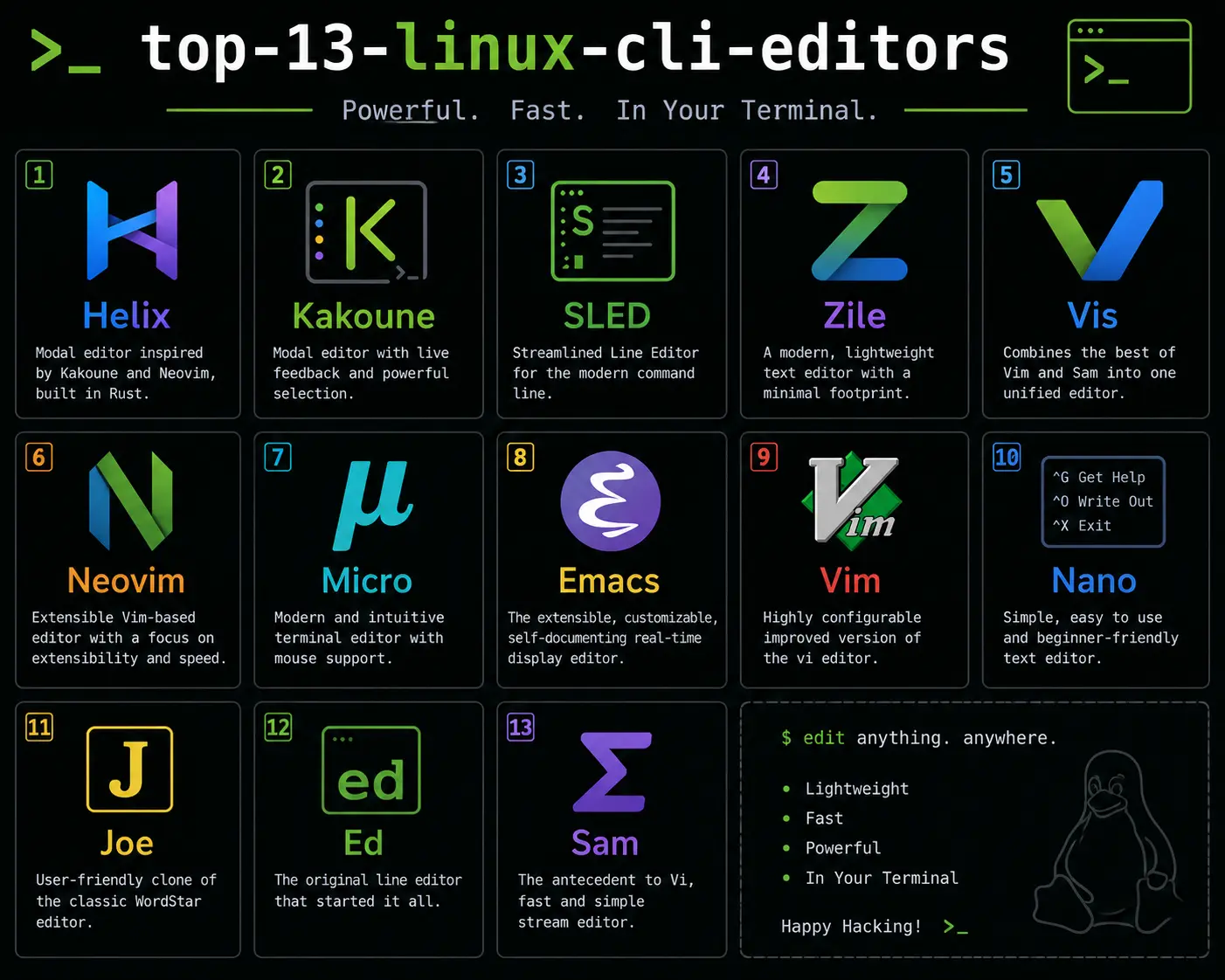
The answer is Zile (Zile Is Lossy Emacs).
1. What is Zile? (Zile Is Lossy Emacs)
Zile is a highly faithful, incredibly lightweight clone of Emacs. The recursive acronym “Zile Is Lossy Emacs” perfectly encapsulates its design philosophy. It is “lossy” because it intentionally discards the vast majority of Emacs’ non-core features.
You will not find an Emacs Lisp interpreter in Zile. You will not find Magit for Git version control, Org Mode for task management, or ERC for IRC chatting. Zile focuses purely and exclusively on one thing: text editing.
By stripping away the Lisp engine and the massive standard library, the developers of Zile achieved something remarkable. The resulting binary weighs in at roughly 100KB (kilobytes). It consumes virtually zero RAM, and it opens instantaneously—typically in less than 10 milliseconds. Yet, despite its microscopic footprint, it perfectly respects your classic C-x C-s Emacs muscle memory.
For an Emacs veteran, firing up Zile feels like coming home. The key chords work exactly as expected, the interface looks identical, and the core editing philosophy remains completely intact.
2. Ideal Use Cases for Zile
Why would you choose to install Zile instead of just learning Nano or Vim?
A. Preserving Workflow on Remote Servers
When managing dozens of virtual private servers (VPS) or cloud instances, consistency is key. If your fingers naturally reach for C-x C-f to open a file and C-s to search, being forced into a different editor breaks your flow. Zile allows you to maintain your speed and efficiency without installing the massive GNU Emacs package on every single production server.
B. Minimalist Docker Containers
In DevOps, minimizing container image sizes is critical for fast deployments and reduced security attack surfaces. An Alpine Linux container might be 5MB. Adding a 50MB text editor to debug a configuration file defeats the purpose. Zile can be installed via package managers in Alpine (apk add zile) and adds almost no overhead to your image.
C. Embedded Systems and IoT
When working with embedded Linux on devices with only 16MB or 32MB of total flash storage, installing a full IDE is impossible. Zile provides a robust, multi-buffer, split-window editing experience that comfortably fits on a smart router or an industrial IoT sensor.
3. Installation Guide
Because Zile is a mature, well-established project in the GNU ecosystem, it is available in the default package repositories of almost every major operating system.
Debian / Ubuntu / Linux Mint:
sudo apt update
sudo apt install zile
Fedora / RHEL / CentOS:
sudo dnf install zileArch Linux:
sudo pacman -S zileAlpine Linux (Containers):
apk add zilemacOS (via Homebrew):
brew install zileOnce installed, you can launch the editor simply by typing zile followed by the filename:
zile /etc/ssh/sshd_config4. Emacs Muscle Memory: Core Navigation
If you know Emacs, you already know how to use Zile. However, if you are new to the Emacs ecosystem and want to try Zile as a lightweight editor, you must first understand the modifier keys.
In Emacs notation:
C-stands for the Control key.M-stands for the Meta key (which maps to the Alt or Option key on modern keyboards).
Basic Character and Line Movement
Zile supports standard arrow keys, but true efficiency comes from keeping your hands on the home row using these classic chords:
C-f(Forward): Move the cursor forward one character.C-b(Backward): Move the cursor backward one character.C-n(Next): Move the cursor down to the next line.C-p(Previous): Move the cursor up to the previous line.
Word and Boundary Movement
M-f(Meta-Forward): Jump forward by one entire word.M-b(Meta-Backward): Jump backward by one entire word.C-a: Jump to the absolute beginning of the current line.C-e: Jump to the absolute end of the current line.
Screen and Buffer Movement
When dealing with massive configuration files or system logs, you need to move quickly.
C-v: Page down (scroll down one full screen).M-v: Page up (scroll up one full screen).M-<(Meta-Less-Than): Jump to the very beginning of the file (buffer).M->(Meta-Greater-Than): Jump to the very end of the file.
Incremental Searching
Zile uses the same brilliant incremental search as Emacs.
C-s(Search Forward): PressC-sand start typing. Zile will immediately highlight the first match as you type. PressC-sagain to jump to the next match. PressEnterto stop searching and leave your cursor at the match.C-r(Search Reverse): The same asC-s, but searches backwards from your current cursor position.
5. Advanced Editing: The Kill Ring
One of the defining features of Emacs is its clipboard management system, known as the “Kill Ring.” Amazingly, despite its tiny size, Zile fully implements this powerful concept.
In standard editors (like Notepad or VS Code), when you cut text, it replaces whatever was previously in your clipboard. If you cut twice, the first cut is lost forever.
In Zile, when you “kill” (cut) text, it is added to a ring (a list) of previously killed items. You can paste the most recent item, and then cycle backward through history to paste older items!
Killing (Cutting) Text
C-k(Kill Line): Cuts text from the current cursor position to the end of the line. If you pressC-kmultiple times consecutively, Zile appends them together as a single block in the Kill Ring.C-w(Kill Region): Cuts the currently highlighted selection. (To highlight text, pressC-Spaceto set a “Mark”, then move your cursor to select the region).M-d(Kill Word): Kills the word immediately following the cursor.
Yanking (Pasting) Text
C-y(Yank): Pastes the most recently killed text at the cursor position.M-y(Yank Pop): This is the magic command. Immediately after pressingC-y, pressM-y. The pasted text will vanish and be replaced by the previous item in your Kill Ring. You can pressM-yrepeatedly to cycle back through everything you have cut during your session.
Copying Text
M-w(Save Region): Copies the currently highlighted selection to the Kill Ring without deleting it from the document.
6. Buffer and Window Management
One of the major limitations of Nano is its inability to view multiple files side-by-side. Zile suffers from no such limitation. It includes a full window manager built right into the terminal interface.
In Zile terminology, a “Buffer” is the actual text content of a file loaded in memory. A “Window” is the visual viewport you use to look at a Buffer.
Splitting Windows
C-x 2: Split the current window horizontally (one on top, one on bottom). Both windows will initially show the same buffer.C-x 3: Split the current window vertically (side-by-side).C-x o(Other Window): Move your cursor to the next split window.C-x 1: Close all other windows and make the current window fill the entire screen (the buffers are not closed, just hidden).C-x 0: Close the current window.
Managing Buffers
C-x b(Switch Buffer): Prompts you at the bottom of the screen to enter the name of an open buffer to switch to.C-x C-b(List Buffers): Opens a new window displaying a list of all currently open files.C-x k(Kill Buffer): Closes the current file and removes it from memory. If you have unsaved changes, Zile will prompt you to save them first.
7. Saving, Quitting, and File Operations
The core file operations require a two-key chord sequence, prefixed by C-x.
C-x C-s(Save): Saves the current buffer to disk. If the file has no name, it will prompt you for one.C-x C-f(Find File): Opens a file from disk. If the file does not exist, Zile will create a new, empty buffer with that name.C-x C-w(Write File): Acts as a “Save As” command, prompting you for a new filename.C-x C-c(Quit): Exits Zile entirely. If you have any modified buffers that have not been saved, Zile will intercept the quit command and ask you if you want to save them to prevent data loss.
8. Configuration without Lisp (~/.zilerc)
Because Zile is “lossy” and lacks the Emacs Lisp interpreter, you cannot configure it using standard .emacs ELisp code. However, Zile provides a simple, highly readable configuration file located in your home directory: ~/.zilerc.
If this file does not exist, you can create it. The syntax is composed of simple set commands for boolean flags or string values.
Example ~/.zilerc Configuration
# Set default indentation tab width to 4 spaces
set tab-width 4

# Do not replace multiple spaces with hardware tab characters
set indent-tabs-mode false

# Enable line numbers in the margin
set line-number-mode true

# Make search case-insensitive by default
set case-fold-search true

# Enable automatic backup files (creates files ending in ~)
set make-backup-files true
Auto-Mode Alist (Syntax / File Types)
While Zile does not have complex syntax highlighting engines like Treesitter, it can automatically load specific basic formatting modes based on the file extension using regex matching in the configuration file:
# Automatically use C-mode for C and C++ files
auto-mode ".*\\.[ch]$" "c-mode"

# Use shell-script mode for bash scripts
auto-mode ".*\\.sh$" "sh-mode"

# Use generic text mode for markdown
auto-mode ".*\\.md$" "text-mode"
9. Conclusion
Zile represents the ultimate compromise for the die-hard Emacs fan forced to operate in hostile, resource-constrained environments. By brutally stripping away everything that makes Emacs an “operating system” and leaving only the core text editing engine, the developers created an incredibly valuable tool.
It gives you the complex navigation, the multi-file window splitting, and the legendary kill-ring features you love, wrapped in a binary so tiny you won’t even notice it’s taking up disk space.
The next time you are spinning up a minimal cloud server, configuring a tiny Docker container, or trying to rescue a broken Linux installation from a recovery shell, do not settle for a lesser editor. Skip Nano, run apt install zile, and get back to editing text the way your muscle memory intended.
Frequently Asked Questions (FAQ)
What does the acronym Zile stand for?
Zile stands for “Zile Is Lossy Emacs.” It is called “lossy” because it intentionally discards the heavy, non-core features of GNU Emacs, focusing purely on text editing.
How is Zile different from a full GNU Emacs installation?
Unlike GNU Emacs, Zile lacks an Emacs Lisp interpreter and extensive modules like Magit or Org Mode. This makes Zile incredibly lightweight—around 100KB in size—while still preserving classic Emacs keybindings and core editing features.
When should I use Zile instead of Emacs?
Zile is ideal for resource-constrained environments where installing a 50MB+ editor is impractical, such as minimal Docker containers, embedded IoT devices, or when SSHing into tiny cloud servers, allowing you to preserve your Emacs muscle memory.
Does Zile support the Emacs Kill Ring?
Yes, despite its tiny size, Zile fully implements the Emacs Kill Ring. You can cut text using shortcuts like C-k or C-w, paste it with C-y, and cycle backwards through your clipboard history using M-y.
How can I customize Zile since it doesn’t support Emacs Lisp?
You can configure Zile using a simple ~/.zilerc file in your home directory. It uses straightforward set commands for boolean flags and string values, such as setting tab widths, enabling line numbers, and defining syntax modes.


Discussion
Loading comments...