

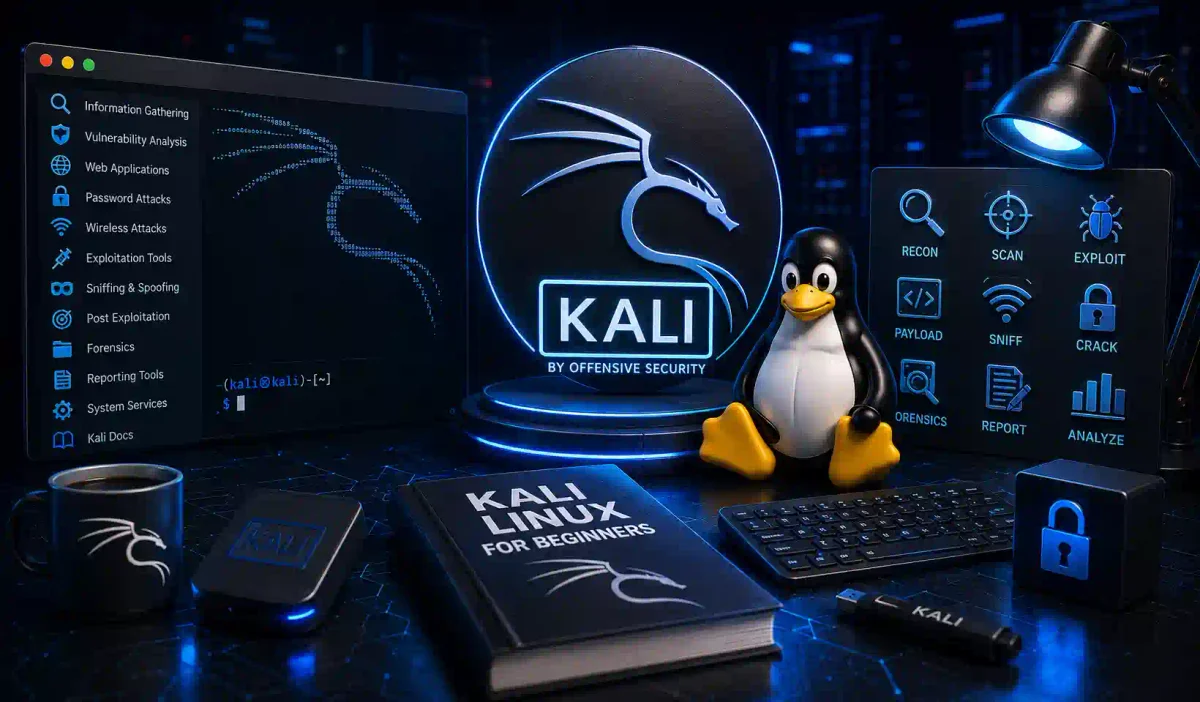
Imagine holding an advanced, complex, military-grade Swiss Army knife that replaces individual tools in your garage, designed from the ground up for testing, breaking, and securing enterprise computer systems.
That is what Kali Linux is. It is a specialized, modified operating system packed with over 600 pre-installed, pre-configured offensive security testing tools.
Kali Linux is the undisputed, global go-to operating system for cybersecurity professionals, white-hat ethical hackers, forensic analysts, and penetration testers. In 2026, with global cybersecurity threats reaching unprecedented levels, learning and mastering Kali Linux is a fundamental prerequisite for launching a career in offensive security.
However, Kali Linux can be intimidating for beginners. It does not hold your hand, it does not have guardrails, and it gives you the raw power to destroy networks if you do not know what you are doing.
In this guide, we will demystify this powerful OS. We will break down what makes Kali fundamentally different from normal Linux, guide you through multiple safe installation methods, explore its categorization of hacking tools, and teach you the essential terminal commands you need to survive.
1. What is Kali Linux? (The Core Architecture)
Kali Linux is a specialized, Debian-based Linux distribution designed and maintained by Offensive Security (the creators of the OSCP certification).
It was designed for one specific purpose: Advanced Penetration Testing and Security Auditing.
To achieve this, Offensive Security took a stable Debian Linux foundation and removed the standard, boring software you find in a normal OS. They removed the office suites, the media players, and the casual games. In their place, they injected over 600 specialized cybersecurity tools, ranging from network scanners like Nmap and Wireshark, to complex exploitation frameworks like Metasploit, to password crackers like Hashcat.
The Critical Differences: Kali Linux vs. Regular Linux (Ubuntu/Mint)
If you are coming from a user-friendly Linux distribution like Ubuntu or Linux Mint, you must understand that Kali is architected differently:
| The Core Feature | Regular Linux (Ubuntu/Mint) | Kali Linux |
|---|---|---|
| The Primary Purpose | Casual daily computing, web browsing, writing documents, programming. | Security testing, exploitation, and digital forensics. |
| The Default User Privilege | Standard, restricted user. You must type sudo to perform administrative tasks. | Historically Root (Administrator) by default. Even with the newer non-root default user, the OS is designed to elevate and run dangerous tools with maximum system permissions. |
| Pre-installed Software | Firefox, LibreOffice, Music Players, casual games. | Metasploit, Nmap, Burp Suite, John the Ripper, Aircrack-ng, SQLmap. |
| Network Services Security | Locked down tightly by default. Network ports are closed to protect the user. | Customized kernel. Certain network services are intentionally left configurable to allow for advanced packet manipulation and raw packet injection (e.g., spoofing MAC addresses or Wi-Fi attacks). |
[!WARNING] Legal & Ethical Notice: Kali Linux is a dangerous, professional-grade weapon for security testing. You must strictly only use it on physical systems and networks that you own, or that you have specific, written, signed, and legally binding permission to test. Unauthorized hacking, even if accidental, is a federal crime carrying severe prison sentences.
2. Setting Up Your Arsenal: Installation Methods
Because Kali is a powerful tool, you should not install it as the primary operating system on your main personal laptop. You need a safe, isolated environment.
The Best Method: The Virtual Machine (VirtualBox/VMware)
Running Kali Linux inside a Virtual Machine (VM) is the gold standard for beginners. It creates a secure, isolated “computer inside your computer.” If you accidentally execute a destructive command and destroy the Kali operating system, your physical host computer (Windows or Mac) remains 100% safe. You just delete the broken VM and spin up a new one in five minutes.
Step-by-Step VirtualBox Installation:
- Navigate to
virtualbox.organd download the free Oracle VirtualBox software for your host operating system. Install it normally. - Navigate directly to the official
kali.org/get-kali/website. - Do not download the standard “Installer Image.” Instead, scroll down and click on “Pre-built Virtual Machines”.
- Download the pre-configured VirtualBox
.ovaimage. - Open VirtualBox, click File > Import Appliance, select the
.ovafile you just downloaded, and click Import. - Click Start. You now have a fully functioning, isolated Kali Linux machine running safely in a window on your desktop.
(Default Login: Username
kali/ Passwordkali)
Alternative Method 1: The Live USB with Persistence
If you want to use Kali on a friend’s laptop or a public library computer without leaving a trace, you can install Kali onto a high-speed USB 3.0 drive. You simply plug the USB drive into a computer, reboot, and boot from the USB. The host computer’s hard drive is never touched. If you configure a “Persistence” partition during the setup, Kali will securely save your files and tool configurations to the USB drive when you shut down.
Alternative Method 2: Windows Subsystem for Linux (WSL2)
For developers who prefer to avoid VMs, Microsoft Windows 11 natively supports running the core Kali Linux terminal environment directly alongside Windows via WSL2. While fast and convenient, you do not get the Graphical User Interface (GUI), and WSL2 struggles to perform raw network packet injection (like intense Wi-Fi hacking). It is great for basic scripting, but poor for advanced hacking.
3. Surviving the Terminal: Essential Linux Commands
Kali Linux possesses a beautiful graphical desktop environment (usually Xfce), but professional hackers often do not use the mouse. They operate inside the Terminal window. If you cannot navigate the terminal, you cannot effectively use Kali Linux.
Open your terminal right now and learn these foundational commands:
System Navigation and Orientation
pwd(Print Working Directory): Tells you where you are currently located in the file system hierarchy.ls -la(List): Lists all files and directories in your current location, including hidden files (which start with a period, like.bashrc) and displaying their read/write permissions.cd /var/www/html(Change Directory): Moves you into a different directory. Typingcd ..moves you one directory backward. Typingcd ~teleports you back to your home directory.
File Manipulation and Control
mkdir hack_folder(Make Directory): Creates a brand new folder.touch target_passwords.txt(Touch): Creates an empty text file.cp secret.txt /home/kali/Desktop(Copy): Copies a file to a new location.mv secret.txt /home/kali/Desktop(Move): Moves the file, deleting it from the original location (also used for renaming files).rm -rf /folder_name(Remove): Dangerous. This permanently deletes a file or directory and everything contained inside it, bypassing the trash can entirely. Use with caution.
Search and Filtering
cat target_passwords.txt(Concatenate): Prints the contents of a text file directly to your terminal screen.grep "admin" target_passwords.txt(Global Regular Expression Print): The most used command in hacking. If you have a file containing 10,000 passwords,grepwill filter the file and only print the lines that contain the word “admin.”
Privilege Escalation
sudo(Super User DO): As a standard user, you are restricted. Prefixing any command withsudo(e.g.,sudo nmap) executes that command with Root (Administrator) privileges. It will ask for your password.
4. Deconstructing the Kali Tools Menu
When you click the Kali icon in the top-left corner of the screen, you are met with an intimidating dropdown menu categorizing hundreds of tools. Understanding how the penetration testing lifecycle works makes this menu perfectly logical. The menu is ordered chronologically by the phases of a professional cyberattack.
Category 1: Information Gathering (The OSINT Phase)
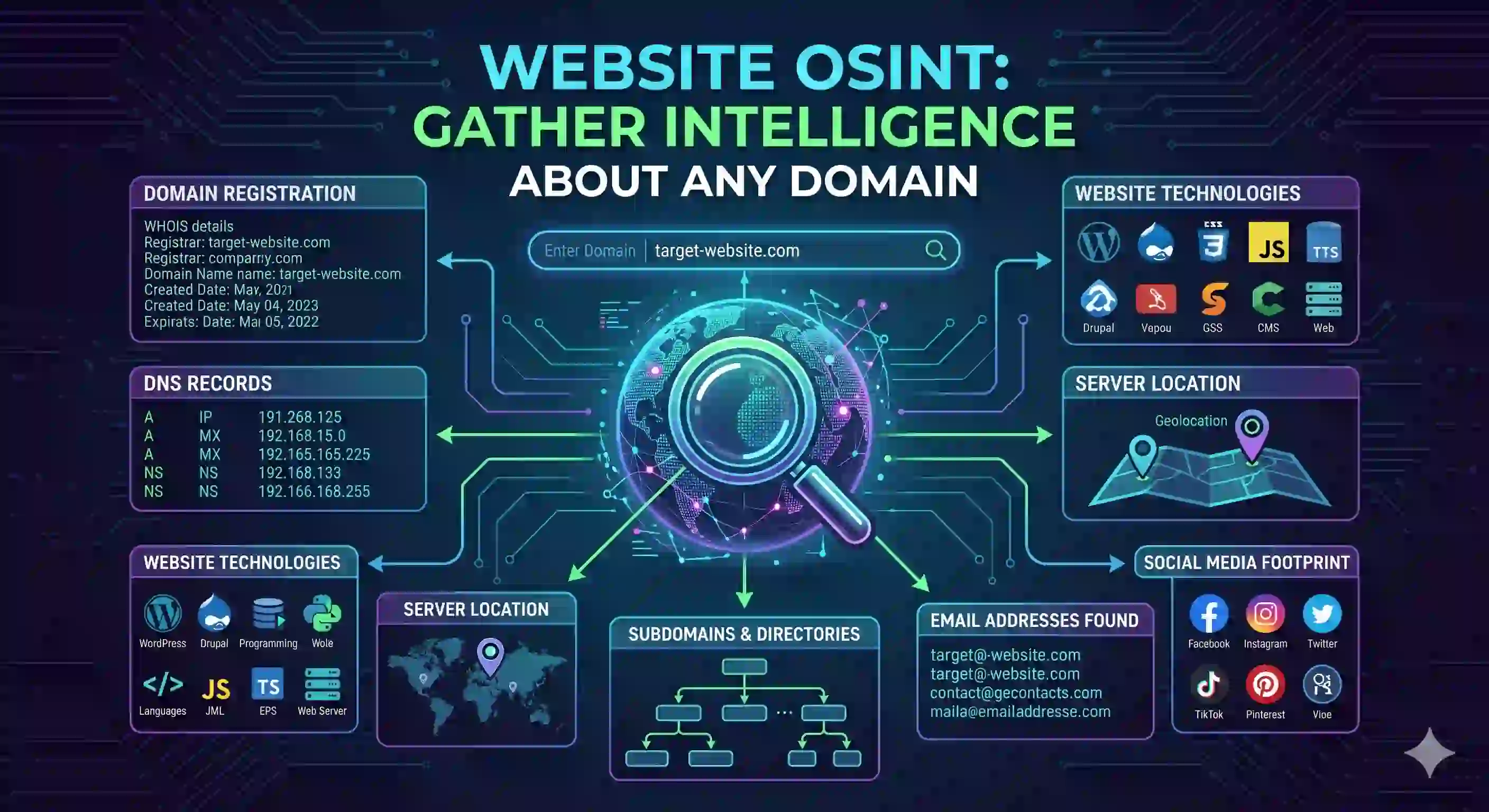
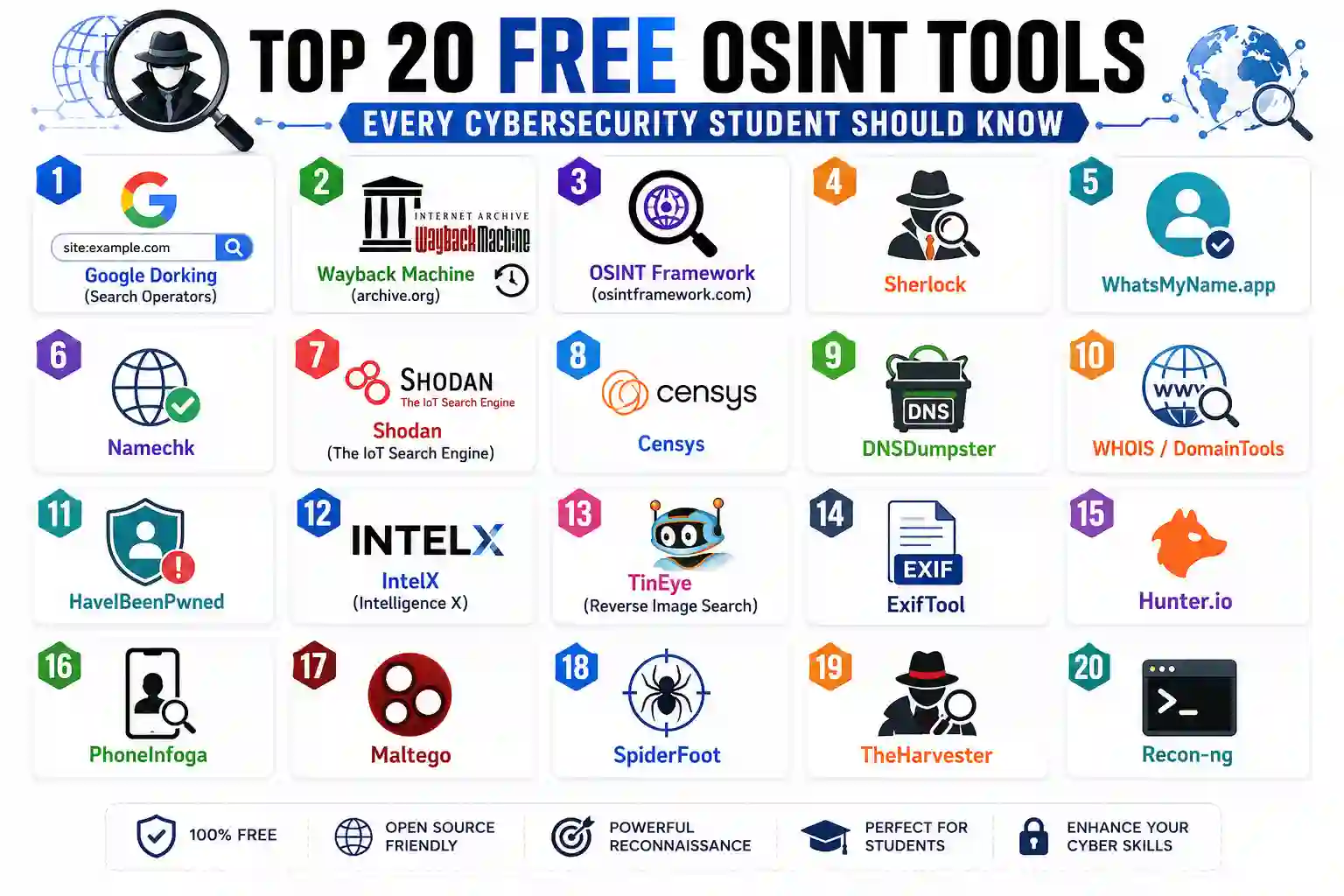
Before a hacker ever fires a single bullet, they spend 80% of their time gathering intelligence on the target. This category is packed with OSINT (Open Source Intelligence) and reconnaissance tools.
- Key Tools:
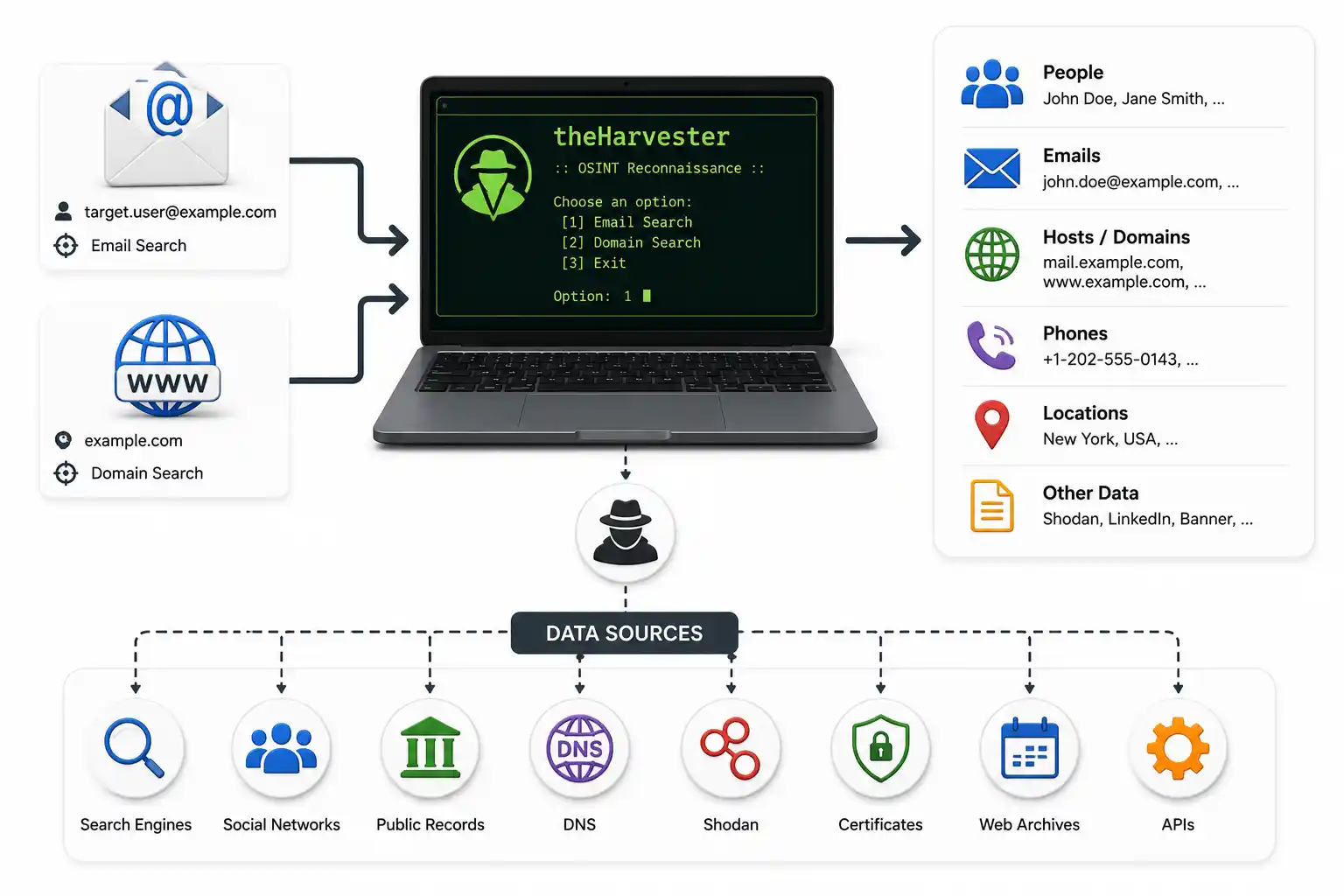
Nmap(powerful network mapping),Recon-ng(a full web-reconnaissance framework),Maltego(visual link analysis),TheHarvester(scraping email addresses from search engines).
Category 2: Vulnerability Analysis
Once the hacker knows what physical computers and IP addresses the target owns, they must scan them to find unpatched, exploitable weaknesses.
- Key Tools:
Nikto(scanning web servers for dangerous files and outdated software),Legion(an automated network discovery framework),Nmap Scripting Engine (NSE)(using Nmap to actively check for CVE vulnerabilities).
Category 3: Web Application Analysis
Websites are the biggest, most targeted attack surface on the internet. This category contains tools designed to test web applications, bypass login portals, and extract backend databases.
- Key Tools:
Burp Suite(the undisputed king of web application hacking—a proxy that intercepts and modifies web traffic before it hits the server),SQLmap(an automated tool that exploits SQL injection flaws to download the backend database),Gobuster(brute-forcing hidden web directories).
Category 4: Database Assessment
Tools exclusively focused on attacking raw database servers (like MySQL, PostgreSQL, or Microsoft SQL Server) if you manage to find them exposed to the internet.
Category 5: Password Attacks (Cracking and Brute-Forcing)
If you manage to successfully steal an encrypted database of passwords, you use this category to crack the encryption. Alternatively, you use these tools to guess passwords on live login portals.
- Key Tools:
Hashcat(the fastest, GPU-accelerated password cracking utility),John the Ripper(the legendary, versatile CPU password cracker),Hydra(a parallelized network login brute-forcer for SSH, FTP, and web forms).
Category 6: Wireless Attacks
Tools designed to monitor, manipulate, attack, and crack Wi-Fi networks and Bluetooth devices.
- Key Tools:
Aircrack-ng suite(the suite of tools used to capture WPA2 handshakes and crack Wi-Fi passwords),Kismet(a wireless network detector, sniffer, and intrusion detection system),Wifite(an automated script that executes Wi-Fi attacks sequentially).
Category 7: Reverse Engineering
Advanced tools used by malware analysts and exploit developers to decompile compiled .exe files, analyzing the underlying Assembly language to find hidden vulnerabilities in proprietary software.
Category 8: Exploitation Tools (The Attack Phase)
This is the category where the actual hacking occurs. Once a vulnerability is found, these tools deliver the payload to take over the machine.
- Key Tools:
Metasploit Framework(The crown jewel of Kali Linux. It is a maintained framework containing reliable exploits for almost every major vulnerability discovered in the last 20 years),SearchSploit(a command-line search engine for the Exploit-DB database).
Category 9: Sniffing & Spoofing
Tools used to intercept, read, and manipulate raw network traffic flying through the air or across corporate network cables.
- Key Tools:
Wireshark(the industry-standard graphical network protocol analyzer that allows you to see every packet on the network),Ettercap(used for Man-in-the-Middle attacks).
Category 10: Post Exploitation
You successfully hacked the server. Now what? Post-exploitation tools are used to maintain access (installing backdoors), extract local passwords stored in memory, and pivot to attack other internal computers deep within the network.
- Key Tools:
Mimikatz(a Windows tool that extracts plaintext passwords and Kerberos tickets directly from the computer’s RAM).
5. Security, Updates, and System Maintenance
Kali Linux is a rolling-release distribution. This means offensive security tools are updated almost daily as brand-new vulnerabilities are discovered globally. You must maintain your system.
The Most Important Command You Will Ever Run
Immediately after booting your new Kali VM, and at least once a week thereafter, you must open the terminal and run this update sequence:
sudo apt update && sudo apt full-upgrade -yapt updatepulls down the newest list of available tool versions from the Kali servers.apt full-upgradedownloads and installs those updates, replacing outdated hacking tools with their newest versions.-yautomatically answers “Yes” to any installation prompts.
Changing Default Passwords
If you installed Kali “bare-metal” on a laptop (not a VM), you must change your passwords immediately. Leaving default credentials on a hacking machine is a security failure.
passwdFrequently Asked Questions (FAQ)
Is Kali Linux suitable as an everyday operating system?
No. Kali Linux is a highly specialized operating system designed specifically for advanced penetration testing and security auditing. It strips out standard software like office suites and media players in favor of over 600 pre-installed cybersecurity tools.
What is the safest way for a beginner to install Kali Linux?
The gold standard for beginners is to run Kali Linux inside a Virtual Machine (VM) using software like Oracle VirtualBox. This creates a secure, isolated environment. If you make a critical error, your physical host computer remains completely safe.
Can I legally use Kali Linux to test any website or network?
Absolutely not. You must strictly use Kali Linux only on physical systems and networks that you own, or for which you have explicit, written, and legally binding permission to test. Unauthorized use of these tools is a federal crime.
How do I keep the tools in Kali Linux up to date?
Kali Linux is a rolling-release distribution, meaning its tools are updated frequently as new vulnerabilities are discovered. To update your system, open the terminal and run the command sudo apt update && sudo apt full-upgrade -y.
Why are the tools in the Kali Linux menu categorized the way they are?
The tools in the Kali menu are organized chronologically to mirror the phases of a professional cyberattack or penetration test. The categories flow logically from Information Gathering (OSINT) and Vulnerability Analysis, all the way down to Exploitation and Post-Exploitation.
Conclusion: Your Journey Begins Here
Kali Linux is a powerful weapon for learning offensive cybersecurity. Start slowly, practice exclusively and legally on vulnerable virtual machines (like Metasploitable or HackTheBox labs), and always maintain the highest possible ethical standards.
Remember these final, unbreakable rules:
- Kali is merely a toolbox, not a magic, one-click hacking wand.
- Understanding foundational networking basics (TCP/IP, subnetting, ports) is more important than blindly memorizing tool commands.
- Ethical hacking is fundamentally about protecting infrastructure, not attacking it.
Your first step: Download the VirtualBox image today, boot it up, open the terminal, and start exploring the most powerful operating system on Earth. The vast world of professional cybersecurity awaits.
Discussion
Loading comments...