

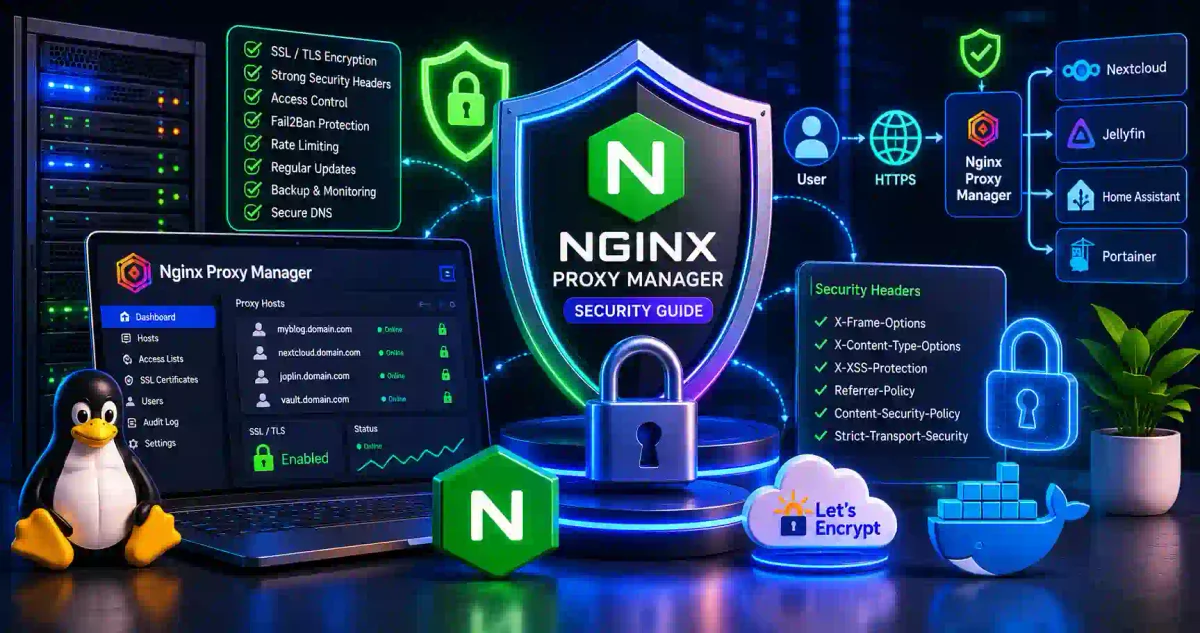
Imagine attempting to secure a sprawling corporate mansion. If you leave multiple doors and ground-floor windows unlocked and unguarded so your guests can enter, it is impossible to defend against a determined intruder. A more secure approach is to seal secondary access points, forcing everyone—guests, employees, and mail carriers alike—to pass through a single, fortified main entrance where their ID is checked.
That is what Nginx Proxy Manager (NPM) does for your home server or corporate infrastructure.
Nginx Proxy Manager is a powerful, user-friendly, web-based graphical interface built on top of the industry-standard Nginx web server. It acts as a Reverse Proxy. It handles SSL/TLS certificate generation, enforces access control lists (ACLs), load balances web traffic, and routes incoming requests—making it a strong security gatekeeper for your self-hosted services.
In this comprehensive guide for 2026, we will demystify Nginx Proxy Manager. We will guide you through secure Docker deployments, explore Access Control configurations, implement strict HTTP security headers, install a Web Application Firewall (WAF), and help ensure your home server stays secure.
1. The Core Architecture: What is a Reverse Proxy?
Before diving into Nginx Proxy Manager configurations, you must understand what a reverse proxy does on a packet-routing level.
The Network Analogy
The Vulnerable Setup (Without Reverse Proxy):
User → Internet → Your Server (port 80)     ← Unencrypted Website
                  Your Server (port 32400)  ← Direct access to Plex Media Server
                  Your Server (port 8080)   ← Direct access to Nextcloud
                  Your Server (port 8123)   ← Direct access to Home Assistant

The Secure Setup (With Reverse Proxy):
User → Internet → Nginx Proxy Manager (ONLY ports 80 and 443 open on firewall)
                  ↓ NPM securely routes internal traffic to:
                  ├─ Nextcloud (internal port 8080)   ← Hidden from internet
                  ├─ Plex (internal port 32400)       ← Hidden from internet
                  └─ Home Assistant (internal port 8123) ← Hidden from internet
The Security Benefits of Using Nginx Proxy Manager
| The Core Benefit | Description |
|---|---|
| The Single Entry Point | You configure your router to forward ONLY ports 80 and 443 to NPM. Other ports are blocked, reducing your external attack surface. |
| SSL/TLS Encryption | NPM automatically handles generating, installing, and auto-renewing Let’s Encrypt certificates for your subdomains. |
| Access Control | You can restrict who can access specific services based on their IP address (e.g., locking the Home Assistant dashboard so it can only be accessed from your local home network). |
| Logging | NPM tracks and logs access attempts, providing data for your Intrusion Detection Systems (IDS) or SIEM to analyze. |
2. Secure Installation
Because Nginx Proxy Manager manages core routing, a best practice for deployment is utilizing Docker and Docker Compose. This isolates the proxy environment, preventing it from conflicting with other services installed directly on your host operating system.
The Recommended Method: Secure Docker Installation
Step 1: Create the Environment Isolate NPM’s database from the rest of the system.
# Create the secure directory
mkdir -p /opt/nginx-proxy-manager
cd /opt/nginx-proxy-manager

# Create the docker-compose.yml file
nano docker-compose.yml
Step 2: The Production-Ready Docker Compose Configuration:
version: '3.8'

services:
  nginx-proxy-manager:
    image: 'jc21/nginx-proxy-manager:latest'
    container_name: nginx-proxy-manager
    restart: always
    ports:
      # These are the ONLY ports that should be open on your physical router
      - '80:80'      # Standard HTTP (used for Let's Encrypt verification)
      - '443:443'    # Secure HTTPS
      # The Admin UI port MUST NEVER be exposed to the public internet
      - '127.0.0.1:81:81'
    environment:
      # Database connection details
      DB_MYSQL_HOST: "npm-db"
      DB_MYSQL_PORT: 3306
      DB_MYSQL_USER: "npm_user"
      DB_MYSQL_PASSWORD: "STRONG_PASSWORD_HERE"
      DB_MYSQL_NAME: "npm_database"
      # Crucial: Prevent container from running as root
      DISABLE_IPV6: 'true'
    volumes:
      - ./data:/data
      - ./letsencrypt:/etc/letsencrypt
    depends_on:
      - npm-db
    networks:
      - npm-internal-network
      - proxy-tier

  npm-db:
    image: 'mariadb:10.11'
    container_name: npm-db
    restart: always
    environment:
      MYSQL_ROOT_PASSWORD: "ANOTHER_STRONG_PASSWORD_HERE"
      MYSQL_DATABASE: "npm_database"
      MYSQL_USER: "npm_user"
      MYSQL_PASSWORD: "STRONG_PASSWORD_HERE"
    volumes:
      - ./mysql:/var/lib/mysql
    networks:
      - npm-internal-network

networks:
  npm-internal-network:
    # Isolated internal network for DB communication
    internal: true
  proxy-tier:
    # External network for connecting to other Docker containers
    external: true
Step 3: Execute the Deployment
# Start the containers in detached mode
docker-compose up -d

# Verify the status
docker-compose ps
3. Initial Setup & Default Credentials
A critical vulnerability in any fresh NPM installation is the default login credentials. You must change these immediately.
Step 1: Accessing the Admin Interface
Because we bound port 81 to 127.0.0.1 in the Docker config, you cannot access it directly from the internet. You must use an SSH tunnel to access the Admin UI securely, or access it locally on your LAN.
# If accessing over LAN:
http://<your-local-server-ip>:81

# The Default Login:
Email: [email protected]
Password: changeme
Step 2: Immediate Credential Rotation
When you log in, NPM will prompt you to update the Administrator details.
- Change the email to a secure, private address.
- Generate a strong, 25+ character password utilizing a password manager (as discussed in our Best Password Managers Guide).
Step 3: Global System Settings
Navigate to Settings in the top navigation bar.
- Default Site: Change the default site from “Congratulations” to either “404 Page Not Found” or a direct Redirect. If a bot hits your server via its IP address instead of a valid domain name, they should not see the default page.
4. Creating SSL Certificates
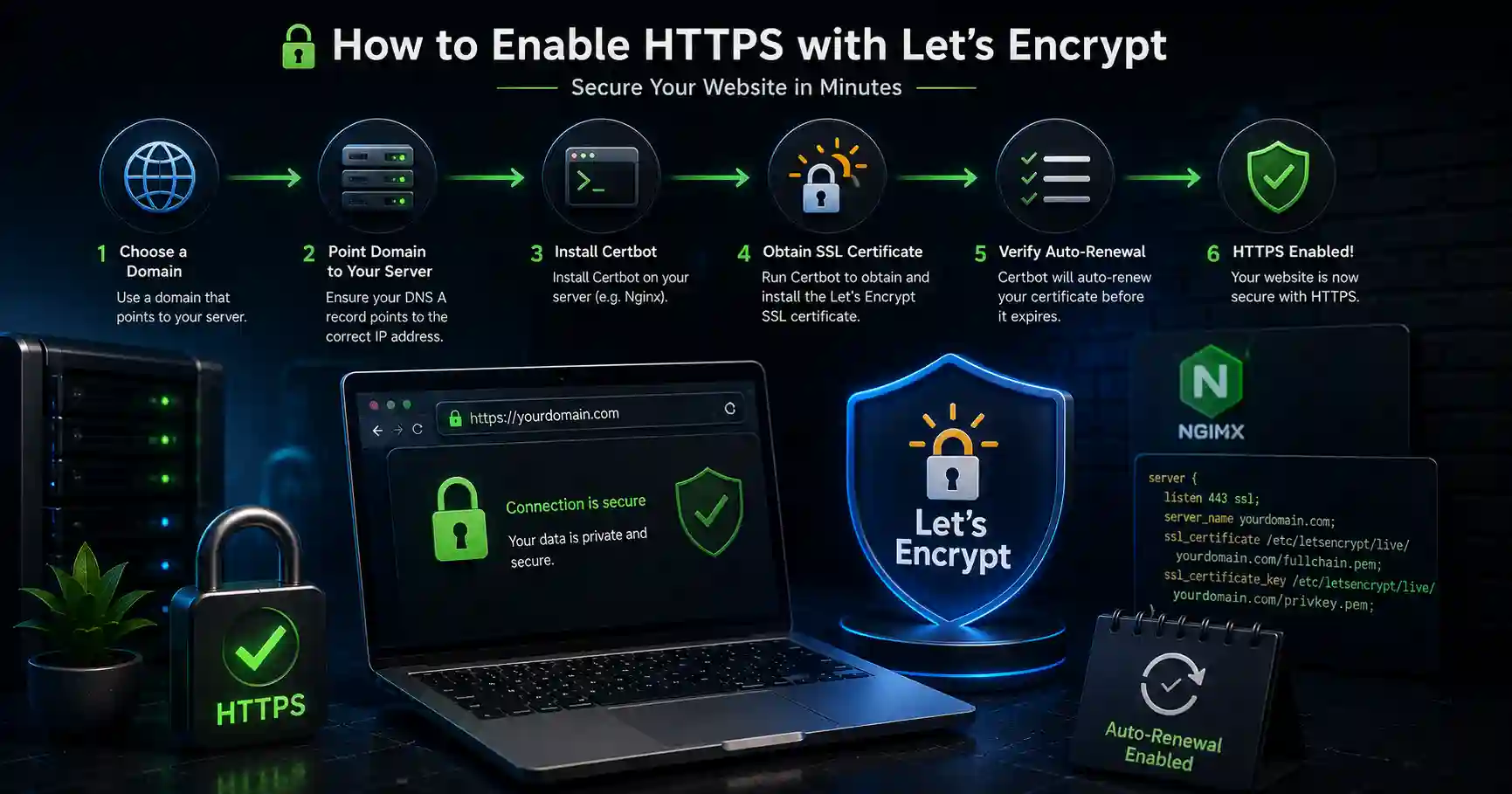
Serving an unencrypted HTTP site in 2026 is a security risk. Services you proxy should be encrypted with HTTPS.
Using Let’s Encrypt
NPM integrates with the Let’s Encrypt API.
- Navigate to SSL Certificates → Add SSL Certificate → Let’s Encrypt.
- Domain Names: Enter your specific subdomain (e.g.,
nextcloud.yourdomain.com). - Email Address: This is required for expiration notifications.
- Use a DNS Challenge (Recommended): If you use a DNS provider like Cloudflare, you can provide an API token here. This allows NPM to generate Wildcard Certificates (
*.yourdomain.com) without needing port 80 exposed. - Click Save. The Let’s Encrypt API will verify your domain and issue a certificate shortly.
5. Setting Up Proxy Hosts
Now that you have an SSL certificate, you can route traffic to your internal services.
Proxy Host Configuration
- Navigate to Proxy Hosts → Add Proxy Host.
- Tab 1: Details
- Domain Names:
nextcloud.yourdomain.com - Scheme: HTTP (This is the scheme NPM uses to talk to the internal service).
- Forward Hostname:
192.168.1.50(The internal LAN IP of your Nextcloud server). - Forward Port:
8080(The internal port Nextcloud is listening on). - Block Common Exploits: Check this box. It enables basic SQL injection and XSS filters.
- Domain Names:
- Tab 2: SSL
- SSL Certificate: Select the Let’s Encrypt certificate you generated.
- Force SSL: Check this box. It forces HTTP traffic to redirect to HTTPS.
- HTTP/2 Support: Check this for performance improvements.
- HSTS Enabled: Check this. (HTTP Strict Transport Security forces modern browsers to refuse unencrypted connections to your domain).
- Click Save. Your service is now proxied.
6. Access Control Lists (ACLs)
If you are hosting sensitive internal services (like a Pi-hole dashboard, a Proxmox hypervisor UI, or an internal Wiki), you may not want these exposed to the internet.
You can utilize Access Lists.
Creating an “Internal LAN Only” ACL
- Navigate to Access Lists → Add Access List.
- Name:
Internal LAN Only - Satisfaction:
Any - Access Rules Tab:
- allow:
192.168.1.0/24(Allows your home network). - allow:
10.8.0.0/24(Allows your OpenVPN subnet). - deny:
0.0.0.0/0(Blocks all other IP addresses).
- allow:
- Save the list. Go back to your Proxy Host, open its settings, and apply this Access List. If an unauthorized IP attempts to load your dashboard, NPM will terminate the connection with a
403 Forbiddenerror.
7. HTTP Security Headers
Nginx Proxy Manager has sensible default headers, but to achieve a better rating on Mozilla Observatory, you can manually inject strict security headers into the Advanced Configuration tab.
In the Proxy Host → Advanced tab, paste this block of security rules:
# Prevent the site from being embedded in iframes (Clickjacking)
add_header X-Frame-Options "SAMEORIGIN" always;

# Prevent the browser from guessing file types
add_header X-Content-Type-Options "nosniff" always;

# Enable the browser's internal XSS filter
add_header X-XSS-Protection "1; mode=block" always;

# Limit how much referrer information is leaked to other sites
add_header Referrer-Policy "strict-origin-when-cross-origin" always;

# The Content Security Policy (CSP)
# This rule helps prevent unauthorized JavaScript from executing
add_header Content-Security-Policy "default-src 'self' https: data: 'unsafe-inline' 'unsafe-eval';" always;

# Remove the Server version header
server_tokens off;
proxy_hide_header X-Powered-By;
8. Defending Against Brute Force: Fail2Ban Integration
Nginx Proxy Manager logs failed requests. You can integrate Fail2Ban to actively respond to these attempts.
Fail2Ban is a Linux daemon that monitors your NPM log files. If it sees multiple failed login attempts from a specific IP address within a short timeframe, it updates your host firewall (UFW/iptables) to temporarily ban that IP address.
Implementing the Fail2Ban Filter
- On your Docker host machine, install fail2ban:
sudo apt install fail2ban - Create a custom filter file:
sudo nano /etc/fail2ban/filter.d/npm-docker.conf
[Definition]
# Catch HTTP 401 Unauthorized errors in the NPM logs
failregex = ^<HOST> - - \[.*\] "[A-Z]+ .*" 401 .*"
ignoreregex =- Create the jail configuration:
sudo nano /etc/fail2ban/jail.d/npm-docker.conf
[npm-docker]
enabled = true
port = 80,443
filter = npm-docker
# The physical path to your NPM access log volume
logpath = /opt/nginx-proxy-manager/data/logs/default-host_access.log
maxretry = 5
findtime = 600
bantime = 86400 # Bans the IP for 24 hours
action = iptables-allports[name=npm-docker]- Restart Fail2Ban:
sudo systemctl restart fail2ban
IPs attempting to brute-force your passwords will now be banned at the firewall level.
9. Next-Level Hardening: ModSecurity (WAF)
If you are hosting critical public-facing applications, basic ACLs may not be enough. You might consider a Web Application Firewall (WAF).
The official Nginx Proxy Manager Docker image comes with ModSecurity optionally built-in. ModSecurity analyzes HTTP requests against the OWASP Core Rule Set. If it detects a malicious payload, such as a SQL Injection or Cross-Site Scripting (XSS) attempt, it drops the packet and terminates the connection before it reaches your backend server.
To enable this protection, you must set the environment variables in Docker Compose, and enable the ModSecurity toggle switch within the specific Proxy Host configuration menu. Be warned: ModSecurity can be strict and may cause false positives on complex web apps, requiring manual rule tuning.
Frequently Asked Questions (FAQ)
Q: What is Nginx Proxy Manager (NPM)? A: Nginx Proxy Manager is a user-friendly, web-based graphical interface built on the Nginx web server. It acts as a reverse proxy, routing incoming web traffic, handling SSL/TLS certificates, enforcing access control, and improving the security of self-hosted services.
Q: Why should I use a reverse proxy instead of opening multiple router ports? A: A reverse proxy allows you to open only ports 80 and 443 on your router, routing all traffic through a single, secure entry point. This significantly reduces your external attack surface and hides the internal IP addresses and ports of your backend services from the public internet.
Q: Why is it recommended to install Nginx Proxy Manager via Docker? A: Installing NPM via Docker and Docker Compose isolates the proxy environment and its database from the host operating system. This prevents software conflicts and ensures a clean, reproducible, and secure production-ready deployment.
Q: How do Access Control Lists (ACLs) improve security in NPM? A: ACLs allow you to restrict access to specific proxy hosts based on IP addresses. For example, you can configure an ACL to only allow access to sensitive internal dashboards from your local home network or VPN subnet, blocking all other public traffic.
Q: How does Fail2Ban integrate with Nginx Proxy Manager? A: Fail2Ban monitors Nginx Proxy Manager’s access logs for repeated failed login attempts (such as HTTP 401 errors). If an IP address exceeds the allowed retry limit, Fail2Ban updates your host firewall to temporarily ban that IP, protecting your server against brute-force attacks.
Conclusion: Securing Your Server
Deploying Nginx Proxy Manager is an impactful security upgrade for a self-hosted or corporate server environment. By utilizing Docker, enforcing Let’s Encrypt SSL certificates, locking down internal services with Access Control Lists, and integrating Fail2Ban, you significantly improve your server’s defenses.
Never leave unnecessary ports open. Never serve unencrypted traffic. Always proxy. Always verify.

Discussion
Loading comments...