

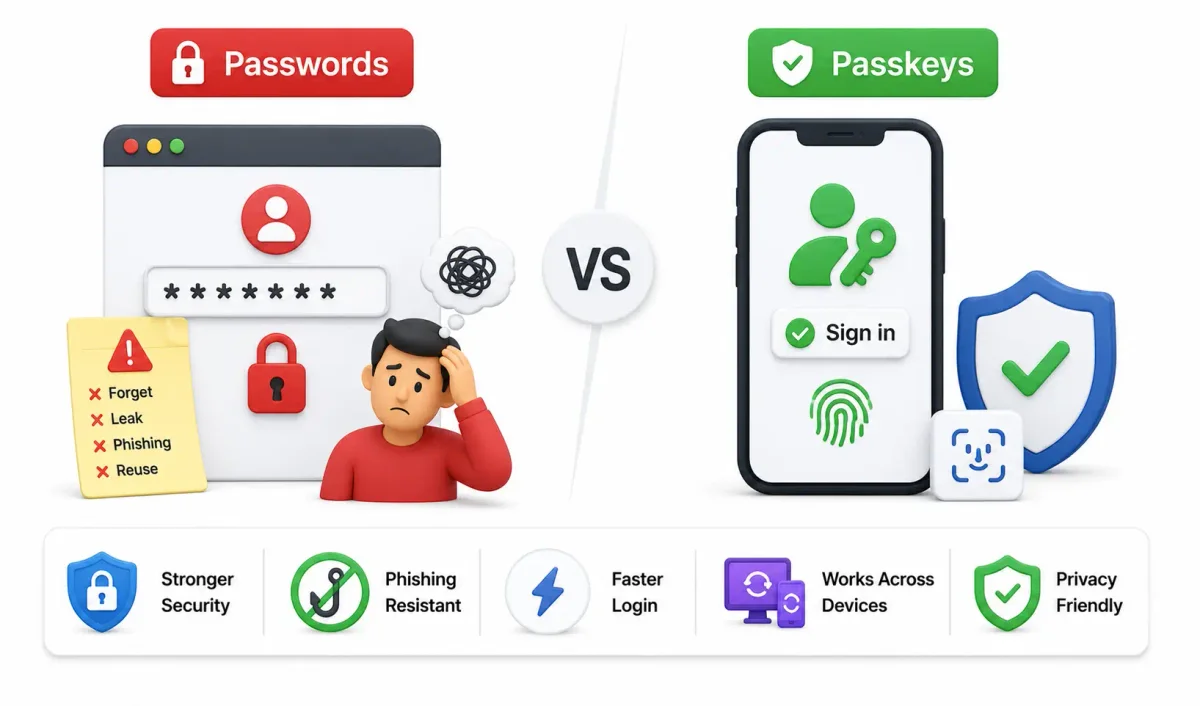
In the absolute global digital landscape, an massive, fundamental paradigm shift is undeniably physically flawlessly occurring right beneath our feet. For decades, the humble, password has been our absolute first (and frequently, only) line of defense against hostile cybercriminals. But in 2026, a superior flawless standard is taking over: Passkeys.
If you have seen the term pop up on your iPhone, Android device, or in your Google account and wondered what it means, you are not alone. This exhaustive guide will break down everything you need to know about Passkeys vs Passwords, the underlying complex mathematical cryptography, why the global tech industry is aggressively pushing this change, and how it will make your life infinitely easier and safer.
1. The Vulnerable Old Guard: The Password Crisis
We all intimately know passwords. They are strings of letters, numbers, and symbols that we try (and frequently fail) to accurately remember.
The Absolute Core Vulnerability: The “Shared Secret”
The fundamental mathematical problem with all passwords is that they are defined as a “shared secret.” You type your clear-text password into a website, and the website stores a mathematical version (hash) of it on their server. If the website gets hacked, your exact password database can be exposed. If you want to check if any of your credentials have been compromised, read our guide on how to check if your password is leaked.
The Mathematical “Password Hell” of 2026
Despite decades of strict security warnings, the average internet user still deeply struggles with:
- Absolute Weakness: Using easily guessable strings like “123456” or “Password” (which automated hostile hackers crack in literally milliseconds).
- Massive Reuse: Using the identical password for your high-security banking and a randomly internet forum. If the low-security forum gets hacked, your bank is immediately at risk. Read our guide on safe online banking practices to avoid these exact risks.
- ** Deceptive Phishing:** Cybercriminals create fake login pages that look, flawlessly like the real ones. You type your password, and you hand it directly to a thief. Learn how to spot phishing emails to protect yourself.
2. What is a Passkey? (The Mathematical New Standard)
A passkey is a digital credential that replaces the password. It is based on the global FIDO Alliance and W3C standards and exclusively uses complex public-key cryptography.
How it Works: The Core System
Think of it like a high-tech digital keycard. When you create an account, your device (phone, laptop, or security key) generates two linked keys:
- The Global Public Key: This is securely stored on the website’s server. It is useless to hackers because it cannot be used to log in alone.
- The Secure Private Key: This is heavily stored securely only on your device (physically locked in the Secure Enclave on Apple, the Trusted Execution Environment on Android, or Windows Hello).
Device (Secure Private Key) Website / Server (Public Key)
─────────────────────────── ─────────────────────────────
[Hardware Secure Enclave]
│
│ Complex Math Challenge
│ ◄─────────────────────────────── Receive Server Challenge
│
Biometric User Unlock (Face ID/Fingerprint/PIN)
│
▼
Cryptographically Sign Challenge
│
│ Signed Authenticated Response
└────────────────────────────────► Verified with Public Key (Login Success)
The Absolute Magic: During login, the website sends a complex mathematical “challenge” to your device. Your device “signs” that challenge with the private key only after you authorize it with a biometric scan or screen PIN. The website verifies the signature with the public key. Your private key never, ever leaves your device.
3. The Ultimate Head-to-Head Breakdown
To understand the shift, let’s put Passkeys and Passwords side-by-side in a battle of security and usability.
The Ultimate Comparison Matrix
| Specific Feature | Passwords (The Vulnerable Old Way) | Passkeys (The Secure New Standard) |
|---|---|---|
| Underlying Security Model | Shared secret (stored on website and device) | Public-key cryptography (private key never shared) |
| Phishing Protection | Vulnerable (user can be tricked into typing it) | Immune (only works with the registered domain) |
| Server Breach Resistance | Weak (database hacks expose hashes to cracking) | Flawlessly Strong (public keys on servers are useless to thieves) |
| User Convenience | Must remember, type, or manage in a manager | Easily authenticate using biometrics or local device PIN |
| Global Sync Mechanism | Requires manual setup or paid managers | Automatic seamless sync across massive ecosystems (iCloud, Google) |
1. The Core Security Advantage
- Passwords: Extremely vulnerable. They can be easily guessed, stolen in a database breach, or intercepted via deceptive phishing.
- Passkeys: Phishing-resistant. Because the private key never leaves your device, a fake website cannot steal it. Even if a website’s database is hacked, the public key is useless to the attacker.
2. Seamless Global Syncing
- Passwords: Usually stuck in one browser or one app unless you pay for a third-party manager.
- Passkeys: Automatically synced across your ecosystem. If you create a passkey on your iPhone, it seamlessly syncs to your iCloud Keychain and is instantly available on your iPad and Mac. Google and Microsoft offer identical sync features.
3. High Portability & Travel
- Passwords: You can type them on any device.
- Passkeys: If you are away from your phone and using a friend’s laptop, you can still log in. Most platforms allow a “Cross-Device QR Code” method. You scan the QR code with your phone, approve the login via Face ID, and you are in—without ever typing a password on the unfamiliar device.
4. How to Enable Passkeys Today (2026)
You might already be using passkeys without realizing it. Here is how you can set them up right now:
1. Global Google Accounts
- Go to your Google Account Security settings.
- Look for “Passkeys” or “Skip password when possible.”
- Create a passkey tied to your Android phone, iPhone, or hardware security key.
2. Apple Ecosystem (Apple ID)
- On iOS 16+ or macOS Ventura+, Apple prompts you to create a passkey for your Apple ID.
- This allows you to log into Apple services using Face ID or Touch ID exclusively.
3. Global Major Platforms & Password Managers
- PayPal, eBay, Shopify, and Amazon now fully support passkeys.
- Dashlane, 1Password, and Bitwarden have flawlessly integrated passkey storage. Check out our guide on the best password managers in 2026 to see how they manage passkeys.
5. Dangerous Common Myths (Debunked)
Myth 1: “What if I physically lose my phone?”
The Absolute Reality: Passkeys sync via cloud backup (iCloud Keychain or Google Password Manager). When you get a new phone, your passkeys restore automatically. If you prefer a alternative, you can use a hardware security key (like a YubiKey) as a backup.
Myth 2: “A fingerprint can be stolen, so this is less secure.”
The Absolute Reality: Your fingerprint is not the passkey. The fingerprint is just the local unlock mechanism for the device. The private key remains cryptographically encrypted inside the hardware chip (Secure Enclave or TPM). If someone steals your fingerprint image, they still need your device to authenticate.
Myth 3: “I can’t use my work computer.”
The Absolute Reality: You don’t need to register the work computer. If the site supports passkeys, it will show a QR code. You just scan the QR code using your personal phone and approve the login via biometrics.
6. The Impending Death of the Password
Is the password dead? Not. We are in a transition period (2024–2030).
For the next few years, websites will offer both options to ease users into the experience. However, we are seeing a massive shift:
- Global Google has made passkeys the default option for personal accounts.
- Global Microsoft reports that passkey logins are faster and have higher success rates than traditional passwords.
- Massive Phishing attacks are dropping for users who adopt passkeys, as the primary credential interception vector is eliminated.
In 2026, it is fair to say that the password is on “life support.” It will remain as a backup option for legacy systems, but for critical accounts (email, banking, social media), passkeys are the new gold standard.
7. Security Best Practices for the New Era
- Enable 2FA (For now): Even with passkeys, keep a secondary factor active on sites that still rely on passwords.
- Clean Your “Passkey” List: Just like cleaning your password manager, periodically check your saved passkeys in your cloud settings and revoke access to devices you no longer use.
- Use a Backup Method: Ensure you have a fallback (like a Titan Security Key or a secondary phone) set up in case your primary device is lost or dead.
- Stop Reusing Passwords: If you are still using passwords for legacy sites, use a password manager to generate unique ones for each service.
Conclusion: It’s Time to Make the Switch
Passkeys are not just a shiny new feature; they are a fundamental rewrite of how we authenticate online. They eliminate the weakest link in cybersecurity: human memory.
By switching to passkeys, you are not just making your life more convenient; you are actively protecting yourself from mass data breaches and phishing scams that plague the modern web.
Your Action Plan for Today:
- Check if your Google, Apple, or Microsoft account has passkey support.
- Add a passkey to your primary email.
- Next time you log into a supported site (like PayPal or eBay), choose “Use a passkey” instead of typing your password.
Welcome to the secure future. You won’t need to remember it.
Frequently Asked Questions (Voice Search Optimized)
What is a passkey and how does it work? A passkey is a highly secure digital credential that replaces your password. Instead of typing a password, you use your device’s built-in security, like Face ID, a fingerprint, or a PIN, to log in instantly. It uses public-key cryptography, meaning your private key never leaves your device.
Are passkeys safer than passwords? Yes, passkeys are significantly safer than passwords. They are immune to phishing attacks because they only work on the correct website, and they are completely resistant to server breaches since the website only stores a useless public key.
What happens if I lose my phone with my passkeys on it? If you lose your phone, you don’t lose your passkeys. Passkeys are securely backed up and synced to the cloud through your Apple ID, Google Account, or password manager. When you get a new device and log into your account, your passkeys will automatically be restored.
Can I use passkeys on a different computer? Yes, you can use passkeys on a different computer. If the website supports passkeys, it will display a QR code on the screen. You simply scan that QR code with your smartphone and approve the login with your fingerprint or face, without typing anything on the new computer.
Do I still need a password manager if I use passkeys? Yes, a password manager is still highly recommended. While passkeys are the future, many websites still require traditional passwords. Furthermore, modern password managers like 1Password and Bitwarden now allow you to store and sync your passkeys across all your devices.
Discussion
Loading comments...