

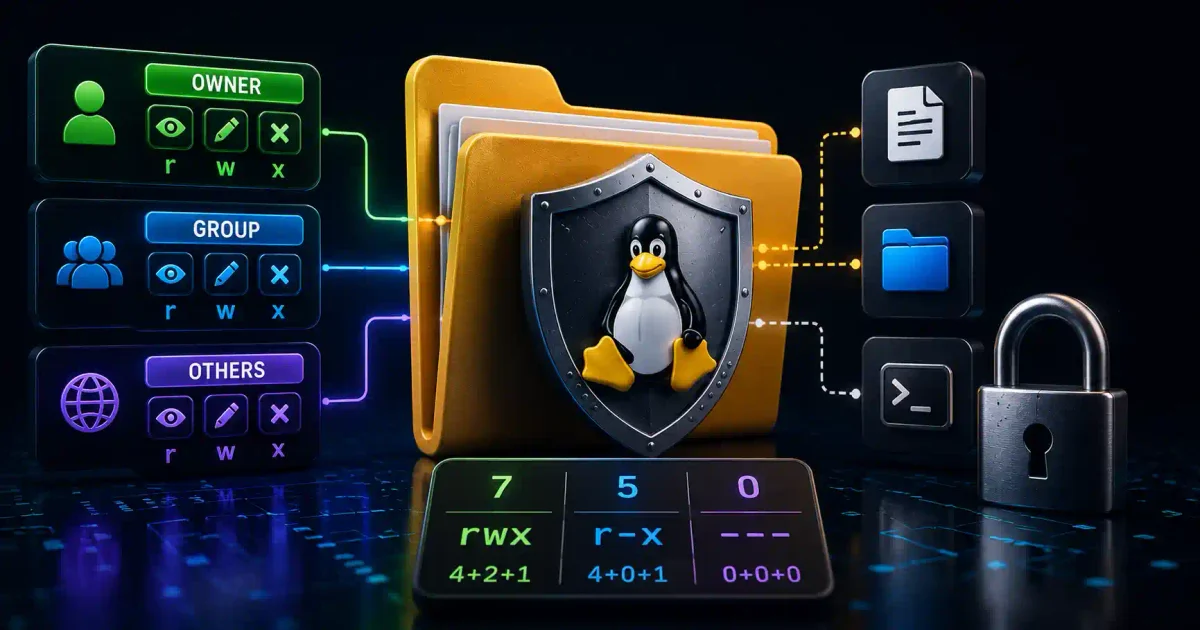
If you ever attempt to configure a Nextcloud private server or bind a persistent volume to a Docker container, you will inevitably encounter the dreaded Permission denied error.
For beginners migrating from Windows to a Linux VPS, this error is incredibly frustrating. In Windows, you are generally the absolute owner of the machine. In Linux, the operating system treats you with profound suspicion.
Linux file permissions are the absolute foundation of your server’s security model. They prevent the Nginx web server from reading your private SSH keys, and they prevent rogue scripts from modifying the core systemd configuration. In 2026, as ransomware heavily targets misconfigured cloud infrastructure, mastering these permissions is a mandatory survival skill.
In this deep-dive guide, we will break down the Unix permission model. We will explore how to calculate octal digits for chmod, manage ownership via chown, secure shared directories using the Sticky Bit and SGID, and lock down immutable logs using chattr.
1. The Unix Security Model: Users, Groups, and Others
Every file and directory on a Linux filesystem (whether it is formatted as ext4 or Btrfs) is bound to three distinct security tiers:
- User (Owner): The specific individual account that owns the file (e.g.,
root,suresh,postgres). - Group: A designated collection of users (e.g.,
developers,docker,sudo). - Others (World): Absolutely anyone else on the system who is not the owner and is not in the group.
For each of these three tiers, you can assign three types of permissions:
- Read (
r): For a file, you can view the contents (e.g., usingcator Vim). For a directory, you can list the files inside it usingls. - Write (
w): For a file, you can modify it. For a directory, you can create, delete, or rename files inside it. - Execute (
x): For a file, you can run it as a program (like a Bash or Python script). For a directory, you cancdinto it to access its contents.
2. Decoding the ls -l Output
When you run the ls -l command in your terminal, you see a 10-character string at the beginning of each line:
-rw-r--r-- 1 suresh developers 1024 Mar 15 10:30 config.yaml
drwxr-xr-x 2 suresh developers 4096 Mar 15 10:30 app_data/
Let’s dissect -rw-r--r--:
- Character 1 (File Type): The first character is
-indicating a regular file. If it were ad, it would be a directory. (You might also seelfor symlinks orcfor character devices). - Characters 2-4 (User/Owner):
rw-means the owner (suresh) can read and write, but cannot execute. - Characters 5-7 (Group):
r--means the group (developers) can only read. - Characters 8-10 (Others):
r--means everyone else can only read.
3. The Octal Numeric System (chmod)
While you can change permissions using symbolic letters (e.g., chmod u+x script.sh), DevOps engineers provisioning infrastructure with Ansible or Terraform almost exclusively use the Octal (numeric) method.
Each permission has a specific numeric weight based on binary logic:
- Read (r) = 4
- Write (w) = 2
- Execute (x) = 1
- None (-) = 0
You calculate the sum for each of the three tiers (User, Group, Others).
For example, to set rw-r--r--:
- Owner: Read (4) + Write (2) + Execute (0) = 6
- Group: Read (4) + Write (0) + Execute (0) = 4
- Others: Read (4) + Write (0) + Execute (0) = 4
- Result:
chmod 644 filename
Crucial Permission Patterns
| Octal | Symbolic | Real-World Use Case |
|---|---|---|
| 700 | rwx------ | Your private ~/.ssh directory. Nobody else can even look inside. |
| 600 | rw------- | Private files like SSH private keys (id_rsa) or Let’s Encrypt SSL certs. |
| 755 | rwxr-xr-x | Standard public directories (like /var/www/html) or executable shell scripts. |
| 644 | rw-r--r-- | Standard public files. You can edit them; the Nginx or Apache web server can read them. |
| 640 | rw-r----- | Secure configurations (like PostgreSQL configs). Readable by the database group, denied to everyone else. |
| 775 | rwxrwxr-x | Collaborative directories where a whole team of developers needs write access. |
To recursively apply permissions to a massive directory structure (like a freshly cloned Git repository):
sudo chmod -R 755 /var/www/my_website/4. Changing Ownership: chown and chgrp
Changing who owns a file is critical when deploying services. If you extract a backup archive using Rsync or BorgBackup as root, the web server (www-data) will not be able to read it.
# Change only the user ownership
sudo chown www-data index.html

# Change both the user and the group simultaneously (separated by a colon)
sudo chown www-data:www-data index.html

# Recursively change ownership of an entire directory tree
sudo chown -R www-data:www-data /var/www/html/

# Change only the group using chgrp
sudo chgrp docker docker-compose.yml
5. Advanced Security: SUID, SGID, and the Sticky Bit
Beyond basic read/write access, Linux possesses three special permission bits designed to solve complex multi-user problems.
SUID (Set User ID)
When a file has the SUID bit set, it executes with the privileges of the file’s owner, rather than the user running it.
- Use case: The
/usr/bin/passwdcommand is owned byroot. When a standard user runs it, the program briefly escalates to root privileges so it can safely modify the highly secure/etc/shadowfile. - Syntax:
chmod u+s /path/to/binary(or prepend4to the octal:chmod 4755).
SGID (Set Group ID)
When set on a directory, SGID forces all new files created inside that directory to inherit the group ownership of the directory, rather than the primary group of the user who created it.
- Use case: You have a shared folder
/var/developmentowned by thedevelopersgroup. When Alice (primary groupalice) creates a file there, it is automatically owned bydevelopers, ensuring Bob can also edit it. - Syntax:
chmod g+s /var/development/(or prepend2to the octal:chmod 2775).
The Sticky Bit
When applied to a directory, the Sticky Bit prevents a user from deleting or renaming files inside that directory unless they are the specific owner of the file.
- Use case: The system
/tmpdirectory is world-writable (777). Without the Sticky Bit, malicious scripts could delete temporary data belonging to Redis or Vaultwarden. - Syntax:
chmod +t /tmp/(or prepend1to the octal:chmod 1777).
6. Access Control Lists (ACLs)
Standard Unix permissions fail when you need hyper-granular control (e.g., granting read access to User A, read/write to User B, and nothing to User C, without creating a new group).
This is solved by Access Control Lists (ACLs).
First, ensure the ACL tools are installed on your system:
sudo apt install aclTo grant a specific user (bob) read and write access to a file, without changing the file’s owner:
setfacl -m u:bob:rw data.csvTo view the advanced ACL rules on a file:
getfacl data.csvTo remove Bob’s specific access:
setfacl -x u:bob data.csv7. Immutable Files with chattr
What if a file is so critical that even the root user should be prevented from accidentally deleting or modifying it? This is common for forensic system logs or core security configurations.
Linux filesystems support extended attributes. You can use the chattr command to make a file completely Immutable.
# Make the file immutable (cannot be deleted, renamed, or modified by ANYONE)
sudo chattr +i /etc/resolv.conf

# View extended attributes to confirm the 'i' flag is set
lsattr /etc/resolv.conf

# Remove the immutable flag (must be done as root)
sudo chattr -i /etc/resolv.conf
Alternatively, you can set the Append-Only flag (+a). This prevents the file from being deleted or overwritten, but allows data to be appended to the bottom of the file (perfect for secure audit logs).
8. Automating Permission Audits
When securing a Proxmox home lab, you must regularly audit for misconfigurations. The find command is your best friend.
# Find all files on the system that are World-Writable (massive security risk)
sudo find / -type f -perm -0002 -ls 2>/dev/null

# Find all SUID binaries (potential privilege escalation vectors)
sudo find / -perm /4000 -type f 2>/dev/null

# Find files owned by users that no longer exist on the system
sudo find / -nouser 2>/dev/null
Official Documentation
- GNU Coreutils (chmod): https://www.gnu.org/software/coreutils/manual/html_node/chmod-invocation.html
- GNU Coreutils (chown): https://www.gnu.org/software/coreutils/manual/html_node/chown-invocation.html
- Arch Linux Wiki (File Permissions): https://wiki.archlinux.org/title/File_permissions_and_attributes
- Access Control Lists (ACL) Manual: https://linux.die.net/man/5/acl
- Linux File Hierarchy Standard (FHS): https://refspecs.linuxfoundation.org/FHS_3.0/fhs/index.html
Frequently Asked Questions (FAQ)
What is the difference between chmod 755 and chmod 0755?
There is no difference in the resulting permissions. Both commands set rwxr-xr-x. The leading zero simply explicitly declares the absence of special bits (like SUID or the Sticky Bit).
Why can I not delete a file even though I have write permissions to it?
In Linux, the ability to create, delete, or rename a file is controlled by the write permission of the directory that contains the file, not the write permission of the file itself. You must have write access to the parent folder.
What is the default permission for new files, and how is it controlled?
Default permissions are determined by the umask value. When a file is created, the system subtracts the umask from the base permission (666 for files, 777 for directories). A standard umask of 0022 results in files being created as 644 and directories as 755.
Can I set different permissions for multiple specific users?
Not using standard Unix permissions (chmod). To grant unique access to multiple distinct users without putting them in the same group, you must use Access Control Lists (ACLs) via the setfacl command.
Why do some tutorials advise using chmod 777?
You should never use chmod 777 in a production environment. It grants read, write, and execute permissions to every single user and process on the server. Tutorials suggest it as a lazy workaround to bypass Permission denied errors instead of fixing the underlying ownership issues.
What does the SUID bit do on a directory?
Nothing. The SUID (Set User ID) bit is ignored when applied to a directory. To force inheritance of ownership on a directory, you must use the SGID (Set Group ID) bit instead.
How do I recursively change permissions for directories but not files?
Using chmod -R 755 blindly changes both files and folders, making text files executable, which is bad practice. Instead, use the find command to separate them: find /path -type d -exec chmod 755 {} \; for directories, and find /path -type f -exec chmod 644 {} \; for files.
What happens if I lock myself out of a file using chmod 000?
If you are a standard user and you set a file you own to 000, you will be denied access to read or write it. However, because you are the owner, you still retain the right to change the permissions back using chmod 600. Additionally, the root user can always access and modify the file regardless of its permissions.
How do I check what groups my user account belongs to?
You can easily check your group memberships by running the groups command, or by running the id command, which outputs your precise UID (User ID) and GID (Group ID) numerical values.
What is the difference between chattr and chmod?
chmod controls standard read/write/execute access based on user accounts. chattr controls low-level filesystem attributes. If a file is made immutable with chattr +i, absolutely no one—not even the root user—can delete or modify it until the attribute is explicitly removed, bypassing chmod rules entirely.
Discussion
Loading comments...