

Here’s what happened to me before I learned Git: I had a project folder with files named app_final.js, app_final_v2.js, app_final_ACTUALLY_FINAL.js, and app_backup_DO_NOT_DELETE.js. Sound familiar?
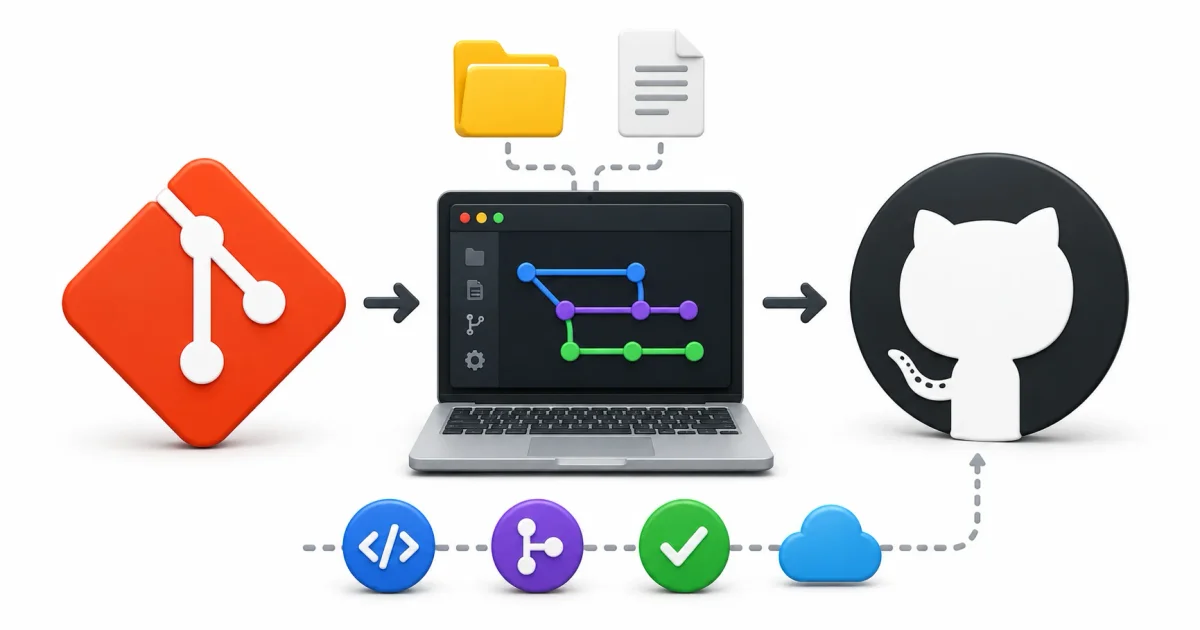
Git solves this problem permanently. It tracks every change you make to every file, lets you rewind to any previous version, and makes collaboration possible without overwriting each other’s work. GitHub puts your Git repositories online so you can access them from anywhere, share them with others, and build a public portfolio.
If you write code, edit configuration files on Linux servers, manage infrastructure, or contribute to open-source projects — you need to know Git. Let me walk you through it.
Git vs. GitHub — What’s the Difference?
This confuses a lot of beginners, so let’s clear it up:
- Git is a tool installed on your computer. It tracks file changes locally. It works completely offline.
- GitHub is a website that hosts Git repositories online. It adds collaboration features — pull requests, issue tracking, project management, CI/CD automation.
You can use Git without GitHub. You cannot use GitHub without Git.
| Git | GitHub | |
|---|---|---|
| What | Version control tool | Cloud hosting platform |
| Where | Runs on your machine | Website (github.com) |
| Offline? | Yes, fully | No, needs internet |
| Cost | Free, open-source | Free tier + paid plans |
| Alternatives | None (it’s the standard) | GitLab, Gitea, Forgejo, Bitbucket |
Think of Git as the camera taking snapshots of your work, and GitHub as the photo album where you store and share those snapshots.
Self-hosted alternatives like Gitea and Forgejo are popular in home lab setups where teams want full control over their code. You can deploy them with Coolify or Docker Compose in minutes.
Installing Git
Linux
# Ubuntu / Debian / Mint
sudo apt update && sudo apt install -y git

# Fedora / RHEL
sudo dnf install -y git

# Arch / Manjaro
sudo pacman -S git
If you’re new to installing packages on Linux, our guide on how to install software on Linux covers package managers across all major distributions.
macOS
brew install git
# or
xcode-select --install
Windows
Download the installer from git-scm.com or use winget:
winget install Git.GitVerify Installation
git --versionSet Up Your Identity
Git attaches your name and email to every commit. Set these once:
git config --global user.name "Your Name"
git config --global user.email "[email protected]"
While you’re configuring things, set your preferred text editor for commit messages:
git config --global core.editor "micro"You can use any terminal editor — Micro for intuitive keybindings, Nano for simplicity, or Vim if you’ve invested in modal editing. Our top 13 Linux CLI text editors comparison helps you decide.
The Core Concept: How Git Tracks Changes
Understanding this mental model makes everything else click.
Git manages your files through four states:
- Working Directory → Your files as you’re editing them. Changed but not yet tracked.
- Staging Area → Files you’ve marked for the next commit. Think of it as a packing box — you decide what goes in before sealing it.
- Local Repository → The permanent history stored in the hidden
.gitfolder on your machine. Every commit lives here forever (well, until you explicitly delete it). - Remote Repository → Your code uploaded to GitHub (or GitLab, Gitea, etc.). Now it’s backed up online and shareable.
The daily workflow moves files through these states:
- Edit files →
git add→git commit→git push
That’s it. Those four commands cover 90% of daily Git usage. Whether you’re editing a Node.js application, tweaking Linux file permissions, or configuring a reverse proxy, Git tracks every change.
Essential Git Commands
Starting a Repository
Turn any folder into a Git-tracked project:
mkdir my-project
cd my-project
git init
Or clone an existing one from GitHub:
git clone https://github.com/username/repo-name.gitChecking Status
Your most-used command. Run it constantly:
git statusThis tells you what branch you’re on, which files changed, what’s staged, and what’s untracked.
Staging Changes
Tell Git which files to include in the next commit:
# Stage a specific file
git add index.html

# Stage everything that changed
git add .
Committing
Take a snapshot of your staged changes:
git commit -m "Add responsive navigation bar"Write clear, descriptive commit messages. Future-you will thank present-you.
Good messages: “Fix login redirect on mobile Safari”, “Add user profile API endpoint”, “Update Nginx config for WebSocket support”
Bad messages: “fix”, “updates”, “stuff”, “wip”, “asdf”
Viewing History
# Full history
git log

# Compact one-line view
git log --oneline

# Show changes in each commit
git log -p

# Graph view of branches
git log --oneline --graph --all
For security auditing, git log is invaluable. It lets you see exactly when a file was modified. If you’re investigating a potential breach after spotting something suspicious in your server logs, git log provides the exact timeline of code changes. To take it further, our Lyins security audit guide covers full system auditing.
Seeing What Changed
# Unstaged changes (what you've modified but not added)
git diff

# Staged changes (what's ready to commit)
git diff --staged

# Changes between two commits
git diff abc123 def456
Reviewing git diff output before committing is a great habit, especially when working on security-sensitive code. It helps catch hardcoded passwords or API keys before they get committed. If you need robust scanning, our guide on OWASP ZAP covers finding vulnerabilities in web applications, and Nikto handles web server scanning.
Branching and Merging
Branching is how you work on features, fixes, or experiments without touching the main codebase. It’s one of Git’s most powerful concepts, and it’s essential for collaboration.
Creating and Switching Branches
# Create a new branch and switch to it
git checkout -b feature/user-auth

# Or using the newer syntax
git switch -c feature/user-auth

# Switch back to main
git checkout main
# or
git switch main

# List all branches
git branch

# Delete a branch (after merging)
git branch -d feature/user-auth
Merging
Bring changes from a feature branch into main:
git checkout main
git merge feature/user-auth
If Git can merge automatically, it creates a merge commit and you’re done. If the same lines were changed in both branches, you’ll get a merge conflict — Git marks the conflicting sections in the file and you resolve them manually.
Handling Merge Conflicts
When a conflict occurs, the affected file will look like this:
<<<<<<< HEAD
const apiUrl = "https://api.production.com";
=======
const apiUrl = "https://api.staging.com";
>>>>>>> feature/user-auth
You decide which version to keep (or combine them), remove the conflict markers, then:
git add resolved-file.js
git commit -m "Resolve API URL merge conflict"
Merge conflicts feel scary at first, but they become routine. The key is reading the markers carefully and understanding what each branch intended.
Working with GitHub
Creating a Repository on GitHub
- Log into GitHub → click ”+” → “New repository”
- Name it (e.g.,
my-project) - Choose Public or Private
- If pushing an existing local project, don’t initialize with a README
- Click “Create repository”
Then connect your local project:
git remote add origin https://github.com/username/my-project.git
git push -u origin main
Pushing and Pulling
# Upload local commits to GitHub
git push

# Download and merge remote changes
git pull origin main

# Download without merging (inspect first)
git fetch origin
GitHub Authentication
GitHub no longer accepts passwords for terminal operations. You need either a Personal Access Token or SSH keys.
Personal Access Token (simpler):
- GitHub → Settings → Developer Settings → Personal Access Tokens → Tokens (classic)
- Generate a new token with
reposcope - Copy it immediately (you won’t see it again)
- Use it as your password when Git prompts you
SSH Keys (better for daily use):
# Generate an SSH key pair
ssh-keygen -t ed25519 -C "[email protected]"

# Copy the public key
cat ~/.ssh/id_ed25519.pub
Paste the public key in GitHub → Settings → SSH and GPG keys → New SSH key.
Now you can clone and push using SSH URLs:
git clone [email protected]:username/repo-name.gitFor securing SSH keys and managing credentials properly, our SSH hardening guide covers key-based authentication in depth. Store sensitive tokens and passwords in a secrets manager like Vaultwarden rather than plain text files. You can generate strong passwords and tokens with our password generator.
Pull Requests — How Collaboration Actually Works
Pull Requests (PRs) are how changes get reviewed and merged on GitHub. They’re the heart of collaborative development.
The workflow:
- Create a feature branch locally
- Make your changes and commit them
- Push the branch to GitHub:
git push -u origin feature/my-feature - On GitHub, click “Compare & pull request”
- Write a description of what you changed and why
- Request reviews from teammates
- Address any feedback with additional commits
- Once approved, merge the PR
This is how open-source projects work too. You fork a project, create a branch, make changes, and submit a PR to the original repository. The maintainers review it and decide whether to merge.
The .gitignore File
A .gitignore tells Git which files to completely ignore — secrets, build artifacts, dependencies, OS files. This is critical for security and keeping your repository clean.
Create one in your project root:
touch .gitignoreCommon Patterns
# Dependencies
node_modules/
vendor/
__pycache__/
*.pyc

# Environment files (NEVER commit these)
.env
.env.local
.env*.local

# Build output
dist/
build/
out/

# OS files
.DS_Store
Thumbs.db

# IDE config
.idea/
.vscode/
*.swp

# Logs
*.log
npm-debug.log*
The golden rule: never commit .env files containing API keys, database credentials, or secret tokens. If you accidentally commit a secret, assume it’s compromised and rotate it immediately.
Our gitignore generator creates .gitignore templates for common project types — Node.js, Python, Go, Java, and more. For managing environment variables and secrets, the ENV generator scaffolds .env files with proper structure.
If you accidentally commit sensitive data, tools like git filter-branch or BFG Repo-Cleaner can rewrite history to remove it — but you should still rotate any exposed credentials immediately. For managing secrets properly, consider a self-hosted password manager like Vaultwarden or the open-source KeePassDX.
Advanced Git Commands
Once you’re comfortable with the basics, these commands make you significantly more productive.
git stash — Save Work Temporarily
You’re halfway through a feature when an urgent bug report comes in. You’re not ready to commit, but you can’t lose your work:
# Stash current changes
git stash

# Switch to main, fix the bug, commit, push
git checkout main
# ... fix the bug ...
git commit -m "Fix critical login bug"
git push

# Come back and restore your stashed work
git checkout feature/my-feature
git stash pop
Other stash commands:
git stash list              # See all stashes
git stash apply stash@{2}   # Apply a specific stash
git stash drop stash@{0}    # Delete a specific stash
git rebase — Clean Up History
Rebase replays your commits on top of another branch, creating a linear history instead of merge commits:
git checkout feature-branch
git rebase main
Interactive rebase lets you squash multiple messy commits into one clean commit:
git rebase -i HEAD~3⚠️ Never rebase commits that have been pushed to a shared branch. Rebasing rewrites history, which causes problems for anyone who already pulled those commits.
git cherry-pick — Copy a Specific Commit
Need one specific bug fix from a development branch in production?
git cherry-pick a1b2c3d4This copies just that commit to your current branch without merging everything else.
git blame — Who Wrote This Line?
git blame filename.pyShows who last modified each line, when, and in which commit. Invaluable for understanding why code was written a certain way.
Understanding the .git Directory
Every Git repo has a hidden .git folder. This is the repository — everything else is just the working copy.
ls -la .git/What’s inside:
HEAD→ Points to the current branch (e.g.,ref: refs/heads/main)config→ Repository-level settings (remotes, branch tracking)objects/→ The content-addressable database. Every file version, commit, and tree is stored as a SHA-1 hashed object. Git is fundamentally a content store.refs/heads/→ Branch pointers (SHA-1 hashes)refs/remotes/→ Remote-tracked branch pointershooks/→ Scripts that run on specific events (pre-commit, post-push, etc.)
Understanding this structure demystifies Git. A branch is just a pointer. A commit is just a snapshot with a parent reference. Everything is content-addressed by hash.
GitHub Actions — Automating Your Workflow
GitHub Actions runs automated workflows triggered by events like pushes, pull requests, or schedules. It’s how modern teams implement CI/CD (Continuous Integration / Continuous Deployment).
Example: Testing a Python Project on Every Push
Create .github/workflows/ci.yml:
name: Python Tests

on:
  push:
    branches: [main]
  pull_request:
    branches: [main]

jobs:
  test:
    runs-on: ubuntu-latest
    steps:
      - uses: actions/checkout@v4

      - name: Set up Python 3.12
        uses: actions/setup-python@v5
        with:
          python-version: '3.12'

      - name: Install dependencies
        run: pip install -r requirements.txt

      - name: Run tests
        run: pytest
Every push to main or PR targeting main spins up a clean Ubuntu container, installs dependencies, and runs your test suite. If tests fail, the PR is blocked from merging.
Example: Testing a Node.js Project
name: Node.js CI

on: [push, pull_request]

jobs:
  test:
    runs-on: ubuntu-latest
    steps:
      - uses: actions/checkout@v4
      - uses: actions/setup-node@v4
        with:
          node-version: '20'
      - run: npm ci
      - run: npm test
GitHub Actions is free for public repositories and offers 2,000 minutes/month on the free plan for private repos. For deploying applications after tests pass, our guide on deploying Node.js apps on a Linux VPS covers the deployment side of the pipeline. If you’re using containers, the Docker Compose generator can scaffold your deployment configs.
For scheduling CI runs at specific times, the cron expression generator helps build cron syntax. And if you’re testing across different environments, understanding Python vs Rust tradeoffs and async JavaScript patterns helps you write better test suites.
Real-World Git Workflows
Solo Developer Workflow
For personal projects, keep it simple:
- Work directly on
mainfor small projects - Use feature branches for anything experimental
- Commit frequently with descriptive messages
- Push to GitHub regularly (it’s your backup)
Team Workflow (Feature Branch Model)
The most common professional workflow:
mainbranch is always deployable- Create feature branches:
feature/user-auth,fix/login-bug - Push branches and open Pull Requests
- Code review by teammates
- Merge after approval
- Delete the feature branch
GitFlow (For Larger Projects)
More structured, with dedicated branches:
main→ Production releases onlydevelop→ Integration branch for featuresfeature/*→ Individual featuresrelease/*→ Release preparationhotfix/*→ Emergency production fixes
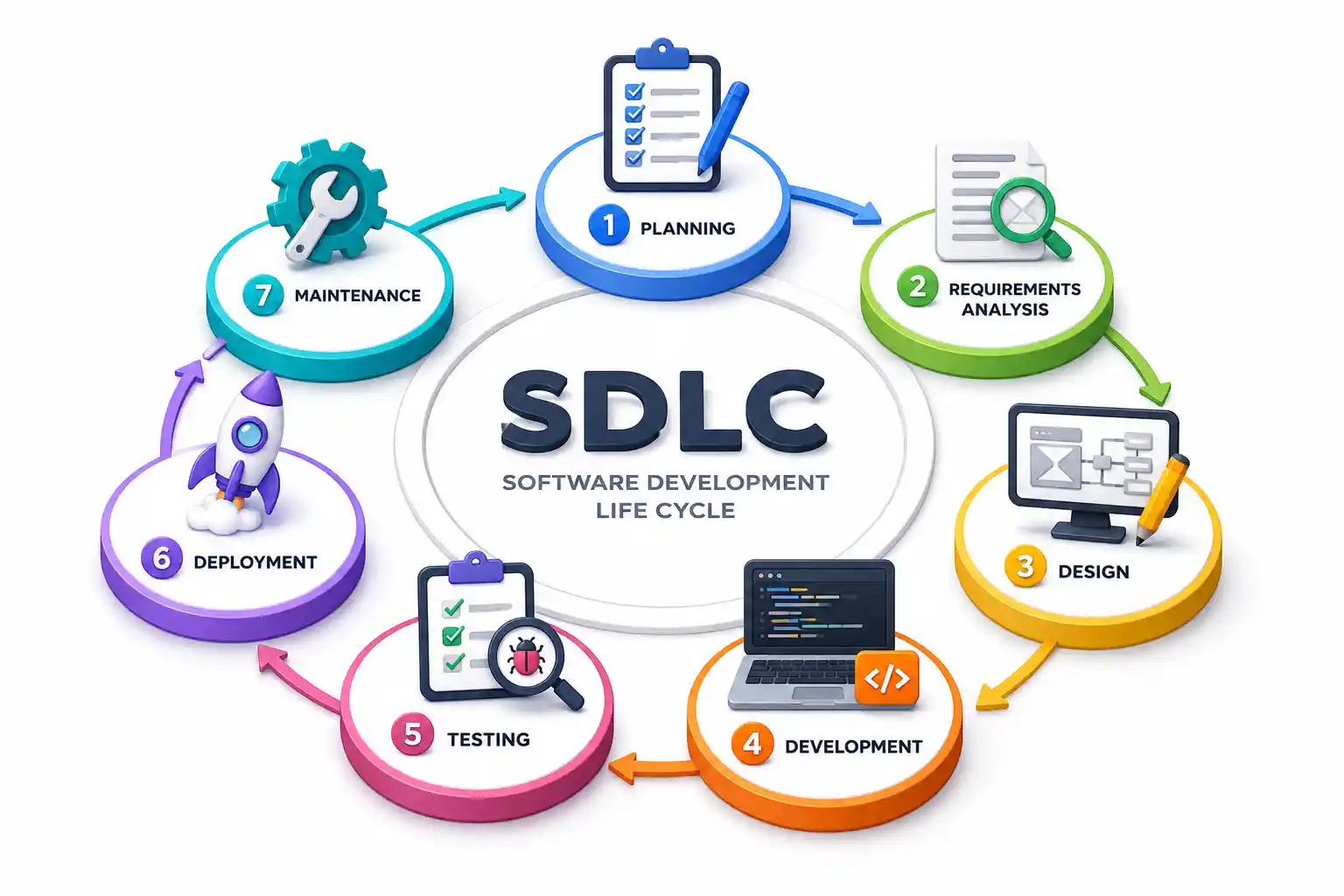
This is common in enterprise teams and works well with SDLC practices.
Git Tips That Save Time
Aliases — Shorten Common Commands
Add these to your ~/.gitconfig:
[alias]
    s = status
    co = checkout
    br = branch
    ci = commit
    lg = log --oneline --graph --all
    last = log -1 HEAD
Now git s replaces git status, git lg shows a visual branch graph, and git last shows your most recent commit.
You can also validate JSON configuration files with our JSON formatter and JSON validator before committing them — catching syntax errors before they hit production.
Fix Your Last Commit Message
git commit --amend -m "Better commit message"Undo Staged Files
# Unstage a file (keep changes)
git restore --staged filename.js

# Discard all uncommitted changes (DESTRUCTIVE)
git restore .
See What Changed in a Specific Commit
git show abc123Security and Best Practices
Git is a tool for managing code, but it intersects heavily with security:
- Never commit secrets → API keys, passwords, tokens, private keys. Use
.envfiles (gitignored) and environment variables. Our password generator creates strong credentials, and Vaultwarden stores them securely. - Sign your commits → Use GPG signing to prove commits actually came from you:
git config --global commit.gpgsign true - Use SSH keys → More secure than PATs for daily use. Store your private key securely and never share it. Our guide on SSH hardening covers key management.
- Protect your main branch → On GitHub, enable branch protection rules requiring PR reviews and passing CI checks before merging.
- Audit your history → Use
git logandgit blameto track who changed what. If you’re managing server infrastructure, pair this with system log analysis for a complete audit trail. - Scan for vulnerabilities → Tools like Trivy, Snyk, and GitHub’s Dependabot scan your dependencies for known vulnerabilities. Our Docker container security guide covers image scanning in container workflows.
Git with DevOps Workflows
If you’re using Git to manage infrastructure configurations (not just application code), a few tools integrate naturally:
- Infrastructure as Code → Git version-controls your Nginx configs, systemd service files, Docker Compose definitions, and deployment scripts.
- Automated deployments → Platforms like Coolify and DokPloy can deploy directly from Git pushes. Push to
main, and your application redeploys automatically. - Container workflows → Build Docker images from Git repos, push to container registries, and deploy with orchestrators. Our Docker installation guide and Docker vs Podman comparison cover the container side.
- GitOps → The practice of using Git as the single source of truth for infrastructure. Argo CD and Flux watch your Git repo and automatically apply changes to Kubernetes clusters. Our Kubernetes explained guide introduces container orchestration.
If you’re running a home lab with Proxmox, version-controlling your VM templates and configuration scripts in Git prevents the “I changed something and now it’s broken, and I don’t remember what I changed” disaster.
GitHub Alternatives
GitHub isn’t the only option for hosting Git repositories:
- GitLab → Self-hosted or cloud. Includes CI/CD, container registry, and more built in. Popular in enterprises.
- Gitea → Lightweight, self-hosted Git forge. Written in Go. Perfect for home labs and small teams.
- Forgejo → Community fork of Gitea with a focus on sustainability and governance.
- Bitbucket → Atlassian’s offering. Integrates with Jira.
If you self-host your own Git forge, protect it with a reverse proxy and TLS — our Let’s Encrypt guide covers automated certificate setup, and UFW handles firewall rules. For intrusion prevention, Fail2ban or CrowdSec block brute-force attempts against your Git server’s SSH or web interface. The Nginx config generator can create reverse proxy configs for your self-hosted Git instance.
For exploring more open-source tools to complement your Git workflow, our best open-source alternatives guide covers replacements for proprietary software across categories. Hosting your code on your own VPS gives you full control and avoids vendor lock-in — and you can compare cloud providers in our AWS vs Azure vs Google Cloud comparison.
Official Documentation
- Git Official Documentation: https://git-scm.com/doc
- Pro Git Book (Free): https://git-scm.com/book
- GitHub Docs: https://docs.github.com
- GitHub Actions Documentation: https://docs.github.com/en/actions
- Git Reference Manual: https://git-scm.com/docs
Frequently Asked Questions
What is Git and why should I learn it?
Git is a distributed version control system that tracks changes to your files over time. It lets you revert to previous versions, collaborate with others without overwriting work, and maintain a complete history of your project. It’s the industry standard for software development and is essential knowledge for any developer, sysadmin, or DevOps engineer.
What’s the difference between Git and GitHub?
Git is a tool installed on your computer that tracks file changes locally. GitHub is a cloud platform that hosts Git repositories online and adds collaboration features like pull requests, issue tracking, and CI/CD automation. You can use Git without GitHub, but not GitHub without Git.
How do I undo the last commit without losing my changes?
Use git reset --soft HEAD~1 to undo the commit while keeping all changes staged. Use git reset HEAD~1 to undo the commit and unstage changes (files remain in your working directory). Use git reset --hard HEAD~1 to permanently delete the commit and all its changes — this is destructive.
What is a pull request?
A pull request (PR) is a GitHub feature for proposing changes. You create a branch, make changes, push it, and open a PR asking the repository maintainer to review and merge your changes. It’s the standard workflow for code review and collaboration, especially in open-source projects.
What’s the difference between git merge and git rebase?
Both integrate changes from one branch into another. git merge creates a merge commit that preserves both branch histories. git rebase replays your commits on top of the target branch, creating a linear history. Rebase produces cleaner logs but should never be used on shared branches.
How do I resolve merge conflicts?
When Git can’t automatically merge changes (because the same lines were modified in both branches), it marks the conflicting sections in the file with <<<<<<<, =======, and >>>>>>> markers. You edit the file to keep the correct version, remove the markers, then stage and commit.
What should I put in .gitignore?
Ignore files that shouldn’t be in version control: dependencies (node_modules/), build output (dist/), environment files (.env), OS files (.DS_Store), IDE settings (.idea/, .vscode/), and log files. Never commit files containing secrets or credentials.
How do I set my default text editor for Git?
Run git config --global core.editor "editor-name". For example, git config --global core.editor "micro" for Micro, or git config --global core.editor "nano" for Nano.
What are GitHub Actions?
GitHub Actions is a CI/CD platform built into GitHub. It runs automated workflows triggered by events like pushes or pull requests. Common uses include running test suites, building Docker images, deploying applications, and checking code quality.
Can I use Git for things other than code?
Yes. Git tracks changes to any text-based file — documentation, configuration files, infrastructure definitions, even writing projects. Many technical writers and system administrators use Git to version-control non-code files.
Discussion
Loading comments...