

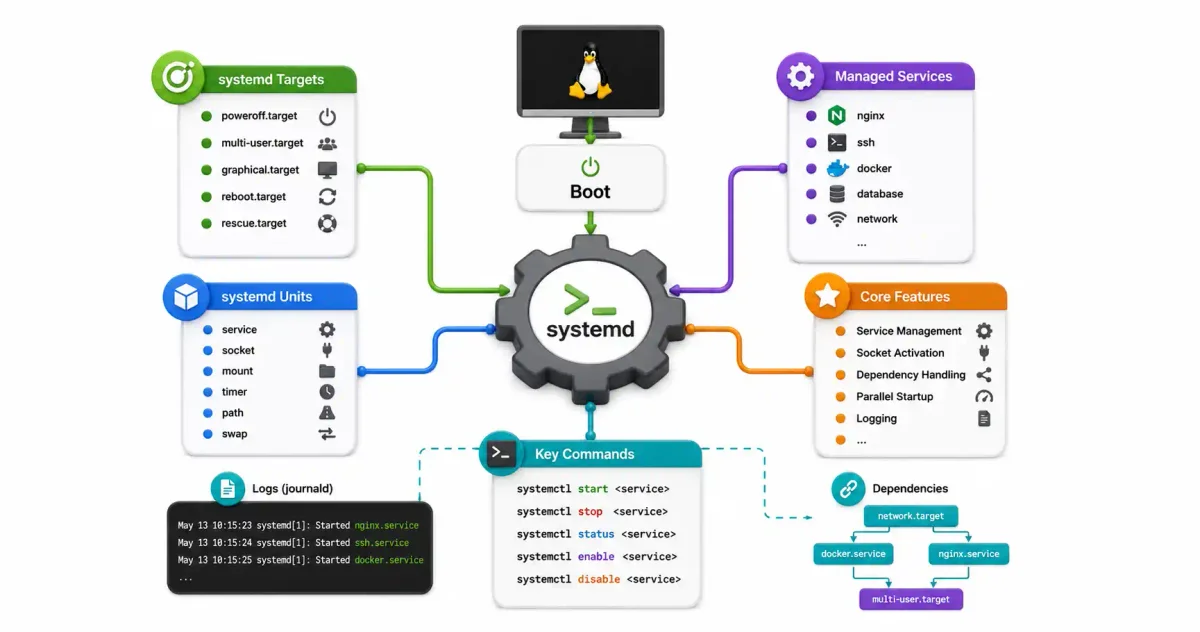
If you have ever installed software on a Linux server, followed a tutorial to set up a Virtual Private Server (VPS), or configured a self-hosted application, you have undoubtedly run commands like sudo systemctl start nginx or sudo systemctl enable docker.
But what exactly is happening behind the scenes when you run these commands? In 2026, systemd is the default initialization system and service manager for almost every major Linux distribution—including Ubuntu, Debian, CentOS, RHEL, Fedora, Rocky Linux, AlmaLinux, and Arch Linux. Understanding systemd is not just a useful trick; it is the absolute key to managing, troubleshooting, and securing modern Linux systems.
In this guide, we will break down systemd from the ground up, explain its core architecture, show you how to manage services, detail unit types and target states, walk through building a production-grade custom service, and master systemd-journald logging.
1. The Evolution of Linux Init Systems (Why systemd Won)
To understand systemd, we must understand the system it replaced: SysVinit (System V Initialization).
Legacy SysVinit (Sequential Boot - Slow & Fragile):
[ Kernel Boot ] ──► [ Start Script 00 ] ──► [ Start Script 01 ] ──► [ Start Script 02 ] ──► [ Logged In ]

Modern systemd (Parallel Boot via Sockets & Cgroups - Fast & Robust):
                    ┌─► [ Service A (Web) ] ──────┐
[ Kernel Boot ] ──► ├─► [ Service B (Database) ] ─┼─► [ Target Reached (Multi-User) ]
                    └─► [ Service C (Network) ] ──┘
The Legacy SysVinit Model
Historically, when a Linux kernel finished booting, it launched a single process with Process ID (PID) 1 called init. Under SysVinit, this process booted the rest of the system using bash scripts located in /etc/init.d/. These scripts ran sequentially, one after another.
- The Problem: If one service (like an email server) got stuck waiting for a network interface, the entire boot process halted. Furthermore, SysVinit scripts were complex, prone to bash shell syntax errors, and lacked built-in mechanisms to monitor if a background service crashed and needed restarting.
The Rise of systemd
Introduced by Lennart Poettering and Kay Sievers, systemd was designed to address these architectural limits. It introduced:
- Parallel Startup: By utilizing socket activation, systemd starts services concurrently. If Service A depends on Service B, systemd creates a socket interface immediately, allowing both services to boot at the same time.
- Process Tracking via Cgroups: Rather than relying on PID files (which can easily get out of sync), systemd places child processes inside dedicated Linux kernel Control Groups (cgroups). This ensures that if you stop a service, all sub-processes it spawned are cleanly terminated.
- Declarative Configuration: Gone are the days of fragile 200-line bash init scripts. Systemd uses simple, declarative configuration files called Units.
2. The Core Architecture of systemd
Systemd is far more than an init system; it is a suite of system management tools. It acts as the central manager of:
- Daemons/Services: Processes running persistently in the background.
- Mount Points: Attaching hard drives, network shares, or partitions.
- Network Interfaces: Resolving network states and sockets.
- Logging (Journal): A centralized, binary system logger.
- Hardware States: Listening for hardware plugin events.
The PID 1 Principle
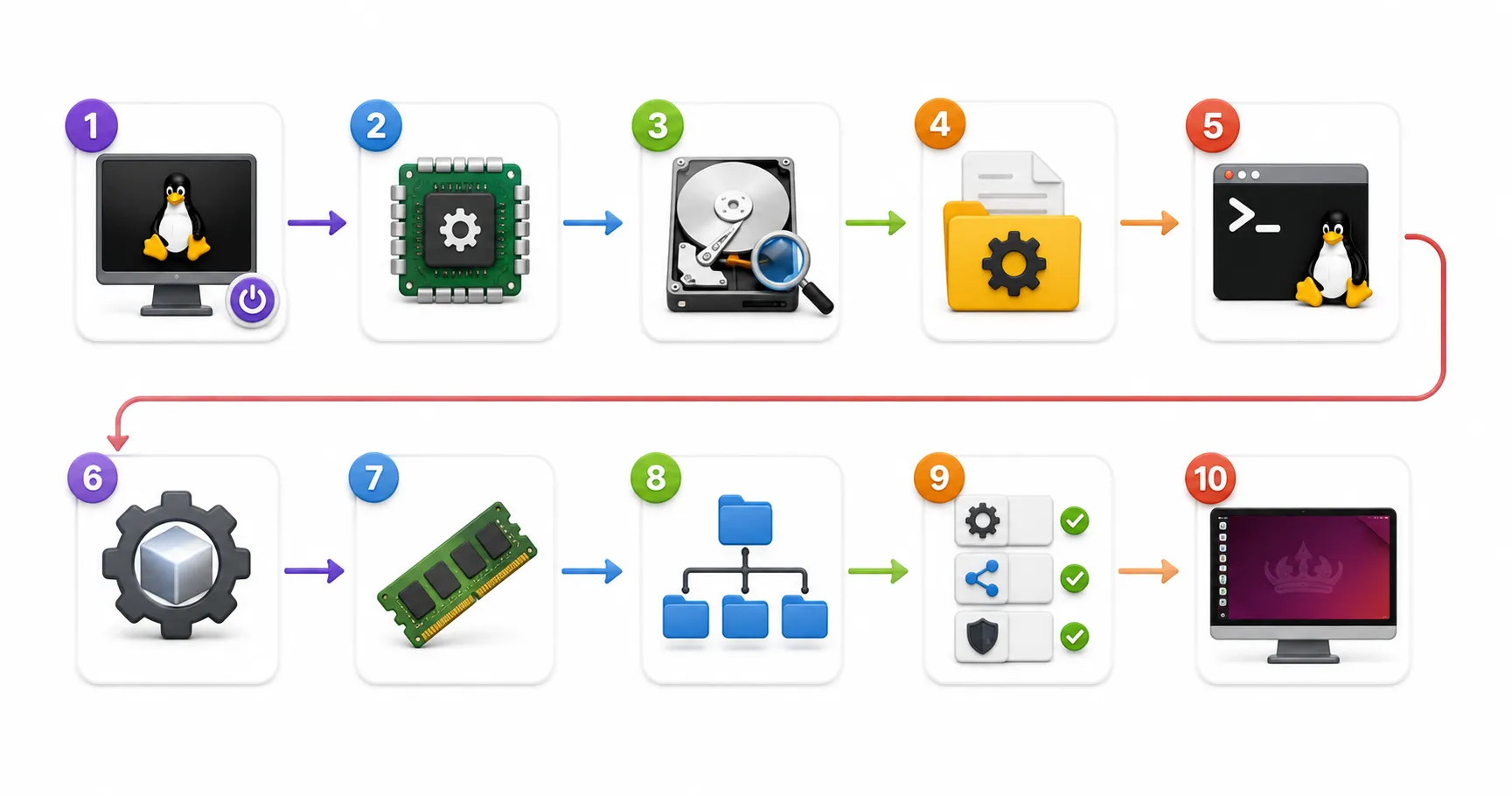
In Linux, process execution forms a tree structure. The kernel mounts the filesystem and immediately spawns systemd as process ID 1. Systemd remains active for the entire duration of system operation, managing the life cycle of every process spawned thereafter. If systemd crashes, the kernel panics and the system shuts down.
3. Unit Types and Targets Explained
Systemd organizes system resources into Units. Every unit is represented by a configuration file with a specific file extension.
The Most Common Unit Types:
- Services (
.service): The most common unit. Manages background processes (e.g.,nginx.service,sshd.service). - Sockets (
.socket): Listens on a specific network port or filesystem socket. If a packet arrives, systemd automatically starts the corresponding.serviceunit to handle the connection. - Timers (
.timer): Schedules execution of services, serving as a modern, unified replacement for legacy cron jobs. - Mounts (
.mount): Configures mount points for storage drives. These function similarly to/etc/fstabconfigurations. - Paths (
.path): Monitors specific files or directories on disk. If a file is modified, deleted, or created, systemd triggers a designated service. - Slices (
.slice): Organizes and clusters processes to apply resource allocation limits (such as capping CPU or RAM usage).
Understanding Targets (.target)
A target is a synchronization point used to group units together during system state transitions. They replace legacy SysVinit “runlevels.”
multi-user.target: Configures the system for a standard, command-line server environment with networking but no GUI.graphical.target: Activates the graphical user interface desktop environment (e.g., GNOME or KDE). It implicitly requiresmulti-user.targetto load first.rescue.target: Starts a minimal single-user recovery console with no networking.reboot.target/poweroff.target: Dictates clean teardown routines for system shutdowns.
4. Comprehensive Service Management with systemctl
The primary CLI tool for interacting with systemd is systemctl. Here is the complete operational commands handbook.
1. Active Service Control
# Start a service immediately
sudo systemctl start nginx.service

# Stop a service immediately
sudo systemctl stop nginx.service

# Restart a service (stops it and then starts it again)
sudo systemctl restart nginx.service

# Reload configuration without stopping connections (if supported by the service)
sudo systemctl reload nginx.service

# Check active status, process tree, and recent logs
systemctl status nginx.service
2. Boot Management (Enabling & Disabling)
Starting a service does not mean it will run the next time you turn on your server. To control boot behaviors:
# Configure a service to launch automatically at boot
sudo systemctl enable nginx.service

# Stop a service from launching at boot
sudo systemctl disable nginx.service

# Check if a service is set to run on boot
systemctl is-enabled nginx.service
3. The Power of “Masking” Services
If you have a critical service that should never run under any circumstance—even if another service attempts to trigger it—you can mask it. Masking links the unit file to /dev/null.
# Mask a service
sudo systemctl mask apache2.service

# Try starting it (this will fail with "Unit apache2.service is masked")
sudo systemctl start apache2.service

# Unmask the service to allow management again
sudo systemctl unmask apache2.service
4. Advanced System Auditing Commands
# List all active systemd units
systemctl list-units

# List only failed services (excellent for debugging boot problems)
systemctl --failed

# List all installed unit files and their enable states
systemctl list-unit-files

# Inspect the boot sequence dependency tree for a specific target
systemctl list-dependencies multi-user.target
5. Building a Production-Grade Custom Service
One of systemd’s best features is how easily you can create custom services. Let’s build a production-grade service file for a custom Go/Node.js web application wrapper.
The Service File Anatomy
Systemd configuration files reside in three directories:
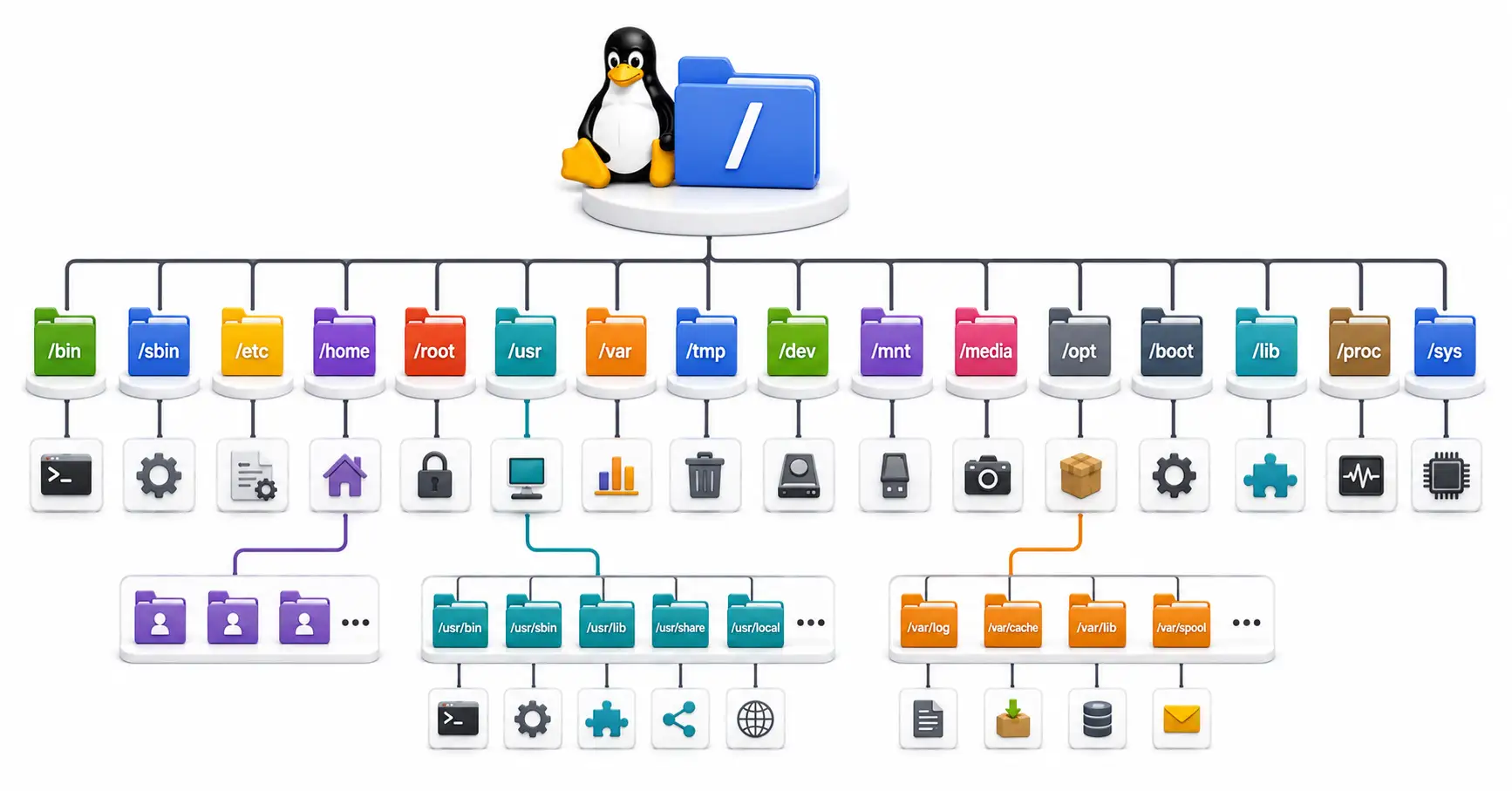
/lib/systemd/system/: Default configurations installed by package managers./etc/systemd/system/: Custom user services. Always write your custom files here./run/systemd/system/: Runtime units created dynamically.
Create the Unit File
Create your new service definition:
sudo nano /etc/systemd/system/webapp.serviceAdd the following configuration:
[Unit]
Description=Production Node.js Web Application
After=network.target postgresql.service
Wants=postgresql.service
Documentation=https://docs.mycompany.com/webapp

[Service]
Type=simple
User=www-data
Group=www-data
WorkingDirectory=/var/www/my-app
Environment=NODE_ENV=production PORT=3000
ExecStart=/usr/bin/node /var/www/my-app/server.js
ExecReload=/bin/kill -HUP $MAINPID
Restart=always
RestartSec=5s

# Hardening & Sandboxing Controls
PrivateTmp=true
ProtectSystem=full
ProtectHome=true
NoNewPrivileges=true
CapabilityBoundingSet=CAP_NET_BIND_SERVICE

[Install]
WantedBy=multi-user.target
Deconstructing the Configuration Parameters
[Unit] Block:
Description: A human-readable title shown in status logs.After: Tells systemd to wait for network interfaces and the database service to load before running this service.Wants: Defines a weak dependency. Systemd will attempt to start PostgreSQL, but our application will still boot if PostgreSQL fails. UseRequiresinstead if the service must abort boot when dependencies fail.
[Service] Block:
Type=simple: The default. Indicates the process initiated byExecStartis the main process of the service.User&Group: Runs the daemon as a low-privilege system account (www-data) instead of root, reducing the risk of server compromise.ExecStart: The exact path to the executable and its arguments. Always use absolute paths.Restart=always: Tells systemd to automatically relaunch the process if it exits, crashes, or is killed.RestartSec=5s: Waits 5 seconds before attempting a restart to prevent loop crashing from overwhelming system CPU.
Hardening Parameters (Securing the Unit):
PrivateTmp=true: Allocates a private/tmp/directory for this process, hidden from other system users.ProtectSystem=full: Mounts/usr/,/boot/, and/etc/as read-only for this process.ProtectHome=true: Blocks the service from reading or writing to user home directories (/home/and/root/).NoNewPrivileges=true: Prevents the child processes from gaining elevated root privileges viasetuidbinaries.
[Install] Block:
WantedBy=multi-user.target: When enabled, systemd creates a symbolic link inside/etc/systemd/system/multi-user.target.wants/, ensuring our app starts during the standard command-line boot sequence.
Reloading systemd and Starting Your Service
Whenever you write or modify a unit file, you must tell systemd to scan the directory structure for changes:
# Reload systemd daemon
sudo systemctl daemon-reload

# Start the service
sudo systemctl start webapp

# Enable the service to run on boot
sudo systemctl enable webapp

# Confirm status
systemctl status webapp
6. Mastering systemd-journald and journalctl
Historically, Linux logged events to /var/log/syslog via plain-text logging systems like rsyslog. Systemd replaces this with systemd-journald, a centralized logging framework that writes logs in a structured, binary format.
Why Binary Logs?
Plain-text logs are slow to search, difficult to parse programmatically, and can be easily tampered with by malicious actors who gain root access. Journald logs contain rich metadata (such as process ID, timestamp, user context, and exit codes), and can be encrypted or forwarded automatically.
The journalctl Command Cheat Sheet
| Query Scenario | Command Syntax | Description |
|---|---|---|
| All Logs | sudo journalctl | View the entire system log history. |
| Live Stream | sudo journalctl -f | Follow logs in real time (similar to tail -f). |
| Service Specific | sudo journalctl -u webapp.service | View logs generated exclusively by a specific service. |
| Since Time | sudo journalctl --since "1 hour ago" | Filter logs relative to the current time. |
| Date Range | sudo journalctl --since "2026-06-20" --until "2026-06-24 12:00:00" | View logs between specific dates and times. |
| Kernel Logs | sudo journalctl -k | View system kernel logs (dmesg). |
| Priority Level | sudo journalctl -p err | View logs flagged as Error level or worse. |
Inspecting Service Crash Traces
If a service fails, use this combination to trace the crash:
sudo journalctl -u webapp.service -n 50 --no-pagerNote: -n 50 shows only the last 50 entries, and --no-pager prevents the terminal from wrapping logs inside a scrolling buffer.
Managing Journal Log Storage Space
By default, logs can consume gigabytes of disk space. To check how much space logs are using:
journalctl --disk-usageTo restrict and clean up logs, edit /etc/systemd/journald.conf:
SystemMaxUse=500MSave the file and restart journald:
sudo systemctl restart systemd-journaldTo manually delete logs older than a specific duration:
sudo journalctl --vacuum-time=7d7. Advanced: systemd Timers vs. Legacy Cron Jobs
A timer is a systemd unit file ending in .timer that triggers a matching .service file. While cron has been standard for decades, systemd timers are the preferred scheduling mechanism in 2026.
Why systemd Timers are Superior:
- Unified Logging: Actions triggered by timers write directly to journald, making debugging easy.
- Resource Limits: You can limit the CPU, RAM, and disk utilization of scheduled tasks using cgroups.
- Dependency Tracking: Timers can wait for system states (e.g., only execute a backup script once networking is active).
- Monotonic Timers: Supports executing tasks relative to events (e.g., “Run this script 15 minutes after system boot”).
How to Create a Daily Backup Timer
Step 1: Create the Backup Service File
Create a service file describing what should run:
sudo nano /etc/systemd/system/db-backup.serviceAdd the configuration:
[Unit]
Description=Daily Database Backup Script

[Service]
Type=oneshot
ExecStart=/usr/local/bin/backup-script.sh
Step 2: Create the Timer File
Create a timer file describing when it should run:
sudo nano /etc/systemd/system/db-backup.timerAdd the configuration:
[Unit]
Description=Run Daily Database Backup Script

[Timer]
OnCalendar=*-*-* 03:00:00
RandomizedDelaySec=15m
Persistent=true

[Install]
WantedBy=timers.target
OnCalendar=*-*-* 03:00:00: Executes daily at 3:00 AM.RandomizedDelaySec=15m: Spreads execution time randomly over 15 minutes to prevent multiple server backups from bottlenecking storage arrays.Persistent=true: If the server was turned off at 3:00 AM, the timer triggers immediately upon boot to make up for the missed run.
Step 3: Enable the Timer
# Reload systemd configuration files
sudo systemctl daemon-reload

# Start the timer service
sudo systemctl start db-backup.timer

# Enable it to run on boot
sudo systemctl enable db-backup.timer

# View active timers
systemctl list-timers
Conclusion & System Administration Checklist
Systemd provides a unified control system for modern Linux distributions. Mastering systemctl, journal logs, and unit configurations gives you the tools needed to manage servers efficiently.
System Administration Checklist:
- Familiarized with basic control flags (
start,stop,restart,status). - Configured critical servers with disabled boot services (
systemctl disable). - Created custom systemd services inside
/etc/systemd/system/(never/lib/). - Set up systemd sandboxing controls (
PrivateTmp,ProtectSystem) on public application services. - Configured journal log rotation limits (
SystemMaxUse) to prevent disk fill-ups. - Replaced legacy cron scripts with systemd timers for unified error tracking.
Frequently Asked Questions (FAQs)
Q: What is the difference between systemctl reload and systemctl restart?
A: restart stops the service completely, killing all process threads, and starts a fresh instance. This drops active user sessions. reload reads the configuration file again without stopping the active processes, keeping user connections intact. Use reload for minor config updates on web servers like Nginx or Apache.
Q: Can I run systemd inside a Docker container?
A: By default, Docker containers do not run systemd because containers are designed to host a single process. While possible, running systemd inside Docker requires running the container in “privileged” mode, which exposes the host machine to container escape vulnerabilities.
Q: How do I identify which services are slowing down system boot?
A: Systemd includes a performance analysis tool called systemd-analyze. Run:
# Get overall boot time summary
systemd-analyze

# List services sorted by time taken to start
systemd-analyze blame

# Output a boot sequence dependency tree svg file
systemd-analyze plot > boot_analysis.svg
Q: What is the difference between system service files and user service files?
A: System services run under the system root manager context and can run as any user. User services (located in ~/.config/systemd/user/) run under a specific user account’s session. They do not require root permissions to create or manage, and only start when that specific user logs in.
Q: How do I force systemd to stop a frozen service?
A: If systemctl stop hangs, you can force-kill the process. Systemd will attempt to send a SIGTERM first, followed by a SIGKILL after a timeout (defaulting to 90 seconds). You can adjust this timeout using TimeoutStopSec= in the unit file, or kill the process manually using sudo systemctl kill -s SIGKILL <service_name>.
Continue Hardening Your Infrastructure:
Learn how to Configure a UFW Firewall on Linux or secure your remote host terminals with our SSH Hardening Guide.
Discussion
Loading comments...