


In the modern infrastructure landscape, text editor tribalism is relentless. Ask any senior sysadmin how to edit a remote configuration file on a Linux VPS, and the answers are highly polarized. The purists demand the modal speed of Vim or Helix. The Lisp zealots refuse to leave the monolithic environment of Emacs. Meanwhile, beginners who find those paradigms terrifying cling to Nano or Micro.
But what if you require something that sits perfectly in the middle? What if you need an editor that boots in a millisecond over a laggy SSH connection, requires zero Lua configuration files, operates modelessly (like a standard word processor), yet still provides advanced developer features like multi-window splits, regex search, and keystroke macros?
Enter JOE (Joe’s Own Editor).
Created by Joseph Allen in 1992, JOE is an incredibly robust, C-based terminal editor. It brings the legendary keybinding scheme of the 1980s word processor WordStar natively into the modern Linux ecosystem. In this guide, we will explore why JOE is the ultimate “Goldilocks” editor for configuring Docker containers, parsing system logs, and managing infrastructure.
1. The WordStar Legacy: Why Keybindings Matter
To truly appreciate JOE’s architecture, you must understand the historical context of its keybindings.
In the late 1970s, the dominant word processor for CP/M and MS-DOS was WordStar. During this era, many computer keyboards lacked dedicated arrow keys. To navigate documents efficiently, users had to keep their hands firmly anchored on the home row.
WordStar solved this mechanical limitation by inventing the Cursor Diamond. By holding down the Control (Ctrl) key and pressing the keys S, D, E, and X, the user could move the cursor left, right, up, and down.
This layout became profoundly ingrained in the muscle memory of an entire generation of developers and writers. (Fun fact: George R.R. Martin famously wrote the ‘A Song of Ice and Fire’ series using an air-gapped DOS machine running WordStar 4.0 simply because the interface is that efficient).
JOE preserves this layout perfectly. Once mastered, you can navigate massive YAML configurations for Ansible automation or Docker Compose at blistering speeds without ever moving your hands to the arrow keys.
2. Installation and The Multi-Personality Architecture
JOE has been a staple in official Linux repositories for three decades. Installing it via your native package manager is trivial.
Debian / Ubuntu / Pop!_OS:
sudo apt update
sudo apt install joe
Fedora / RHEL:
sudo dnf install joeArch Linux / Pacman:
sudo pacman -S joeThe Emulation Modes
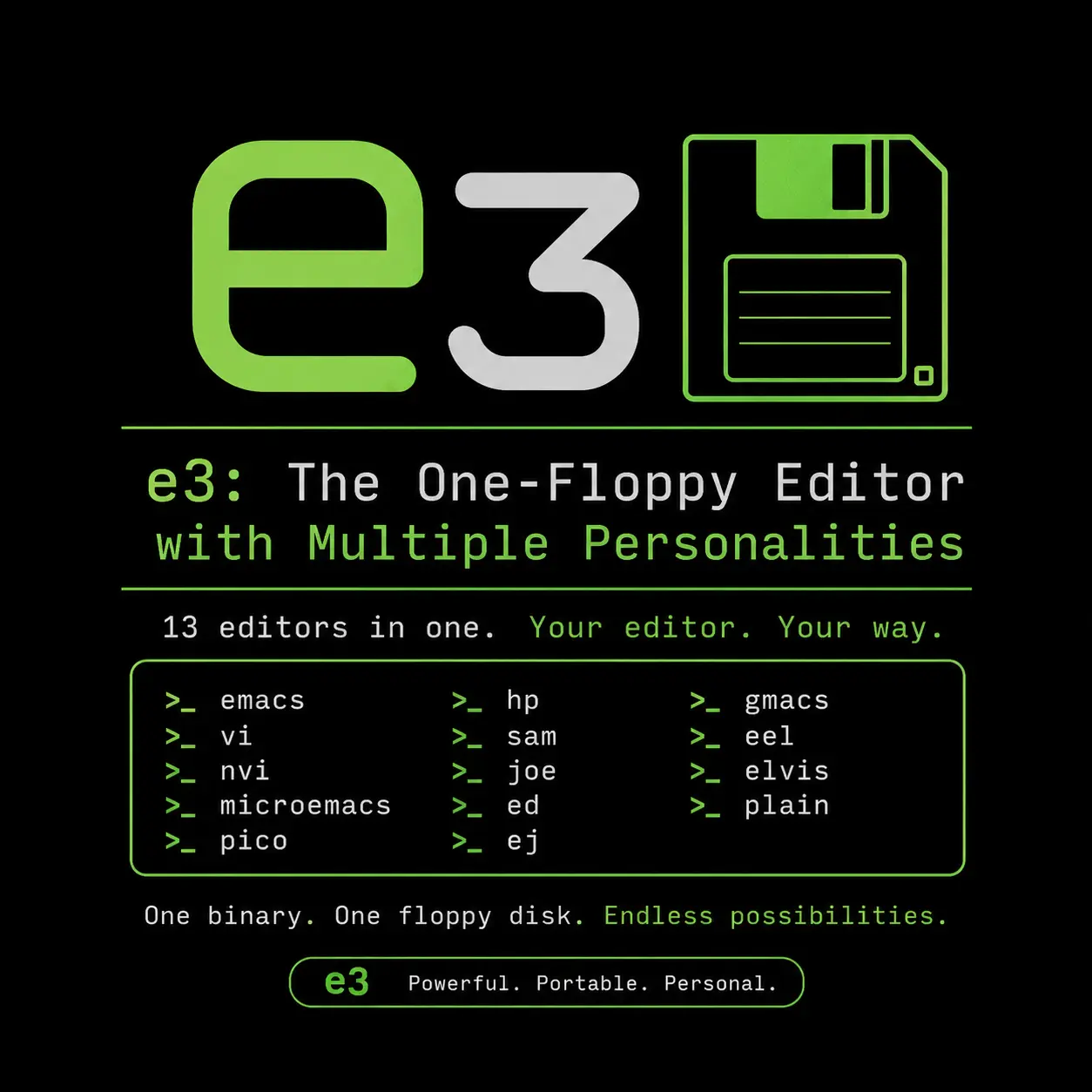
A highly unique architectural feature of JOE is its chameleon-like ability to emulate entirely different editors based on how the binary is invoked from the Bash or Zsh shell.
joe: The standard editor using default WordStar-inspired chords.jstar: A pure, strict WordStar 4.0 emulator.jmacs: Reconfigures the keybindings to precisely emulate GNU Emacs (perfect if you want Emacs navigation without installing a massive Lisp environment).jpico: Reconfigures the editor to perfectly emulate Pico (the predecessor to Nano), providing a simplified interface for absolute beginners.rjoe: “Restricted JOE” – allows the user to edit a specific file but completely disables their ability to execute shell commands or open other system files (ideal for restricted secure home server accounts).
3. Navigating the Interface and The Help Menu
When you launch JOE to edit a systemd service file (joe /etc/systemd/system/myapp.service), you are presented with a clean interface. A status bar at the top displays the file name, line number, and modification status.
Unlike Vim, JOE is modeless. You do not need to press i to insert text. You simply type.
The Most Important Shortcut: Ctrl+K H
If you forget every other shortcut in this guide, memorize this one. In JOE, complex commands begin with the prefix chord Ctrl+K.
To open the contextual Help Menu, press Ctrl+K, release both keys, and then press H.
A brilliantly designed menu drops down from the top of the screen. It is organized into logical blocks, demonstrating exactly how to navigate, search, format text, and manage file permissions. You can leave this help menu active while you type.
The Cursor Diamond Navigation
While arrow keys work, true JOE mastery involves the WordStar diamond:
Ctrl+S: Move cursor left.Ctrl+D: Move cursor right.Ctrl+E: Move cursor up.Ctrl+X: Move cursor down.
Advanced movement:
Ctrl+A: Jump to the beginning of the word.Ctrl+F: Jump to the end of the word.Ctrl+U: Page Up (scroll an entire screen).Ctrl+V: Page Down (scroll an entire screen).
4. Essential File and Block Operations
Because JOE is modeless, you rely on Ctrl+K chords for file management.
Saving and Quitting
Ctrl+K D: Save (Write) the current file to the ext4 or Btrfs filesystem.Ctrl+K X: Save the file and instantly Exit.Ctrl+C: Abort/Exit. If you have unsaved changes, JOE safely pauses and demands confirmation before discarding data.
Block Operations (Copy, Cut, Paste)
Modern GUI editors use a mouse to highlight. Vim uses Visual Mode. JOE relies on the classic concept of “Marking Blocks.” This is crucial when copying repetitive JSON structures in an Nginx Proxy Manager config.
To copy or cut a paragraph:
- Move the cursor to the exact beginning of the target text.
- Press
Ctrl+K B(Begin Block). - Move the cursor to the end of the target text.
- Press
Ctrl+K K(K-End Block). The text is now visually highlighted.
Action commands:
Ctrl+K C: Copy the highlighted block to your cursor position.Ctrl+K Y: Delete (Cut) the highlighted block.Ctrl+K W: Write the highlighted block out to a brand-new file on the disk (excellent for extracting specific logs).
5. Configuring JOE (joerc Internals)
Out of the box, JOE is excellent. However, DevOps engineers tweaking Terraform files will want custom tab sizes and indentation rules. JOE stores its configuration in joerc.
When JOE starts, it searches for configuration files in this order:
~/.joerc(User-specific)/etc/joe/joerc(System-wide default)
Copy the system default to your home directory:
cp /etc/joe/joerc ~/.joercOpen ~/.joerc in JOE. You can enable behavior flags by omitting the hyphen prefix:
-nonotice          # Suppress the introductory startup notice
-backups           # Automatically create backup files (~ suffix)
-autoindent        # Enable automatic indentation
-spaces            # Insert spaces instead of tabs
-tab 4             # Set default tab stop width to 4 characters
Customizing the Status Bar
Search for the lstatus directive to customize your telemetry display.
lstatus %f %m %y %L %c %p%%f: Filename%m: Modified flag (*if unsaved)%y: Syntax highlighting language active%L: Total lines%p: Percentage position in the file
6. Macros and Multi-file Automation Pipelines
A major factor separating JOE from basic tools like Nano is its capacity to handle complex multi-file automation directly inside an SSH terminal session.
Managing Multiple Buffers
You can open multiple files simultaneously, which is highly useful when comparing a Fail2ban jail configuration against an active UFW firewall rule set.
joe jail.local ufw.confCtrl+K N: Switch to the next file buffer.Ctrl+K P: Switch to the previous file buffer.Ctrl+K E: Edit/switch to a specific buffer by typing its name.
Executing Keyboard Macros
Imagine parsing an exported XML log file to extract raw IP addresses for a CrowdSec ban list.
- Start recording a macro: Press
Ctrl+K [ - Open Find prompt:
Ctrl+K F - Search for
<ip="and hit Enter. - Move cursor past the quotes using
Ctrl+D. - Start highlighting:
Ctrl+K B(Begin block). - Move cursor to the closing quote.
- Stop highlighting:
Ctrl+K K(End block). - Append the highlighted IP to a temporary file by pressing
Ctrl+K W, typing/tmp/ips.txt, hitting Enter, and pressingA(Append). - Stop recording: Press
Ctrl+K ]
To repeat this automatically, execute the macro by pressing Ctrl+K \. You can enter a prefix number to execute it 500 times instantly.
7. TrueColor and Terminal Compatibility
By default, JOE is lightweight enough to run on ancient serial hardware. However, if you are running modern GPU-accelerated terminal emulators like Alacritty, Kitty, or WezTerm, you can configure JOE for 24-bit TrueColor and full UTF-8 Unicode.
Ensure your environment variables are correctly set in your .bashrc or .zshrc to support 256 colors, which JOE detects automatically:
export TERM=xterm-256color
export LANG=en_US.UTF-8
You can define custom color palettes using 256-color codes inside your ~/.joerc.
# Syntax: ColorGroup foreground background [attributes]
Search black 208 bold
Official Documentation
- JOE Editor Official Sourceforge Project: https://joe-editor.sourceforge.io/
- WordStar Command Reference (Historical): https://www.wordstar.org/
- GNU Emacs Emulation details: https://www.gnu.org/software/emacs/
- Bash Terminal Environment Variables: https://www.gnu.org/software/bash/manual/bash.html
Frequently Asked Questions (FAQ)
What exactly is the JOE text editor?
JOE (Joe’s Own Editor) is a powerful, classic terminal-based Linux text editor written in C. It bridges the gap between simple editors like Nano and complex modal editors like Vim by offering advanced features (macros, window splitting) while utilizing an intuitive, modeless, WordStar-inspired keybinding scheme.
Why are WordStar keybindings historically significant?
In the late 1970s and 1980s, many computer keyboards completely lacked dedicated arrow keys. WordStar invented the “Cursor Diamond” (using Ctrl+S, D, E, X) to navigate without moving hands off the home row. This layout became deeply ingrained in the muscle memory of an entire generation of developers and writers.
What is JOE’s “Multi-Personality” emulation architecture?
JOE can dynamically alter its entire keybinding mapping and behavior based on the command used to invoke it. Running jmacs emulates GNU Emacs, jpico emulates the beginner-friendly Pico editor, and jstar behaves as a strict WordStar emulator.
Does JOE require you to switch modes to type text like Vim?
No, JOE is entirely modeless. You do not need to press ‘i’ to enter an insert mode. You simply start typing, and the text immediately appears on the screen. Commands and file operations are executed using specific Ctrl+K chords.
How do you access the built-in help menu in JOE?
You can open the contextual help menu at any time by pressing Ctrl+K, releasing both keys, and then pressing H. The menu drops down from the top of the screen and guides you through navigation, block marking, and file saving commands.
Can JOE handle multiple files simultaneously?
Yes. JOE supports robust buffer management. You can open multiple files from the command line (joe file1 file2) and cycle through them natively using Ctrl+K N (Next) and Ctrl+K P (Previous), or split the screen into multiple viewing windows.
How do I configure tab sizes and indentation in JOE?
JOE is configured via a plain-text file called .joerc. By copying the system default /etc/joe/joerc to ~/.joerc, you can uncomment specific lines to enable features like -autoindent, -spaces (to use spaces instead of tabs), and -tab 4 to set the width.
Does JOE support syntax highlighting for modern languages?
Yes. JOE uses a highly efficient, deterministic finite state machine (FSM) engine for syntax highlighting. It ships with dozens of .jsf (JOE Syntax File) rules out of the box for languages like Python, C, Bash, and YAML, and you can easily write your own custom highlighters.
Is JOE safe to use for restricted guest users?
Yes. JOE includes a specific binary called rjoe (Restricted JOE). When a user launches rjoe, they can edit the specific file provided on the command line, but the editor strictly blocks them from executing shell commands or opening unauthorized system files.
How do you record and execute keyboard macros in JOE?
To record a macro, press Ctrl+K [ and perform your sequence of keystrokes (like searching, deleting, or copying text). Stop recording by pressing Ctrl+K ]. You can execute the recorded macro immediately by pressing Ctrl+K \.


Discussion
Loading comments...