

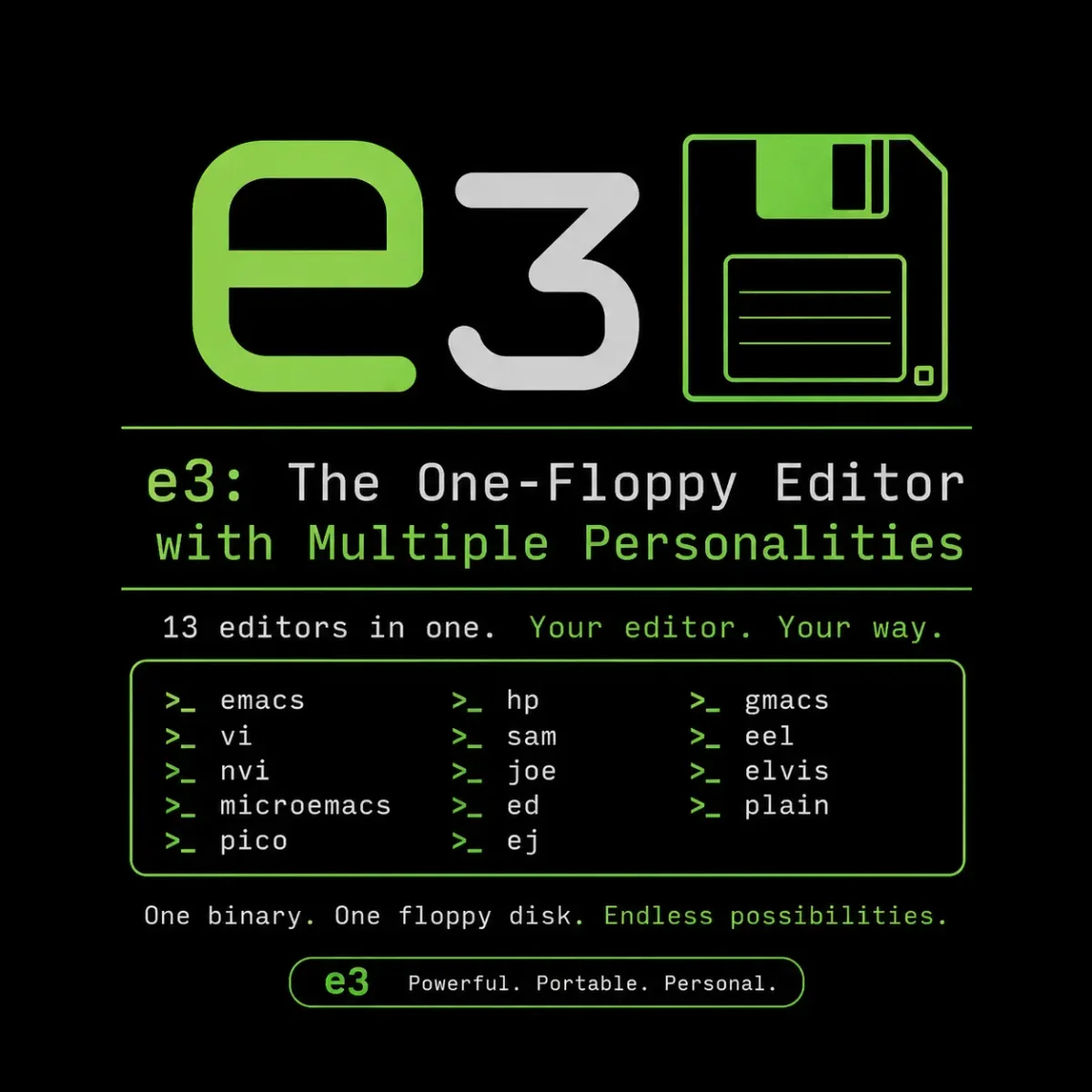
In the highly subjective world of Linux CLI text editors, sysadmins are fiercely loyal to their muscle memory. Vim and Neovim users despise the finger-stretching chords of Emacs. Emacs users scoff at the modal constraints of Vi. Meanwhile, beginners often default to Nano or Pico, much to the frustration of power users who view them as toys.
This tribalism creates a genuine problem for DevOps engineers. When deploying a fleet of headless Linux VPS servers, configuring a custom Proxmox VE hypervisor, or building a minimal Docker container image, which editor do you pre-install? You need an editor that guarantees any technician logging in via SSH can immediately patch a broken configuration file without fumbling through man pages.
What if there was a microscopic text editor that could instantly morph its interface and keybinding schema to mimic almost any other editor?
Meet e3 (Editor for Everything).
1. The Engineering Marvel: Bypassing C Libraries
Before we use e3, we must dissect how it exists, because the engineering is a masterclass in Linux memory management.
Modern text editors are relatively bloated. Even terminal-based editors rely heavily on the C Standard Library (glibc), terminal rendering libraries like ncurses, and massive dependency trees. If you copy a compiled vim binary from an Ubuntu server to an Alpine Linux container, it will likely crash due to missing shared libraries.
e3 is entirely different. It is written purely in Assembly Language (x86 and x86_64, compiled via NASM).
Direct Kernel System Calls
By writing in raw assembly, the developer (Albrecht Kleine) bypassed libc entirely. Instead of calling standard C functions like printf(), e3 communicates directly with the Linux kernel using native syscalls.
This architectural decision has three massive implications for infrastructure management:
- Microscopic Footprint: The compiled
e3executable is typically less than 30KB. You can pack hundreds of copies of it onto a single vintage floppy disk. - Zero Dependencies: It requires no external packages. If a system has a functioning Linux boot process and a kernel, e3 will run.
- Universal Portability: You can compile e3 on an Arch desktop, copy the 30KB binary via SCP or rsync to an embedded Yocto IoT board, and execute it flawlessly.
2. The Five Personalities of e3
The defining feature of e3 is its ability to swap its keybinding schema dynamically. The logic to emulate five completely different editors is baked directly into that 30KB executable. You do not need to download plugins or swap configuration files.
You select a mode by passing a flag when you launch the program.
A. WordStar Mode (e3 -w or e3ws)
WordStar was a highly influential word processor from the MS-DOS era. While its keybindings are archaic today, they were aggressively optimized for touch typists who refused to move their hands from the home row. It relies on the “WordStar Diamond” (Ctrl-S, Ctrl-D, Ctrl-E, Ctrl-X) for navigation.
B. Pico / Nano Mode (e3 -p or e3pi)
This mode emulates the classic UW Pico editor, the direct predecessor to GNU Nano. This is the ultimate beginner-friendly mode. When activated, the bottom of the screen displays a helpful UI menu of available commands (like ^O to save), making it perfect for novice users modifying UFW firewall rules.
C. Emacs Mode (e3 -e or e3em)
For the chord lovers, this mode transforms e3 into a mini-Emacs. It supports standard Emacs navigation (C-n, C-p), file operations (C-x C-s to save, C-x C-c to quit), and even a rudimentary version of the Emacs Kill Ring for yanking text.
D. Vi Mode (e3 -v or e3vi)
For modal purists, e3 behaves like the classic vi editor. You start in “Normal” mode, use dd to delete lines, and press i to enter “Insert” mode. You save and quit using standard ex commands like :wq. It is a fantastic fallback if you are on a server without Vim installed.
E. Nedit Mode (e3 -n or e3ne)
Nedit emulates GUI-based text editors following the CUA (Common User Access) standard. If you are used to Windows Notepad, this mode allows you to use standard shortcuts like Ctrl+C to copy, Ctrl+V to paste, and Ctrl+S to save.
3. Dynamic Switching: The Alt+K Magic
While you can specify the mode at launch, e3 possesses a profound hidden feature: dynamic personality switching.
While actively editing a document, regardless of the starting mode, you can press Alt + K (or Meta + K). This instantly cycles the editor through its five personalities in real-time, flashing the status bar to indicate the new mode.
The DevOps Use Case: Imagine you are screen-sharing in Tmux with a junior developer to debug a failing Nginx reverse proxy config. You open the file in Vi mode. You navigate to the problematic block, but the junior developer (who only knows Nano) says, “Let me drive.”
Instead of saving the file, exiting, and reopening it in Nano, you simply press Alt+K twice until the Nano menu appears at the bottom of the screen, and hand over the keyboard.
4. Compiling and Deploying from Source
Because e3 is written in pure assembly and makes direct kernel syscalls, it is rarely included in default repositories like apt or dnf, which prefer dynamically linked C programs. Therefore, compiling it from source is the standard deployment method.
Step 1: Install the Assembler
You need NASM (the Netwide Assembler), Make, and Git.
# On Debian / Ubuntu systems
sudo apt update
sudo apt install nasm make git

# On Fedora / RHEL systems
sudo dnf install nasm make git
Step 2: Assemble and Link
Download the source, assemble the .asm files into object files (.o), and link them into a binary using the GNU linker (ld).
git clone https://github.com/e3-editor/e3.git
cd e3
make
Because there is no heavy C compilation, this process executes in under 100 milliseconds.
Step 3: Global Installation & The Symlink Trick
Move the binary to your system path:
sudo mv e3 /usr/local/bin/
sudo chmod +x /usr/local/bin/e3
The Symlink Architecture:
e3 utilizes a classic UNIX architecture trick. When a program executes, the kernel passes it an array of arguments (argv). The first argument (argv[0]) is the command name typed by the user.
e3 reads argv[0]. If it sees you typed e3vi, it automatically initializes in Vi mode. To leverage this, create symbolic links pointing back to the main executable in the Linux filesystem hierarchy:
cd /usr/local/bin
sudo ln -s e3 e3vi
sudo ln -s e3 e3em
sudo ln -s e3 e3pi
sudo ln -s e3 e3ws
sudo ln -s e3 e3ne
Now, typing e3pi /etc/hosts launches the editor directly in Pico mode.
5. Persistent Configuration via Shell Variables
Standard text editors use hidden configuration files (like ~/.vimrc) to store preferences. True to its extreme minimalist nature, e3 does not. Writing parser logic to read configuration files would require too much assembly code, bloating the binary size.
Instead, e3 reads Environment Variables directly from your Bash or Zsh shell.
If you want to configure e3 permanently across your Linux environment, export these variables in your ~/.bashrc:
# Set default mode to Pico/Nano
export E3MODE=pi

# Set tab width to 4 spaces (better for YAML/Python)
export E3TABS=4

# Enable automatic indentation
export E3AUTOINDENT=1
Run source ~/.bashrc. From now on, simply typing e3 filename will launch your customized, indented Pico environment, making it perfect for quickly tweaking Docker Compose files or systemd service units.
6. The Perfect Rescue Tool
While you are unlikely to write a complex Node.js REST API using e3, its sheer utility in rescue environments makes it invaluable.
If you manage infrastructure, I highly recommend dropping the compiled 30KB e3 binary into your custom PXE boot environments, minimal Alpine Linux containers, and recovery USB drives.
If a botched GRUB bootloader update takes down your server, having a standalone, statically compiled editor that requires zero dependencies to fix /etc/fstab is a lifesaver. You will rest easy knowing that regardless of who ends up logging into that recovery shell, they will have the exact keybindings they need to repair the system.
Official Documentation
- e3 Official Source Code & Repository: https://github.com/e3-editor/e3
- NASM (Netwide Assembler) Documentation: https://www.nasm.us/docs.php
- GNU Coreutils & Linker (ld) Manual: https://www.gnu.org/software/binutils/
- Linux Syscall Reference: https://man7.org/linux/man-pages/man2/syscalls.2.html
- Bash Environment Variables: https://www.gnu.org/software/bash/manual/
Frequently Asked Questions (FAQ)
What is the e3 text editor?
e3 is a microscopic, highly portable terminal text editor written purely in assembly language. It is incredibly small (under 30KB) and relies on zero external dependencies, making it universally portable across almost any Linux distribution or embedded system.
How does e3 achieve such a small file size?
e3 achieves its microscopic size by completely bypassing the C Standard Library (glibc) and terminal handling libraries like ncurses. Instead, the assembly code interacts directly with the Linux kernel via native system calls (syscalls).
What editing modes (personalities) does e3 support?
e3 can flawlessly emulate the keybindings of five distinct classic text editors: WordStar, Pico (Nano), Emacs, Vi, and Nedit. The logic for all five modes is built directly into the single 30KB executable.
How do I switch editor personalities while editing?
While actively editing a document, you can dynamically cycle through e3’s five different personalities in real-time by pressing the Alt + K (or Meta + K) keyboard shortcut.
Why do you need to compile e3 from source?
Because e3 is written in raw assembly and makes direct kernel syscalls, it does not conform to the standard dynamic linking rules preferred by package managers like APT or DNF. Therefore, it is rarely hosted in default repositories and must be assembled using NASM.
Does e3 support syntax highlighting?
No. In order to keep the binary size under 30KB and avoid dependency bloat, e3 does not include syntax highlighting or complex language parsing engines. If you need syntax highlighting in the terminal, consider modern editors like Micro or Neovim.
How do I configure e3 if it doesn’t use configuration files?
e3 reads configuration preferences directly from environment variables in your shell (e.g., Bash or Zsh). You can customize settings like tab width and auto-indentation by exporting variables like E3TABS=4 and E3AUTOINDENT=1 in your ~/.bashrc file.
What is the primary use case for e3 today?
While it is not ideal for complex software development, e3 is the ultimate tool for embedded systems, Docker containers, custom rescue disks, and IoT devices where disk space and memory are severely constrained.
Can I run e3 on macOS or Windows?
No, not natively. Because e3 is written in assembly that specifically calls Linux kernel syscalls, it will only run on Linux. To run it on macOS or Windows, you must use a virtual machine or a container engine like Docker or Podman.
What does the symlink installation trick do?
By creating symbolic links (like e3vi or e3pi) pointing to the main e3 binary, the editor reads the command name you typed (argv[0]) and automatically launches in the corresponding mode without requiring manual command-line flags.



Discussion
Loading comments...