

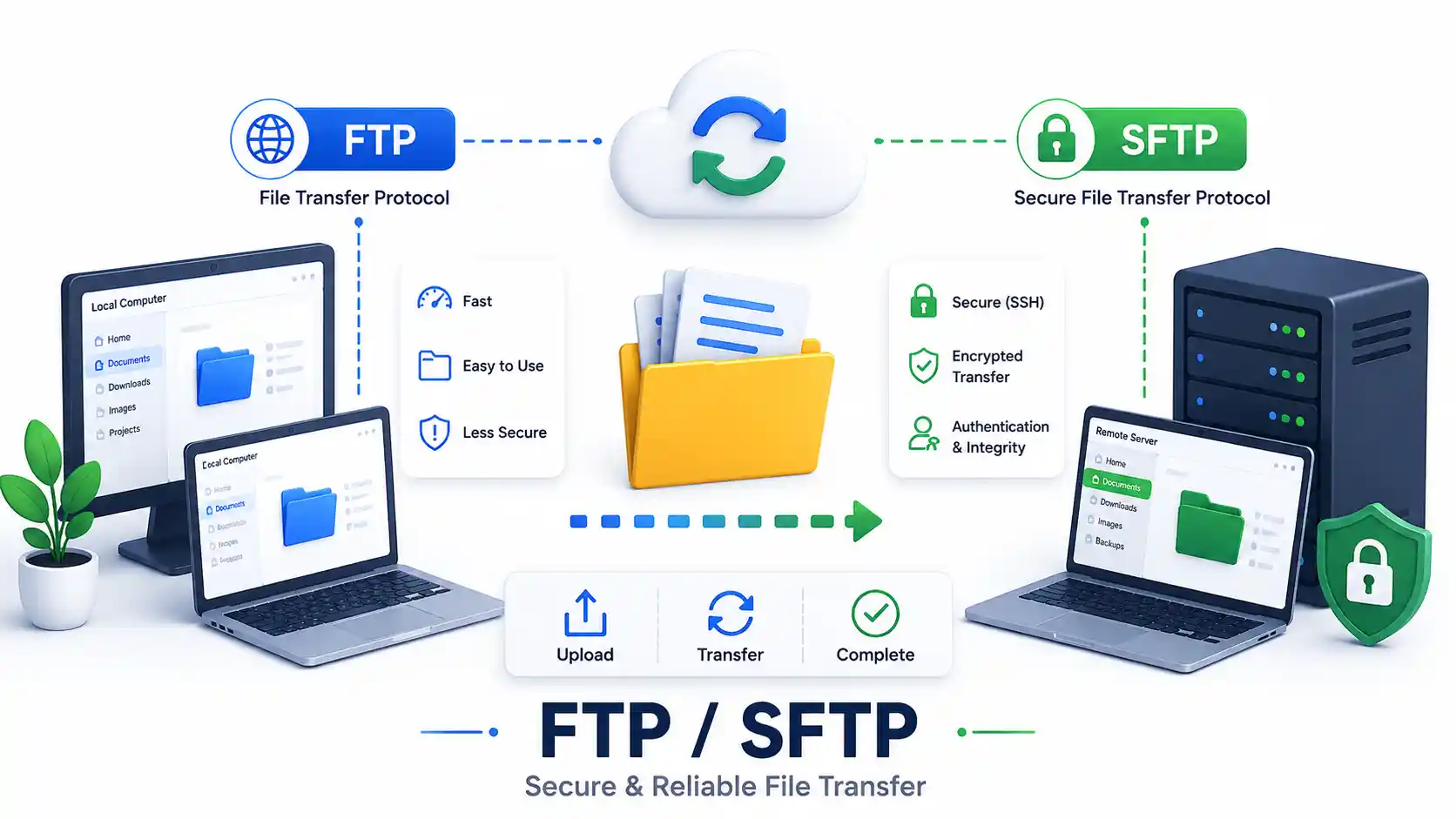
Whether you are provisioning a fresh Linux VPS, uploading compiled assets to a production Node.js REST API, or migrating a massive database payload across cloud computing providers, moving files safely across network boundaries is a fundamental systems engineering requirement. If you follow standard software development lifecycles (SDLC), establishing secure data pipelines is just as critical as writing the code itself.
For decades, the undisputed standard for remote file management was FTP (File Transfer Protocol) via daemons like vsftpd or ProFTPD. However, as network surveillance tools like Wireshark and tcpdump became ubiquitous, standard FTP’s lack of encryption turned it into a massive liability. Today, as sysadmins, we rely almost exclusively on its cryptographically secure successor: SFTP (SSH File Transfer Protocol).
In this deep-dive guide, I will break down the architectural mechanics of FTP, FTPS, and SFTP. We will evaluate the top GUI clients (FileZilla, WinSCP, Cyberduck), master the terminal utilities (sftp, scp, rsync), and walk step-by-step through configuring a hardened OpenSSH SFTP Chroot Jail to safely lock down external users.
1. Architectural Breakdown: FTP vs FTPS vs SFTP
To design secure infrastructure, you must understand how these protocols manage handshakes, authentication, and data channel encryption.
Standard FTP (The Legacy Protocol)
Introduced in the 1970s, FTP relies on a complex dual-channel architecture: a control channel (Port 21) for commands and passwords, and dynamic, ephemeral ports for actual file payloads.
- The Critical Flaw: FTP transmits all data—including root credentials—in absolute cleartext. Anyone sniffing the network can read your passwords. Standard FTP should be blocked entirely by your UFW firewall rules.
FTPS (FTP over SSL/TLS)
FTPS wraps the legacy FTP architecture inside a Transport Layer Security (TLS) tunnel, utilizing certificates (often generated by Let’s Encrypt or OpenSSL).
- The Drawback: While credentials are encrypted, FTPS still utilizes the archaic dual-channel architecture. This forces you to open massive passive port ranges (e.g., 40000–50000) in your firewall security policies, increasing your attack surface.
SFTP (SSH File Transfer Protocol)
Despite the acronym, SFTP is not FTP. It is a completely distinct protocol engineered to run as a subsystem inside an OpenSSH tunnel.
- The Advantage: SFTP operates entirely over a single port (default Port 22). It encrypts authentication, directory listings, file metadata, and data streams inside a single cryptographic session.
- If you have already configured secure SSH on your Ubuntu server, you already possess a fully functional, enterprise-grade SFTP server. Zero extra daemons required.
2. The Best GUI SFTP Clients for 2026
While DevOps engineers favor terminal automation, graphical desktop clients provide excellent dual-pane interfaces for rapid, ad-hoc site maintenance.
1. FileZilla (Cross-Platform)
FileZilla remains the undisputed heavyweight for open-source file transfers. It supports rapid, multi-threaded parallel transfers.
- Sysadmin Tip: Ensure your Site Manager bookmarks are configured specifically for “SFTP - SSH File Transfer Protocol”. If you store plain-text passwords in FileZilla, consider moving them to a secure password manager vault like Vaultwarden.
2. WinSCP (Windows Exclusive)
For Windows administrators managing Linux servers, WinSCP is unmatched.
- It features seamless integration with PuTTY and the Pageant SSH agent. It also allows you to seamlessly open remote server config files in your local text editor, saving them directly back over the SFTP tunnel.
3. Cyberduck & Transmit (macOS / Windows)
- Cyberduck: A gorgeous, open-source client that connects to SFTP hosts, MinIO / S3 object storage, and WebDAV endpoints flawlessly.
- Transmit: The commercial gold standard for macOS, known for blazing-fast synchronization engines and native Finder integration.
3. Command-Line File Transfer Masters: scp vs rsync
For Ansible playbooks, cron jobs, and terminal power users using Tmux, CLI tools are mandatory.
The Fast Single-File Copy (scp)
scp (Secure Copy Protocol) is a rudimentary tool for rapidly copying files non-interactively across an SSH connection.
# Upload a Docker Compose file to your server
scp -i ~/.ssh/id_ed25519 ./compose.yaml [email protected]:/opt/stacks/
While simple, scp is considered deprecated by OpenSSH maintainers in 2026 in favor of the newer SFTP backends, and it lacks differential syncing capabilities.
The Differential Engine (rsync)
If scp is a bicycle, rsync is a freight train. When backing up massive datasets to your Proxmox VE cluster, rsync calculates checksums and transfers only the modified file delta blocks.
# Sync a directory with compression, progress tracking, and permission retention
rsync -avzP -e "ssh -i ~/.ssh/id_ed25519" ./dist/ [email protected]:/var/www/app/-a(Archive): Preserves crucial Linux file permissions, ownership, and symbolic links.-z: Compresses data payloads during transit.--delete: Removes files on the target that no longer exist on the source—essential for maintaining pristine web roots behind Nginx Proxy Manager.
For heavy, deduplicated enterprise backups, you should combine rsync concepts with dedicated snapshot tools like BorgBackup or Restic.
4. Step-by-Step: Constructing an SFTP Chroot Jail
When you allow an external web developer or client to upload files to your server, giving them unrestricted SSH terminal access is catastrophic.
An SFTP Chroot Jail physically restricts an authenticated user to a specific directory (e.g., /var/sftp/uploads). They literally cannot use cd .. to navigate up into the Linux filesystem hierarchy and view /etc or /var/log.
Here is how to configure a hardened Chroot Jail using native OpenSSH.
Step 1: Create the Restricted User and Group
Create a dedicated group (sftpusers) and a user (uploader). We will disable their interactive shell (/bin/false) so they cannot execute terminal commands or launch editors like Vim or Nano.
sudo groupadd sftpusers
sudo useradd -g sftpusers -d /upload -s /bin/false uploader
sudo passwd uploader
Step 2: Establish Strict Chroot Directory Permissions
OpenSSH Chroot security mandates absolute strictness regarding ownership. The root of the jail must be owned by root:root and cannot be writable by anyone else (mode 755).
# 1. Create the jail structure
sudo mkdir -p /var/sftp/uploader/uploads

# 2. Lock down the root of the jail
sudo chown root:root /var/sftp/uploader
sudo chmod 755 /var/sftp/uploader

# 3. Give the user write access to the specific uploads subdirectory
sudo chown uploader:sftpusers /var/sftp/uploader/uploads
Step 3: Configure the SSH Daemon
Edit your SSH daemon configuration file using your preferred CLI text editor:
sudo nano /etc/ssh/sshd_configComment out any existing Subsystem sftp lines and append the internal SFTP configuration:
Subsystem sftp internal-sftp

Match Group sftpusers
    ChrootDirectory /var/sftp/%u
    ForceCommand internal-sftp
    X11Forwarding no
    AllowTcpForwarding no
    PasswordAuthentication yes
(For production, you should disable PasswordAuthentication and mandate SSH Keys).
Step 4: Validate and Restart
Always validate your SSH configuration before restarting the service, or you risk locking yourself out of your secure home server.
sudo sshd -t
sudo systemctl restart ssh
(Read more about systemd service management if you encounter daemon errors).
Step 5: Test the Jail
Connect from a client machine using the interactive sftp shell:
sftp uploader@YOUR_SERVER_IP
sftp> pwd
Remote working directory: /
sftp> cd ..
sftp> ls
uploads
The user is successfully trapped. They perceive /var/sftp/uploader as the absolute root (/) of the server.
5. Security Hardening Best Practices
SFTP endpoints are prime targets for botnets. Implement these defenses immediately:
- Mandate SSH Keys: Disable password logins entirely. Rely solely on ED25519 or RSA-4096 cryptographic keys.
- Deploy Fail2ban or CrowdSec: Automatically ban IP addresses that repeatedly fail authentication. See our Fail2ban setup guide and CrowdSec tutorial.
- Tunnel via WireGuard: For ultimate security, bind your SSH daemon strictly to your internal Tailscale or WireGuard VPN IP address, hiding it completely from the public internet (read more on VPN architectures).
- Monitor Audit Logs: Regularly parse your
auth.logfiles. If you aren’t sure how, review our guide on Linux logs explained.
Official Documentation
Always reference the official man pages when configuring critical infrastructure:
- OpenSSH Official Manual (sshd_config): https://man.openbsd.org/sshd_config
- Rsync Documentation: https://download.samba.org/pub/rsync/rsync.1
- FileZilla Documentation: https://filezilla-project.org/documentation.php
- WinSCP Chroot Guide: https://winscp.net/eng/docs/guide_debian_openssh_chroot
Frequently Asked Questions (FAQ)
What is the primary security difference between standard FTP and SFTP?
Standard FTP transmits all commands, file payloads, and authentication credentials (usernames and passwords) in cleartext, making it highly vulnerable to packet interception. SFTP encrypts the entire session inside a cryptographic Secure Shell (SSH) tunnel.
Does FTPS offer the same security as SFTP?
While FTPS (FTP over SSL/TLS) encrypts the data stream, it still relies on the legacy dual-channel FTP architecture, which requires opening large ranges of passive ports in your firewall. SFTP is more secure and firewall-friendly because it operates entirely over a single port (Port 22).
Can I use my existing FileZilla or WinSCP software for SFTP?
Yes. Modern GUI clients like FileZilla, WinSCP, Cyberduck, and Transmit natively support the SFTP protocol. You simply need to change the connection type from FTP to SFTP and ensure the port is set to 22.
Why do Sysadmins prefer rsync over scp for backups?
scp performs a blind, sequential copy of files, which wastes massive amounts of bandwidth. rsync is a differential sync engine; it calculates file checksums and only transfers the specific delta blocks of data that have changed, making it exponentially faster for large directories.
What is an SFTP Chroot Jail?
A Chroot (Change Root) Jail is a security mechanism that restricts an authenticated user’s access to a specific directory structure. When the user logs in, they perceive their designated folder as the absolute root of the server, preventing them from accessing system files like /etc/passwd.
Why does OpenSSH immediately drop my SFTP Chroot connection?
This almost always occurs because the directory ownership is incorrect. OpenSSH strictly mandates that the ChrootDirectory path must be owned by root:root and must not be writable by any other user or group (permission mode 755).
Do I need to install a dedicated daemon like vsftpd to run SFTP?
No. For the vast majority of Linux deployments, the OpenSSH server (sshd) that you already use for terminal access possesses a built-in internal SFTP subsystem. Installing extra FTP daemons unnecessarily increases your server’s attack surface.
Is it safe to allow password authentication on my SFTP server?
No. Password authentication is vulnerable to automated brute-force attacks by botnets. You should disable password authentication in your sshd_config and mandate the use of cryptographic SSH key pairs (such as ED25519) for all SFTP users.
Can I run an SFTP server inside a Docker container?
Yes. It is highly recommended to isolate client file uploads by deploying a lightweight Alpine-based OpenSSH container via Docker or Podman. This completely isolates the upload environment from your bare-metal host operating system.
How do I limit SFTP access to specific IP addresses?
You can enforce network-level security by utilizing your Linux firewall. For example, using UFW, you can create a rule that only allows connections on Port 22 from your trusted VPN subnet or specific office IP addresses, dropping all other internet traffic.


Discussion
Loading comments...