

As commercial artificial intelligence platforms like ChatGPT, Claude, and Gemini continue to dominate tech headlines, software engineers, privacy-conscious developers, and enterprise organizations face a critical dilemma: sending proprietary source code, internal documents, and sensitive customer data to third-party cloud APIs presents an unacceptable data privacy risk.
The solution is building your own private, self-hosted AI stack. By pairing local Large Language Model (LLM) engines like Ollama with an enterprise-grade user interface, you can operate a completely private AI assistant right inside your own home lab or internal cloud infrastructure.
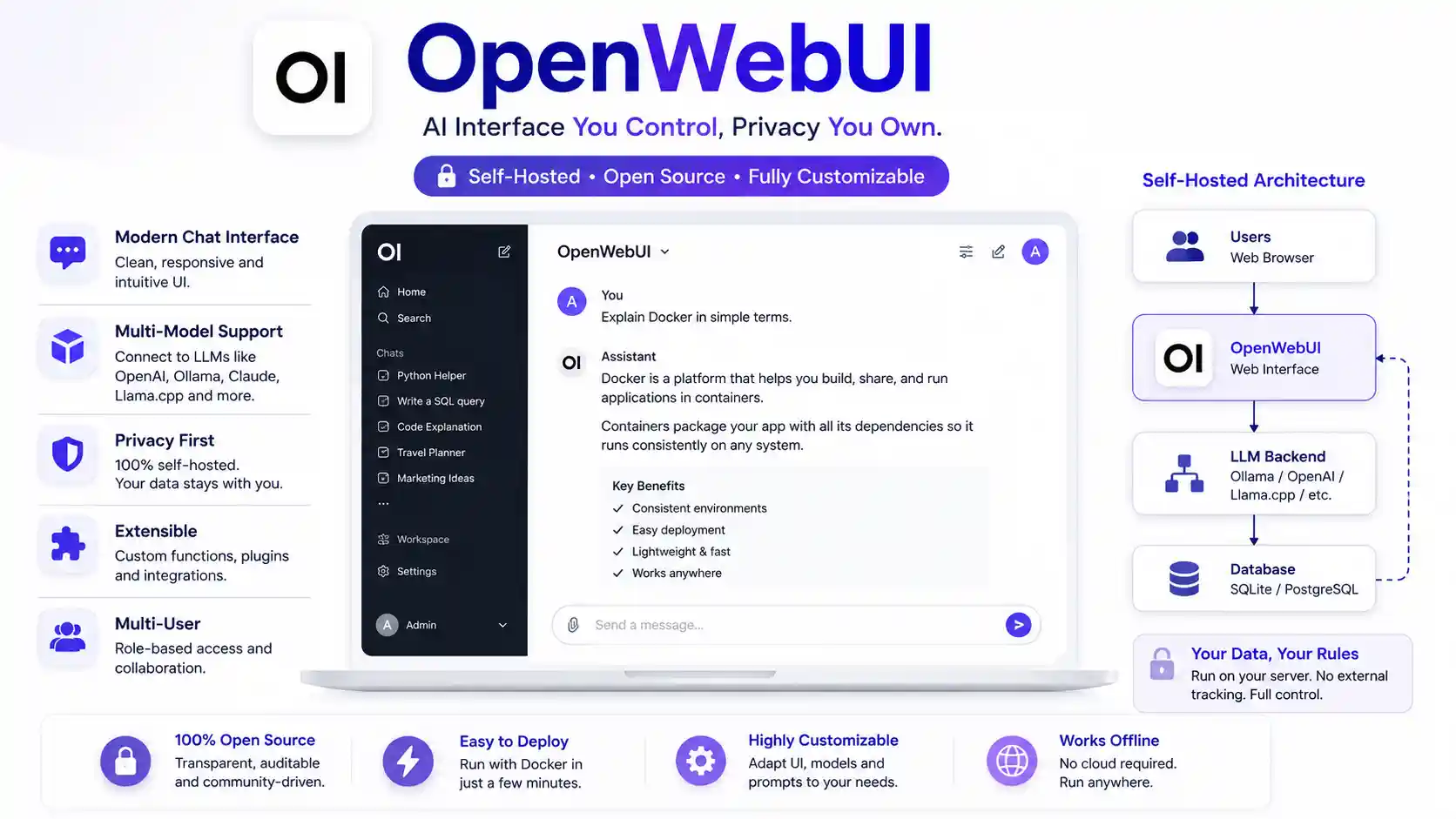
Among all the open-source web interfaces available today, Open WebUI (formerly Ollama WebUI) stands as the undisputed gold standard. Feature-rich, highly responsive, and beautifully designed, Open WebUI delivers multi-model chat, built-in Retrieval-Augmented Generation (RAG) for document Q&A, Web Search integration via SearXNG, multi-user Role-Based Access Control (RBAC), and seamless connectivity to local engines like vLLM and LiteLLM.
Having deployed this stack for numerous homelabs and small businesses, I consider it a mandatory piece of modern infrastructure. In this comprehensive guide, I will walk you through self-hosting Open WebUI from scratch. We will cover server prerequisites, production multi-container Docker Compose deployments, NVIDIA GPU CUDA acceleration, RAG document search, reverse proxy HTTPS routing, automated S3 backups, and security hardening.
Quick Answer: What is Open WebUI?
Open WebUI is a self-hosted, extensible, feature-rich web interface for interacting with Large Language Models. It runs entirely on your own hardware. Unlike commercial cloud AI tools, Open WebUI acts as a frontend dashboard that plugs into local, offline AI engines (like Ollama) or remote API endpoints (like OpenAI or Anthropic). It provides a familiar chat interface while ensuring your data never leaves your server without your explicit permission.
Why Open WebUI Dominates the Self-Hosted AI Space
Before diving into deployment commands, it helps to understand why Open WebUI has captured the developer and self-hosting communities over competing interfaces. While we have previously explored application platforms in our Coolify self-hosting guide and DokPloy setup guide, Open WebUI focuses exclusively on delivering an uncompromised AI experience.
Key Capabilities
- Native Ollama & Remote APIs: Connect natively to local Ollama instances or route traffic through proxy routers like LiteLLM to access thousands of open-source models from Hugging Face simultaneously.
- Turnkey RAG (Retrieval-Augmented Generation): Upload PDFs, text documents, or code files directly into your chat window. Open WebUI automatically parses the text, generates vector embeddings, stores them in an embedded ChromaDB vector database, and grounds the model’s responses in your private data.
- Multi-User RBAC & Organization Isolation: Create admin, user, and guest roles. Restrict model access per user group, enforce token usage limits, and enable Single Sign-On (SSO) authentication.
- Integrated Web Search Grounding: Connect Open WebUI to SearXNG, Brave Search, or Google APIs. The models automatically perform real-time internet searches to answer queries with fresh, cited information.
- Custom Prompts & Pipelines: Build reusable custom system prompts, create fine-tuned model variants directly in the UI, and extend functionality using Python execution pipelines.
If you understand what cloud computing is and follow the engineering practices outlined in our software development lifecycle guide, hosting Open WebUI lets you construct a sovereign AI cloud completely independent of external vendors.
Hardware Sizing & NVIDIA GPU Acceleration Guidelines
Because Open WebUI acts as a frontend web application, its own CPU and memory footprint is lightweight. However, total server hardware requirements depend entirely on whether you run the LLM inference engine (Ollama) on the same machine.
If you are only running Open WebUI to connect to remote APIs:
- CPU: 2 vCPUs
- RAM: 2 GB to 4 GB
- Storage: 10 GB SSD
If you are running local 7B/8B models (Llama 3 / Mistral) via Ollama on the same host:
- CPU: 4 to 8 vCPUs
- RAM: 16 GB minimum
- GPU: NVIDIA GPU with 8GB - 12GB VRAM
- Storage: 50 GB NVMe (for model weights)
If you are running high-performance 70B models:
- CPU: 16+ vCPUs
- RAM: 64 GB to 128 GB RAM. Read how Linux memory management works to understand how huge memory pages affect LLMs.
- GPU: Multiple NVIDIA GPUs (48GB+ VRAM combined)
- Storage: 500 GB High-Speed NVMe
NVIDIA Container Toolkit Setup (GPU Acceleration)
If your server features an NVIDIA graphics card, you must pass GPU access directly into your Docker containers to achieve 10x to 50x faster token generation speeds.
First, install the NVIDIA Container Toolkit on your host OS (assuming a Linux distribution like Ubuntu):
curl -fsSL https://nvidia.github.io/libnvidia-container/gpgkey | sudo gpg --dearmor -o /usr/share/keyrings/nvidia-container-toolkit-keyring.gpg
curl -s -L https://nvidia.github.io/libnvidia-container/stable/deb/nvidia-container-toolkit.list | \
  sed 's#deb [^ ]*#& [signed-by=/usr/share/keyrings/nvidia-container-toolkit-keyring.gpg]#g' | \
  sudo tee /etc/apt/sources.list.d/nvidia-container-toolkit.list
sudo apt update && sudo apt install -y nvidia-container-toolkit
sudo nvidia-ctk runtime configure --runtime=docker
sudo systemctl restart docker
To learn more about container efficiency, check our technical guide on Docker vs Podman benchmarks.
Production Deployment with Docker Compose (Open WebUI + Ollama)
While you can run Open WebUI as a standalone container, deploying it alongside Ollama inside a unified Docker Compose stack is the industry best practice for a local AI lab. If you haven’t installed Docker yet, read our guide on installing Docker on Ubuntu.
Create a dedicated directory on your server:
mkdir -p ~/docker-stacks/open-webui
cd ~/docker-stacks/open-webui
Create the deployment configuration file:
nano docker-compose.ymlPaste the following production-ready multi-container stack definition:
version: '3.8'

services:
  ollama:
    image: ollama/ollama:latest
    container_name: ollama
    restart: unless-stopped
    ports:
      - "11434:11434"
    volumes:
      - ollama_data:/root/.ollama
    # Uncomment the deploy block below if you have an NVIDIA GPU installed
    # deploy:
    #   resources:
    #     reservations:
    #       devices:
    #         - driver: nvidia
    #           count: all
    #           capabilities: [gpu]

  open-webui:
    image: ghcr.io/open-webui/open-webui:main
    container_name: open-webui
    restart: unless-stopped
    ports:
      - "3000:8080"
    environment:
      - OLLAMA_BASE_URL=http://ollama:11434
      - WEBUI_SECRET_KEY=ChangeThisToARandomSecureKey!
      - ENABLE_SIGNUP=true
    volumes:
      - open_webui_data:/app/backend/data
    depends_on:
      - ollama

volumes:
  ollama_data:
  open_webui_data:
Explaining Key Docker Configuration Flags:
WEBUI_SECRET_KEY: Used to encrypt session tokens. Generate a secure key using a vault like Vaultwarden or KeepassXC.OLLAMA_BASE_URL: Instructs Open WebUI to talk to theollamacontainer on the internal Docker bridge network over port 11434.- Persistent Volumes (
ollama_dataandopen_webui_data): These ensure your downloaded models, user accounts, and RAG vector embeddings survive container reboots. If you misconfigure these, you will lose your chat history. (See Linux filesystem hierarchy for more context on volume mounts).
Launch the stack in detached mode:
sudo docker compose up -dCheck the startup logs using sudo docker compose logs -f or by viewing them in a UI like Portainer.
Initial Onboarding & Model Management
Open your web browser and navigate to http://YOUR_SERVER_IP:3000.
1. Creating the Master Admin Account
The first user account created on a fresh Open WebUI installation automatically receives master Admin privileges.
Enter your Name, Email address, and a strong master password.
Security Note: Once your admin account is registered, immediately click your profile icon, navigate to Admin Panel > Settings > General, and toggle Enable New Signups to
OFF. This prevents random strangers from registering an account and burning through your compute resources if your server is exposed.
2. Pulling LLM Models via the Web Interface
You can pull open-source LLM model weights directly from the Open WebUI interface without touching an SSH terminal.
- In the Admin Panel, open the Settings > Models tab.
- Under the Pull a model from Ollama.com section, enter a model tag name (e.g.,
llama3:latest,mistral:7b, orcodellama:7b). - Click the download button.
Open WebUI streams the download progress directly from the Ollama repository into your browser window.
If you prefer to connect to commercial APIs, navigate to Admin Panel > Settings > Connections > OpenAI API and enter your API keys.
Configuring RAG Document Chat & Web Search Grounding
One of Open WebUI’s greatest strengths is its native Retrieval-Augmented Generation (RAG) pipeline.
Document Chat Workspace Setup
- Click on Workspace > Documents in the left navigation sidebar.
- Click + Add Documents and drag-and-drop your private PDFs, text files, Word documents, or codebase archives.
- Open WebUI parses the text, splits the content into semantic chunks, and indexes the embeddings into the integrated ChromaDB vector database.
When chatting with a model, reference your document library by typing # followed by your document title (e.g., #Q3-financial-report.pdf). The model will read the retrieved document context before answering your question!
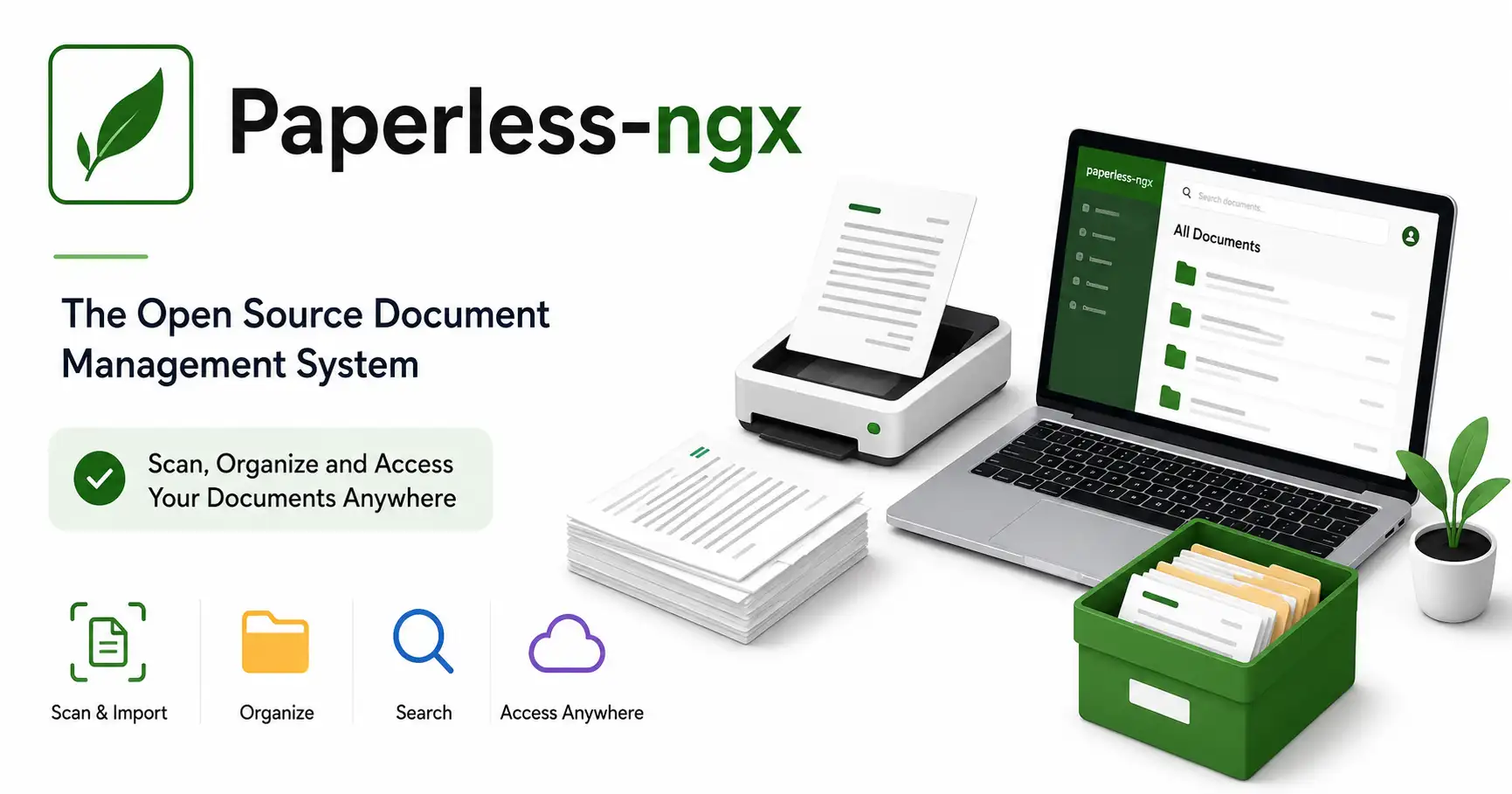
If you process a massive archive of scanned documents, consider pairing Open WebUI with dedicated document tools like Paperless-ngx for OCR processing and Stirling-PDF for file splitting and metadata cleaning before uploading them to your AI.
Enabling Web Search Grounding with SearXNG
To give your local models live internet access:
- Deploy a private SearXNG meta-search container alongside Open WebUI.
- In Open WebUI, navigate to Admin Panel > Settings > Web Search.
- Enable Web Search, select SearXNG as the engine, and enter your SearXNG URL (e.g.,
http://searxng:8080).
Your models will now query the live web to fetch news articles and current documentation before composing responses, significantly reducing AI hallucinations.
Reverse Proxy HTTPS Setup (Traefik & Nginx Proxy Manager)
Never expose Open WebUI port 3000 directly to the open internet without TLS encryption! Protecting admin traffic, user chat histories, and API keys requires an HTTPS reverse proxy.
If you use Nginx Proxy Manager:
- Log in to your Nginx Proxy Manager admin panel and click Add Proxy Host.
- Domain Name:
ai.homelab.local(or a public domain). - Forward Hostname / IP: Your Server IP or the Docker Container Name.
- Forward Port:
3000 - Enable Block Common Exploits and Websockets Support.
- Open the SSL tab, select Request a new SSL Certificate via Let’s Encrypt, and check Force SSL. Follow our guide to enable HTTPS with Let’s Encrypt.
Alternatively, you can use Traefik or Caddy to achieve the same result. Understand how domain routing works by reading what DNS is.
Security Hardening Best Practices
Protecting your self-hosted AI suite from unauthorized remote exploitation is critical. Review our secure home server checklist and implement these hardening steps:
- Disable Root Password SSH Access: Require SSH Key Pair authentication for all host admin logins. Follow our step-by-step instructions to secure SSH on Ubuntu.
- Restrict Public Access via VPN: Restrict Open WebUI access to private networks using a Tailscale or WireGuard VPN tunnel.
- Configure System Firewalls: Protect host ports using UFW. Follow our comprehensive UFW firewall guide and firewall security best practices.
- Deploy Intrusion Prevention Systems: Install Fail2ban or CrowdSec to automatically detect and ban brute-force login attacks on your host.
- Network-Wide Ad-Blocking: Route your server’s DNS queries through a Pi-hole or AdGuard Home to prevent telemetry leaks from host OS packages.
- Monitor Container Uptime: Use Uptime Kuma to ping your Open WebUI dashboard every 60 seconds and alert you via Telegram or Discord if the service crashes.
- Automate Image Updates: Manage automated container updates with Watchtower.
Automated Backups & Volume Maintenance
Because Open WebUI stores user accounts, system settings, custom modelfiles, and vector databases inside Docker volumes, losing your storage volumes breaks your entire AI platform. Follow our master guide on backup strategies for self-hosted servers.
Create an automated cron job to dump and compress the open_webui_data volume:
#!/bin/bash
BACKUP_DATE=$(date +%Y%m%d_%H%M%S)
BACKUP_DIR="/var/backups/open-webui"
mkdir -p $BACKUP_DIR

docker run --rm -v open_webui_data:/data -v $BACKUP_DIR:/backup \
  alpine tar -czf /backup/open_webui_$BACKUP_DATE.tar.gz -C /data .

# Keep only 14 days of backups
find "$BACKUP_DIR" -type f -name "open_webui_*.tar.gz" -mtime +14 -delete
Push these backup archives to remote S3 storage buckets like MinIO or a Hetzner Cloud storage box. To sync backup files securely between remote hosts, use command-line tools like rsync, scp, or a continuous sync utility like Syncthing. For incremental, deduplicated backups, Restic and BorgBackup are incredible alternatives.
Troubleshooting Common Issues
1. “WebUI: Server Connection Error” or Cannot Find Ollama
- Symptom: The model dropdown is empty or displays red connection error badges.
- Fix: If running Open WebUI and Ollama in separate Docker containers, ensure both containers share the same Docker bridge network or verify
OLLAMA_BASE_URL=http://ollama:11434is set correctly. If Ollama runs natively on the host OS outside Docker, ensureOLLAMA_HOST=0.0.0.0is set in Ollama’s environment file to allow connections from the Docker IP space.
2. Out of Memory (OOM) Crashes During Model Generation
- Symptom: The container crashes or model responses stop abruptly mid-sentence.
- Fix: Large models require massive VRAM. If your GPU runs out of VRAM, offload fewer layers to the GPU or switch to smaller quantized models (e.g.,
llama3:8b-instruct-q4_K_M). Inspect diagnostic output by analyzing Linux logs usingdocker compose logs -f open-webui.
3. Document RAG Upload Fails
- Symptom: Uploading PDFs returns error messages or the RAG search fails to cite document text.
- Fix: In Admin Panel > Settings > Documents, verify that your RAG embedding model (e.g.,
sentence-transformers/all-minilm-l6-v2) is downloaded properly. If processing complex PDF tables, you may need to strip the metadata or flatten the PDF using a tool before ingestion.
Conclusion
Deploying Open WebUI elevates your home lab from basic file storage into a cutting-edge artificial intelligence command center. By combining the local inference power of Ollama with the beautiful frontend capabilities of Open WebUI, you gain all the benefits of ChatGPT without sacrificing an ounce of data privacy.
When paired with a strict reverse proxy, secure VPN access, and a robust disaster recovery plan, this stack becomes an enterprise-ready sovereign AI cloud.
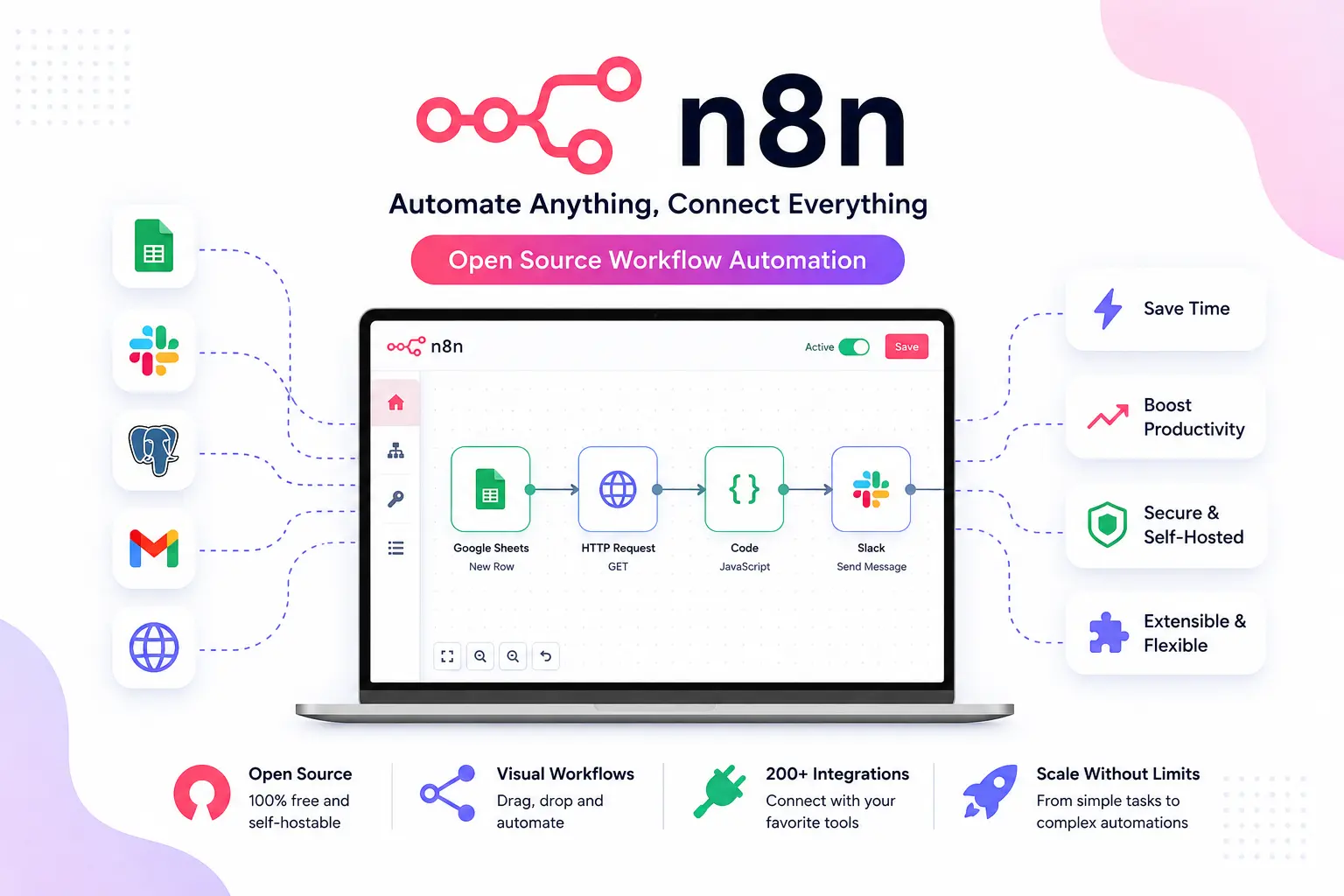
Interested in exploring more advanced homelab projects? Check out our guides on building a Proxmox VE Home Lab or automating workflows with an n8n Automation Engine.
Official Documentation
Bookmark these official resources for documentation, community support, and software updates:
- Open WebUI Official Documentation: https://docs.openwebui.com/
- Open WebUI GitHub Repository: https://github.com/open-webui/open-webui
- Ollama Official Model Library: https://ollama.com/library
- SearXNG Meta-Search Engine: https://docs.searxng.org/
- ChromaDB Vector Database: https://docs.trychroma.com/
Frequently Asked Questions (FAQ)
What are the hardware requirements for self-hosting Open WebUI?
Open WebUI itself is incredibly lightweight, requiring about 2GB RAM and 1 vCPU. However, if you are running local LLM models via Ollama on the exact same server, you will need at least 16GB of system RAM and an NVIDIA GPU (8GB+ VRAM) for standard 7B/8B models like Llama 3 or Mistral.
Can Open WebUI run without Ollama installed on the same machine?
Yes! Open WebUI acts as a frontend client. It can connect to remote Ollama instances over a local network, LiteLLM proxy routers, vLLM endpoints, or directly to commercial cloud API providers like OpenAI, Anthropic, and Groq.
How does Retrieval-Augmented Generation (RAG) work in Open WebUI?
Open WebUI extracts the text from your uploaded documents (PDFs, text files, code), generates mathematical vector embeddings using an embedding model, and stores them in ChromaDB. When you ask a question in the chat, it performs a similarity search against that database and provides the relevant text to the LLM to ground its answer.
How do I secure Open WebUI for multi-user production access?
You should place Open WebUI behind an HTTPS reverse proxy (like Nginx Proxy Manager, Traefik, or Caddy) with a valid Let’s Encrypt SSL certificate. Within the app, disable public signups, enable Role-Based Access Control (RBAC), and enforce SSO or two-factor authentication if available.
How do I update Open WebUI to the latest version?
If you deployed via Docker Compose, updating is extremely simple. Navigate to your compose directory in the terminal, run docker compose pull to fetch the latest image, and then run docker compose up -d to recreate the container. Because your data is stored in persistent volumes, your chat history will not be lost.
Why is my local model generating responses so slowly?
Slow token generation almost always means the model is running on your CPU instead of your GPU. Ensure you have installed the NVIDIA Container Toolkit on your host, passed the GPU capabilities into your docker-compose.yml file, and downloaded a model size that fits entirely within your GPU’s VRAM.
Does Open WebUI support image generation?
Yes. Open WebUI supports image generation integration. You can connect it to external API providers like OpenAI (DALL-E) or local self-hosted image generation engines like Automatic1111 (Stable Diffusion) or ComfyUI by configuring the endpoints in the Admin Panel.
What is LiteLLM and why would I use it with Open WebUI?
LiteLLM is a proxy router that translates various LLM API formats into the standard OpenAI API format. If you have models running across multiple different backends (Ollama, vLLM, Hugging Face, Anthropic), you can point them all to LiteLLM, and then point Open WebUI to LiteLLM, creating a single unified endpoint for all your models.
How can I restrict certain users from accessing specific models?
In the Open WebUI Admin Panel, you can utilize Role-Based Access Control (RBAC). You can create user groups and define exactly which models (or which tools/functions) are visible and accessible to those specific groups, keeping expensive or sensitive models restricted to administrators.
Can Open WebUI search the live internet?
Yes, but it requires a search engine backend. You can deploy a self-hosted SearXNG container alongside Open WebUI or connect it to Brave Search/Google APIs. Once configured in the settings, the models can browse the web to retrieve live data before answering your prompt.

Discussion
Loading comments...