

I used to rely on random browser extensions and sketchy online converters whenever I needed to save a video. They’d break every few weeks, inject ads, or silently install something I didn’t ask for. Then I discovered yt-dlp, and I haven’t looked back.
yt-dlp is a free, open-source command-line tool that downloads videos and audio from over 1,700 websites — YouTube, Vimeo, Twitter/X, Twitch, Instagram, Reddit, educational platforms, and hundreds more. It’s the actively maintained fork of the original youtube-dl project, with faster downloads, better site support, and features the original never had.
What makes it special isn’t just that it works — it’s that it gives you complete control. Want 4K video with embedded subtitles and no sponsor segments? One command. Want to archive an entire YouTube channel into organized folders, resuming where you left off? One command. Want to extract just the audio as a 320kbps MP3? One command.
Let me show you everything.
Installing yt-dlp
Installation takes about 30 seconds on any platform. The one thing you need alongside yt-dlp is ffmpeg — modern video platforms serve video and audio as separate streams, and ffmpeg merges them into a single file.
Linux (Ubuntu / Debian / Mint)
sudo apt update && sudo apt install -y python3-pip ffmpeg
pip install yt-dlp
Or from the system repos (may be an older version):
sudo apt install -y yt-dlp ffmpegIf you’re new to package management on Linux, our guide on how to install software on Linux covers apt, dnf, pacman, and more.
Fedora / RHEL
sudo dnf install -y yt-dlp ffmpegArch / Manjaro
sudo pacman -S yt-dlp ffmpegmacOS (Homebrew)
brew install yt-dlp ffmpegWindows
winget install yt-dlp ffmpegOr grab the standalone .exe from the official GitHub releases.
Verify Installation
yt-dlp --version
ffmpeg -version
If both commands return version numbers, you’re good to go.
Your First Download
The simplest possible usage:
yt-dlp "https://www.youtube.com/watch?v=VIDEO_ID"That’s it. yt-dlp automatically selects the best available video and audio streams, downloads them, merges them with ffmpeg, and saves the result. No configuration needed.
By default, files land in your current directory with the video title as the filename. If you’re working on a remote server via SSH, the same command works over the terminal — just make sure ffmpeg is installed on the server side.
Understanding Format Selection
This is where yt-dlp starts to get powerful. Modern video platforms don’t serve a single video file — they serve dozens of separate streams at different resolutions, codecs, and bitrates. yt-dlp lets you pick exactly what you want.
See What’s Available
yt-dlp -F "https://www.youtube.com/watch?v=VIDEO_ID"This prints a table showing every available stream — format codes, file extensions, resolutions, file sizes, codecs, and whether it’s video-only, audio-only, or combined.
Download a Specific Format
Found the exact streams you want? Combine them by format code:
yt-dlp -f 137+140 "URL"This downloads format 137 (1080p video) and format 140 (128kbps AAC audio), then merges them.
Smart Format Selection (The Better Way)
Instead of memorizing format codes, describe what you want:
# Best video + best audio (this is the default)
yt-dlp -f "bv*+ba/b" "URL"

# Cap resolution at 720p
yt-dlp -f "bv*[height<=720]+ba/b[height<=720]" "URL"

# Limit file size to 100MB
yt-dlp -f "bv*[filesize<100M]+ba/b" "URL"

# Prefer MP4 container
yt-dlp -f "bv*[ext=mp4]+ba[ext=m4a]/b[ext=mp4]" "URL"
Quick breakdown of the format string syntax:
bv*→ best video (including streams that already have audio)ba→ best audio-only streamb→ best single combined stream+→ merge the two streams/→ fallback (if the first option isn’t available, try the second)[height<=720]→ filter by resolution[ext=mp4]→ filter by container format
Extracting Audio
Sometimes you just want the audio — podcasts, music, lectures, interviews. yt-dlp handles this cleanly:
# Extract as high-quality MP3 (320kbps)
yt-dlp -x --audio-format mp3 --audio-quality 0 "URL"

# Extract as lossless FLAC
yt-dlp -x --audio-format flac "URL"

# Extract as WAV (uncompressed)
yt-dlp -x --audio-format wav "URL"

# Extract as Opus (great quality at small file sizes)
yt-dlp -x --audio-format opus "URL"
The --audio-quality flag ranges from 0 (best) to 9 (worst). For MP3, 0 gives you 320kbps.
This is especially useful for building a local music library or archiving podcast episodes for offline listening. If you’re running a self-hosted media server like Jellyfin or Nextcloud, you can pipe extracted audio directly into your library folders.
For scripting audio extraction in bulk, combining yt-dlp with a Bash script and a cron job creates a powerful automated podcast archiver. Python scripting is another option — our Python vs Rust comparison discusses when Python is the right choice for automation tasks like this.
Cookies and Authentication
Here’s where yt-dlp really separates itself from basic downloaders. Many sites require authentication — age-restricted videos, members-only content, subscription-based platforms. yt-dlp handles all of it.
Method 1: Read Cookies from Your Browser (Easiest)
yt-dlp can pull cookies directly from your browser’s local storage. No extensions needed, no exporting:
# From Firefox
yt-dlp --cookies-from-browser firefox "URL"

# From Chrome
yt-dlp --cookies-from-browser chrome "URL"

# From Brave
yt-dlp --cookies-from-browser brave "URL"

# From Edge
yt-dlp --cookies-from-browser edge "URL"
This reads your browser’s encrypted cookie database locally. Nothing is sent to any third party. On Linux with Chromium-based browsers, you might need the secretstorage Python package:
pip install secretstorageMethod 2: Cookie File (Netscape Format)
Export cookies from your browser using an extension like “Get cookies.txt LOCALLY”, then:
yt-dlp --cookies /path/to/cookies.txt "URL"Method 3: Username and Password
For platforms that support direct login:
yt-dlp -u "username" -p "password" "URL"Method 4: netrc File (More Secure)
Storing passwords in shell history is a bad idea. Use a .netrc file instead:
echo "machine youtube login your_email password your_password" >> ~/.netrc
chmod 600 ~/.netrc
yt-dlp --netrc "URL"
The chmod 600 is critical — it restricts the file so only your user can read it. If you’re handling credentials regularly, consider a proper secrets manager like Vaultwarden for your self-hosted infrastructure, and use our password generator when you need strong credentials. For understanding file permissions in depth, our Linux file permissions guide and the permission calculator explain what chmod 600 actually does.
Configuration File: Set It and Forget It
Tired of typing --cookies-from-browser firefox --embed-subs --sponsorblock-remove default every single time? Create a config file.
yt-dlp automatically reads from these locations:
| OS | Config Path |
|---|---|
| Linux | ~/.config/yt-dlp/config |
| macOS | ~/Library/Application Support/yt-dlp/config |
| Windows | %APPDATA%\yt-dlp\config.txt |
My Recommended Config
# Quality: always get the best
-f bv*+ba/b

# Embed everything useful into the file
--embed-subs
--embed-metadata
--embed-thumbnail
--embed-chapters

# Use Firefox cookies by default
--cookies-from-browser firefox

# Organize downloads by channel name
-o ~/Downloads/yt-dlp/%(uploader)s/%(title)s.%(ext)s

# Skip sponsor segments automatically
--sponsorblock-remove default

# Be polite to servers (avoid rate limiting)
--sleep-interval 2
--max-sleep-interval 5

# Resume interrupted downloads
--continue
Once saved, every yt-dlp command uses these settings automatically. Override any option on the command line, or disable the config entirely with --ignore-config.
The config file lives in ~/.config/yt-dlp/ on Linux — that’s part of the standard Linux filesystem hierarchy. If you edit config files in the terminal, a modern editor like Micro makes this painless — standard Ctrl+S / Ctrl+C keybindings, no Vim mode-switching needed. Though if you prefer the classic editors, we have guides for Nano and Vim too.
You can validate your config’s JSON-adjacent syntax with careful formatting. For JSON configs in other tools, our JSON formatter and JSON validator are handy.
Output Templates: Organize Your Downloads
The -o flag is surprisingly powerful. You can build complex folder structures using template variables:
# Organize by channel name
yt-dlp -o "%(uploader)s/%(title)s.%(ext)s" "URL"

# Playlists with numbered files
yt-dlp -o "%(playlist)s/%(playlist_index)03d - %(title)s.%(ext)s" "PLAYLIST_URL"

# Include upload date in filename
yt-dlp -o "%(upload_date>%Y-%m-%d)s - %(title)s.%(ext)s" "URL"

# Full organization: channel → playlist → numbered files
yt-dlp -o "%(uploader)s/%(playlist)s/%(playlist_index)03d - %(title)s.%(ext)s" "PLAYLIST_URL"
Useful Template Variables
| Variable | What It Does |
|---|---|
%(title)s | Video title |
%(uploader)s | Channel / uploader name |
%(upload_date)s | Upload date (YYYYMMDD) |
%(playlist)s | Playlist title |
%(playlist_index)s | Position in playlist |
%(ext)s | File extension |
%(resolution)s | Video resolution |
%(duration)s | Duration in seconds |
%(id)s | Video ID |
%(webpage_url)s | Original URL |
SponsorBlock: Automatically Remove Sponsor Segments
This is one of my favorite features. yt-dlp integrates with SponsorBlock, a community-driven database that crowdsources timestamps for sponsored segments, intros, outros, and filler in YouTube videos.
# Remove all default sponsor types
yt-dlp --sponsorblock-remove default "URL"

# Remove only specific categories
yt-dlp --sponsorblock-remove sponsor,intro,outro "URL"

# Mark segments as chapters instead of removing them
yt-dlp --sponsorblock-mark default "URL"
SponsorBlock Categories
| Category | What Gets Skipped |
|---|---|
sponsor | Paid promotions and ads |
intro | Animated intro sequences |
outro | End cards and outros |
selfpromo | Unpaid self-promotion |
interaction | ”Like and subscribe” reminders |
music_offtopic | Non-music sections in music videos |
preview | Preview / recap segments |
When combined with the config file from earlier, every video you download automatically has sponsor segments removed. No manual editing needed.
Playlist and Channel Downloads
Download an Entire Playlist
yt-dlp "https://www.youtube.com/playlist?list=PLAYLIST_ID"Download Specific Items
# Videos 1 through 5 only
yt-dlp --playlist-items 1-5 "PLAYLIST_URL"

# Cherry-pick specific videos
yt-dlp --playlist-items 1,3,5,7 "PLAYLIST_URL"

# Last 3 videos only
yt-dlp --playlist-items -3: "PLAYLIST_URL"
Download an Entire Channel
yt-dlp "https://www.youtube.com/@ChannelName/videos"Archive Mode: Never Download the Same Video Twice
This is essential for long-term archiving. The --download-archive flag maintains a text file of every video ID you’ve already downloaded:
yt-dlp --download-archive archive.txt "https://www.youtube.com/@ChannelName"Run this weekly (or set up a cron job) and yt-dlp will only download new videos. Combined with output templates, you get a perfectly organized, incrementally growing archive.
If you want to automate this on a Linux server, our systemd explained guide covers creating timer units (systemd’s modern alternative to cron), and the systemd service file generator can scaffold the unit files for you.
Downloading from Non-YouTube Sites
yt-dlp supports over 1,700 websites. Here are examples for popular platforms:
# Twitter / X
yt-dlp "https://x.com/user/status/1234567890"

# Instagram Reels (requires cookies)
yt-dlp --cookies-from-browser firefox "https://www.instagram.com/reel/xyz"

# Twitch clips
yt-dlp "https://clips.twitch.tv/ClipName"

# Reddit videos
yt-dlp "https://www.reddit.com/r/subreddit/comments/abc123/"

# Vimeo
yt-dlp "https://vimeo.com/123456789"

# TikTok
yt-dlp "https://www.tiktok.com/@user/video/1234567890"

# Soundcloud
yt-dlp "https://soundcloud.com/artist/track-name"

# Bandcamp
yt-dlp "https://artist.bandcamp.com/track/song-name"
Some platforms (Instagram, some Twitter content) require authentication. Use --cookies-from-browser as shown above.
To check if a specific site is supported:
yt-dlp --list-extractors | grep -i "sitename"Network Options: Proxies and Geo-Bypass
Using a Proxy
# HTTP proxy
yt-dlp --proxy "http://proxy_address:port" "URL"

# SOCKS5 proxy
yt-dlp --proxy "socks5://proxy_address:port" "URL"
If you’re accessing the internet through a privacy-focused setup, tools like Tailscale or WireGuard can route traffic through a specific exit node. Our VPN explained guide covers how VPN tunneling works. For DNS-level privacy, Pi-hole blocks tracking domains at the network level, and our DNS explained guide covers how domain resolution works under the hood.
Geo-Restriction Bypass
# Automatic geo-bypass
yt-dlp --geo-bypass "URL"

# Spoof a specific country
yt-dlp --geo-bypass-country US "URL"
Speed Control
# Limit download speed to 1MB/s
yt-dlp --limit-rate 1M "URL"

# Use concurrent fragment downloads (faster)
yt-dlp --concurrent-fragments 4 "URL"

# Add random delays between playlist downloads
yt-dlp --sleep-interval 3 --max-sleep-interval 10 "PLAYLIST_URL"
Subtitles and Metadata
Downloading Subtitles
# Download English subtitles as a separate file
yt-dlp --write-subs --sub-lang en "URL"

# Download auto-generated subtitles
yt-dlp --write-auto-subs --sub-lang en "URL"

# Download all available languages
yt-dlp --all-subs "URL"

# Embed subtitles directly into the video file
yt-dlp --embed-subs --sub-lang en "URL"
Embedding Metadata and Thumbnails
This is especially useful if you’re feeding downloads into a media server like Jellyfin, Plex, or Immich:
# Embed metadata (title, uploader, date, description)
yt-dlp --embed-metadata "URL"

# Embed thumbnail as cover art
yt-dlp --embed-thumbnail "URL"

# Embed chapter markers
yt-dlp --embed-chapters "URL"

# Everything at once
yt-dlp --embed-metadata --embed-thumbnail --embed-subs --embed-chapters "URL"
Running yt-dlp on a Server
If you want to run yt-dlp on a remote Linux server — maybe a VPS or a home lab machine — here’s how to set it up for automated archiving.
Basic Server Setup
# Install on Ubuntu server
sudo apt update && sudo apt install -y python3-pip ffmpeg
pip install yt-dlp

# Create directories
mkdir -p ~/media/youtube ~/media/archives
Automated Download Script
Create a simple script at ~/scripts/yt-archive.sh:
#!/bin/bash
yt-dlp \
  --download-archive ~/media/archives/archive.txt \
  -o "~/media/youtube/%(uploader)s/%(title)s.%(ext)s" \
  -f "bv*[height<=1080]+ba/b" \
  --embed-metadata \
  --embed-thumbnail \
  --sponsorblock-remove default \
  --sleep-interval 3 \
  --max-sleep-interval 8 \
  "https://www.youtube.com/@ChannelName/videos"
Make it executable:
chmod +x ~/scripts/yt-archive.shSchedule with Cron
Run the script daily at 3 AM:
crontab -e
# Add this line:
0 3 * * * /home/user/scripts/yt-archive.sh >> /var/log/yt-archive.log 2>&1
Our cron expression generator can help you build the schedule syntax if cron expressions aren’t second nature yet.
Security Considerations for Server Deployments
If yt-dlp is running on a server, a few things to keep in mind:
- File permissions → Downloaded media files should be owned by the correct user. Don’t run yt-dlp as root. Review Linux file permissions to understand ownership and access control.
- Disk space → Video files are large. Monitor usage and set up alerts. Our Linux logs guide covers monitoring disk space and log rotation. Choosing the right filesystem matters too — Btrfs vs Ext4 covers the tradeoffs, and Btrfs compression can save significant space on media archives.
- SSH access → If your server is internet-facing, harden SSH with key-based auth and consider Fail2ban or CrowdSec to block brute-force attempts.
- Firewall → Don’t leave unnecessary ports open. A simple UFW setup blocks everything except what you need. Our firewall security overview explains the broader concepts.
- Backups → Archive files are irreplaceable once the source goes offline. Back them up. Our backup strategies guide covers automated backup tools like Restic and BorgBackup.
- Reverse proxy → If you’re exposing any media services (like Jellyfin) through a web interface, put them behind a reverse proxy with TLS. Our Let’s Encrypt guide covers automated certificates, and the Nginx config generator creates starter configs.
- Container isolation → Running yt-dlp inside Docker (covered below) adds an extra layer of isolation. Follow Docker container security practices if you’re containerizing download tasks.
- Security auditing → Run periodic security checks with Lynis and review the top 20 Linux security commands for essential system hardening.
Troubleshooting
| Error | Cause | Fix |
|---|---|---|
ffmpeg not found | ffmpeg not installed | sudo apt install ffmpeg |
HTTP Error 403: Forbidden | Geo-restricted or login needed | --geo-bypass or --cookies-from-browser |
Unable to extract data | Site changed, extractor outdated | pip install -U yt-dlp |
Sign in to confirm you're not a bot | YouTube rate limiting | --cookies-from-browser firefox |
Requested format not available | Format code doesn’t exist | Run -F to list available formats |
Video unavailable | Private or deleted | Check URL in browser |
secretstorage not found | Missing Linux cookie dependency | pip install secretstorage |
Postprocessor error | ffmpeg version too old | Update ffmpeg to latest |
The single most important troubleshooting step: update yt-dlp. The developers push fixes multiple times per week:
pip install -U yt-dlpIf you installed via apt, updates lag behind. Switch to pip for the freshest version.
Quick Reference Cheat Sheet
| Task | Command |
|---|---|
| Download best quality | yt-dlp "URL" |
| List all formats | yt-dlp -F "URL" |
| Download 720p max | yt-dlp -f "bv*[height<=720]+ba" "URL" |
| Extract MP3 audio | yt-dlp -x --audio-format mp3 "URL" |
| Extract FLAC audio | yt-dlp -x --audio-format flac "URL" |
| Use browser cookies | yt-dlp --cookies-from-browser firefox "URL" |
| Download playlist | yt-dlp "PLAYLIST_URL" |
| Playlist items 1-5 | yt-dlp --playlist-items 1-5 "URL" |
| Embed subtitles | yt-dlp --embed-subs --sub-lang en "URL" |
| Remove sponsors | yt-dlp --sponsorblock-remove default "URL" |
| Archive mode | yt-dlp --download-archive archive.txt "URL" |
| Resume download | yt-dlp --continue "URL" |
| Limit speed | yt-dlp --limit-rate 1M "URL" |
| Update yt-dlp | pip install -U yt-dlp |
Alternatives and Related Tools
yt-dlp isn’t the only tool in this space. Depending on your needs:
- gallery-dl → Specialized for image galleries and artwork sites (Pixiv, DeviantArt, Danbooru). Complements yt-dlp rather than competes with it.
- Streamlink → Designed for live streams (Twitch, YouTube Live). Can pipe streams directly into VLC or mpv.
- aria2c → A download accelerator. yt-dlp can use it as an external downloader for faster speeds:
yt-dlp --downloader aria2c "URL". - FFmpeg → Already a dependency, but also a powerful standalone tool for converting, trimming, and processing media files.
For managing downloaded media, self-hosted options like Jellyfin, Immich (for photos/videos), and Nextcloud (general file management) integrate well with yt-dlp output. Running a Proxmox-based home lab gives you dedicated hardware for media processing and storage. Manage your containers with Portainer for a visual dashboard.
If you’re deploying these services, PaaS platforms like Coolify or DokPloy simplify the deployment process. For document management alongside your media archive, Paperless-ngx handles scanned documents, and Syncthing syncs files across devices.
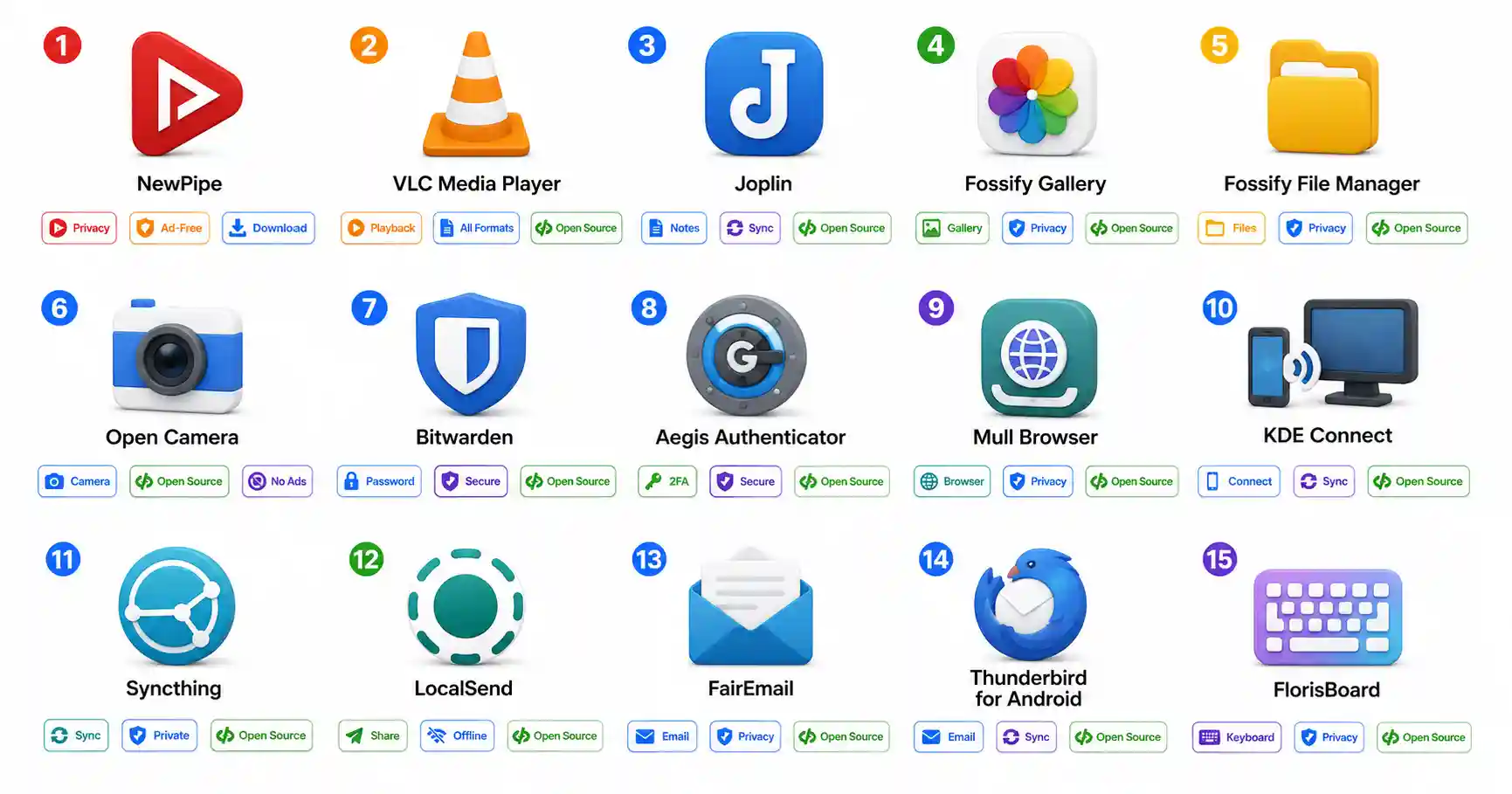
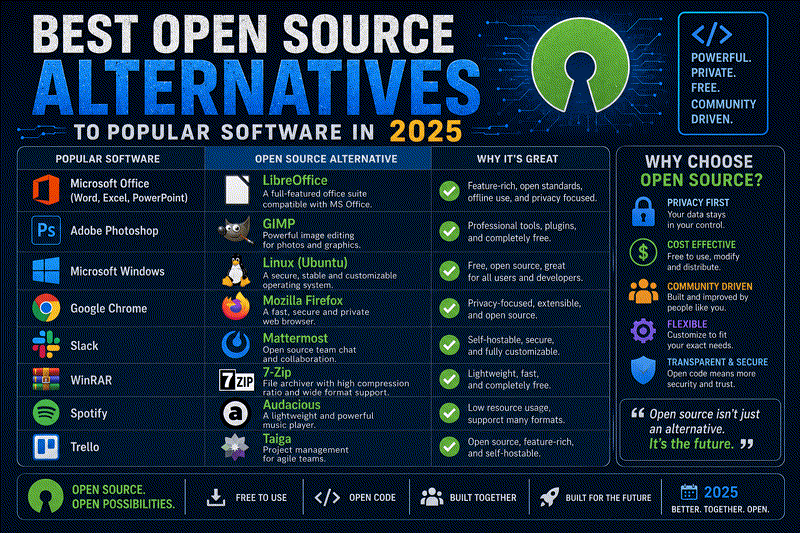
If you’re interested in other open-source tools worth exploring, our best open-source alternatives guide covers replacements for proprietary software across categories, and the best open-source Android apps roundup includes mobile-friendly options. For password management, KeePassDX is another excellent open-source option.
For AI-powered analysis of downloaded content (transcription, summarization), local AI tools like Ollama can process video transcripts on your own hardware. Our local AI vs cloud AI guide helps decide what approach fits your setup.
Using yt-dlp with Docker
If you prefer containers over installing Python packages globally:
docker run --rm -v ~/Downloads:/downloads ghcr.io/yt-dlp/yt-dlp \
  -o "/downloads/%(title)s.%(ext)s" \
  "https://www.youtube.com/watch?v=VIDEO_ID"
This keeps yt-dlp isolated from your system Python. If you’re new to Docker, our guide on installing Docker on Ubuntu gets you started, and the Docker vs Podman comparison helps decide which container runtime to use. Generate Docker Compose configs with our Docker Compose generator.
For transferring downloaded files between servers, our FTP/SFTP file transfer guide covers secure transfer methods. If you’re hosting downloaded content on a web server, the Nginx Proxy Manager security guide covers reverse proxy setup with SSL.
Legal and Ethical Considerations
A quick note on this — yt-dlp itself is a legitimate open-source tool. It’s legal to use in most jurisdictions for downloading content you have the right to access. That said:
- Don’t redistribute copyrighted content. Downloading a video for personal offline viewing is generally fine. Re-uploading it or sharing it publicly is not.
- Respect creators. If you find value in a creator’s content, consider supporting them directly.
- Check your local laws. Copyright enforcement varies by country. Some jurisdictions have stricter rules around downloading streams, even for personal use.
- Use responsibly. Don’t hammer servers with thousands of concurrent downloads. Use
--sleep-intervalto be a good citizen.
Official Documentation
- yt-dlp GitHub Repository: https://github.com/yt-dlp/yt-dlp
- yt-dlp Wiki & Documentation: https://github.com/yt-dlp/yt-dlp/wiki
- Supported Sites List: https://github.com/yt-dlp/yt-dlp/blob/master/supportedsites.md
- SponsorBlock: https://sponsor.ajay.app/
- FFmpeg Official: https://ffmpeg.org/
Frequently Asked Questions
What is yt-dlp?
yt-dlp is a free, open-source command-line tool for downloading videos and audio from over 1,700 websites. It’s the actively maintained fork of youtube-dl, with faster downloads, more features, and broader site support. It’s written in Python and works on Linux, macOS, and Windows.
Is yt-dlp free?
Yes. yt-dlp is 100% free and open source, released under the Unlicense. There are no paid tiers, no subscriptions, and no ads.
Why do I need ffmpeg with yt-dlp?
Modern platforms serve video and audio as separate streams. ffmpeg is needed to merge them into a single playable file. Without it, you’ll get either video-only or audio-only downloads for most content.
How do I download only audio with yt-dlp?
Use the -x flag with --audio-format. For example: yt-dlp -x --audio-format mp3 --audio-quality 0 "URL" extracts the audio and converts it to a 320kbps MP3 file.
How do I download age-restricted or login-required content?
Use --cookies-from-browser firefox (or chrome, brave, edge) to let yt-dlp read your browser’s active login session. The cookies are read locally and never sent to any third party.
Can yt-dlp skip sponsor segments automatically?
Yes. yt-dlp integrates with SponsorBlock, a community-driven database of sponsor timestamps. Use --sponsorblock-remove default to automatically cut sponsor segments, intros, and outros from downloaded videos.
How do I archive an entire YouTube channel?
Run yt-dlp --download-archive archive.txt "https://www.youtube.com/@ChannelName". The archive file tracks downloaded video IDs so subsequent runs only download new uploads.
How do I update yt-dlp?
Run pip install -U yt-dlp. The developers push updates multiple times per week with new site support and bug fixes. Keeping yt-dlp updated is the single most effective troubleshooting step.
Does yt-dlp work with sites other than YouTube?
Yes — over 1,700 sites including Twitter/X, Instagram, Twitch, Reddit, Vimeo, TikTok, Soundcloud, Bandcamp, and hundreds more. Run yt-dlp --list-extractors to see the full list.
Is downloading videos with yt-dlp legal?
yt-dlp itself is a legal tool. Downloading content you have the right to access (your own uploads, Creative Commons content, public domain material) is generally legal. Downloading and redistributing copyrighted content without permission may violate copyright law depending on your jurisdiction.
Discussion
Loading comments...